
መግቢያ
This manual provides instructions for the setup, operation, and maintenance of your Microsoft Wireless Comfort Desktop 5000. This product combines a wireless keyboard and a wireless mouse designed for comfortable and efficient computer interaction.
The Microsoft Wireless Comfort Desktop 5000 features an ergonomically designed Comfort Curve keyboard and a mouse utilizing BlueTrack Technology for versatile surface tracking. It operates on a 2.4 GHz wireless connection, offering a reliable connection with a range of up to 30 feet.
የማዋቀር መመሪያ
በሣጥኑ ውስጥ ያለው
- Microsoft Wireless Comfort Desktop 5000 Keyboard
- Microsoft Wireless Comfort Desktop 5000 Mouse
- USB Mini-Transceiver
- 2 AA Alkaline Batteries (for keyboard)
- 1 AA Alkaline Battery (for mouse)
የስርዓት መስፈርቶች
- ስርዓተ ክወና፡ Windows 8, Windows 7, Windows Vista, Windows XP (excluding Windows XP 64-bit)
- ሃርድ ድራይቭ፡ 100 MB free space
- ወደብ፡ የዩኤስቢ ወደብ
የባትሪ ጭነት
The keyboard requires two AA alkaline batteries, and the mouse requires one AA alkaline battery. Batteries are included with the product.
- የባትሪውን ክፍል በቁልፍ ሰሌዳው እና በመዳፊት ታችኛው ክፍል ላይ ያግኙት።
- የባትሪውን ክፍል ክዳን ይክፈቱ.
- የ AA ባትሪዎችን ያስገቡ፣ ትክክለኛውን የፖላራይቲ (+/-) ያረጋግጡ።
- የባትሪውን ክፍል ደህንነቱ በተጠበቀ ሁኔታ ይዝጉ።
የገመድ አልባ ማስተላለፊያውን በማገናኘት ላይ
The wireless desktop set connects to your computer via a USB mini-transceiver.
- Locate the USB mini-transceiver. It may be stored in the mouse's battery compartment for transport.
- Insert the USB mini-transceiver into an available USB port on your computer.
- ኮምፒውተርዎ አስፈላጊዎቹን አሽከርካሪዎች በራስ-ሰር ፈልጎ መጫን አለበት። ይህ ሂደት ጥቂት ጊዜ ሊወስድ ይችላል።
- ሾፌሮቹ አንዴ ከተጫኑ በኋላ የቁልፍ ሰሌዳው እና አይጡ ለአገልግሎት ዝግጁ መሆን አለባቸው።

Figure 1: The compact USB mini-transceiver for wireless connection.

Figure 2: The underside of the mouse showing the storage slot for the USB mini-transceiver.
የአሠራር መመሪያዎች
የቁልፍ ሰሌዳ ባህሪዎች

ምስል 3፡ ከላይ ወደ ታች view of the Comfort Curve keyboard layout.
- የምቾት ኩርባ ዲዛይን፡ The keyboard features an ergonomist-approved Comfort Curve design that encourages a natural wrist posture, reducing strain during extended use.
- ጸጥ ያሉ የንክኪ ቁልፎች፡ Experience comfortable typing with low-profile, quiet-touch keys.
- የዘንባባ እረፍት; A soft-touch palm rest is integrated to provide additional comfort and support for your wrists.
- Removable Feet: Adjustable feet on the underside allow you to set the keyboard at a preferred angle for a more comfortable wrist posture.
- Taskbar Favorites for Windows 7: Easily access programs pinned to the Windows Taskbar using dedicated shortcut keys. The keys automatically adapt if you rearrange icons in the Taskbar.
- የሚዲያ ማዕከል መቆጣጠሪያዎች፡ Control media playback directly from your keyboard using dedicated media keys (e.g., play/pause, volume up/down, mute).

ምስል 4: ማዕዘን view highlighting the integrated palm rest and Comfort Curve design.
የመዳፊት ባህሪዎች

ምስል 5: ማዕዘን view of the wireless mouse.
- ብሉትራክ ቴክኖሎጂ፡- The mouse utilizes Microsoft's BlueTrack Technology, combining the power of optical with the precision of laser for remarkable tracking on virtually any surface, including granite, carpet, and wood.
- ባለአራት መንገድ ማሸብለል፡- The tilt wheel allows for four-way scrolling (up, down, left, and right), enhancing efficiency and comfort when navigating documents or web ገጾች.
- ሊበጁ የሚችሉ አዝራሮች፡ The mouse buttons can be customized for quick access to programs, files, media, and webpages you use most often. Refer to your operating system's mouse settings for customization options.
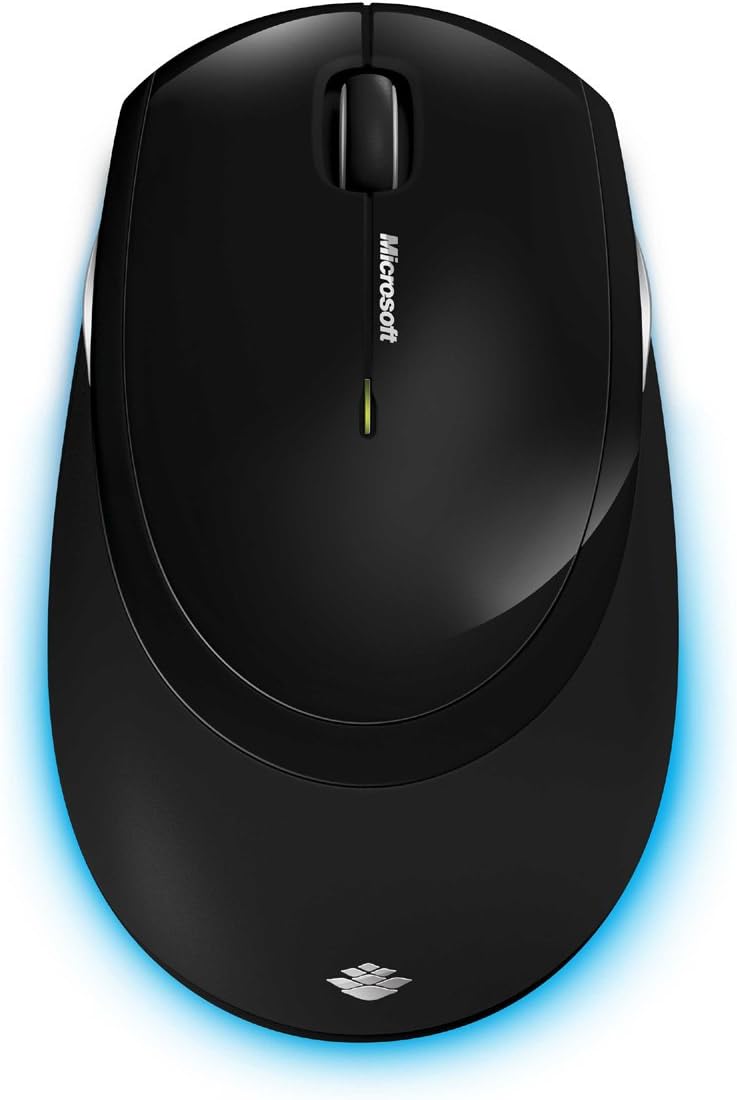
ምስል 6፡ ከላይ ወደ ታች view of the wireless mouse.
ጥገና
ማጽዳት
To maintain the performance and appearance of your Microsoft Wireless Comfort Desktop 5000, follow these cleaning guidelines:
- Disconnect the USB transceiver from your computer before cleaning.
- ለስላሳ፣ ከቆሸሸ ነፃ የሆነ ጨርቅ በትንሹ ተጠቀምampበውሃ ወይም ለስላሳ የጽዳት መፍትሄ.
- Avoid using harsh chemicals, abrasive cleaners, or solvents, as these can damage the surfaces.
- ለቁልፍ ሰሌዳው፣ በቁልፎቹ መካከል አቧራ እና ፍርስራሽ ለማስወገድ የተጨመቀ አየር መጠቀም ይችላሉ።
- For the mouse, gently wipe the optical sensor area on the bottom to ensure optimal tracking performance.
የባትሪ መተካት
When the batteries are low, the indicator light on the keyboard or mouse may flash. Replace the batteries as described in the "Battery Installation" section under Setup Guide.
- Always use new, high-quality AA alkaline batteries.
- ያገለገሉ ባትሪዎችን በአካባቢያዊ ደንቦች መሰረት ያስወግዱ.
መላ መፈለግ
የግንኙነት ጉዳዮች
- No response from keyboard/mouse:
- Ensure the USB mini-transceiver is securely plugged into a working USB port on your computer.
- Check if the batteries in the keyboard and mouse are correctly installed and have sufficient charge. Replace if necessary.
- አስተላላፊውን ወደ ሌላ የዩኤስቢ ወደብ ለማገናኘት ይሞክሩ።
- ኮምፒተርዎን እንደገና ያስጀምሩ.
- ጣልቃ ገብነት፡-
- The 2.4 GHz wireless technology can be affected by other wireless devices. Move the transceiver closer to the keyboard and mouse, or move other wireless devices away.
- Avoid placing the transceiver near large metal objects, which can block the wireless signal.
የመዳፊት ክትትል ችግሮች
- Erratic or no tracking:
- Ensure the BlueTrack sensor on the bottom of the mouse is clean and free of debris.
- Try using the mouse on a different surface. While BlueTrack is versatile, highly reflective or transparent surfaces (like clear glass) may still cause issues.
ዝርዝሮች
| ባህሪ | ዝርዝር |
|---|---|
| የምርት ስም | ማይክሮሶፍት |
| የሞዴል ቁጥር | ሲኤስዲ-00001 |
| የግንኙነት ቴክኖሎጂ | Wireless (USB Transceiver) |
| የገመድ አልባ አይነት | 2.4 GHz የሬዲዮ ድግግሞሽ |
| ተስማሚ መሣሪያዎች | የግል ኮምፒተር |
| የስርዓተ ክወና ተኳኋኝነት | Windows 8, Windows 7, Windows Vista, Windows XP (excluding Windows XP 64-bit) |
| ቀለም | ጥቁር |
| የእቃው ክብደት | 2.9 ፓውንድ |
| የምርት ልኬቶች (LxWxH) | 8.7 x 2.9 x 18.54 ኢንች |
| የኃይል ምንጭ | በባትሪ የተጎላበተ |
| ባትሪዎች ያስፈልጋሉ። | 3 AA batteries (2 for keyboard, 1 for mouse) |
| መጀመሪያ የሚገኝ ቀን | ጁላይ 29፣ 2009 |
የዋስትና መረጃ
Specific warranty details for the Microsoft Wireless Comfort Desktop 5000 are not provided within this manual. For comprehensive warranty information, including terms, conditions, and duration, please refer to the official Microsoft webከምርት ማሸጊያዎ ጋር የተካተተውን የጣቢያ ወይም የዋስትና ካርድ።
ድጋፍ
For further assistance, technical support, or to download the latest drivers and software for your Microsoft Wireless Comfort Desktop 5000, please visit the official Microsoft support webጣቢያ፡
You can also visit the Microsoft Store on Amazon for product information and related accessories:
ጠቃሚ መረጃ
የህግ ማስተባበያ
Please note that the "Legal Disclaimer" provided with the product pertains to sales terms and conditions, such as return policies and shipping details, and is separate from the operational instructions in this user manual. For specific product usage and safety guidelines, please refer to the relevant sections of this manual.