
1. መግቢያ
The Microsoft Arc Touch Mouse is a portable and innovative wireless mouse designed for mobile computing. Its unique flexible design allows it to be curved for comfortable use and flattened for easy storage. Featuring Microsoft's BlueTrack Technology, it offers precise tracking on a wide variety of surfaces. This manual provides essential information for setting up, operating, maintaining, and troubleshooting your Arc Touch Mouse.
2. ቁልፍ ባህሪያት
- ተለዋዋጭ ንድፍ; Curve for comfort during use, flatten for ultimate portability and storage.
- ማብራት እና ማጥፋት; The mouse automatically powers on when curved and powers off when flattened, conserving battery life.
- Touch to Scroll: Utilize the touch strip for smooth, intuitive vertical scrolling with haptic feedback.
- ብሉትራክ ቴክኖሎጂ፡- Enables precise tracking on virtually any surface, combining optical power with laser precision.
- Plug-and-go Nano Transceiver: A compact USB transceiver that can be left plugged into your computer or magnetically stowed in the mouse.
- አሻሚ ንድፍ; Suitable for use with either hand.
3. ማዋቀር
3.1. የባትሪ ጭነት
The Microsoft Arc Touch Mouse requires two AAA alkaline batteries (included). To install:
- የባትሪውን ክፍል በመዳፊት ታችኛው ክፍል ላይ ያግኙት።
- የባትሪውን ክፍል ክዳን ይክፈቱ.
- ትክክለኛውን የፖላሪቲ (+/-) በማረጋገጥ ሁለቱን የ AAA ባትሪዎች ያስገቡ።
- የባትሪውን ክፍል ደህንነቱ በተጠበቀ ሁኔታ ይዝጉ።
3.2. Connecting the Transceiver
The mouse connects wirelessly to your computer via a USB Nano Transceiver.
- Locate the Nano Transceiver, which may be magnetically stowed in the underside of the mouse for transport.
- Plug the Nano Transceiver into an available USB port on your computer.
- ኮምፒዩተራችን አስፈላጊ የሆኑትን ሾፌሮች በራስ ሰር አግኝቶ መጫን አለበት። ይህ ጥቂት ጊዜ ሊወስድ ይችላል።
- ሾፌሮቹ አንዴ ከተጫኑ በኋላ አይጡ ለአገልግሎት ዝግጁ ነው።
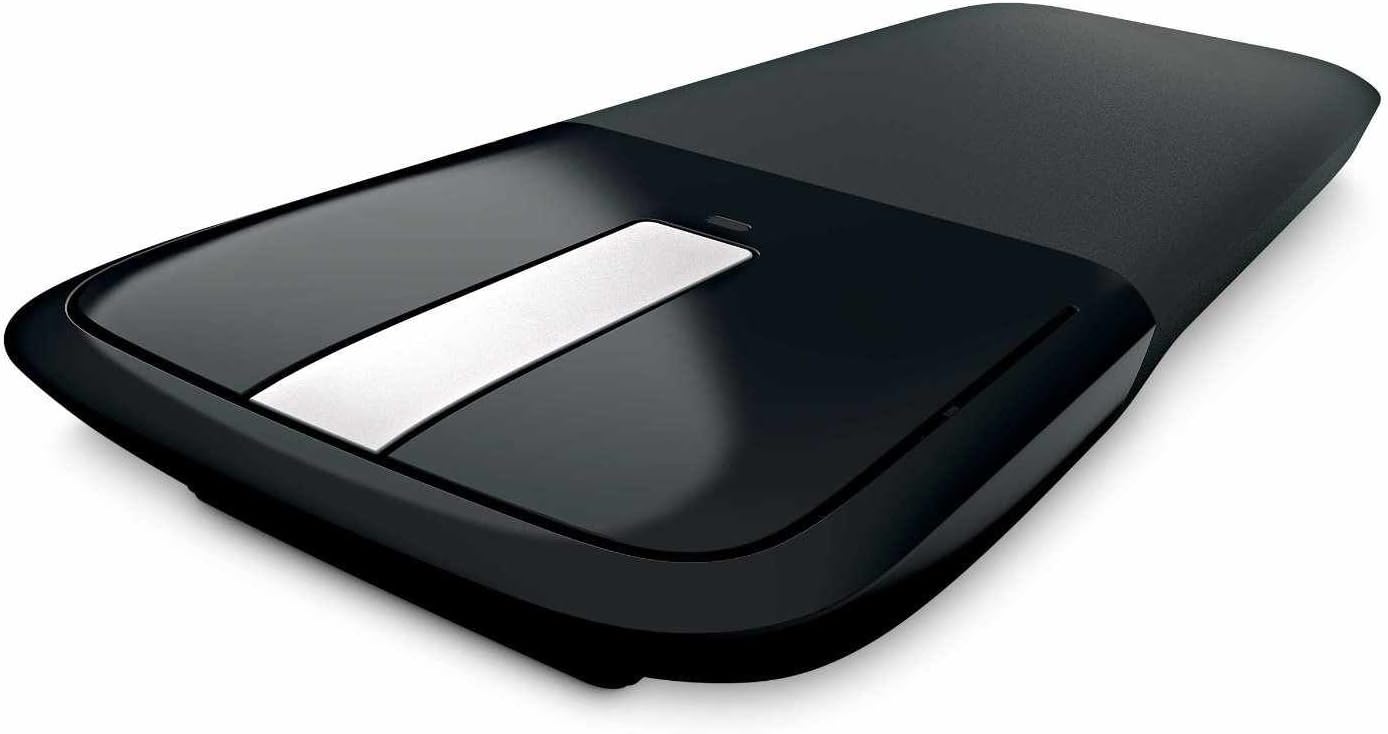
Image: The Microsoft Arc Touch Mouse in its flattened state, showing the USB Nano Transceiver magnetically attached to its underside for storage.
4. መዳፊትን መስራት
4.1. Power On/Off (Flexible Design)
The Arc Touch Mouse features an intuitive power mechanism:
- To turn the mouse on, curve the mouse into its ergonomic arc shape. A green light will briefly flash to indicate it is powered on.
- To turn the mouse ጠፍቷል, flatten the mouse. This action conserves battery life and makes the mouse compact for storage.

Image: The Microsoft Arc Touch Mouse in its curved, ready-to-use position, displaying its touch strip and power indicator light.
4.2. Touch Scrolling
The central touch strip allows for precise vertical scrolling:
- ወደ ላይ/ወደ ታች ይሸብልሉ፦ Gently brush your finger up or down the touch strip to scroll through documents or web ገጾች.
- Hyperfast Scrolling: Flick your finger quickly up or down for rapid scrolling.
- ሃፕቲክ ግብረመልስ፡- The touch strip provides light vibrations to signal scrolling speed, enhancing the tactile experience.
- Tap to Stop: Tap the touch strip to stop scrolling.
4.3. BlueTrack Technology
BlueTrack Technology allows the Arc Touch Mouse to track on a wide range of surfaces that traditional optical or laser mice may struggle with. This includes rough wood, carpet, and other challenging textures. For optimal performance, avoid using the mouse on clear glass or mirrored surfaces.
5. ጥገና
5.1. የባትሪ መተካት
When the mouse's performance degrades or the power indicator light no longer flashes green upon curving, it's time to replace the batteries. Follow the steps in Section 3.1 to replace the two AAA batteries.
5.2. ማጽዳት
To clean your Arc Touch Mouse:
- Ensure the mouse is flattened and powered off.
- ለስላሳ፣ ከቆሸሸ ነፃ የሆነ ጨርቅ በትንሹ ተጠቀም መampበውሃ ወይም ለስላሳ የጽዳት መፍትሄ.
- የመዳፊትን ገጽ በቀስታ ይጥረጉ። ከመጠን በላይ እርጥበትን ያስወግዱ።
- ገላጭ ማጽጃዎችን ወይም ፈሳሾችን አይጠቀሙ.
6. መላ መፈለግ
- አይጥ ምላሽ እየሰጠ አይደለም፡- Ensure the mouse is curved to power on. Check battery levels and replace if necessary. Verify the Nano Transceiver is securely plugged into a USB port. Try a different USB port.
- የተሳሳተ የጠቋሚ እንቅስቃሴ ወይም ምንም ክትትል የለም፦ Ensure the BlueTrack sensor on the underside of the mouse is clean and free of obstructions. Try using the mouse on a different surface. Avoid clear glass or mirrored surfaces.
- Wireless interference: Move the mouse closer to the Nano Transceiver. Avoid placing the transceiver near other wireless devices or large metal objects that could cause interference.
- Scroll strip not working: Ensure the mouse is powered on. Gently clean the touch strip with a soft cloth.
7. ዝርዝሮች
| ባህሪ | ዝርዝር |
|---|---|
| የምርት ልኬቶች | 1.38 x 6.25 x 4 ኢንች |
| የእቃው ክብደት | 3 አውንስ |
| የሞዴል ቁጥር | RVF-00001 |
| ባትሪዎች | 2 AAA ባትሪዎች (ተጨምሯል) |
| የግንኙነት ቴክኖሎጂ | የሬዲዮ ድግግሞሽ (2.4 ጊኸዝ) |
| የእንቅስቃሴ ማወቂያ ቴክኖሎጂ | BlueTrack (Laser, Optical) |
| ቀለም | ጥቁር |
| አምራች | ማይክሮሶፍት |
8. የስርዓት መስፈርቶች
To use the Microsoft Arc Touch Mouse, your computer must meet the following requirements:
- ስርዓተ ክወና፡ Windows 8, Windows 7, Windows Vista, Windows XP (excluding Windows XP 64-bit)
- ሃርድ ድራይቭ፡ 100 MB free space
- ሌላ፥ የዩኤስቢ ወደብ
9. ዋስትና እና ድጋፍ
The Microsoft Arc Touch Mouse comes with a የ3-አመት የተወሰነ የሃርድዌር ዋስትና. For detailed warranty information, terms, and conditions, please refer to the warranty documentation included with your product or visit the official Microsoft support webጣቢያ.
For technical support, driver downloads, or additional assistance, please visit the የማይክሮሶፍት ድጋፍ webጣቢያ or contact Microsoft customer service.