
1. መግቢያ
This manual provides detailed instructions for the installation, operation, and maintenance of your Foxconn TSAA725 ATX Tower Case. Please read this manual thoroughly before beginning installation to ensure proper setup and safe use of the product. Keep this manual for future reference.
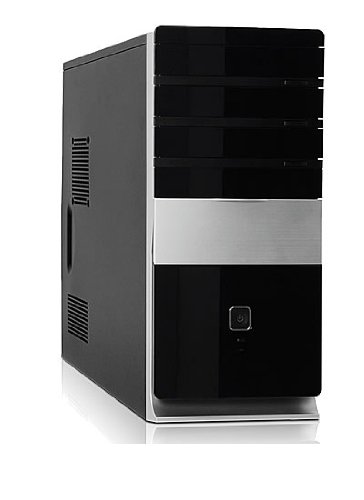
ምስል፡ ፊት ለፊት view of the Foxconn TSAA725 ATX Tower Case, showcasing its design and front panel ports.
2. የደህንነት መረጃ
በምርቱ ላይ ጉዳት እንዳይደርስ ወይም በራስዎ ላይ ጉዳት እንዳይደርስ ለመከላከል የሚከተሉትን የደህንነት ጥንቃቄዎች ያክብሩ።
- Always disconnect the power supply from the wall outlet before opening the computer case or performing any installation/maintenance.
- Handle internal components with care to avoid electrostatic discharge (ESD) damage. Use an anti-static wrist strap if available.
- ከመጠን በላይ ሙቀትን ለመከላከል በመያዣው ዙሪያ በቂ የአየር ዝውውርን ያረጋግጡ።
- Do not expose the case to moisture or extreme temperatures.
- ትናንሽ ክፍሎችን ከልጆች ያርቁ.
3. የጥቅል ይዘቶች
ሁሉም እቃዎች በጥቅሉ ውስጥ መኖራቸውን ያረጋግጡ፡-
- Foxconn TSAA725 ATX Tower Case
- 350W Power Supply (pre-installed)
- Accessory kit (screws, standoffs, cable ties)
- ይህ መመሪያ መመሪያ
4. ቁልፍ ባህሪያት
The Foxconn TSAA725 ATX Tower Case offers the following features:
- ቁሳቁስ፡ 0.5mm SGCC Alloy Steel construction for durability.
- Motherboard ድጋፍ፡ Compatible with ATX and Micro ATX motherboards.
- Drive Bays:
- 3x 5.25" External Bays
- 2x 3.5" External Bays
- 4x 3.5" Internal Bays
- የማቀዝቀዝ ስርዓት;
- 1x 80/92/120mm rear fan support (fan not included)
- Optional 1x 80/92/120mm front fan support (fan not included)
- 80mm Air Duct for CPU cooling.
- የፊት I/O ፓነል፡
- 2 x ዩኤስቢ 2.0 ወደቦች
- 1 x የጆሮ ማዳመጫ መሰኪያ
- 1 x ማይክሮፎን መሰኪያ
- የኃይል አቅርቦት; Integrated 350W Power Supply.
5. ማዋቀር እና የክፍሉን ጭነት
Follow these steps to install your computer components into the Foxconn TSAA725 case:
- ጉዳዩን ያዘጋጁ:
Place the case on a flat, stable surface. Remove the side panel(s) by unscrewing the thumbscrews at the rear of the case and sliding the panel backward.
- Motherboard ጫን፡-
Install the necessary standoffs onto the motherboard tray according to your motherboard's form factor (ATX or Micro ATX). Carefully place the motherboard onto the standoffs, aligning the screw holes. Secure the motherboard with screws provided in the accessory kit.
- Install Drives (HDD/SSD):
For 3.5" internal drives, slide the drive into an available 3.5" internal bay and secure it with screws from the side. For 5.25" external drives (e.g., optical drives), remove the front panel bay cover, slide the drive in from the front, and secure it with screws.
- የማስፋፊያ ካርዶችን ይጫኑ፡-
Remove the appropriate expansion slot covers at the rear of the case. Insert your graphics card or other expansion cards into the PCIe/PCI slots on the motherboard and secure them with screws.
- ገመዶችን ማገናኘት;
Connect the power supply cables to the motherboard (24-pin ATX, 4/8-pin CPU), graphics card (if applicable), and drives (SATA power). Connect the front panel cables (USB, audio, power switch, reset switch, LED indicators) to the corresponding headers on the motherboard. Refer to your motherboard manual for header locations.
- የኬብል አስተዳደር
Route cables neatly to improve airflow and aesthetics. Use cable ties from the accessory kit if needed.
- ጉዳዩን ዝጋ፡
Once all components are installed and cables are connected, reattach the side panel(s) and secure them with the thumbscrews.
6. የአሠራር መመሪያዎች
After successful assembly, connect your peripherals (monitor, keyboard, mouse) and power cable to the case. Press the power button on the front panel to start your computer.
Front Panel I/O Ports:
- የዩኤስቢ 2.0 ወደቦች; እንደ ኪቦርድ፣ አይጥ እና ውጫዊ ማከማቻ ያሉ የዩኤስቢ መሳሪያዎችን ለማገናኘት።
- የጆሮ ማዳመጫ ጃክ የጆሮ ማዳመጫዎችን ወይም ድምጽ ማጉያዎችን ለማገናኘት።
- ማይክሮፎን ጃክ ማይክሮፎን ለማገናኘት.
- የኃይል ቁልፍ፡- ኮምፒተርን ለማብራት ወይም ለማጥፋት.
- ዳግም አስጀምር አዝራር፡- ኮምፒተርውን እንደገና ለማስጀመር።
7. ጥገና
Regular maintenance helps ensure optimal performance and longevity of your computer case:
- አቧራ ማጽዳት; Periodically clean dust from inside the case, especially from fans and heatsinks, using compressed air. Ensure the computer is powered off and unplugged before cleaning.
- የውጭ ጽዳት; የጉዳዩን ውጫዊ ገጽታ ለስላሳ, መamp ጨርቅ. ገላጭ ማጽጃዎችን ወይም ፈሳሾችን ያስወግዱ።
- የኬብል አስተዳደር የኬብል መስመሮችን በየጊዜው ይፈትሹ እና የአየር ፍሰትን ወይም የአየር ማራገቢያውን አሠራር የሚያደናቅፉ ገመዶች አለመኖራቸውን ያረጋግጡ።
8. መላ መፈለግ
ችግሮች ካጋጠሙዎት, የሚከተሉትን የተለመዱ መፍትሄዎች ይመልከቱ:
- ኮምፒዩተሩ አይበራም፦
- Ensure the power cable is securely connected to both the case's power supply and the wall outlet.
- Check if the power supply switch (if present) is in the 'ON' position.
- የፊት ፓነል የኃይል ቁልፍ ገመድ ከእናትቦርዱ ጋር በትክክል መገናኘቱን ያረጋግጡ።
- በማሳያው ላይ ምንም ማሳያ የለም፦
- Ensure the monitor is powered on and connected to the correct video output on your graphics card or motherboard.
- የግራፊክስ ካርድ እና የራም ሞጁሎችን እንደገና ይጫኑ።
- የዩኤስቢ ወደቦች አይሰሩም:
- Verify that the front panel USB cables are correctly connected to the motherboard's USB headers.
- መሣሪያውን ከተለየ የዩኤስቢ ወደብ ጋር ለማገናኘት ይሞክሩ።
9. ዝርዝሮች
| ባህሪ | ዝርዝር |
|---|---|
| የምርት ስም | ፎክስኮን |
| ሞዴል | TSAA725-ISO450 |
| ቁሳቁስ | 0.5mm SGCC Alloy Steel |
| የማዘርቦርድ ተኳኋኝነት | ATX፣ ማይክሮ ATX |
| Drive Bays (External) | 3 x 5.25", 2 x 3.5 ኢንች |
| ድራይቭ ቤይስ (ውስጣዊ) | 4x 3.5" |
| የማቀዝቀዝ ስርዓት ድጋፍ | 1x 80/92/120mm rear fan, 1x 80/92/120mm front fan (optional), 80mm Air Duct |
| የፊት I / O ወደቦች | 2x ዩኤስቢ 2.0፣ 1x የጆሮ ማዳመጫ፣ 1x ማይክሮፎን |
| የኃይል አቅርቦት | 350W (Integrated) |
| የምርት ልኬቶች (LxWxH) | 50.17 x 24.13 x 54.61 ሴ.ሜ |
| የእቃው ክብደት | 6.96 ኪ.ግ |
10. ዋስትና እና ድጋፍ
For warranty information and technical support, please refer to the official Foxconn webጣቢያ ወይም የአካባቢዎን ቸርቻሪ ያነጋግሩ። ለዋስትና ጥያቄዎች የግዢ ማረጋገጫዎን ያስቀምጡ።
የመስመር ላይ መርጃዎች፡- For additional support and updated drivers, visit the official Foxconn support page.
ማሳሰቢያ፡ የዋስትና ውሎች እንደየክልሉ ሊለያዩ ይችላሉ።