
ሊንክስys EA6900
Linksys EA6900 Smart WiFi AC1900 Router Instruction Manual
ሞዴል፡ EA6900 | ብራንድ: Linksys
መግቢያ
The Linksys EA6900 Smart WiFi AC1900 Router is designed to provide high-speed wireless connectivity for your home network. Featuring advanced Wireless-AC technology and simultaneous dual-band operation, it is optimized for demanding tasks such as HD video streaming and online gaming. This manual provides essential information for setting up, operating, and maintaining your router, ensuring optimal performance and a secure network environment.
የጥቅል ይዘቶች
- Linksys Smart Wi-Fi ራውተር AC1900፣ EA6900
- ፈጣን ጅምር መመሪያ
- 3 አንቴናዎች
- ሲዲ-ሮም ከሰነድ ጋር
- የኤተርኔት ገመድ
- የኃይል አስማሚ
ማዋቀር
የእርስዎን Linksys EA6900 ራውተር ለማዘጋጀት እነዚህን ደረጃዎች ይከተሉ፡-
- ራውተርን ያላቅቁ፡ ራውተርን እና ሁሉንም መለዋወጫዎች ከማሸጊያው ላይ በጥንቃቄ ያስወግዱት።
- አንቴናዎችን ያገናኙ; Attach the three external antennas to the designated ports on the back of the router. Ensure they are securely fastened.
- ራውተሩን ያስቀምጡ; ራውተሩን በቤትዎ ውስጥ ባለው ማእከላዊ ቦታ ላይ ያስቀምጡት, ከእንቅፋቶች እና ሌሎች ጣልቃ ሊያስከትሉ ከሚችሉ የኤሌክትሮኒክስ መሳሪያዎች ይርቁ.
- ከኃይል ጋር ይገናኙ፡ Plug the power adapter into the router's power port and then into an electrical outlet. The power LED on the router should illuminate.
- ወደ ሞደም ያገናኙ፡ Connect one end of the provided Ethernet cable to the yellow "Internet" (WAN) port on the router and the other end to your modem's Ethernet port.
- መሣሪያዎችን ያገናኙ (ከተፈለገ) For wired connections, connect Ethernet cables from your devices (e.g., computer, gaming console) to any of the four blue "Ethernet" (LAN) ports on the router.
- የመጀመሪያ ውቅር፡
- Connect your computer or mobile device to the router's default Wi-Fi network (SSID and password can be found on the router's label or Quick Start Guide).
- ክፈት ሀ web browser and navigate to the Linksys Smart WiFi setup page (usually
linksyssmartwifi.comor192.168.1.1). - Follow the on-screen instructions to complete the setup, including creating a new Wi-Fi network name (SSID) and password, and setting up an administrator password for the router.
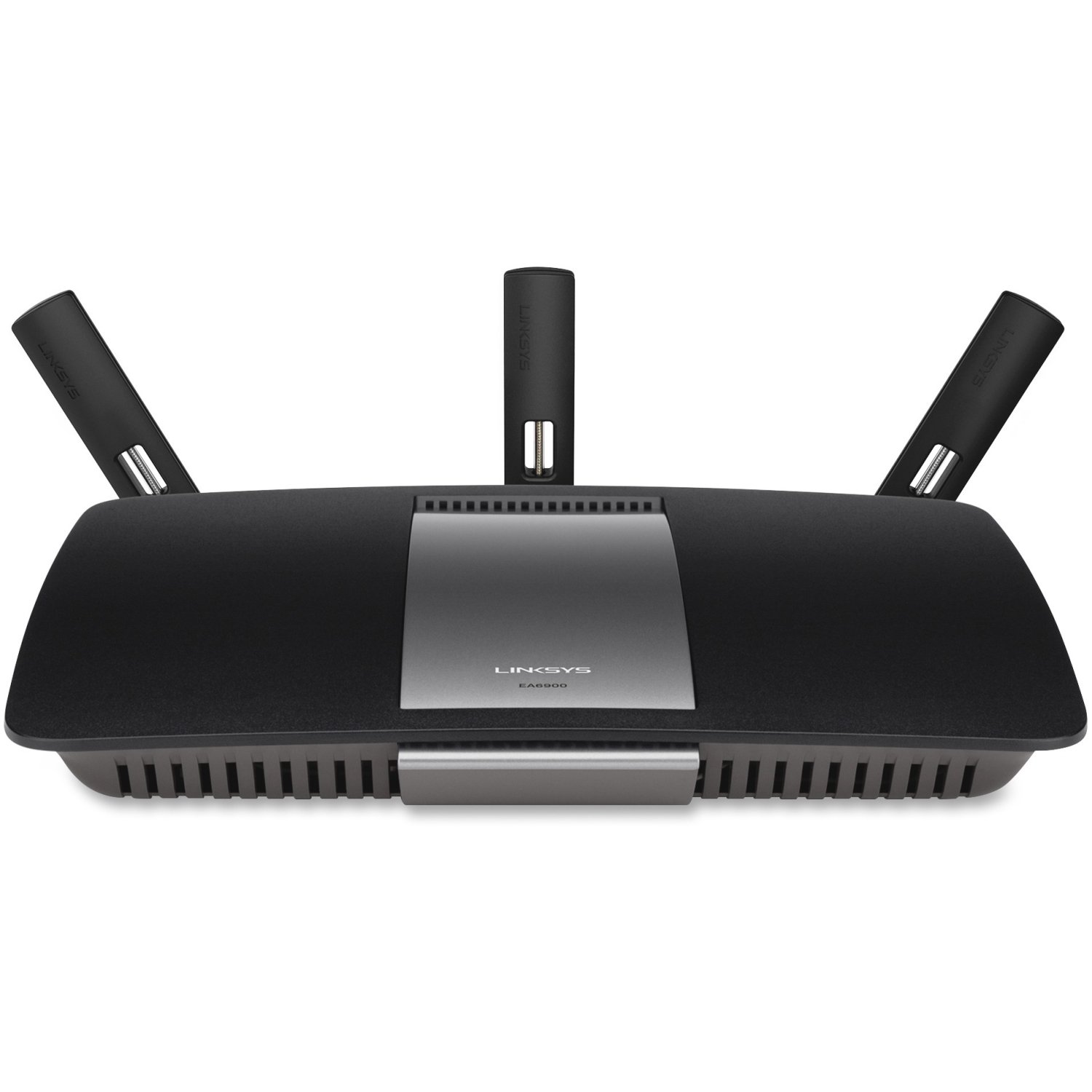
ምስል 1: የፊት view of the Linksys EA6900 Router, showcasing its design and external antennas.

Figure 2: Rear panel of the Linksys EA6900 Router, showing the power port, WAN port, four LAN ports, and USB ports.
ራውተርን በመስራት ላይ
The Linksys EA6900 router offers various features to manage your network:
- ባለሁለት ባንድ ዋይ ፋይ፡ The router operates on both 2.4 GHz and 5 GHz frequencies simultaneously. The 2.4 GHz band provides wider coverage, while the 5 GHz band offers faster speeds for compatible devices.
- Linksys Smart WiFi Software: Access your router settings and manage your network from anywhere using the Linksys Smart WiFi app or web interface. Features include guest access, parental controls, and device prioritization.
- በWi-Fi የተጠበቀ ማዋቀር (WPS)፦ Easily connect WPS-compatible devices to your Wi-Fi network by pressing the WPS button on the router and the device.
- የዩኤስቢ ወደቦች፡ The router includes one USB 2.0 port and one USB 3.0 port. These can be used to connect external storage devices for network-attached storage (NAS) functionality, allowing you to share fileበእርስዎ አውታረ መረብ ላይ።
- ጊጋቢት ኢተርኔት ወደቦች፡ Four Gigabit LAN ports provide high-speed wired connections for devices like desktop computers, smart TVs, and gaming consoles.
ጥገና
To ensure the longevity and optimal performance of your Linksys EA6900 router, consider the following maintenance tips:
- የጽኑዌር ዝማኔዎች ፦ Regularly check for and install firmware updates through the Linksys Smart WiFi software. Updates often include performance improvements, security patches, and new features.
- አካላዊ አቀማመጥ፡- Ensure the router is placed in a well-ventilated area to prevent overheating. Avoid placing it in enclosed spaces or near heat sources.
- የኬብል አስተዳደር Keep all cables connected to the router tidy and free from kinks or excessive bending to prevent signal degradation.
- በየጊዜው እንደገና ያስጀምሩ፦ Occasionally restarting your router (power cycling) can help clear its memory and resolve minor performance issues.
መላ መፈለግ
If you encounter issues with your Linksys EA6900 router, try these troubleshooting steps:
- የበይነመረብ ግንኙነት የለም፡
- ሞደሙ በትክክል እየሰራ መሆኑን ያረጋግጡ።
- Ensure the Ethernet cable from the modem is securely connected to the router's yellow "Internet" (WAN) port.
- Restart both your modem and router by unplugging them from power for 30 seconds and then plugging them back in.
- Slow Wi-Fi Speeds or Frequent Disconnects:
- Move the router to a more central location, away from walls, large metal objects, and other electronics.
- የእርስዎ መሣሪያዎች ከተገቢው የWi-Fi ባንድ ጋር መገናኘታቸውን ያረጋግጡ (5 GHz ለፈጣን ፍጥነት፣ 2.4 ጊኸ ለሰፊ ክልል)።
- በራውተርዎ ላይ የጽኑ ትዕዛዝ ዝማኔዎችን ያረጋግጡ።
- Reduce the number of active devices or bandwidth-intensive applications if possible.
- የራውተር ቅንብሮችን መድረስ አልተቻለም፡-
- መሳሪያዎ ከራውተር ዋይ ፋይ አውታረመረብ ወይም በኤተርኔት ገመድ ጋር መገናኘቱን ያረጋግጡ።
- Verify the router's IP address (usually
192.168.1.1) ወይም ይጠቀሙlinksyssmartwifi.com. - If you forgot your administrator password, you may need to perform a factory reset (see Quick Start Guide for instructions).
- Wi-Fi Protected Setup (WPS) Issues:
- Ensure your device supports WPS.
- Try initiating WPS from both the router and the device within two minutes.
- If WPS fails, connect the device manually using the Wi-Fi network name (SSID) and password.
ዝርዝሮች
| ባህሪ | ዝርዝር |
|---|---|
| የምርት ስም | ሊንክሲስ |
| የሞዴል ስም | ኢአ6900 |
| ገመድ አልባ ቴክኖሎጂ | Advanced Wireless-AC (up to 4.3x faster than Wireless-N) |
| ድግግሞሽ ባንድ ክፍል | ባለሁለት ባንድ (2.4 GHz እና 5 GHz) |
| ከፍተኛ የአገናኝ ፍጥነት | 1300 Mbps (AC1300) + N600 Mbps |
| የኤተርኔት ወደቦች | 1x Gigabit WAN (10/100/1000), 4x Gigabit LAN (10/100/1000) |
| የዩኤስቢ ወደቦች | 1x ዩኤስቢ 2.0፣ 1x ዩኤስቢ 3.0 |
| አንቴናዎች | 3 Fixed Antennas |
| ልዩ ባህሪያት | Linksys Smart WiFi software, Wi-Fi Protected Setup (WPS) |
| የአሠራር ሙቀት | ከ 32 እስከ 104 ° ፋ (ከ 0 እስከ 40 ° ሴ) |
| የሚሰራ እርጥበት | ከ 10 እስከ 80% ያለኮንዲንግ |
| የአውታር ደረጃዎች | IEEE 802.11a/b/g/n/ac፣ IEEE 802.3/3u |
| ተስማሚ ስርዓተ ክወና | Mac OS X (10.5.8 to 10.9), Windows (XP to 8 32/64) |
ዋስትና እና ድጋፍ
The Linksys EA6900 Smart WiFi AC1900 Router comes with a የ1 ዓመት የሃርድዌር የተወሰነ ዋስትና. For technical support, product registration, or to access the full documentation, please visit the official Linksys support website. You can also find additional resources and FAQs through the Linksys Smart WiFi software.
Ask a question about this manual
Ask about setup, troubleshooting, compatibility, parts, safety, or missing instructions. Manuals+ will review the question and use this page’s manual context to help answer it.