
1. መግቢያ
This manual provides comprehensive instructions for the setup, operation, and maintenance of your BLUEHRESY CT007X Barcode Scanner. Please read this manual carefully before using the device to ensure proper functionality and to prevent damage.
2. የደህንነት መረጃ
ማስጠንቀቂያ፡-
- Do not point the scanner's laser beam directly into eyes.
- መሳሪያውን ከውሃ እና ከመጠን በላይ እርጥበት ያርቁ.
- ስካነሩን እራስዎ ለመበተን ወይም ለመጠገን አይሞክሩ. ብቃት ያላቸውን የአገልግሎት ሰራተኞች ይመልከቱ።
3. የጥቅል ይዘቶች
ሁሉም እቃዎች በጥቅሉ ውስጥ መኖራቸውን ያረጋግጡ፡-
- 1x 2.4G Wireless Barcode Scanner
- 1 x የዩኤስቢ የውሂብ ገመድ
- 1x Wireless Adapter (USB Dongle)
- 1x Setup Card for Inventory Function
- 1 x መመሪያ መመሪያ (ይህ ሰነድ)
4. የምርት ባህሪዎች
- ድርብ ግንኙነት; Supports 2.4GHz wireless and USB 2.0 wired connection modes.
- የተራዘመ የገመድ አልባ ክልል፡ Maximum wireless connection distance of 60 meters.
- ከመስመር ውጭ ማከማቻ፡ Internal 256 KB memory for up to 2600 barcode entries in offline mode.
- ከፍተኛ አፈጻጸም፡ Advanced 32-bit duplex ARM+DSP digital signal processing technology for fast data transfer.
- ባለብዙ ቋንቋ ድጋፍ; English, French, German, Spanish, Italian.
- ረጅም የባትሪ ህይወት; Built-in 1500mAh Li-Ion battery provides over 6 months of continuous scanning.
- ዘላቂ ንድፍ; Withstands multiple drops from 1.5m (5ft) height.
- Auto-sensing Function: Enhanced stability for automatic scanning.
- Customizable Output: Functions for adding prefix or suffix to scanned data.
- One-Click Reset: Convenient reset function.
- Wide Barcode Compatibility: Reads USPS, FedEx, DHL, UPS, TNT, Code bar, Code 11, Code 93, MSI, Code 128, UCC/EAN-128, Code 39, EAN-8, EAN-13, UPC-A, ISBN, Industrial 25, Interleaved 25, Standard 25, 2/5 Matrix.
- Extended Readable Digits: Supports up to 64-bit barcodes in wired mode and 57-bit in wireless mode.
5. ዝርዝሮች
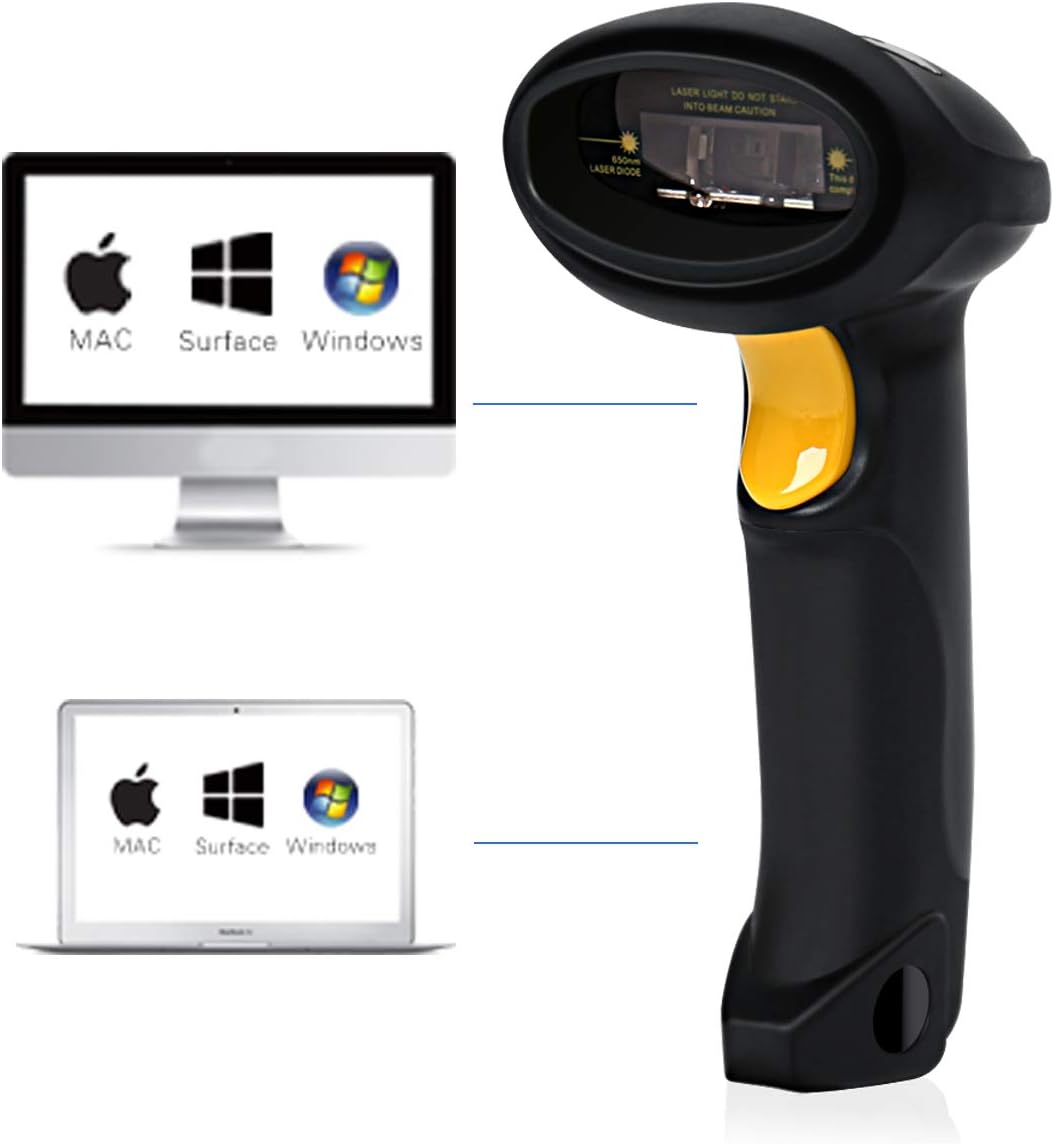
Image 1: Physical dimensions of the BLUEHRESY CT007X Barcode Scanner. The scanner measures 6.6 inches (16.7 cm) in length, 2.8 inches (7 cm) in width, and 3.4 inches (8.6 cm) in height, weighing 5.29 oz (150g).
| ባህሪ | ዝርዝር |
|---|---|
| ሲፒዩ | ARM 772MHz |
| ቁሳቁስ | ABS+TPU |
| EEPROM ማህደረ ትውስታ | 256Kb (up to 2600 code entries) |
| ልኬቶች (L*W*H) | 167ሚሜ x 70ሚሜ x 85.5ሚሜ (6.57 x 2.76 x 3.36 ኢንች) |
| የኃይል አቅርቦት | 1500mAh Built-in rechargeable Li-ion battery |
| ክብደት | 150g (5.3 ounces) (With battery) |
| የብርሃን ምንጭ | Laser: 650+/-20nm |
| ዳሳሽ | 2500 ፒክስሎች |
| ጥራት | 3-5ሚሊ |
| Scan Distance Range | 6-30 ሴ.ሜ |
| የፍጥነት ቅኝት። | 200 ጊዜ / ሰከንድ |
| ስካን ስፋት | 30 ሚሜ |
| ኮድ መፍታት | Single-line scan |
| የፍተሻ ሁነታ | ራስ-ሰር / በእጅ |
| Decode Angle | ጥቅል 30°፣ ፒች 75°፣ Yaw 65° |
| Radio Range (Wireless) | 33ft / 10m (Visual Range) |
| ጥራዝtage | ዲሲ 5 ቪ |
| የሙከራ ቁመት ጣል | 1.5 ሚ |
| የሚደገፉ ስርዓተ ክወናዎች | Windows XP/Vista/7/8/8.1/10, MAC OSX, Google Android, Linux, Apple iOS |
| የምስክር ወረቀቶች | CE, FCC, ROHS, FDA |
6. የማዋቀር መመሪያዎች
6.1 ስካነርን መሙላት
Before first use, fully charge the scanner. Connect the USB Data Cable to the scanner and to a USB power source (e.g., computer USB port, USB wall adapter). The charging indicator light will show the charging status.
6.2 Connecting via 2.4GHz Wireless Adapter
- Insert the Wireless Adapter (USB Dongle) into an available USB port on your computer or host device.
- The operating system will automatically install the necessary drivers. This may take a few moments.
- Turn on the barcode scanner. It should automatically pair with the wireless adapter. A successful connection is usually indicated by a specific sound or LED status on the scanner.
- Open a text editor (e.g., Notepad, Word) or an application where you want to input scanned data. Scan a test barcode to confirm functionality.

Image 2: The BLUEHRESY CT007X Barcode Scanner and its accompanying USB wireless adapter. The scanner is black with a yellow trigger button, designed for comfortable handheld use. The small USB adapter is shown next to it.

Image 3: Illustration showing the BLUEHRESY CT007X Barcode Scanner wirelessly connected to both a desktop computer and a laptop. The scanner is black with a yellow trigger, and the USB wireless adapter is plugged into the computer. This demonstrates compatibility with various operating systems including Mac and Windows.
6.3 Connecting via USB 2.0 Wired Cable
- Connect one end of the USB Data Cable to the scanner's USB port.
- Connect the other end of the USB Data Cable to an available USB 2.0 port on your computer or host device.
- The operating system will automatically install the necessary drivers.
- The scanner will function as a wired device. Open a text editor or application and scan a test barcode to confirm functionality.
ማስታወሻ ለአንድሮይድ ተጠቃሚዎች፡- An OTG adapter is required for devices without a standard USB interface to use the wired connection.
7. የአሠራር መመሪያዎች
7.1 መሰረታዊ ቅኝት።
- Ensure the scanner is powered on and connected to your host device (either wirelessly or via USB cable).
- Point the scanner's laser beam at the barcode you wish to scan.
- Press and hold the trigger button. The laser line will appear.
- Position the laser line across the entire barcode. A successful scan will be indicated by a beep and/or a green LED light.
- The scanned data will appear in the active input field on your connected device.

Image 4: The BLUEHRESY CT007X Barcode Scanner in use, demonstrating its ability to scan various 1D barcodes, including those from FedEx, DHL, TNT, and USPS. The image shows the scanner held over different barcode types, with a wireless adapter icon indicating wireless functionality.
7.2 Scan Modes (Auto/Manual)
The scanner supports both automatic and manual scanning modes. Refer to the included "Setup Card for Inventory Function" for instructions on how to switch between these modes and configure other settings like auto-sensing.
7.3 የላቀ ተግባራት
The scanner offers programmable functions to customize data output:
- Prefix/Suffix Setting: Add custom characters before or after scanned data.
- Beeper Volume Settable: Adjust the volume of the scan confirmation beep.
- One-Click Reset: Reset scanner settings to default.
Detailed instructions for configuring these functions are provided on the "Setup Card for Inventory Function".

Image 5: The BLUEHRESY CT007X Barcode Scanner highlighting its programmable functions, including Auto Scan On/Off, Prefix and Suffix Setting, and Beeper Volume Settable. The image shows the scanner scanning a barcode on a package, with icons representing sound control.
8. ጥገና
8.1 ባትሪ መሙላት
The scanner is equipped with a 1500mAh rechargeable Li-ion battery. When the battery level is low, the indicator light will signal. Connect the scanner to a USB power source using the provided USB cable to recharge. A full charge can provide over 6 months of continuous scanning.
8.2 ጽዳት
ስካነሩን ለማጽዳት ለስላሳና ደረቅ ጨርቅ ይጠቀሙ። ለጠንካራ ቆሻሻ፣ ትንሽ ዲamp ለስላሳ ሳሙና ያለው ጨርቅ መጠቀም ይቻላል፣ ይህም ምንም አይነት ፈሳሽ ወደ መሳሪያው እንዳይገባ ያረጋግጣል። ሻካራ ማጽጃዎችን ወይም መሟሟቶችን አይጠቀሙ።
9. መላ መፈለግ
| ችግር | ሊሆን የሚችል ምክንያት | መፍትሄ |
|---|---|---|
| ስካነር አይበራም። | ዝቅተኛ ባትሪ. | Charge the scanner using the USB cable. |
| ከተቃኘ በኋላ ምንም ውሂብ አልተላለፈም። |
|
|
| Scanning is slow or inaccurate. |
|
|
| የገመድ አልባ ግንኙነት ችግሮች። |
|
|
10. ዋስትና እና ድጋፍ
የዋስትና መረጃ ወይም የቴክኒክ ድጋፍ ለማግኘት፣ በግዢው ጊዜ የቀረቡትን ሰነዶች ይመልከቱ ወይም ቸርቻሪዎን ያነጋግሩ። የግዢ ደረሰኝዎን እንደ ግዢ ማረጋገጫ ያስቀምጡ።