
1. መግቢያ እና በላይview
The HP OfficeJet Pro 6968 is a versatile all-in-one wireless printer designed for home offices and small workgroups. It offers professional-quality color printing, scanning, copying, and faxing capabilities. Key features include automatic two-sided printing, a color touchscreen for easy navigation, and compatibility with HP Instant Ink for convenient ink replenishment.

ምስል 1: የፊት view የHP OfficeJet Pro 6968 አታሚ።
ቁልፍ ባህሪዎች
- ሁሉም-በአንድ ተግባር፡- Print, copy, scan, and fax.
- ገመድ አልባ ግንኙነት: Easily print from smartphones, tablets, and PCs via Wi-Fi or Ethernet.
- አውቶማቲክ ባለ ሁለት ጎን ህትመት፡ በራስ-ሰር ባለ ሁለትዮሽ ህትመት ወረቀት ያስቀምጡ።
- የቀለም ንክኪ; Intuitive interface for managing printer functions.
- አውቶማቲክ የሰነድ መጋቢ (ADF)፦ ለብዙ ገጽ ቅኝት እና ቅጂ።
- የኤችፒ ፈጣን ቀለም ዝግጁ Optional service for automatic ink delivery.
2. ማዋቀር
2.1 Unboxing እና የመጀመሪያ አቀማመጥ
Carefully remove the printer from its packaging. Place the printer on a stable, flat surface with adequate space around it for ventilation and paper handling. Ensure all packing materials and tapes are removed from the printer's exterior and interior.
2.2 የኃይል ግንኙነት
Connect the power cord to the printer and then to a grounded electrical outlet. Press the power button to turn on the printer. Follow the on-screen instructions on the color touchscreen for initial setup, including language selection and date/time settings.
2.3 የቀለም ካርቶጅ መትከል
Open the ink cartridge access door. Install the HP 902 Setup Black, Cyan, Magenta, and Yellow Instant Ink Ready OfficeJet Ink Cartridges into their corresponding slots. Ensure they click into place. Close the access door.
2.4 የወረቀት ጭነት
Pull out the main input tray. Adjust the paper guides to fit the paper size. Load a stack of plain paper (e.g., A4, Letter) into the tray, ensuring it is not overfilled. Push the tray back into the printer. Confirm the paper type and size on the touchscreen.
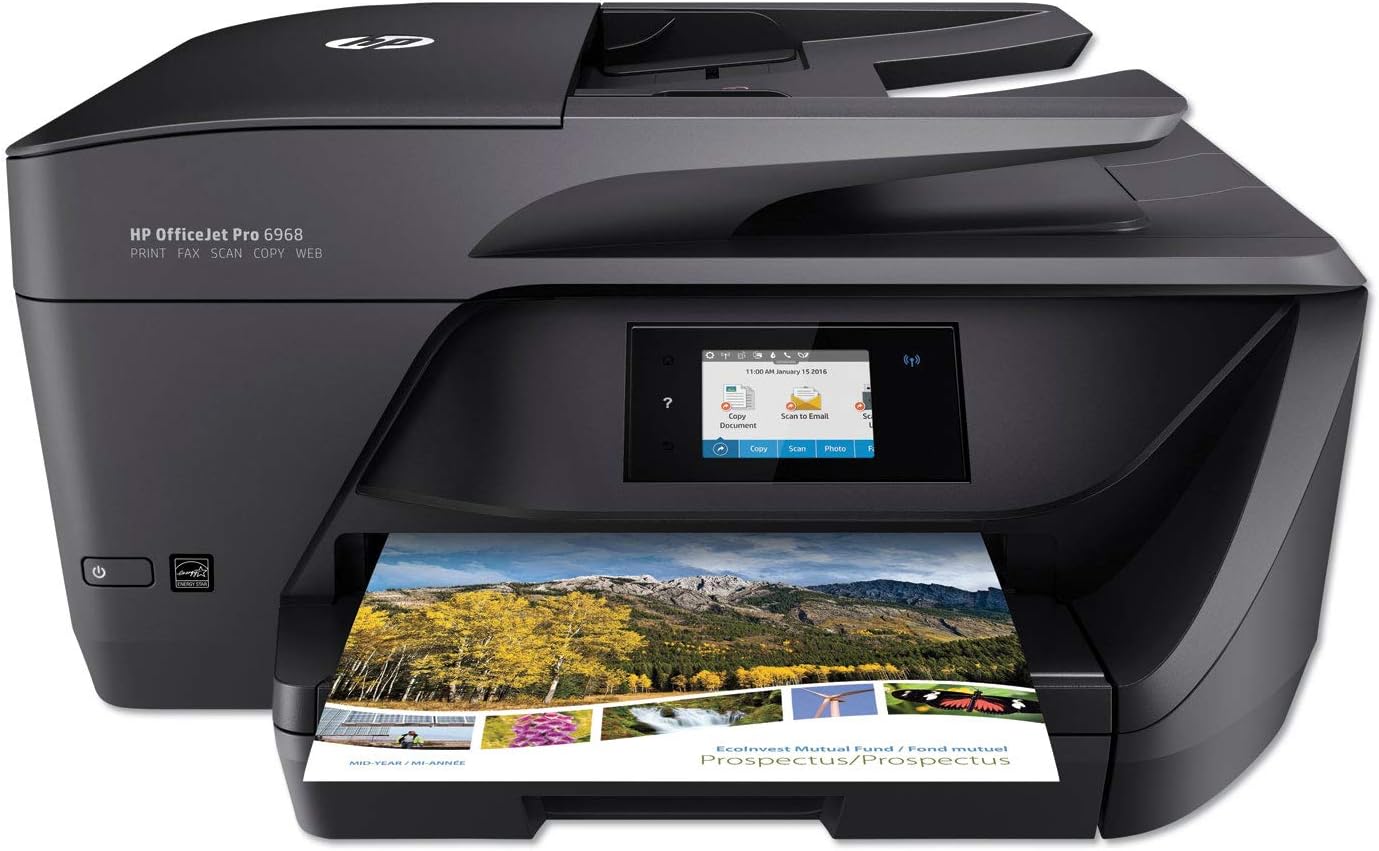
ምስል 2: የፊት view of the printer showing the paper output tray.
2.5 Network Connection (Wireless/Ethernet)
On the printer's touchscreen, navigate to the Wireless Setup Wizard. Select your Wi-Fi network from the list and enter the password. Alternatively, connect an Ethernet cable from your router to the printer's Ethernet port. Follow any additional prompts to complete the network setup.
3. የአሠራር መመሪያዎች
The HP OfficeJet Pro 6968 offers various functions accessible via its color touchscreen and connected devices.
3.1 ማተም
- ከኮምፒዩተር; Install the HP printer software on your computer. Select 'Print' from your application, choose the HP OfficeJet Pro 6968, and adjust settings as needed (e.g., two-sided printing).
- ከሞባይል መሳሪያዎች፡- Download the HP Smart app on your smartphone or tablet. Connect your device to the same Wi-Fi network as the printer. Use the app to select documents or photos and send them to print.
- Email Print: The printer has its own email address. Send documents to this address from any device to print remotely.
3.2 በመቃኘት ላይ
Documents can be scanned using either the Automatic Document Feeder (ADF) or the flatbed scanner.
- ADF በመጠቀም፡- Place documents face-up in the ADF tray. On the printer touchscreen, select 'Scan' and choose your destination (e.g., computer, email, cloud service).
- Flatbed በመጠቀም; Lift the scanner lid and place the document face-down on the glass. Close the lid. On the touchscreen, select 'Scan' and choose your destination.

ምስል 3: ከፍተኛ view of the printer highlighting the Automatic Document Feeder.
3.3 መቅዳት
Place the original document on the flatbed scanner or in the ADF. On the printer touchscreen, select 'Copy'. Adjust settings such as number of copies, color/black & white, and two-sided copying. Press 'Start Copy'.
3.4 ፋክስ ማድረግ
Load the document into the ADF or onto the flatbed. On the touchscreen, select 'Fax'. Enter the recipient's fax number and press 'Start Fax'.
4. ጥገና
4.1 የቀለም ካርቶጅ መተካት
When an ink cartridge is low or empty, the printer's touchscreen will display a notification. Open the ink cartridge access door. Press the tab on the old cartridge to release it and pull it out. Unpack the new HP 902 series cartridge, insert it into the correct slot until it clicks, and close the access door. The printer uses dynamic security, which may be updated periodically by firmware updates. The printer is intended to be used solely with cartridges using an original HP chip.
Video 1: Learn how HP Instant Ink can save you money and ensure you never run out of ink.
4.2 ማተሚያውን ማጽዳት
Regularly clean the exterior of the printer with a soft, lint-free cloth. For the scanner glass, use a soft cloth lightly dampened with glass cleaner (non-abrasive). Avoid spraying cleaner directly onto the glass.
5. መላ መፈለግ
5.1 የግንኙነት ጉዳዮች
- Ensure the printer is connected to the correct Wi-Fi network. Check the Wi-Fi status icon on the touchscreen.
- Restart your router, printer, and the device you are printing from.
- የአታሚው firmware የተዘመነ መሆኑን ያረጋግጡ።
5.2 የወረቀት ጃም
- If a paper jam occurs, the touchscreen will display instructions.
- Carefully open all access doors and trays to locate the jammed paper. Gently pull the paper in the direction of the paper path.
- Ensure no small pieces of paper remain inside the printer.
5.3 የህትመት ጥራት ጉዳዮች
- Check ink levels on the touchscreen. Replace any low or empty cartridges.
- Perform a printhead cleaning or alignment from the printer's maintenance menu.
- ለህትመት ስራዎ ተገቢውን ወረቀት እየተጠቀሙ መሆንዎን ያረጋግጡ።
6. ዝርዝሮች
| ባህሪ | ዝርዝር መግለጫ |
|---|---|
| የምርት ልኬቶች | 15.35" ዲ x 18.26" ዋ x 9" ኤች |
| የመቆጣጠሪያ አይነት | Amazon Alexa, Vera |
| ከፍተኛው የሚዲያ መጠን | 5 x 14 ኢንች |
| የህትመት ሚዲያ | Back print film, Glossy photo paper, Labels, Paper (plain) |
| የስካነር አይነት | ፎቶ፣ በሉህ የተደገፈ |
| ከፍተኛው የግቤት ሉህ አቅም | 35 |
| ከፍተኛው የቅጂ ፍጥነት (ጥቁር እና ነጭ) | 30 ፒፒኤም |
| ከፍተኛው የቀለም ህትመት ጥራት | 1200 x 1200 ዲፒአይ |
| ከፍተኛው የጥቁር እና ነጭ የህትመት ጥራት | 600 ዲፒአይ |
| ባለሁለት ጎን ማተም | አዎ (ራስ-ሰር) |
| የግንኙነት ቴክኖሎጂ | 1 USB 2.0; 1 Ethernet; 1 Wireless 802.11b/g/n; 1 RJ-11 fax |
| የአታሚ ውፅዓት | ቀለም |
| የእቃው ክብደት | 17.7 ፓውንድ |
7. ዋስትና እና ድጋፍ
The HP OfficeJet Pro 6968 comes with a one-year limited hardware warranty. For technical assistance and support, HP offers 24-hour, 7 days a week Web support. Please refer to the official HP webዝርዝር የዋስትና ውሎችን እና የድጋፍ መረጃዎችን ለማግኘት ድህረ ገጽ።