
1. መግቢያ
This manual provides detailed instructions for setting up, operating, and maintaining your Epson L485 Wi-Fi Inktank Printer. Please read this manual thoroughly to ensure proper use and to maximize the performance and longevity of your device.
ምርት አልቋልview
The Epson L485 is a versatile all-in-one printer offering print, scan, and copy functionalities with the added convenience of Wi-Fi Direct. It features an innovative ink tank system designed for high-volume printing with impressive page yields and a high print resolution for quality output.

ምስል 1: የፊት view of the Epson L485 Wi-Fi Inktank Printer.
በሣጥኑ ውስጥ ያለው
- የኤፕሰን L485 አታሚ ክፍል
- ሶፍትዌር ሲዲ
- የኃይል ገመድ
- የዋስትና ካርድ
- Set of Original Epson Ink Bottles (Black, Cyan, Magenta, Yellow)
ቪዲዮ 1: አልቋልview of the Epson L485 Wi-Fi Inktank Printer's features and design.
2. የማዋቀር መመሪያ
Follow these steps to set up your Epson L485 printer for the first time.
Video 2: Step-by-step guide on how to set up your Epson InkTank Printer.
2.1 Initial Printer Preparation
- ማተሚያውን ይንቀሉት፡- አታሚውን ከማሸጊያው በጥንቃቄ ያስወግዱት። ሁሉንም የመከላከያ ቴፖች እና ቁሳቁሶች ያስወግዱ።
- Check Valve Position: Locate the ink tank valve on the side of the printer. Ensure it is in the upright (printing) position.
- Open Ink Tank Unit: Gently unhook the ink tank unit from the side of the printer and open its lid to access the ink tanks.
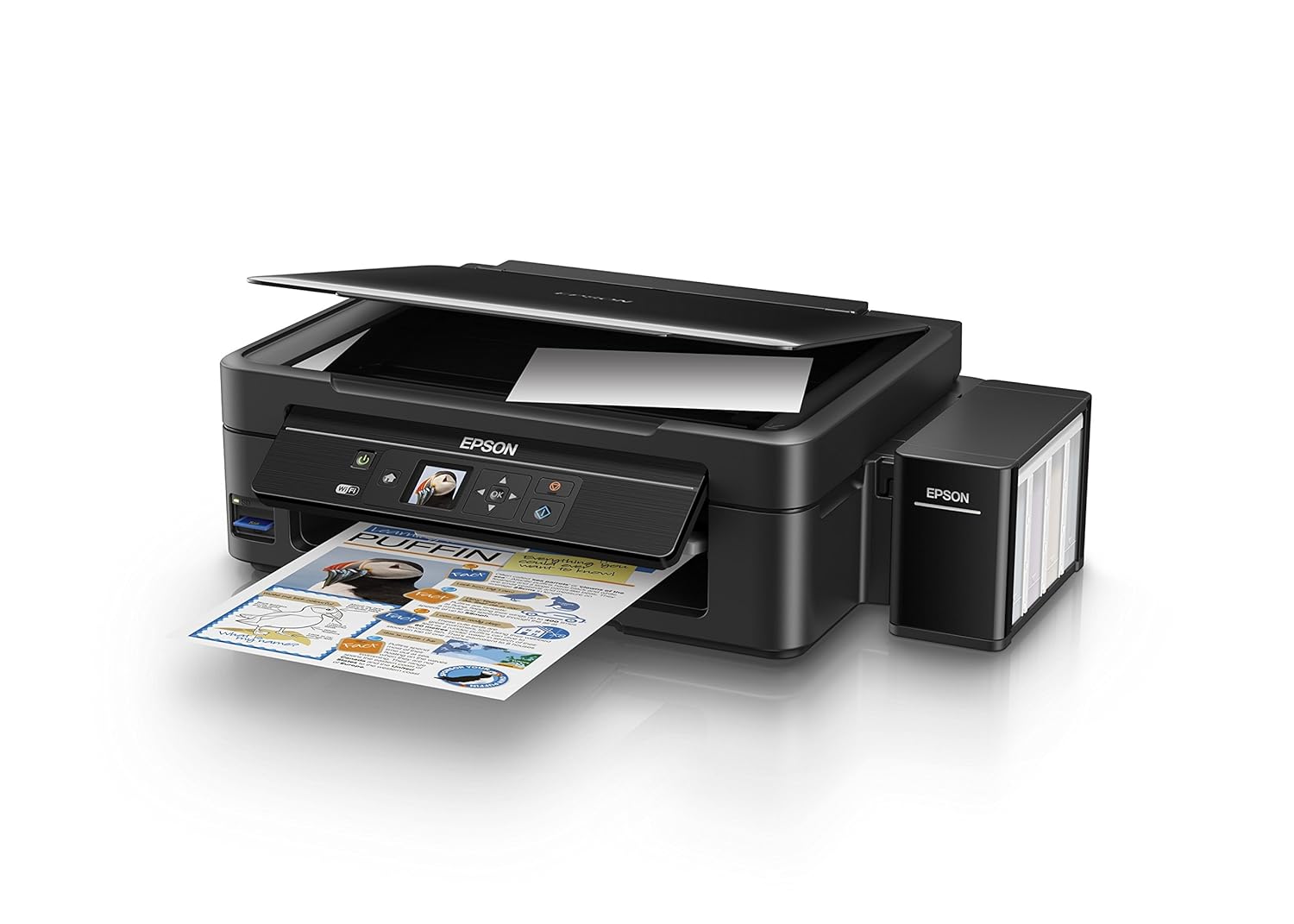
Figure 2: The ink tank unit unhooked and open, showing the ink reservoirs.
2.2 የቀለም ታንኮችን መሙላት
- Prepare Ink Bottles: Snap off the tip of each ink bottle and remove the cap.
- የቀለም ታንኮች መሙላት; Match the color of the ink bottle with the corresponding ink tank. Carefully pour the entire contents of each ink bottle into its respective tank. Do not overfill.
- አስተማማኝ ኮፍያዎች Once all tanks are filled, replace the caps securely on the ink tanks.
- Close Ink Tank Unit: Close the lid of the ink tank unit and re-hook it to the printer.

Figure 3: Demonstrating the process of filling an ink tank with a yellow ink bottle.

Figure 4: The four color ink bottles used for the Epson L485 printer.
2.3 Power On and Ink Charging
- የግንኙነት ኃይል; የኃይል ገመዱን ወደ አታሚው እና ከዚያም ወደ ግድግዳ መውጫ ይሰኩት.
- Turn On Printer: አታሚውን ለማብራት የኃይል አዝራሩን ይጫኑ.
- Initiate Ink Charge: Press and hold the 'Ink Charge' button (usually indicated by a droplet icon) for 3 seconds until the lights start blinking. The initial ink charging process takes approximately 20 minutes. Do not turn off or unplug the printer during this process.
- ማጠናቀቅ፡ The lights will stop blinking when ink charging is complete.
2.4 የአሽከርካሪዎች መጫኛ
- Insert Software CD: Insert the provided Software CD into your computer's CD/DVD drive. If your computer does not have a CD drive, download the latest drivers from the official Epson support webጣቢያ.
- የማያ ገጽ ላይ መመሪያዎችን ይከተሉ፡- Follow the prompts on your computer screen to install the printer drivers and utilities. Agree to the license agreement and select 'Start & Connection' for setup.
- Connect USB Cable (if prompted): If setting up via USB, connect the USB cable between the printer and your computer when prompted by the installation software.
2.5 Connectivity Setup
The Epson L485 supports both USB and Wi-Fi connectivity.
የዩኤስቢ ግንኙነት
Connect the USB cable from the printer to an available USB port on your computer. The printer should be recognized automatically after driver installation.
የWi-Fi ማዋቀር
The printer features an LCD screen for easy Wi-Fi setup without needing a PC.
- Access Wi-Fi Setup: On the printer's control panel, navigate to the 'Wi-Fi Setup' option using the arrow keys and press 'OK'.
- አውታረ መረብ ይምረጡ፡ Choose your desired wireless network from the list and enter the password if required.
- ግንኙነት አረጋግጥ፡ Once connected, the Wi-Fi indicator light will be solid, and the LCD screen will confirm the setup is complete.

Figure 5: Demonstrating wireless printing from a smartphone to the Epson L485 printer.
3. ማተሚያውን መስራት
3.1 ማተም
The Epson L485 delivers high-quality prints with a resolution of 5760 dpi. It offers print speeds of up to 33 ppm for black and 15 ppm for color documents.
- የጭነት ወረቀት ወረቀት ወደ የኋላ ወረቀት መጋቢ ውስጥ ይጫኑ። የወረቀት መመሪያዎችን ከወረቀት መጠን ጋር ያስተካክሉ.
- Select Print Job: ከኮምፒውተርዎ ወይም ከሞባይል መሳሪያዎ፣ ለማተም የሚፈልጉትን ሰነድ ወይም ምስል ይምረጡ።
- ቅንብሮችን ያስተካክሉ፡ Choose your print settings (e.g., paper size, print quality, color/black & white) in the print dialog box.
- አትም ስራውን ወደ አታሚው ለመላክ 'አትም' የሚለውን ጠቅ ያድርጉ።

Figure 6: The Epson L485 printer in action, producing a vibrant print.
3.2 በመቃኘት ላይ
The printer features a sheetfed scanner with an optical resolution of 1200 dpi x 2400 dpi for clear and detailed scans.
- የቦታ ሰነድ፡ Lift the scanner lid and place your document face-down on the scanner glass, aligning it with the corner mark.
- ቅኝትን አስጀምር፡ From your computer, open the Epson Scan software or use the scan function on the printer's control panel.
- ቅንብሮችን ያስተካክሉ፡ እንደ ጥራት፣ የቀለም ሁነታ እና የመድረሻ አቃፊ ያሉ የቃኝ ቅንብሮችን ይምረጡ።
- ቅኝት ጀምር፡ Begin the scanning process.

Figure 7: The scanner bed of the Epson L485 printer with the lid open.
3.3 መቅዳት
በቀጥታ ከአታሚው የቁጥጥር ፓነል ቅጂዎችን ይስሩ።
- የቦታ ሰነድ፡ Place the document you wish to copy on the scanner glass.
- የቅጂ ተግባርን ይምረጡ፡ On the printer's LCD screen, navigate to the 'Copy' option.
- ቅንብሮችን ያስተካክሉ፡ Select the number of copies, color or black & white, and other copy settings.
- ቅጂ ጀምር፡- መቅዳት ለመጀመር የ'ጀምር' ቁልፍን ተጫን።
3.4 Wi-Fi Direct
Wi-Fi Direct allows you to connect your mobile devices directly to the printer without a router, enabling convenient wireless printing.
- Enable Wi-Fi Direct: On the printer's control panel, go to 'Wi-Fi Setup' and select 'Wi-Fi Direct'. Follow the on-screen instructions to enable it and view የአውታረ መረብ ስም እና የይለፍ ቃል.
- ተንቀሳቃሽ መሣሪያን ያገናኙ፡ On your mobile device, go to Wi-Fi settings, find the printer's Wi-Fi Direct network, and connect using the provided password.
- አትም Use an Epson printing app (e.g., Epson iPrint) or your device's native print function to print directly to the printer.
4. ጥገና
4.1 ቀለም መሙላት
When ink levels are low, refill the tanks using genuine Epson ink bottles. Refer to section 2.2 for detailed ink filling instructions. Always use the correct color ink for each tank.
4.2 ጽዳት
አዘውትሮ ማጽዳት የህትመት ጥራትን ለመጠበቅ እና የአታሚዎን ህይወት ያራዝመዋል.
- የውጭ ጽዳት; የአታሚውን ውጫዊ ገጽታ ለስላሳ, መamp ጨርቅ. ገላጭ ማጽጃዎችን ከመጠቀም ይቆጠቡ።
- የህትመት ጭንቅላት ማጽዳት; If print quality declines (e.g., missing lines, incorrect colors), perform a print head cleaning using the printer's utility software on your computer or through the printer's control panel menu.
- የኖዝል ፍተሻ፡- Run a nozzle check pattern to diagnose print quality issues before performing a head cleaning.
5. መላ መፈለግ
ይህ ክፍል ከእርስዎ Epson L485 አታሚ ጋር ሊያጋጥሟቸው የሚችሏቸውን የተለመዱ ጉዳዮችን ይመለከታል።
5.1 አታሚ ምላሽ አይሰጥም
- አታሚው መብራቱን እና ከኃይል መውጫው ጋር ደህንነቱ በተጠበቀ ሁኔታ መገናኘቱን ያረጋግጡ።
- Check the USB cable connection to both the printer and computer, or verify the Wi-Fi connection status.
- ሁለቱንም አታሚውን እና ኮምፒተርዎን/ሞባይል መሳሪያዎን እንደገና ያስጀምሩ።
5.2 ደካማ የህትመት ጥራት
- Perform a nozzle check to identify clogged nozzles. If necessary, run a print head cleaning cycle.
- የቀለም ደረጃዎችን ይፈትሹ እና ዝቅተኛ ታንኮችን ይሙሉ።
- Ensure you are using genuine Epson ink and appropriate paper types for your print job.
5.3 የወረቀት ጃም
- Turn off the printer and carefully remove any jammed paper from the paper tray, output tray, or inside the printer.
- ወረቀቱ በትክክል መጫኑን እና እንዳልተከሸፈ ወይም ሐurlእትም።
6. ዝርዝሮች
| የምርት ስም | ኢፕሰን |
| የሞዴል ስም | L485 |
| የግንኙነት ቴክኖሎጂ | ዋይ ፋይ |
| የህትመት ቴክኖሎጂ | Inkjet |
| ልዩ ባህሪ | የማህደረ ትውስታ ካርድ ማስገቢያ |
| ቀለም | ጥቁር |
| የአታሚ ውፅዓት | ቀለም |
| ከፍተኛው የህትመት ፍጥነት (ቀለም) | 15 ፒፒኤም |
| ከፍተኛ የህትመት ፍጥነት (ሞኖክሮም) | 33 ፒፒኤም |
| የእቃው ክብደት | 6001 ግራም |
| የአታሚ አይነት | Inkjet |
| የስካነር አይነት | ሉህ |
| Maximum Copy Speed (Black and White) | 33 ፒፒኤም |
| የማሳያ ዓይነት | LCD |
| ተስማሚ መሣሪያዎች | ስማርትፎኖች |
| የቀለም ቀለም | ጥቁር፣ ሲያን፣ ማጀንታ፣ ቢጫ |
| ጥራት | 5760 x 5760 ዲ ፒ አይ |
| ተጨማሪ የአታሚ ተግባራት | ሁሉም በአንድ (አትም፣ ቅኝት፣ ቅዳ) |
| ከፍተኛው የሚዲያ መጠን | A4 |
| የወረቀት መጠን | A4 |
| ባለሁለት ጎን ማተም | አይ |
7. ዋስትና እና ድጋፍ
Your Epson L485 Wi-Fi Inktank Printer comes with a free installation service and an onsite warranty.
7.1 Free Installation and Onsite Warranty
To avail free installation for your printer, please contact Epson support after receiving your product. The onsite warranty covers manufacturing defects and ensures professional assistance at your location.
7.2 የእውቂያ ድጋፍ
For installation, support, or any technical assistance, please contact Epson customer service:
- ስልክ፡ 1860 3000 1600 (Timings: 9 am - 6 pm)