
HP AF621A
HP AF621A Digital KVM Switch User Manual
Model: AF621A | Brand: HP
ምርት አልቋልview
The HPE KVM IP Console Switch is designed for remote management of servers, network devices, and technology infrastructure. It enables administrators to manage up to 1024 servers across two tiers from a single local console in cascaded environments. When tiered with additional HPE Console Switches with Virtual Media application installations and upgrades can be pushed to any server from the local console or remotely.
It provides remote access to multiple servers running various operating systems via the IP Console Viewer. Virtual Media functionality allows a removable drive or ISO image to be remotely mapped to an attached server or a remote office. The intuitive Local Console User Interface mirrors the On Board Web Interface (OBWI) for remote management, offering menus for configuration, virtual media, display, security, and upgrades. Enhanced security features include Smart Card or Common Access Card (CAC) support for two-factor authentication.
Key features include improved functionality, performance, and security, with new video compression supporting resolutions up to 1600x1200 @ 60Hz or 1680 x 1050 @ 60Hz 16-bit color for remote sessions without impacting performance. Access is available using SSH or Telnet compliant clients. Up to 32 target server ports per switch for diverse rack density requirements.
የማዋቀር መመሪያ
የጥቅል ይዘቶች
መጫኑን ከመጀመርዎ በፊት ሁሉም አካላት መኖራቸውን ያረጋግጡ-
- HP AF621A Digital KVM Switch unit
- Power cords (region-specific)
- መደርደሪያ-ማፈናጠጥ ኪት
- Documentation (this manual, safety information)
- KVM cables (may be sold separately)
አካላዊ ጭነት
The HP AF621A KVM Switch is designed for rack-mounting. Follow these steps for secure installation:
- Select a suitable 1U rack space with adequate ventilation.
- Attach the provided rack-mounting brackets to the sides of the KVM switch using the supplied screws.
- Secure the KVM switch into the rack using appropriate rack screws. Ensure it is firmly seated and level.
- ከመጠን በላይ ሙቀትን ለመከላከል በመሳሪያው ዙሪያ በቂ የአየር ዝውውር እንዲኖር ያድርጉ።

ምስል 1: የፊት view of the HP AF621A Digital KVM Switch. This view shows the compact 1U rack-mountable design with the HP logo centrally placed and ventilation grilles on either side, ensuring proper airflow for internal components.
መሣሪያዎችን በማገናኘት ላይ
Refer to the rear panel image for port identification. Connect your devices as follows:
- የኃይል ግንኙነት; Connect the provided power cords to the AC inlets on the rear of the KVM switch and to a grounded power outlet. The unit supports redundant power inputs for reliability.
- የአካባቢ ኮንሶል ግንኙነት፡
- Connect a VGA monitor to the "SETUP" VGA port.
- Connect a USB keyboard and mouse to the dedicated USB ports labeled for local console use.
- Server Connections (KVM Ports): Connect KVM cables from your servers' video, USB (for keyboard/mouse), and optionally serial ports to the corresponding KVM ports (1-16) on the switch. The switch supports up to 16 computers directly.
- Network Connections (LAN Ports): Connect Ethernet cables from your network infrastructure to the "LAN 1" and "LAN 2" RJ-45 ports for remote access capabilities. These ports enable IP-based remote management.
- Tiering Port: If cascading multiple KVM switches, connect the tiering port to another compatible HPE KVM switch.
- መለያ ወደብ Connect serial devices or use for management if required.

Figure 2: Rear panel of the HP AF621A Digital KVM Switch. This image highlights the various connectivity options, including dual power inputs, two LAN ports (LAN 1, LAN 2), a VGA setup port, USB ports for local console peripherals, and 16 dedicated KVM ports for connecting managed servers. Also visible are the tiering port and a serial port.
After all connections are made, power on the KVM switch. The unit will perform a self-test and initialize.
ኦፕሬሽን
Local Console Operation
Once powered on and connected to a local monitor, keyboard, and mouse, the KVM switch provides an intuitive On-Screen Display (OSD) or Local Console User Interface (LCUI). Use the connected keyboard and mouse to navigate the menus for:
- የአገልጋይ ምርጫ፡ Switch between connected servers.
- ውቅር፡ Adjust network settings, user accounts, security parameters.
- ምናባዊ ሚዲያ፡ Mount ISO images or connect USB drives to remote servers.
- ማሳያ ቅንብሮች: Optimize video output.
- ደህንነት፡ Manage user access and authentication methods, including Smart Card/CAC support.
- የጽኑ ትዕዛዝ ማሻሻያዎች፡- Initiate firmware updates for the KVM switch.
Remote Access (IP Console Viewኧረ)
The KVM switch supports remote access via its IP Console Viewer, allowing management from anywhere on the network. To establish a remote connection:
- Ensure the KVM switch is connected to the network via its LAN ports.
- Obtain the IP address of the KVM switch (can be found via the local console or network discovery tools).
- ክፈት ሀ web browser and enter the KVM switch's IP address to access the On Board Web Interface (OBWI).
- ምስክርነቶችዎን ተጠቅመው ይግቡ።
- From the OBWI, you can launch the IP Console Viewer, which provides full KVM control of connected servers with near-local performance.
- SSH or Telnet compliant clients can also be used for command-line access.
Virtual Media Functionality
The Virtual Media feature allows you to remotely map a removable drive (e.g., USB flash drive, CD/DVD drive) or an ISO image from your local workstation to a connected server. This is crucial for:
- Operating system installations.
- Software and driver updates.
- Firmware upgrades for servers.
- Diagnostics and troubleshooting.
Access this feature through the Local Console User Interface or the On Board Web Interface (OBWI) via the IP Console Viewኧረ
ጥገና
Regular maintenance ensures the longevity and optimal performance of your HP AF621A Digital KVM Switch:
- ማጽዳት፡ Periodically clean the exterior of the unit with a soft, dry cloth. Ensure ventilation grilles are free from dust and debris to maintain proper airflow. Do not use liquid cleaners directly on the unit.
- የጽኑዌር ዝማኔዎች ፦ ኦፊሴላዊውን የ HP ድጋፍ ያረጋግጡ website regularly for new firmware versions. Keeping the firmware updated ensures access to the latest features, performance improvements, and security patches. Follow the instructions provided with the firmware update package carefully.
- የኬብል አስተዳደር Ensure all cables are neatly organized and securely connected. Loose or tangled cables can impede airflow and lead to connection issues.
- የአካባቢ ሁኔታዎች; Operate the KVM switch within its specified environmental limits (temperature, humidity) to prevent damage.
መላ መፈለግ
ይህ ክፍል ሊያጋጥሙህ ለሚችሉ የተለመዱ ጉዳዮች መፍትሄዎችን ይሰጣል፡-
- የቪዲዮ ማሳያ የለም፡
- Verify that the monitor is powered on and correctly connected to the KVM switch's VGA port.
- Ensure the KVM cable connecting the server to the switch is securely attached at both ends.
- Check the server's video output. Try connecting the monitor directly to the server to confirm it's functioning.
- Adjust display settings via the KVM's OSD/LCUI or OBWI.
- የቁልፍ ሰሌዳ/አይጥ ምላሽ የማይሰጥ፡
- Ensure the keyboard and mouse are properly connected to the KVM switch's USB ports.
- Verify the KVM cable connecting the server includes USB connectivity.
- Try connecting the keyboard/mouse directly to the server to confirm functionality.
- Restart the KVM switch and the affected server.
- Cannot Access KVM Remotely:
- Confirm the KVM switch is powered on and its LAN ports are connected to an active network.
- Verify the KVM switch's IP address and ensure your client device is on the same network or has routing access.
- Check network cable integrity and switch/router status.
- Ensure no firewall rules are blocking access to the KVM switch's management ports (e.g., HTTP/HTTPS, SSH).
- Try pinging the KVM switch's IP address from your client device.
- ምናባዊ ሚዲያ አይሰራም፦
- Ensure the Virtual Media feature is enabled on the KVM switch.
- Verify the client-side drive or ISO image is correctly selected and mounted via the IP Console Viewኧረ
- Check network bandwidth and latency, as large file transfers can be affected.
- Ensure the target server's BIOS/UEFI is configured to boot from USB or CD/DVD if performing an OS installation.
ቴክኒካዊ ዝርዝሮች
| ባህሪ | ዝርዝር መግለጫ |
|---|---|
| የሞዴል ቁጥር | ኤኤፍ621A |
| የምርት ስም | HP |
| የምርት ልኬቶች | 9.32 x 17.24 x 1.72 ኢንች |
| የእቃው ክብደት | 7.05 ፓውንድ £ |
| የኮምፒውተር ግንኙነቶች | Up to 16 (direct) |
| የአካባቢ ተጠቃሚዎች | 1 |
| የርቀት ተጠቃሚዎች | 2 |
| Max Video Resolution (Remote) | 1600x1200 @ 60Hz or 1680x1050 @ 60Hz (16-bit color) |
| አውታረ መረብ በይነገጽ | RJ-45 (ኢተርኔት) |
| መወጣጫ-ተለጣፊ | 1U |
| የኃይል ግቤት | 100-240V~, 1.25A, 50/60 Hz |
| የክወና ሁነታ | አውቶማቲክ |
| የማገናኛ አይነት | አርጄ-45፣ ኤስኤፍፒ |
| የእውቂያ ቁሳቁስ | መዳብ |
| የአለም አቀፍ ጥበቃ ደረጃ | IP65 |
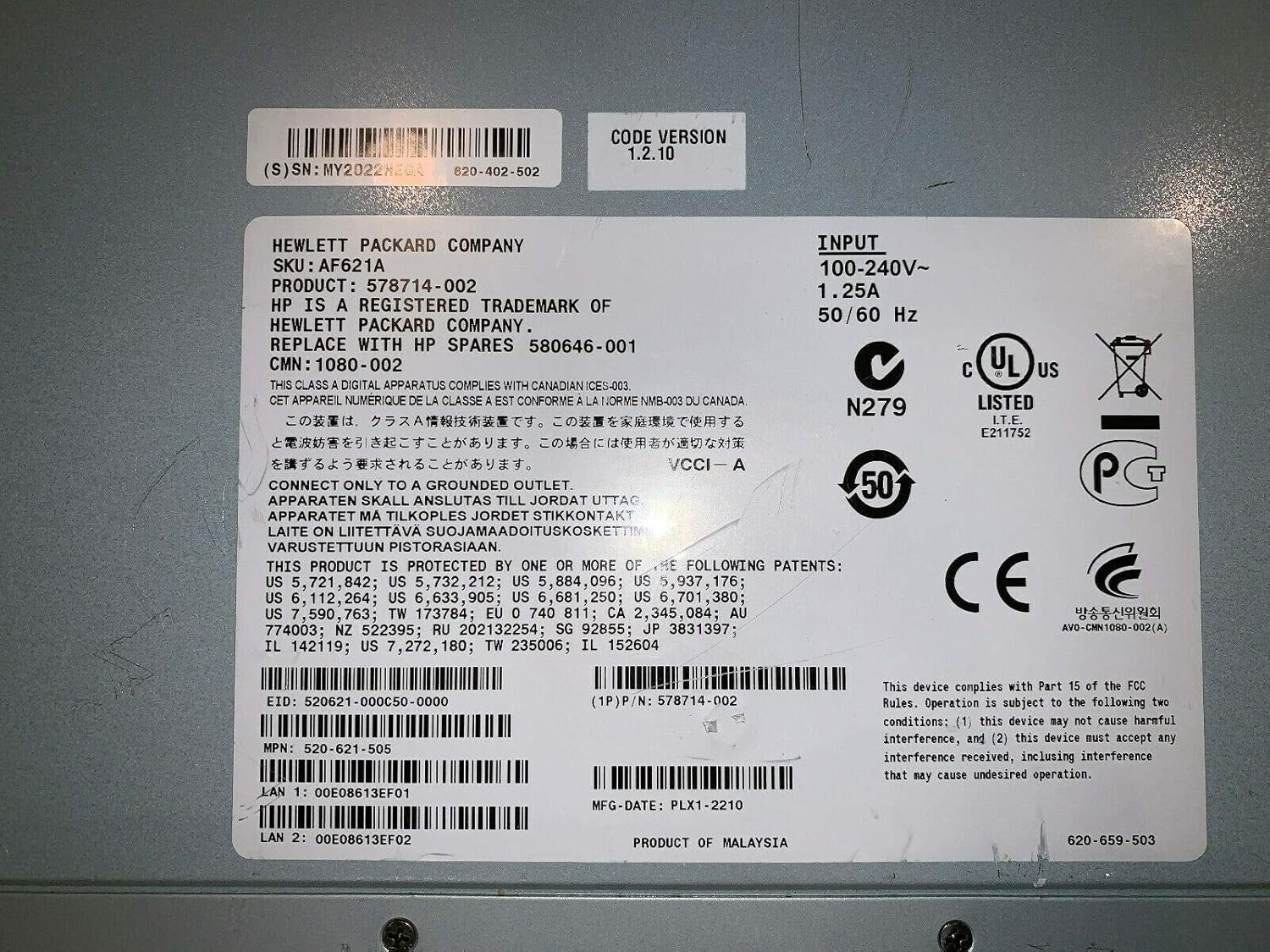
Figure 3: Product label details for the HP AF621A KVM Switch. This label provides critical information such as the SKU, input power requirements (100-240V~, 1.25A, 50/60 Hz), various regulatory compliance marks (UL, CE, VCCI, N279), and specific manufacturing and serial numbers like SKU: AF621A, Product: 578714-002, CPN: 1080-002, and LAN MAC addresses.
ዋስትና እና ድጋፍ
ለዝርዝር የዋስትና መረጃ፣ እባክዎን ከምርትዎ ጋር የተካተተውን የዋስትና መግለጫ ይመልከቱ ወይም ኦፊሴላዊውን የ HP ድጋፍ ይጎብኙ website. HP provides comprehensive support resources, including:
- የመስመር ላይ የእውቀት መሰረት እና ተደጋጋሚ ጥያቄዎች።
- የአሽከርካሪ እና የጽኑ ትዕዛዝ ውርዶች።
- Technical support contact information (phone, chat, email).
- Service and repair options.
When contacting support, please have your product model number (AF621A) and serial number (found on the product label) ready to expedite assistance.