
BenQ EX3501R
BenQ EX3501R Ultrawide Curved Gaming Monitor User Manual
Model: EX3501R
1. ማዋቀር
1.1 የማሳያውን ጥቅል መፍታት
ሁሉንም ንጥረ ነገሮች ከማሸጊያው ውስጥ በጥንቃቄ ያስወግዱ. ከዚህ በታች የተዘረዘሩት ሁሉም እቃዎች መኖራቸውን ያረጋግጡ:
- BenQ EX3501R Monitor
- መቆሚያ (መሠረት እና አንገት) ተቆጣጠር
- የኃይል አስማሚ
- የኃይል ገመድ
- HDMI ገመድ
- የማሳያPort ገመድ
- የ USB-C ገመድ
- የተጠቃሚ መመሪያ (ይህ ሰነድ)
1.2 ማቆሚያውን መሰብሰብ
መቆሚያውን ከእርስዎ ማሳያ ጋር ለማያያዝ እነዚህን ደረጃዎች ይከተሉ፡-
- ቧጨራዎችን ለመከላከል የመቆጣጠሪያውን ፊት ለስላሳ እና ንጹህ ጨርቅ ያስቀምጡ።
- የመቆለፊያውን አንገት ከማሳያው ጀርባ ጋር ያያይዙት። ደህንነቱ በተጠበቀ ሁኔታ ወደ ቦታው መጫኑን ያረጋግጡ።
- Connect the stand base to the neck, tightening any screws as indicated in the quick start guide.

ምስል 1: የፊት view of the BenQ EX3501R monitor with its stand.
1.3 ማገናኛ ገመዶች
Connect the necessary cables to the monitor and your computer. The monitor supports various input options:
- ኃይል፡- የኃይል አስማሚውን ከሞኒተሩ እና ከዚያም ከኃይል መውጫ ጋር ያገናኙ።
- የቪዲዮ ግቤት Use either the HDMI, DisplayPort, or USB-C cable to connect your computer to the monitor.
- ዩኤስቢ-ሲ The USB-C port supports video, data transfer, and power delivery, allowing for a single-cable connection with compatible devices.
- የዩኤስቢ 3.0 ወደቦች; Utilize the integrated USB 3.0 ports for connecting peripherals.
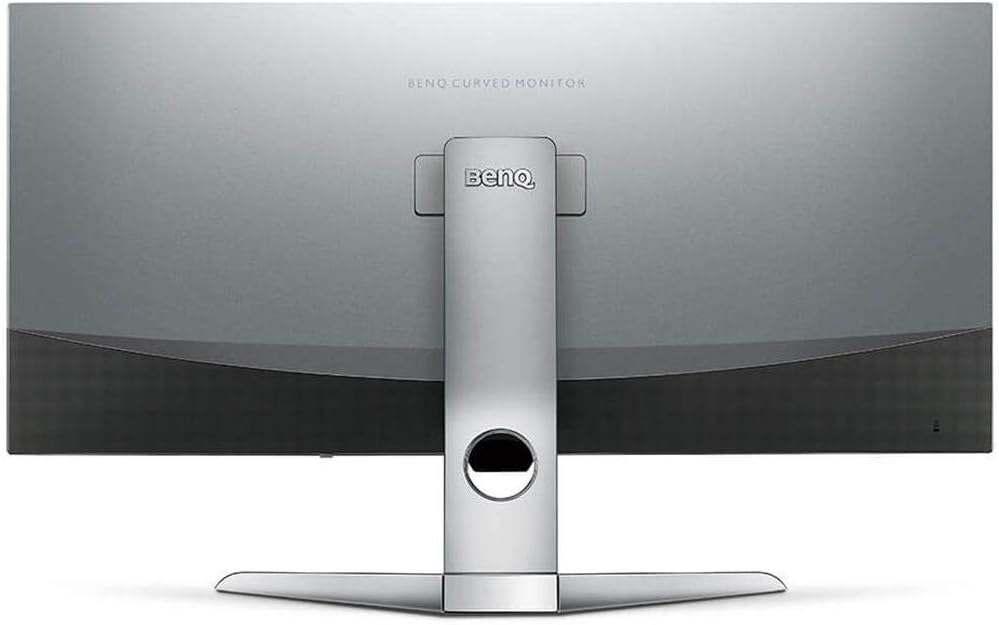
ምስል 2: የኋላ view of the monitor displaying the connectivity ports.
2. ሞኒተሩን መስራት
2.1 ማብራት / ማጥፋት
Press the power button, usually located on the bottom right side of the monitor, to turn it on or off. The power indicator light will illuminate when the monitor is active.
2.2 የማያ ገጽ ላይ ማሳያ (OSD) አሰሳ
Use the joystick or buttons located on the monitor's underside to navigate the On-Screen Display (OSD) menu. This menu allows you to adjust various settings such as brightness, contrast, color modes, and input sources.
2.3 Display Features and Eye-Care Technology
The BenQ EX3501R incorporates several technologies designed to enhance viewing experience and reduce eye strain:
- ብሩህነት ኢንተለጀንስ ፕላስ (BI+)፦ This patented technology automatically senses ambient lighting conditions and adjusts the screen's brightness and color temperature to provide optimal viewing comfort and protect your eyes during extended use.
- ዝቅተኛ ሰማያዊ ብርሃን; Filters out harmful blue light emissions to reduce eye fatigue. Multiple levels of blue light reduction are available.
- ZeroFlicker™: Eliminates screen flickering at all brightness levels, further reducing eye strain and discomfort.
- ኤችዲአር (ከፍተኛ ተለዋዋጭ ክልል) Offers enhanced brightness and contrast, bringing greater detail and vibrancy to HDR video content.
ቪዲዮ 1: አልቋልview of BenQ's Eye-Care technology, including Low Blue Light, ZeroFlicker, and Brightness Intelligence Plus, demonstrating how these features work to reduce eye strain and adjust screen settings automatically based on ambient light.
2.4 የጥራት እና የማደስ ፍጥነት
The monitor features a QHD (3440x1440) resolution and a 100Hz refresh rate, providing a smooth and detailed visual experience. The 21:9 ultrawide aspect ratio offers ample screen space for multitasking, such as viewing multiple documents side-by-side without needing a second monitor.
2.5 AMD FreeSync
For a fluid gaming experience, the monitor supports AMD FreeSync technology, which synchronizes the monitor's refresh rate with your graphics card's frame rate to eliminate screen tearing and stuttering.
3. ጥገና
3.1 መቆጣጠሪያውን ማጽዳት
To maintain optimal performance and appearance, regularly clean your monitor:
- ስክሪን፡ ስክሪኑን ለስላሳ፣ በለሰለሰ ጨርቅ በቀስታ ይጥረጉ። ለጠንካራ ቆሻሻዎች፣ በቀጥታ በማያ ገጹ ላይ ሳይሆን በጨርቁ ላይ የሚተገበር ሞኒተር-ተኮር የጽዳት መፍትሄ ይጠቀሙ።
- ውጫዊ፡ Use a soft, dry cloth to wipe dust and debris from the monitor casing and stand.
የተቆጣጣሪውን ገጽ ሊጎዱ ስለሚችሉ ሻካራ ማጽጃዎችን፣ ሰምዎችን ወይም ፈሳሾችን ከመጠቀም ይቆጠቡ።
3.2 አጠቃላይ እንክብካቤ ምክሮች
- በሞኒተሩ ላይ የአየር ማናፈሻ ክፍተቶችን አይዝጉ።
- መቆጣጠሪያውን በቀጥታ የፀሐይ ብርሃን ወይም በሙቀት ምንጮች አጠገብ ከማስቀመጥ ይቆጠቡ።
- አካላዊ ጉዳት እንዳይደርስ ለመከላከል መቆጣጠሪያውን በጥንቃቄ ይያዙ.
4. መላ መፈለግ
If you encounter issues with your BenQ EX3501R monitor, refer to the following common troubleshooting steps:
4.1 ማሳያ ወይም ጥቁር ስክሪን የለም
- የኃይል ገመዱ ከሁለቱም ሞኒተሪው እና ከኃይል ማመንጫው ጋር ደህንነቱ በተጠበቀ ሁኔታ መገናኘቱን ያረጋግጡ።
- የቪዲዮ ገመዱ (HDMI፣ DisplayPort ወይም USB-C) ከሁለቱም ተቆጣጣሪው እና ከኮምፒዩተርዎ ጋር በጥብቅ የተገናኘ መሆኑን ያረጋግጡ።
- ትክክለኛው የግቤት ምንጭ በተቆጣጣሪው OSD ሜኑ ውስጥ መመረጡን ያረጋግጡ።
- ኮምፒተርዎን እንደገና ያስጀምሩ.
4.2 የሚንሸራሸር ወይም ያልተረጋጋ ምስል
- Ensure the ZeroFlicker™ feature is enabled in the OSD menu.
- ልቅ የቪዲዮ ገመድ ግንኙነቶችን ያረጋግጡ።
- የግራፊክስ ካርድ ነጂዎችን ወደ የቅርብ ጊዜው ስሪት ያዘምኑ።
- If using AMD FreeSync, ensure it is properly configured in your graphics card settings.
4.3 Color or Brightness Issues
- በ OSD ሜኑ በኩል የብሩህነት፣ ንፅፅር እና የቀለም ቅንብሮችን ያስተካክሉ።
- Enable or disable Brightness Intelligence Plus (B.I.+) to see if it resolves the issue.
- Perform a factory reset through the OSD menu.
5. ዝርዝሮች
Key technical specifications for the BenQ EX3501R monitor:
| ባህሪ | ዝርዝር መግለጫ |
|---|---|
| የስክሪን መጠን | 35 ኢንች |
| ከፍተኛው ማያ ገጽ ጥራት | 3440 x 1440 Pixels (QHD Ultrawide) |
| ምጥጥነ ገጽታ | 21፡9 |
| የማደስ ደረጃ | 100 Hz |
| ኩርባ | 1800 አር |
| የፓነል ዓይነት | ቪኤ (አቀባዊ አሰላለፍ) |
| ግንኙነት | USB-C, HDMI, DisplayPort |
| ልዩ ባህሪያት | AMD FreeSync, Brightness Intelligence Plus, Low Blue Light, ZeroFlicker |
| የእቃው ክብደት | 21.3 ፓውንድ |
| የምርት ልኬቶች | 6.88 x 3.47 x 12.93 ኢንች |
6. ዋስትና እና ድጋፍ
6.1 የምርት ዋስትና
The BenQ EX3501R monitor typically comes with a 3-year manufacturer's warranty. Please refer to the warranty card included in your product packaging for specific terms and conditions, or visit the official BenQ webለዝርዝር የዋስትና መረጃ ጣቢያ።
6.2 የደንበኛ ድጋፍ
For further assistance, technical support, or warranty claims, please contact BenQ customer service. You can find contact information and support resources on the official BenQ webጣቢያ፡ www.benq.com/en-us/support.html
Ask a question about this manual
Ask about setup, troubleshooting, compatibility, parts, safety, or missing instructions. Manuals+ will review the question and use this page’s manual context to help answer it.