
መግቢያ
Thank you for choosing the MeeTion K9310 Gaming Keyboard. This manual provides detailed instructions for setting up, operating, and maintaining your new keyboard. The K9310 is designed for an enhanced gaming experience with features such as multicolor backlighting, anti-ghosting, and dedicated shortcut keys.
የጥቅል ይዘቶች
- MeeTion K9310 Gaming Keyboard
- የተጠቃሚ መመሪያ (ይህ ሰነድ)
ማዋቀር
Follow these steps to connect your MeeTion K9310 Gaming Keyboard to your computer:
- የቁልፍ ሰሌዳውን ከማሸጊያው ያላቅቁት።
- በኮምፒተርዎ ላይ የሚገኝ የዩኤስቢ ወደብ ያግኙ።
- የቁልፍ ሰሌዳውን የዩኤስቢ ማገናኛ ወደ ዩኤስቢ ወደብ ይሰኩት.
- Your operating system (Windows XP/Vista/7/8/10) will automatically detect and install the necessary drivers. No additional software installation is typically required.
- The keyboard is ready for use once the drivers are installed.

ምስል: ከፍተኛ view of the MeeTion K9310 Gaming Keyboard with its USB cable, ready for connection.
የአሠራር መመሪያዎች
ቁልፍ ባህሪያት
- Multicolor Key Backlit: The keyboard features vibrant multicolor backlighting for enhanced visibility and aesthetic appeal, especially in low-light conditions.
- Comfortable and Soft Keys: Designed with membrane keys offering tactile feedback, providing a comfortable typing and gaming experience.
- 19 Keys Anti-Ghosting: This feature ensures that up to 19 keys can be pressed simultaneously without any input loss, crucial for complex gaming commands.
- Win Lock Function with LED Indication: Prevents accidental presses of the Windows key during gameplay, which can interrupt your game. An LED indicator shows when this function is active.
- 12 FN Shortcut Buttons: Access various multimedia and system functions quickly using the Function (FN) key in combination with the F1-F12 keys.
የጀርባ ብርሃን መቆጣጠሪያ
The K9310 keyboard features a multicolor backlight. Specific key combinations may be used to adjust brightness or switch lighting modes. Refer to the keyboard's markings for dedicated backlight control keys, often indicated by a sun or light bulb icon, or through FN key combinations.
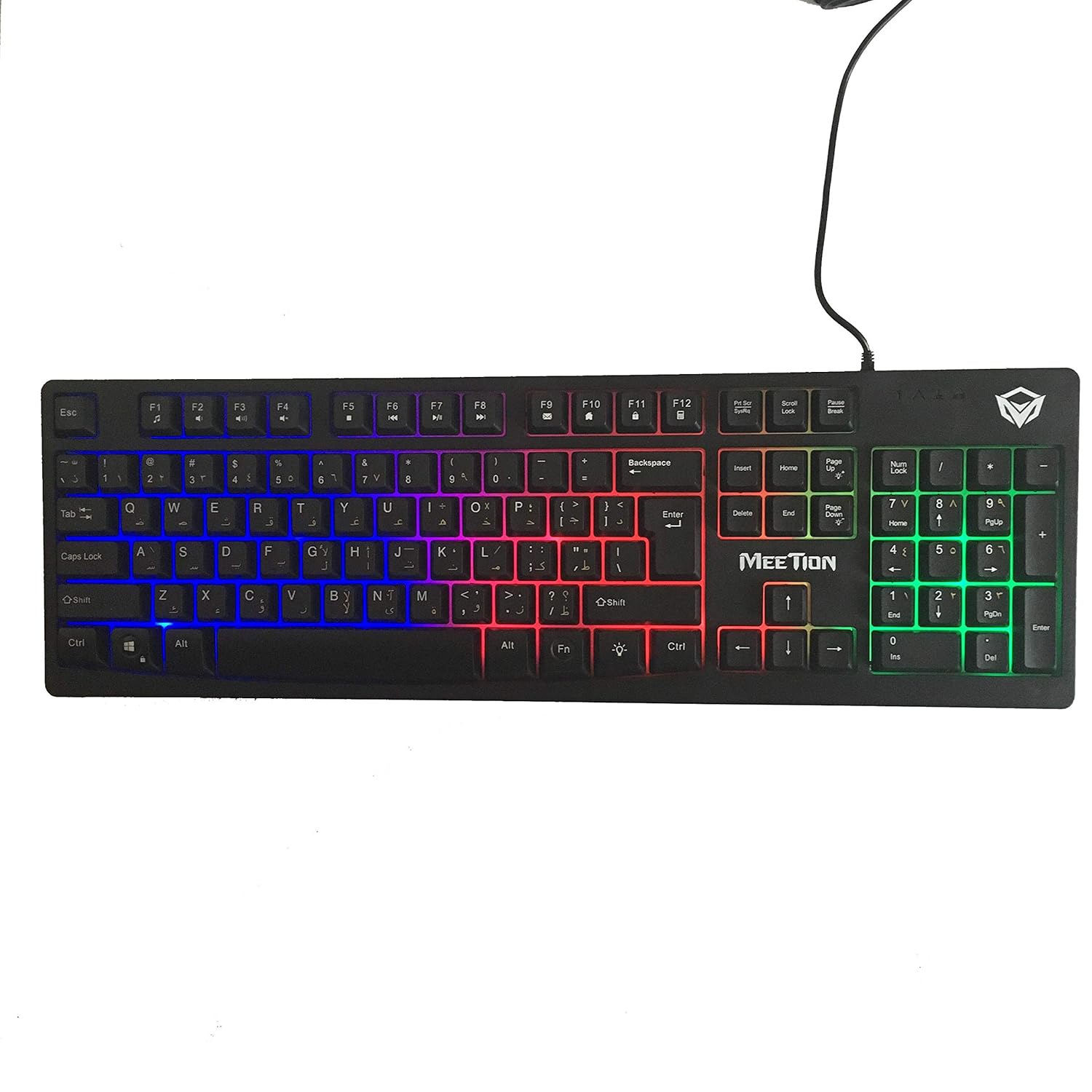
ምስል: ከፍተኛ view of the MeeTion K9310 Gaming Keyboard with its multicolor backlighting illuminated.
FN Shortcut Functions
The keyboard includes 12 FN (Function) shortcut buttons. To activate these functions, press and hold the FN key, then press the desired F-key (F1-F12).
| ቁልፍ ጥምረት | ተግባር |
|---|---|
| FN + F1 | የሚዲያ ማጫወቻ |
| FN + F2 | የድምጽ መጠን መቀነስ |
| FN + F3 | የድምጽ መጠን መጨመር |
| FN + F4 | ድምጸ-ከል አድርግ |
| FN + F5 | ተወ |
| FN + F6 | የቀድሞ ትራክ |
| FN + F7 | ተጫወት/ ለአፍታ አቁም |
| FN + F8 | ቀጣይ ትራክ |
| FN + F9 | ኢሜይል |
| FN + F10 | Web አሳሽ |
| FN + F11 | የእኔ ኮምፒውተር |
| FN + F12 | ካልኩሌተር |
Win Lock Function
To activate or deactivate the Windows key lock function, press FN + Win ቁልፍ. When active, the Windows key will be disabled, preventing accidental presses during gaming. An LED indicator on the keyboard will typically illuminate to show the Win Lock status.
ጥገና
ትክክለኛ ጥገና የቁልፍ ሰሌዳዎን ረጅም ዕድሜ እና ጥሩ አፈፃፀም ያረጋግጣል።
- ማጽዳት፡ የቁልፍ ሰሌዳውን ወለል ለማጽዳት ለስላሳ እና ደረቅ ጨርቅ ይጠቀሙ። ለበለጠ ጽዳት፣ ትንሽ ጠብታamp ለስላሳ ሳሙና ያለው ጨርቅ መጠቀም ይቻላል፣ ይህም ምንም አይነት ፈሳሽ ወደ ቁልፍ ማብሪያ / ማጥፊያዎች ወይም የውስጥ ክፍሎች እንዳይገባ ያረጋግጣል።
- አቧራ ማስወገድ; ከቁልፎቹ መካከል አቧራ እና ፍርስራሾችን ለማስወገድ የታመቀ አየር ይጠቀሙ።
- ፈሳሾችን ያስወግዱ; Do not spill liquids on the keyboard. If a spill occurs, immediately disconnect the keyboard from the computer and allow it to dry completely before reconnecting.
- ማከማቻ፡ ለረጅም ጊዜ ጥቅም ላይ በማይውልበት ጊዜ የቁልፍ ሰሌዳውን በቀጥታ ከፀሐይ ብርሃን እና ከከፍተኛ ሙቀት ርቆ በቀዝቃዛና ደረቅ ቦታ ያከማቹ።

ምስል፡ ከታች view of the MeeTion K9310 Gaming Keyboard, showing the product label and rubber feet.
መላ መፈለግ
If you encounter issues with your MeeTion K9310 Gaming Keyboard, refer to the following troubleshooting steps:
- የቁልፍ ሰሌዳ ምላሽ አይሰጥም፡
- የዩ ኤስ ቢ ገመዱ ደህንነቱ በተጠበቀ ሁኔታ በኮምፒዩተርዎ ላይ በሚሰራ የዩኤስቢ ወደብ ላይ መሰካቱን ያረጋግጡ።
- የቁልፍ ሰሌዳውን ወደ ሌላ የዩኤስቢ ወደብ ለመሰካት ይሞክሩ።
- ኮምፒተርዎን እንደገና ያስጀምሩ.
- ችግሩ ከኪቦርድ ወይም ከኮምፒዩተር ጋር መሆኑን ለማወቅ በሌላ ኮምፒውተር ላይ የቁልፍ ሰሌዳውን ይሞክሩ።
- Keys Not Working (e.g., 'W' key):
- Check for any debris or foreign objects lodged under the affected key. Use compressed air to clear it.
- If only specific keys are not responding, and the keyboard is otherwise functional, it might indicate a hardware issue.
- የኋላ መብራት አይሰራም ወይም ብልጭ ድርግም ይላል፤
- የቁልፍ ሰሌዳው በትክክል መገናኘቱን ያረጋግጡ።
- Check if the backlight brightness is set to minimum or turned off via FN key combinations.
- If the issue persists, it may indicate a hardware malfunction.
- Win Lock Function Not Working:
- Ensure you are using the correct key combination (FN + Win Key) to toggle the function.
- Check the LED indicator for Win Lock status.
ዝርዝሮች
| ባህሪ | ዝርዝር |
|---|---|
| የምርት ስም | ስብሰባ |
| ሞዴል | K9310 |
| የቁልፍ ሰሌዳ ዓይነት | የጨዋታ ቁልፍ ሰሌዳ |
| ቁልፍ ዕውቂያ | Membrane with tactile feedback |
| አቀማመጥ | Cyrillic alphabet layout (Windows Keys) |
| ፀረ-መናፍስት | 19 ቁልፎች |
| የጀርባ ብርሃን | ባለብዙ ቀለም ቁልፍ የኋላ ብርሃን |
| Win Lock Function | አዎ፣ ከ LED ማመላከቻ ጋር |
| FN Shortcut Buttons | 12 |
| Error-Free Running Time | More than 10 million strokes |
| የስርዓተ ክወና ተኳኋኝነት | ዊንዶውስ ኤክስፒ / ቪስታ / 7/8/10 |
| መጠኖች | 17.5 × 5.5 x 1.5 inches (approximate) |
| ክብደት | 1.2 ፓውንድ (ግምታዊ) |
| ተስማሚ መሣሪያዎች | Laptop (and Desktop PCs) |
ዋስትና እና ድጋፍ
For warranty information or technical support, please refer to the documentation provided at the time of purchase or visit the official MEETION webጣቢያ. ለማንኛውም የዋስትና ጥያቄዎች የግዢ ማረጋገጫዎን ያስቀምጡ።


