
1. መግቢያ
This manual provides essential information for setting up, operating, maintaining, and troubleshooting your Acer Predator Orion 3000 (PO3-600) desktop computer. Please read this guide thoroughly to ensure proper use and to maximize your system's performance and longevity.
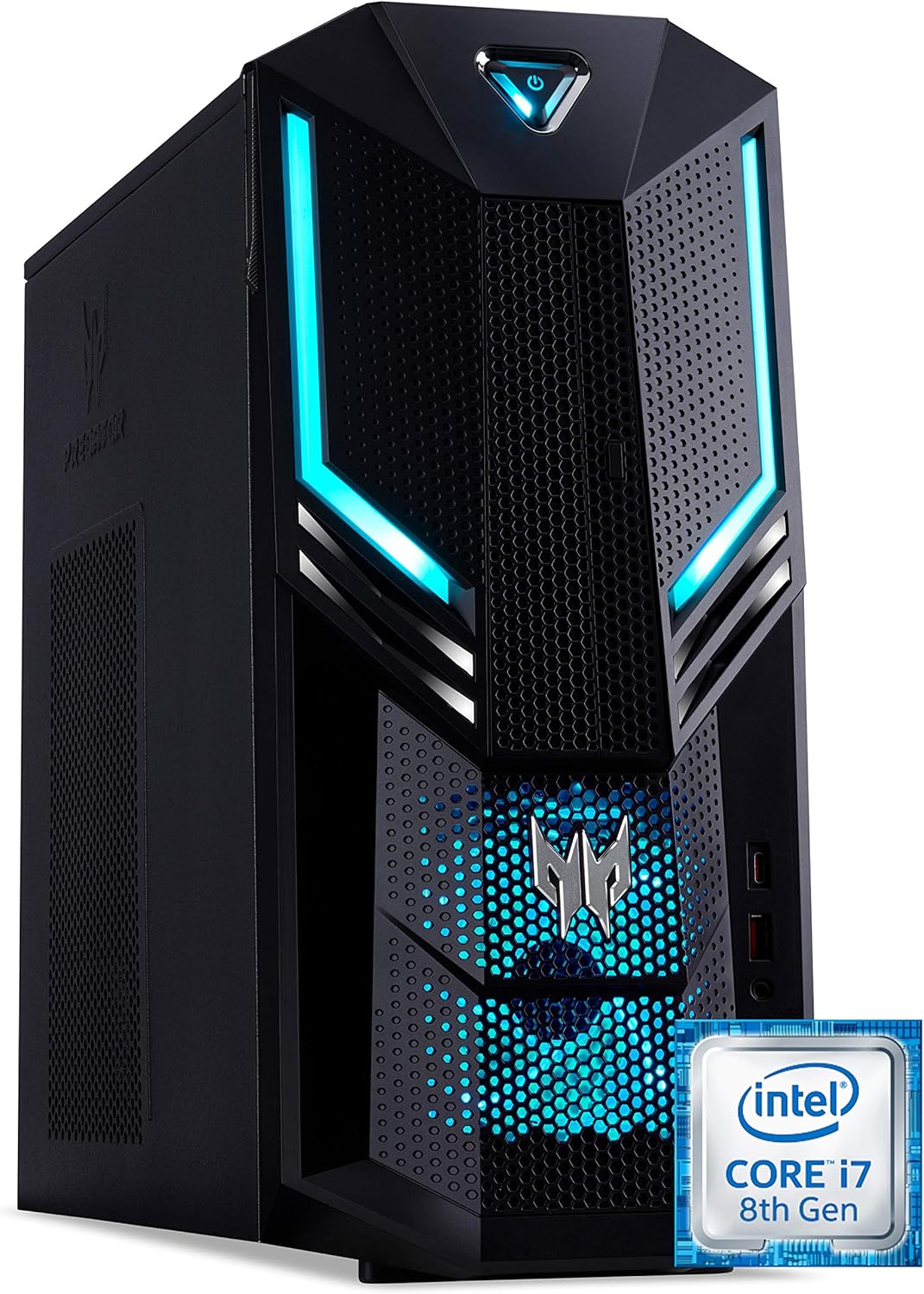
ምስል 1.1፡ የፊት-ቀኝ view of the Acer Predator Orion 3000 desktop computer, showcasing its black chassis with blue LED accents and angular design.
2. ማዋቀር
2.1 ማሸግ
Carefully remove all components from the packaging. Verify that all items listed in the 'Included Components' section of this manual are present. Retain the packaging for future transport or service needs.
2.2 ማገናኛ ፔሪፈራል
- ተቆጣጠር፥ Connect your monitor to one of the available video output ports (HDMI, DVI, or DisplayPort) on the graphics card at the rear of the computer.
- የቁልፍ ሰሌዳ እና መዳፊት; Connect the included Predator USB keyboard and mouse to any available USB ports. The system features both USB 2.0, USB 3.1, and USB 3.1 Type-C ports.
- አውታረ መረብ፡ For a wired connection, connect an Ethernet cable from your router or modem to the LAN port on the rear of the computer. For wireless, ensure your Wi-Fi antenna (if external) is connected.
- ኦዲዮ፡ Connect speakers or headphones to the audio output jacks. The system supports Sound BlasterX Pro Gaming Sound Engine for enhanced audio.
- ኃይል፡- Connect the power cable to the power supply unit (PSU) at the rear of the computer, then plug the other end into a grounded electrical outlet.
2.3 የመጀመሪያ ኃይል-በ
Press the power button located on the top front of the computer. The system will boot up, and the blue LED accents will illuminate. Follow the on-screen instructions to complete the Windows 10 Home operating system setup, including language, region, and user account creation.
3. ኮምፒውተራችንን መስራት
3.1 የኃይል አስተዳደር
- አብራ፡ የኃይል አዝራሩን አንዴ ይጫኑ።
- ዝጋ፡ From Windows, click the Start button, then Power > Shut down.
- እንደገና ጀምር፥ From Windows, click the Start button, then Power > Restart.
- እንቅልፍ፡ From Windows, click the Start button, then Power > Sleep.
3.2 Windows 10 Home
Your Predator Orion 3000 comes pre-installed with Windows 10 Home. Familiarize yourself with the operating system's interface, settings, and features. Regular updates are recommended for security and performance.
3.3 የጨዋታ ባህሪያት
The system is designed for gaming, featuring an Intel Core i7-8700 processor and NVIDIA GeForce GTX 1060 graphics. It is VR-ready, allowing for immersive virtual reality experiences. The integrated Sound BlasterX Pro Gaming Sound Engine provides high-quality audio for gaming and multimedia.

ምስል 3.1፡ Acer Predator Orion 3000 desktop with gaming headphones, highlighting its gaming capabilities.
4. ጥገና
4.1 ጽዳት
- ውጫዊ፡ ለስላሳ ይጠቀሙ, መamp ውጫዊውን ገጽ ለማጽዳት ጨርቅ። ሻካራ ማጽጃዎችን ያስወግዱ።
- ትዕይንቶች Regularly check and clean the air intake vents on the front and left side of the chassis to ensure proper airflow and prevent dust buildup. Use compressed air to gently clear dust.
- የውስጥ አካላት፡- For advanced cleaning of internal components, it is recommended to consult a professional or refer to detailed service guides.
4.2 የሶፍትዌር ዝመናዎች
Keep your operating system, drivers (especially graphics drivers), and applications updated to ensure optimal performance, security, and compatibility.

ምስል 4.1፡ ውስጣዊ view of the Acer Predator Orion 3000 desktop computer with the side panel removed, revealing the motherboard, CPU cooler, RAM slots, and storage drive bays. Regular cleaning of these areas is important for system health.
5. መላ መፈለግ
This section addresses common issues you might encounter. For more complex problems, refer to Acer's official support resources.
5.1 ምንም ኃይል የለም
- የኃይል ገመዱ ደህንነቱ በተጠበቀ ሁኔታ ከኮምፒዩተር እና ከኤሌትሪክ ሶኬት ጋር መገናኘቱን ያረጋግጡ።
- ሌላ መሳሪያ በመጫን የኤሌትሪክ ሶኬት የሚሰራ መሆኑን ያረጋግጡ።
5.2 ምንም ማሳያ የለም
- Check that the monitor is powered on and the video cable is securely connected to both the computer and the monitor.
- ትክክለኛው የግቤት ምንጭ በእርስዎ ማሳያ ላይ መመረጡን ያረጋግጡ።
5.3 System is Slow or Unresponsive
- ከበስተጀርባ የሚሰሩ አላስፈላጊ መተግበሪያዎችን ዝጋ።
- ታዋቂ ጸረ-ቫይረስ ሶፍትዌርን በመጠቀም ማልዌር ወይም ቫይረሶች ካሉ ያረጋግጡ።
- Ensure sufficient free space on your primary drive (SSD).
- ኮምፒተርውን እንደገና ያስጀምሩ.
5.4 ከመጠን በላይ የማራገቢያ ድምፅ
- Ensure the computer's air vents are not obstructed and are free of dust.
- Verify the computer is in a well-ventilated area.
- Monitor CPU and GPU temperatures using system utilities. High temperatures can cause fans to run faster.
6. ዝርዝሮች
Below are the key technical specifications for the Acer Predator Orion 3000 (PO3-600) desktop computer.
| አካል | ዝርዝር መግለጫ |
|---|---|
| የሞዴል ስም | Acer Predator Orion 3000 (PO3-600) |
| ስርዓተ ክወና | ዊንዶውስ 10 መነሻ |
| ፕሮሰሰር | Intel Core i7-8700 (6 Cores, 3.2 GHz base, up to 4.6 GHz burst) |
| ግራፊክስ ካርድ | NVIDIA GeForce GTX 1060 (6 GB GDDR5 VRAM) |
| ራም | 16 GB DDR4 (Max 16 GB) |
| ማከማቻ | 128 GB SSD + 1 TB HDD |
| ኦፕቲካል ድራይቭ | ዲቪዲ+አር |
| ግንኙነት | Ethernet RJ-45, Wi-Fi (802.11ac) |
| የፊት ወደቦች | 1x USB 3.1, 1x USB 3.1 Type-C, Audio Jacks |
| የኋላ ወደቦች | 2x USB 3.1, 4x USB 2.0, 1x HDMI, 1x DVI, 3x DisplayPort, 5x Audio Jacks, LAN |
| የማስፋፊያ ቦታዎች | 1x PCIe x16, 1x PCIe x1, 2x M.2 (1x SSD, 1x Wi-Fi) |
| ልኬቶች (H x W x D) | 35 x 16.3 x 34 ሴ.ሜ |
| ክብደት | 6 ኪ.ግ |
| ማቀዝቀዝ | Passive, via air intake |
| የተካተቱ ፐርፌራሎች | Predator USB Keyboard (blue), Predator USB Mouse (blue) |

ምስል 6.1፡ Intel Core i7 8th Gen logo, indicating the processor type used in the system.
7. ዋስትና እና ድጋፍ
7.1 የአምራች ዋስትና
Your Acer Predator Orion 3000 (PO3-600) desktop computer is covered by a የ 2 ዓመት የአምራች ዋስትና. This warranty covers defects in materials and workmanship under normal use. Please refer to the warranty documentation included with your product for full terms and conditions. Your statutory warranty rights remain unaffected.
7.2 የቴክኒክ ድጋፍ
For technical assistance, troubleshooting beyond this manual, or warranty claims, please contact Acer customer support. You can typically find contact information on the Acer official website or in the documentation provided with your computer.