1. መግቢያ
Thank you for choosing the Macally USB Type C Wired Mouse. This manual provides detailed instructions for setting up, operating, and maintaining your new mouse. Designed for simplicity and reliability, this plug-and-play mouse offers comfortable use with adjustable DPI settings for various computing needs.
2. የጥቅል ይዘቶች
- Macally USB Type C Wired Mouse
- መመሪያ መመሪያ
3. ማዋቀር
The Macally USB Type C Wired Mouse is designed for easy plug-and-play functionality, requiring no additional drivers for most operating systems.
- መዳፊቱን ያገናኙ; Locate an available USB-C port on your computer (MacBook Pro, iMac, PC, Laptop, Tablet, etc.). Insert the USB-C connector of the mouse cable firmly into the USB-C port.
- ራስ-ሰር እውቅና; Your operating system should automatically detect and configure the mouse. No software installation is typically required.
- መጠቀም ይጀምሩ፡- መዳፊቱ አንዴ ከታወቀ በኋላ ወዲያውኑ ጥቅም ላይ ለመዋል ዝግጁ ይሆናል።

Image: The Macally USB-C mouse connected to a laptop via its USB-C cable, demonstrating the plug-and-play setup.
Video: A demonstration of connecting the wired USB-C mouse to a laptop, highlighting its plug-and-play functionality for Type-C computers.
4. የአሠራር መመሪያዎች
4.1 መሠረታዊ አጠቃቀም
The mouse features a standard 3-button layout for intuitive control:
- የግራ ጠቅታ አዝራር፡- እቃዎችን ለመምረጥ፣ ለመክፈት የሚያገለግል files, እና ትዕዛዞችን በማስፈጸም ላይ.
- በቀኝ ጠቅ ያድርጉ አዝራር; Used for accessing contextual menus and additional options.
- የማሽከርከር ጎማ፡ ሰነዶችን ለማሸብለል እና ለማሸብለል ያገለግላል web pages. The scroll wheel can also be pressed as a middle click button for specific functions in some applications.

ምስል፡- ከላይ ወደ ታች view of the Macally USB-C mouse, clearly showing the left-click, right-click, and scroll wheel buttons.
4.2 የዲፒአይ ማስተካከያ
The mouse features a dedicated DPI (Dots Per Inch) switch to adjust cursor sensitivity. This allows you to change the speed and responsiveness of the cursor to suit your preference or task.
- የሚለውን ይጫኑ የዲፒአይ ቁልፍ (located below the scroll wheel) to cycle through the available sensitivity settings: 800, 1200, 1600, and 2400 DPI.
- Select the DPI setting that provides the most comfortable and efficient cursor movement for your current activity.
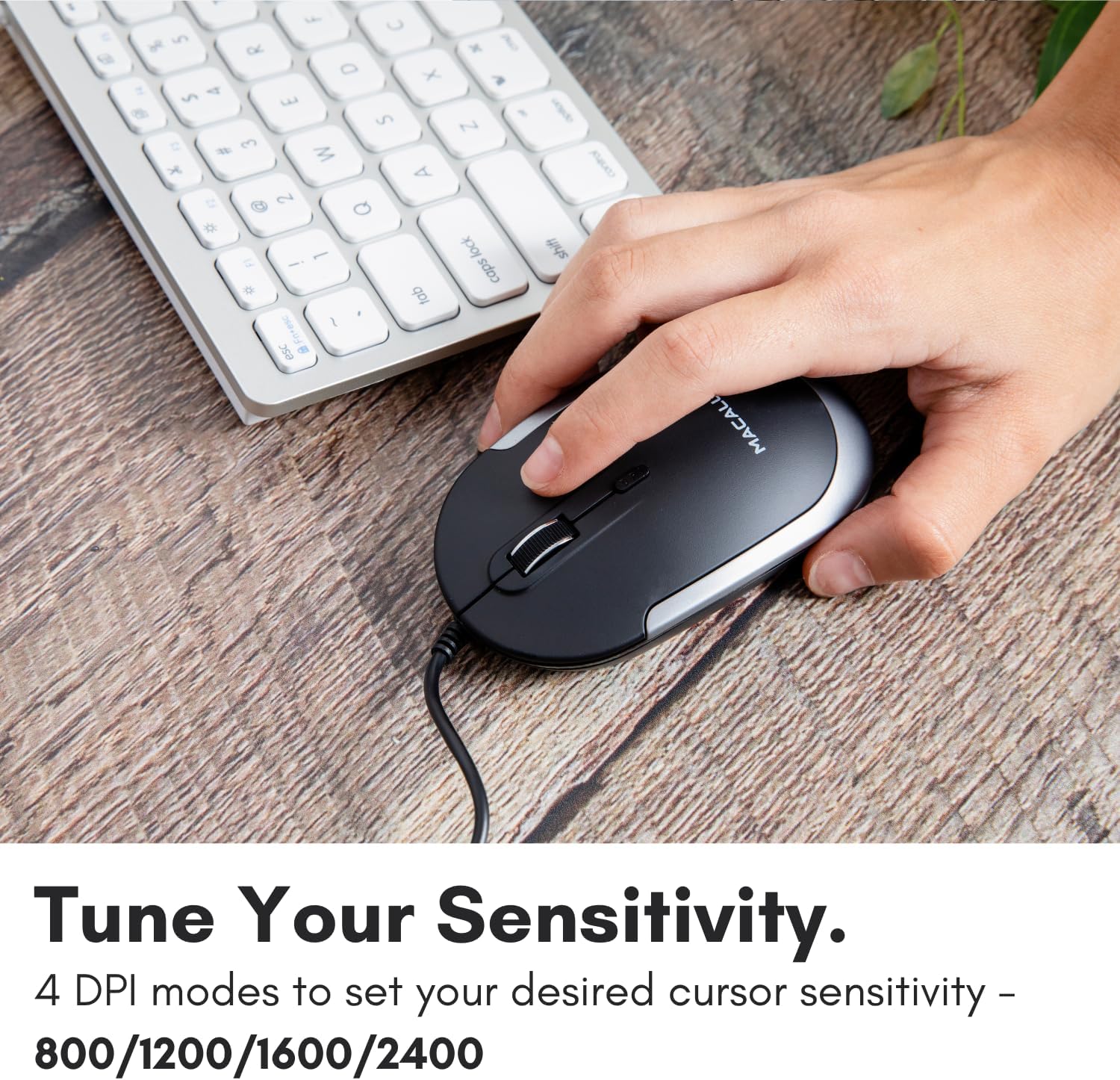
Image: A hand demonstrating how to press the DPI button on the Macally USB-C mouse to adjust sensitivity.
4.3 ተኳኋኝነት
The Macally USB Type C Wired Mouse is universally compatible with a wide range of devices and operating systems:
- ማክ (ማክኦኤስ)
- ፒሲ (ዊንዶውስ)
- iPadOS
- Android devices with USB-C ports

Image: The Macally USB-C mouse displayed with compatibility logos for Mac, PC, iPadOS, and Android operating systems.
5. ቁልፍ ባህሪያት
- የዩኤስቢ-ሲ ግንኙነት፡- Specifically designed for modern laptops and computers with USB-C ports, ensuring a reliable wired connection.
- ቀጭን እና የታመቀ ንድፍ፡ With a height of only 1 inch, the mouse is slim, comfortable, and portable, fitting snugly in your hand.
- ጸጥ ያሉ የጠቅታ አዝራሮች፡ Reduces clicking noise by 90% compared to traditional mice, providing a quieter work environment.
- የሚስተካከለው ዲፒአይ፡ Easily switch between 800, 1200, 1600, and 2400 DPI settings for precise cursor control.
- 5-Foot Cable: ያቀርባል ample length for flexible setup and comfortable use, even with desktop computers.
- አሻሚ ንድፍ; ለሁለቱም የቀኝ እና የግራ እጅ ተጠቃሚዎች ተስማሚ።

Image: The Macally USB-C mouse highlighting its elegant and slim design with dimensions.
Video: A detailed look at the Macally USB-C Optical Mouse, emphasizing its quiet click buttons and compatibility with Mac and PC.
6. ጥገና
To ensure the longevity and optimal performance of your Macally USB Type C Wired Mouse, follow these simple maintenance guidelines:
- ማጽዳት፡ የመዳፊትን ገጽ ለማፅዳት ለስላሳ፣ ደረቅ፣ ከቆሸሸ ነፃ የሆነ ጨርቅ ይጠቀሙ። ለግትር ቆሻሻ፣ በትንሹ መampበጨርቁ ላይ በውሃ ወይም ለስላሳ የጽዳት መፍትሄ. ኃይለኛ ኬሚካሎችን ወይም ሻካራ ቁሳቁሶችን ከመጠቀም ይቆጠቡ.
- የጨረር ዳሳሽ; በመዳፊት ስር ያለውን የጨረር ዳሳሽ ንፁህ እና ከአቧራ ወይም ከቆሻሻ የጸዳ ያድርጉት። አስፈላጊ ከሆነ የጥጥ መጥረጊያ ወይም የተጨመቀ አየር ይጠቀሙ.
- የኬብል እንክብካቤ; Avoid sharp bends or excessive pulling on the USB-C cable to prevent damage. Store the cable neatly when not in use.
- ማከማቻ፡ ጥቅም ላይ በማይውልበት ጊዜ አይጤውን ከከፍተኛ ሙቀት ርቆ ንጹህና ደረቅ አካባቢ ያከማቹ።
7. መላ መፈለግ
If you encounter any issues with your Macally USB Type C Wired Mouse, please refer to the following common solutions:
| ችግር | መፍትሄ |
|---|---|
| መዳፊት ምላሽ እየሰጠ አይደለም። |
|
| የጠቋሚ እንቅስቃሴ የተሳሳተ ወይም ዝላይ ነው። |
|
| Buttons or scroll wheel are not working. |
|
8. ዝርዝሮች
| የምርት ስም | በመሣሪያ |
| የሞዴል ቁጥር | UCDYNAMOUSESG |
| የግንኙነት ቴክኖሎጂ | የዩኤስቢ-ሲ ገመድ |
| የእንቅስቃሴ ማወቂያ ቴክኖሎጂ | ኦፕቲካል |
| የዲፒአይ ቅንብሮች | 800፣ 1200፣ 1600፣ 2400 |
| የኬብል ርዝመት | 5 ጫማ (1.5 ሜትር ገደማ) |
| አዝራሮች | 3 (Left, Right, Scroll Wheel/Middle Click) + DPI Switch |
| የእቃው ክብደት | 2.56 አውንስ (72.5 ግራም ገደማ) |
| የምርት ልኬቶች (LxWxH) | 2.8 x 4.21 x 1 ኢንች (በግምት. 7.1 x 10.7 x 2.5 ሴሜ) |
| ተኳኋኝነት | Mac (macOS), PC (Windows), iPadOS, Android (with USB-C) |
9. ዋስትና እና ድጋፍ
Macally provides a የ 1 ዓመት ዋስትና for this product. For technical support, troubleshooting assistance, or warranty claims, please contact Macally customer service. You can find contact information and additional resources on the official Macally webጣቢያ፡
Webጣቢያ፡ www.maally.com
Macally also offers easy returns and lifetime support with your purchase.