
1. መግቢያ
The StarTech.com SV231DPU34K is a 2-Port DisplayPort KVM Switch designed to allow control of two DisplayPort-enabled computers from a single monitor, keyboard, and mouse. This device supports high-resolution video up to 4K at 60Hz and includes an integrated USB 3.0 hub for sharing additional USB peripherals between connected systems. It also features 3.5mm analog audio switching and offers flexible control via front-panel push buttons or hotkey commands.
2. የጥቅል ይዘቶች
- 1x KVM Switch (SV231DPU34K)
- 1x Universal Power Adapter (NA/JP, EU, UK, ANZ)
- 4x Rubber Foot Pads
3. ምርት አብቅቷልview
3.1 የፊት ፓነል
The front panel provides convenient access to a USB HID port, a USB 3.0 port, and selection buttons for switching between connected computers.

ምስል 1፡ Front Panel of the SV231DPU34K KVM Switch. Features include a USB HID port, a USB 3.0 port, and two computer selection buttons (1 and 2) with a 'SELECT' button.
3.2 የኋላ ፓነል
The rear panel houses the power input, console DisplayPort and USB HID ports, and dedicated DisplayPort, USB, and audio ports for each connected PC.
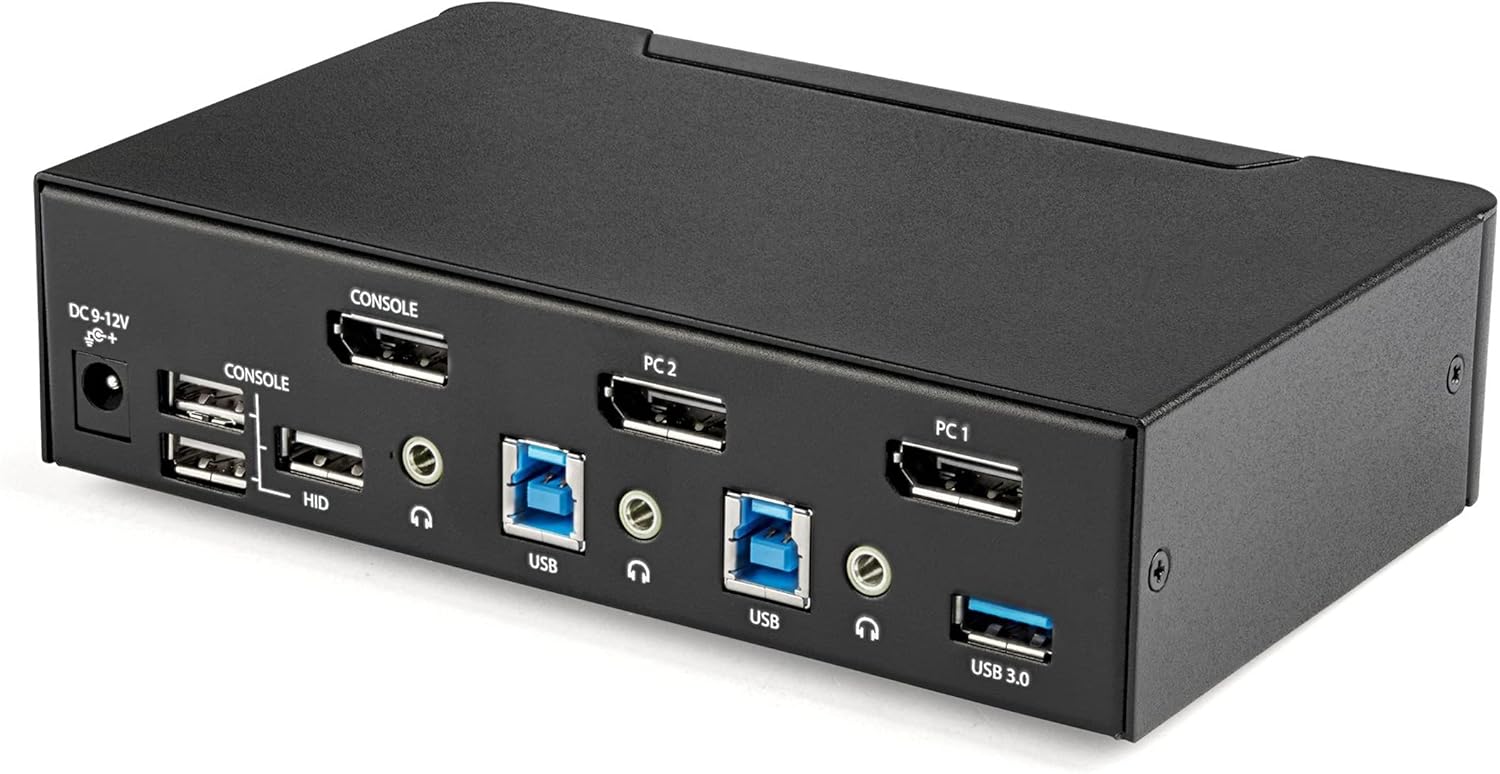
ምስል 2፡ Rear Panel of the SV231DPU34K KVM Switch. Connections include DC 9-12V power, Console DisplayPort, Console USB HID ports, and individual DisplayPort, USB 3.0 Type-B, and 3.5mm audio jacks for PC1 and PC2.
3.3 Labeled Diagram
ይህ ዲያግራም አጠቃላይ መግለጫ ይሰጣል view of all ports and their functions on both the front and rear panels.

ምስል 3፡ Labeled diagram illustrating all ports on the SV231DPU34K KVM Switch, including console connections for monitor, keyboard, and mouse, and PC connections for two computers.
4. የማዋቀር መመሪያዎች
Follow these steps to set up your StarTech.com SV231DPU34K KVM Switch:
- መሣሪያዎችን ማጥፋት; Ensure all computers, monitors, and peripherals are powered off before beginning the installation.
- የኮንሶል መሳሪያዎችን ያገናኙ፡
- Connect your DisplayPort monitor to the CONSOLE DisplayPort on the rear of the KVM switch.
- የዩኤስቢ ቁልፍ ሰሌዳዎን እና መዳፊትዎን ከሱ ጋር ያገናኙ CONSOLE HID USB Type-A ports on the rear of the KVM switch.
- If using external speakers or a microphone, connect them to the CONSOLE 3.5mm audio jacks ከኋላ በኩል.
- Connect Computers (PC1 and PC2): ለእያንዳንዱ ኮምፒውተር፡-
- Connect a DisplayPort cable from your computer's DisplayPort output to the corresponding PC1 DisplayPort or PC2 DisplayPort input on the KVM switch.
- Connect a USB 3.0 Type-A to Type-B cable from your computer's USB 3.0 port to the corresponding PC1 USB 3.0 Type-B or PC2 USB 3.0 Type-B input on the KVM switch.
- If using audio, connect 3.5mm audio cables from your computer's audio output/input to the corresponding PC1/PC2 3.5mm audio jacks.
- የዩኤስቢ ፐርፌራሎችን ያገናኙ፡ Connect any additional USB 3.0 peripherals (e.g., USB hub, printer, flash drive) to the ዩኤስቢ 3.0 ዓይነት-A ወደቦች on the front or rear of the KVM switch.
- የግንኙነት ኃይል; Connect the included universal power adapter to the የዲሲ 9-12 ቮ የኃይል ግቤት on the rear of the KVM switch, then plug it into a power outlet.
- አብራ፡ Power on the KVM switch, then power on your monitor, and finally power on your connected computers.
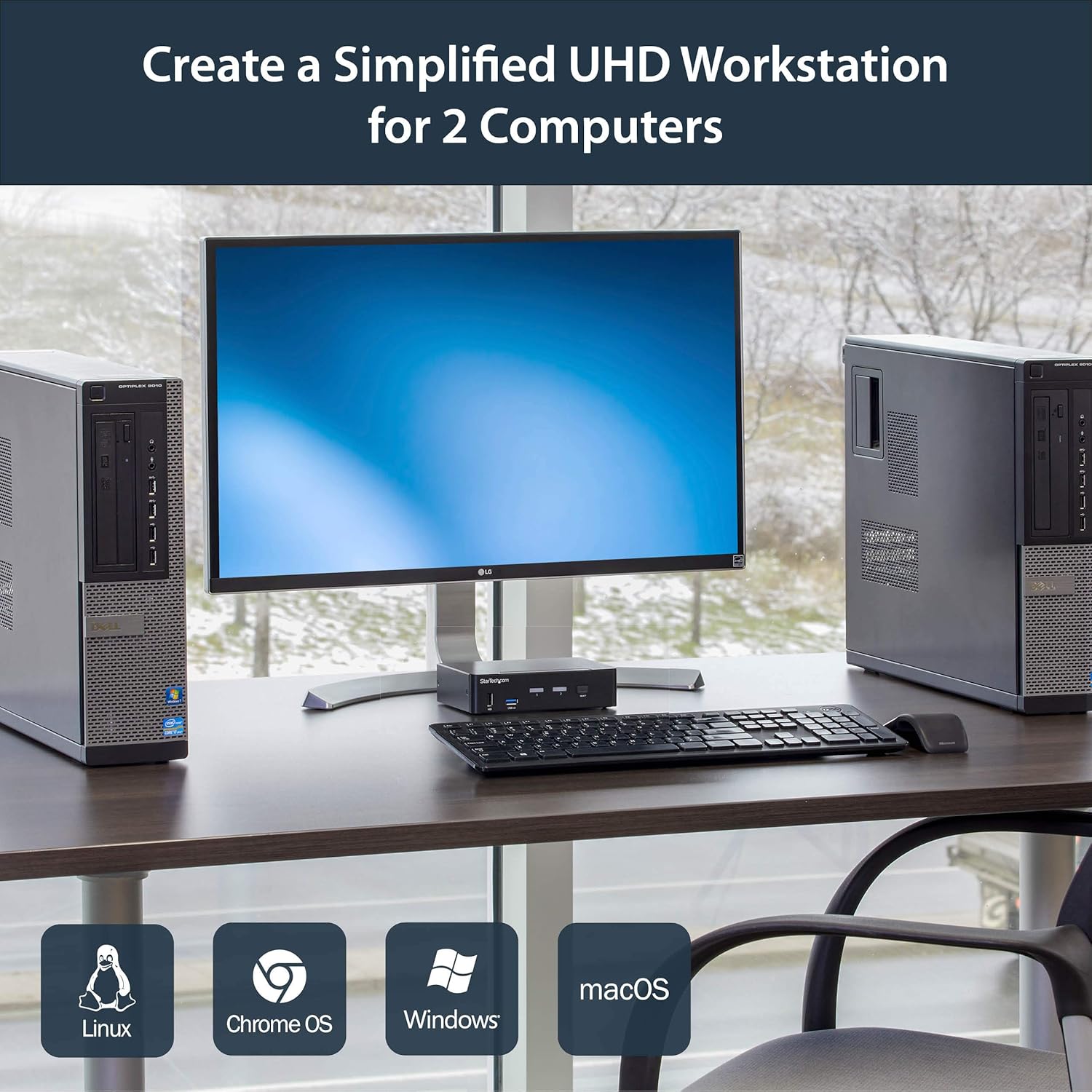
ምስል 4፡ Connection diagram for the SV231DPU34K KVM Switch, showing how two computers share one display and peripherals.
5. የአሠራር መመሪያዎች
The SV231DPU34K KVM Switch offers two methods for switching between connected computers:
5.1 Front Panel Push Buttons
ተጓዳኝውን ይጫኑ ምረጥ button on the front panel of the KVM switch to switch to the desired computer (PC1 or PC2). The LED indicator for the selected computer will illuminate.
ምስል 5፡ Front panel with computer selection buttons.
5.2 የሆትኪ መቀያየር
The KVM switch supports hotkey commands for switching between computers. Refer to the quick start guide or the official StarTech.com product page for specific hotkey sequences.
6. ጥገና
To ensure optimal performance and longevity of your KVM switch, follow these maintenance guidelines:
- ማጽዳት፡ Keep the device clean and free from dust. Use a soft, dry, lint-free cloth for cleaning. Avoid using liquid or aerosol cleaners.
- የአየር ማናፈሻ; Ensure adequate airflow around the KVM switch to prevent overheating. Do not block any ventilation openings.
- የኬብል አስተዳደር በወደቦች ላይ ጫና እና ድንገተኛ መቆራረጥን ለመከላከል ኬብሎችን ያደራጁ።
- የአካባቢ ሁኔታዎች; Operate the device within its specified temperature and humidity ranges. Avoid extreme temperatures or moisture.
7. መላ መፈለግ
በKVM ማብሪያዎ ላይ ችግሮች ካጋጠሙዎት የሚከተሉትን የተለመዱ ችግሮች እና መፍትሄዎች ይመልከቱ፡
| ችግር | ሊሆን የሚችል መፍትሄ |
|---|---|
| No display or flickering display after switching. |
|
| የቁልፍ ሰሌዳ ወይም መዳፊት ምላሽ እየሰጡ አይደለም. |
|
| USB 3.0 devices not detected or working intermittently. |
|
| Audio issues (static, no sound). |
|
| G-Sync or FreeSync not working. |
|
8. ዝርዝሮች
| ባህሪ | ዝርዝር |
|---|---|
| ሞዴል | SV231DPU34K |
| የምርት ስም | StarTech.com |
| የቪዲዮ በይነገጽ | DisplayPort 1.2 |
| ከፍተኛ ጥራት | 3840 x 2160 @ 60Hz (4K UHD) |
| MST Passthrough | የሚደገፍ |
| የዩኤስቢ መገናኛ | 2-ወደብ ዩኤስቢ 3.0 መገናኛ |
| የዩኤስቢ HID ወደቦች | 4x USB Type-A (for keyboard/mouse) |
| ኦዲዮ | 3.5mm Analog Audio Switching |
| የመቀየሪያ ዘዴዎች | Push Button, Hotkey |
| ቁሳቁስ | ብረት |
| ልኬቶች (L x W x H) | 3.9 x 6.3 x 1.6 ኢንች (9.9 x 16.0 x 4.1 ሴሜ) |
| የእቃው ክብደት | 1.3 ፓውንድ (0.59 ኪ.ግ) |
| የኃይል ግቤት | DC 9-12V, 18 Watts |
| ቀለም | ጥቁር |
| የአሠራር ሙቀት | ከ0°ሴ እስከ 40°ሴ (32°F እስከ 104°F) |
| የማከማቻ ሙቀት | -20°ሴ እስከ 60°ሴ (-4°F እስከ 140°ፋ) |
| እርጥበት | 0-80% RH (የማይጨማደድ) |
9. ዋስትና እና ድጋፍ
9.1 የዋስትና መረጃ
ይህ የStarTech.com ምርት የተደገፈው በ የ2-ዓመት ዋስትና. For detailed warranty terms and conditions, please refer to the official StarTech.com webጣቢያ.
9.2 የቴክኒክ ድጋፍ
For technical assistance, product documentation, or driver downloads, please visit the official StarTech.com support webጣቢያ፡


