
1. ምርት አብቅቷልview
The Jettom J1 is a 7-inch tablet designed for children, featuring a durable yellow casing. It operates on the Android system and includes dual cameras, Bluetooth connectivity, and 2G cellular support. This manual provides essential information for setting up, operating, maintaining, and troubleshooting your Jettom J1 tablet.
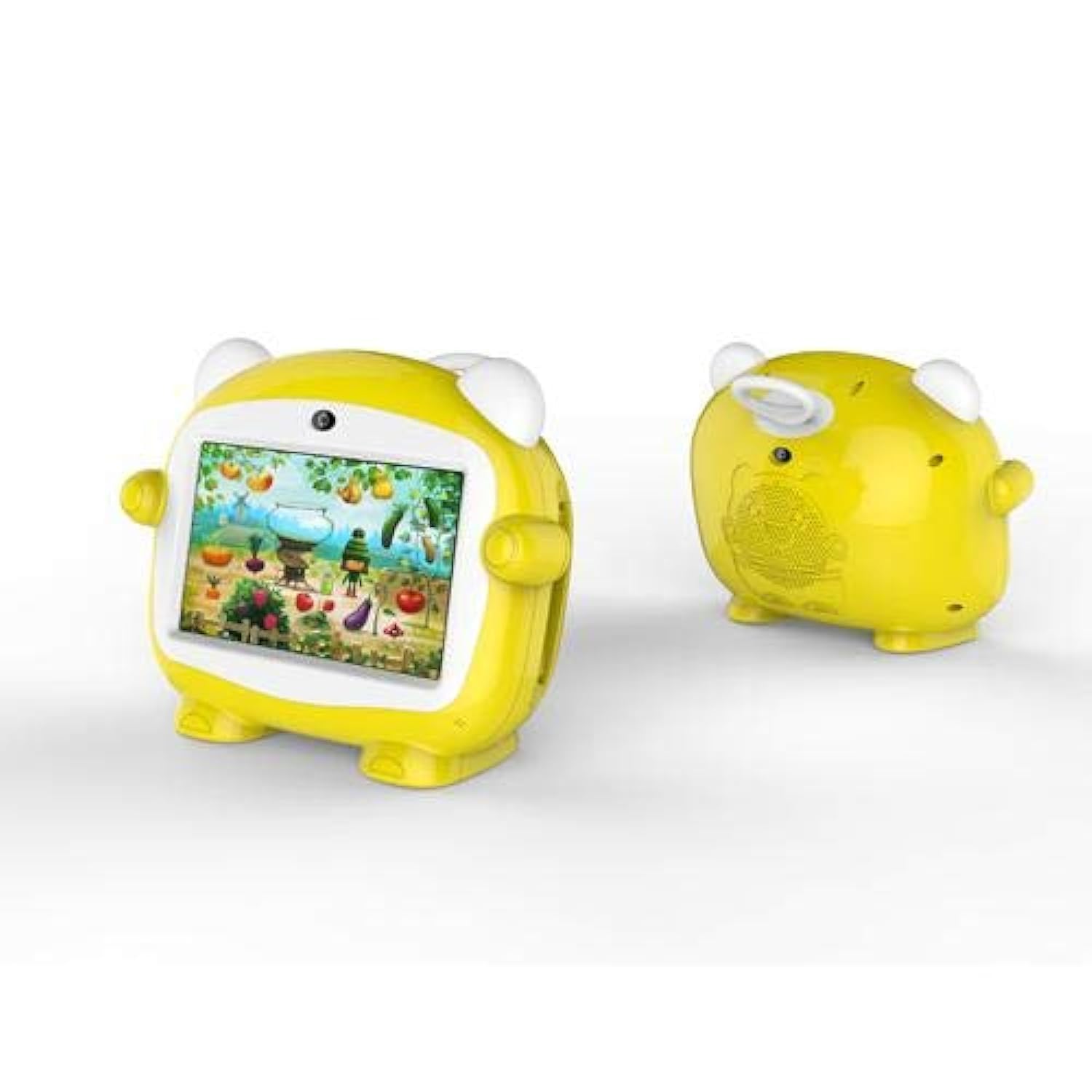
ምስል 1: የፊት view of the Jettom J1 Kids Tablet.
2. የመጀመሪያ ደረጃ ማዋቀር
2.1 ጡባዊውን መሙላት
Before first use, fully charge the tablet. Connect the provided charger to the tablet's charging port and plug it into a power outlet. The battery indicator on the screen will show charging status.
2.2 ማብራት / ማጥፋት
- ለማብራት፡- ማያ ገጹ እስኪበራ ድረስ በጡባዊው ጎን ላይ የሚገኘውን የኃይል አዝራሩን ተጭነው ይያዙ።
- ለማጥፋት፡- የኃይል አዝራሩን ተጭነው ይያዙት፣ ከዚያም በማያ ገጹ ላይ ከሚታዩት አማራጮች ውስጥ 'ፓወር አጥፋ' የሚለውን ይምረጡ።
2.3 የመጀመሪያ ውቅር
Upon first startup, follow the on-screen prompts to configure basic settings:
- የሚመርጡትን ቋንቋ ይምረጡ።
- ከWi-Fi አውታረ መረብ ጋር ይገናኙ።
- ቀኑን እና ሰዓቱን ያዘጋጁ።
- Sign in with a Google account (optional, but recommended for app downloads).
2.4 Inserting a SIM Card (for 2G Cellular)
The Jettom J1 supports a single 2G SIM card for cellular connectivity. Locate the SIM card slot, typically on the side or back of the device. Carefully insert the SIM card with the gold contacts facing down, ensuring it is correctly oriented. Refer to the diagram below for slot location.

ምስል 2፡ ተመለስ view of the Jettom J1 Kids Tablet, indicating potential SIM card slot area.
3. የአሠራር መመሪያዎች
3.1 መሰረታዊ ዳሰሳ
The tablet features a capacitive touchscreen. Use the following gestures:
- መታ ያድርጉ፡ አንድ ንጥል ለመምረጥ ወይም መተግበሪያ ለመክፈት.
- ያንሸራትቱ በገጾች ወይም በምናሌዎች ውስጥ ለማሸብለል።
- መቆንጠጥ ምስሎችን ለማጉላት ወይም ለማሳነስ ወይም web ገጾች.
3.2 የ Wi-Fi ግንኙነት
ከWi-Fi አውታረ መረብ ጋር ለመገናኘት፡-
- ወደ ሂድ ቅንብሮች > አውታረ መረብ እና በይነመረብ > ዋይ ፋይ.
- Wi-Fi ቀይር On.
- ከዝርዝሩ ውስጥ የሚፈልጉትን አውታረ መረብ ይምረጡ እና ከተጠየቁ የይለፍ ቃሉን ያስገቡ።
3.3 ካሜራዎችን መጠቀም
The tablet is equipped with a front (2MP) and rear (5MP) camera. Open the Camera application to take photos or record videos. You can switch between the front and rear cameras within the app interface.
3.4 የብሉቱዝ ማጣመር
ከብሉቱዝ መሣሪያ ጋር ለማጣመር-
- ወደ ሂድ ቅንብሮች > የተገናኙ መሣሪያዎች > ብሉቱዝ.
- ብሉቱዝን ቀያይር On.
- The tablet will scan for available devices. Select the device you wish to pair with and confirm the pairing code if necessary.
4. ጥገና
4.1 ጡባዊውን ማጽዳት
Use a soft, lint-free cloth to clean the screen and body of the tablet. Do not use abrasive cleaners or solvents, as these can damage the device. Avoid direct contact with liquids.
4.2 የባትሪ እንክብካቤ
- ጡባዊውን ለከፍተኛ ሙቀት ከማጋለጥ ይቆጠቡ።
- ባትሪው በተደጋጋሚ እንዲወጣ አትፍቀድ።
- የመጀመሪያውን ወይም የተረጋገጠውን ተኳሃኝ ኃይል መሙያ ብቻ ይጠቀሙ።
4.3 የሶፍትዌር ዝመናዎች
ጥሩ አፈጻጸም እና ደህንነትን ለማረጋገጥ የስርዓት ዝመናዎችን በየጊዜው ያረጋግጡ። ወደ ሂድ ቅንብሮች > ስርዓት > የስርዓት ዝመና ያሉትን ዝመናዎች ለመፈተሽ እና ለመጫን።
4.4 የማከማቻ አስተዳደር
To manage the tablet's 4GB internal storage, go to ቅንብሮች > ማከማቻ. You can clear cached data, uninstall unused apps, or move files to an external SD card (if supported and installed) to free up space.
5. መላ መፈለግ
| ችግር | መፍትሄ |
|---|---|
| ጡባዊው አይበራም | ባትሪው መሙላቱን ያረጋግጡ። ቻርጀሩን ያገናኙና እንደገና ይሞክሩ። ምላሽ የማይሰጥ ከሆነ የኃይል ቁልፉን ለ10-15 ሰከንዶች ተጭነው ይያዙት እና እንደገና እንዲጀመር ያስገድዱ። |
| ስክሪን ምላሽ አይሰጥም | ታብሌቱን እንደገና ያስጀምሩት። ችግሩ ከቀጠለ፣ ማያ ገጹ ንጹህ እና ከቆሻሻ የጸዳ መሆኑን ያረጋግጡ። |
| ከWi-Fi ጋር መገናኘት አልተቻለም | Check if Wi-Fi is enabled in Settings. Restart your Wi-Fi router. Ensure you are entering the correct password. |
| መተግበሪያዎች እየተበላሹ ወይም እየቀዘቀዙ ናቸው። | Close and reopen the app. Clear the app's cache in Settings > Apps. Ensure the tablet has sufficient free storage space. |
| ዘገምተኛ አፈጻጸም | ጥቅም ላይ ያልዋሉ መተግበሪያዎችን ይዝጉ። መሸጎጫ እና ጊዜያዊ ያጽዱ። files. Consider a factory reset as a last resort (back up data first). |
6. ዝርዝሮች
| ባህሪ | ዝርዝር |
|---|---|
| የምርት ስም | ጄቶም |
| የሞዴል ቁጥር | J1 |
| የስክሪን መጠን | 7 ኢንች |
| የማሳያ ጥራት | 1024 x 600 |
| የማሳያ ዓይነት | IPS LCD |
| ፕሮሰሰር ብራንድ | MediaTek |
| የአቀነባባሪ ፍጥነት | 1.3 GHz ኳድ-ኮር |
| የ RAM መጠን | 512 ሜባ |
| የማከማቻ አቅም | 4 ጊባ |
| የኋላ ካሜራ ጥራት | 5 ሜጋፒክስል |
| የፊት ካሜራ ጥራት | 2 ሜጋፒክስል |
| ስርዓተ ክወና | አንድሮይድ |
| የባትሪ አቅም | 2000 ሚአሰ |
| የገመድ አልባ ግንኙነት | ብሉቱዝ |
| የተንቀሳቃሽ ስልክ አውታረ መረብ ቴክኖሎጂ | 2G (Single SIM) |
| ቀለም | ቢጫ |
| ልዩ ባህሪ | ድርብ ካሜራ |
| የዕድሜ ክልል (መግለጫ) | ልጅ |
7. ዋስትና እና ድጋፍ
Warranty information for the Jettom J1 tablet is typically provided at the point of purchase or within the product packaging. Please refer to these documents for details regarding coverage and terms.
For technical support, service, or inquiries regarding your product, please contact the seller or the manufacturer directly. Contact information can usually be found on the product packaging or the seller's webጣቢያ.