
አስፈላጊ የደህንነት መመሪያዎች
To ensure safe operation and prolong the life of your monitor, please read and follow these instructions carefully:
- መቆጣጠሪያውን ከማጽዳትዎ በፊት ሁልጊዜ የኤሌክትሪክ ገመዱን ከኤሌክትሪክ ሶኬት ያላቅቁ።
- Do not expose the monitor to rain or moisture to avoid electric shock.
- ከመጠን በላይ ሙቀትን ለመከላከል በማሳያው ዙሪያ በቂ የአየር ዝውውር እንዲኖር ያድርጉ። የአየር ማናፈሻ ክፍተቶችን አይዝጉ።
- በአምራቹ የቀረቡትን የኃይል አስማሚ እና ኬብሎችን ብቻ ይጠቀሙ።
- ከባድ ነገሮችን በኤሌክትሪክ ገመድ ወይም መቆጣጠሪያ ላይ ከማስቀመጥ ተቆጠብ።
- If the monitor is damaged or malfunctions, do not attempt to repair it yourself. Contact qualified service personnel.
የጥቅል ይዘቶች
Before proceeding with the setup, please check the contents of your package to ensure all items are present:
- Acer CB272U smiiprx LED Monitor
- የክትትል ማቆሚያ (ቤዝ እና ክንድ)
- የኃይል ገመድ
- HDMI ገመድ
- ፈጣን ጅምር መመሪያ / የዋስትና ካርድ
ማዋቀር
1. የክትትል መቆሚያውን ማገጣጠም
- Carefully remove the monitor from its packaging. Place the monitor face down on a soft, clean cloth or surface to prevent scratches to the screen.
- Attach the stand arm to the back of the monitor panel. Ensure it is securely fastened, typically by sliding it into place until it clicks or by tightening screws.
- Connect the stand base to the bottom of the stand arm. Secure the base by tightening the captive screw located underneath the base.

ምስል 1: የኋላ view of the Acer CB272U smiiprx monitor with the stand attached, illustrating the assembly points.
2. Connecting the Monitor to Your Computer
- Connect one end of the provided HDMI cable to the HDMI port on the monitor.
- Connect the other end of the HDMI cable to the HDMI output port on your computer or graphics card.
- Plug the power cord into the monitor's power input, then plug the other end into a grounded electrical outlet.

ምስል 2: አንግል የኋላ view showing the input ports of the monitor, including HDMI and power connections.
ሞኒተርን ማስኬድ
ማብራት እና ማጥፋት
Locate the power button on the monitor's bezel. Press it once to turn the monitor on. The power indicator light will illuminate. Press it again to turn the monitor off.
Adjusting Display Settings (OSD Menu)
The On-Screen Display (OSD) menu allows you to customize various monitor settings. Use the control buttons (usually located on the back or bottom right of the monitor) to navigate the OSD menu. Common adjustments include:
- ብሩህነት/ንፅፅር፡ በብርሃን እና በጨለማ ቦታዎች መካከል ያለውን አጠቃላይ ብርሃን እና ልዩነት ያስተካክሉ።
- የቀለም ቅንጅቶች የቀለም ሙቀት፣ ጋማ እና የግለሰብ RGB ደረጃዎችን ያስተካክሉ።
- የግቤት ምንጭ፡- Manually select the video input (e.g., HDMI).
- ኦዲዮ፡ Control volume for the built-in speakers.
Ergonomic ማስተካከያዎች
The Acer CB272U smiiprx monitor stand offers multiple ergonomic adjustments to optimize your viewምቾት;
- የከፍታ ማስተካከያ; ማሳያውን ወደ ዓይን ደረጃ ከፍ ያድርጉት ወይም ዝቅ ያድርጉት።
- ዘንበል Adjust the screen angle forward or backward to reduce glare.
- ማወዛወዝ፡ Rotate the monitor horizontally to share your screen or adjust viewአንግል።
- ምሰሶ፡ Rotate the screen to a portrait orientation for document viewing ወይም ኮድ ማድረግ.
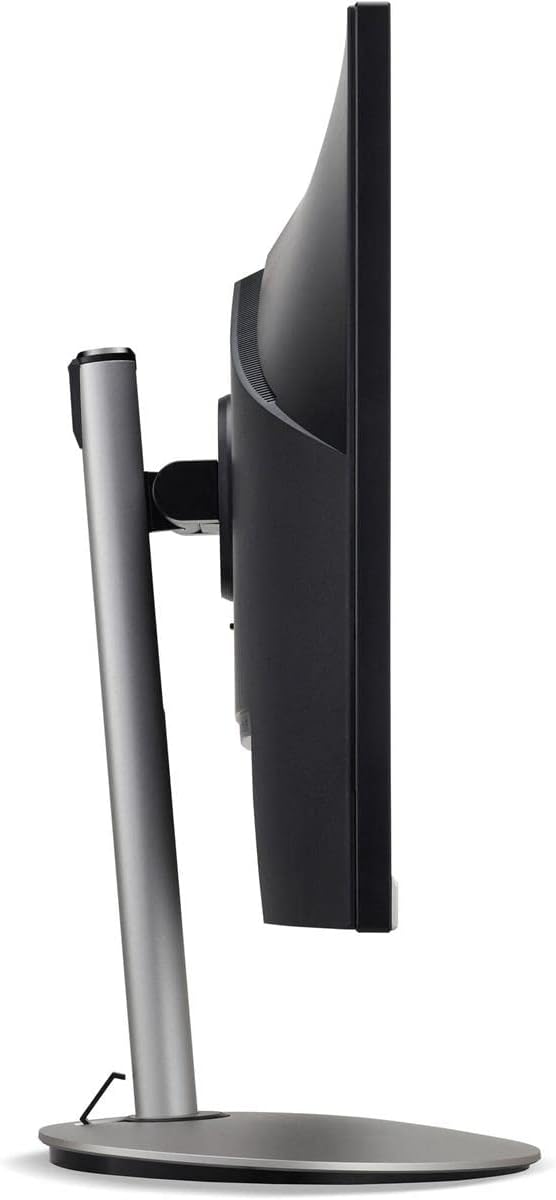
ምስል 3: የጎን ፕሮfile of the monitor, illustrating its adjustable stand for ergonomic positioning.
ጥገና
Cleaning the Monitor Screen and Casing
To clean your monitor, first ensure it is turned off and unplugged from the power outlet. Use a soft, lint-free cloth. For stubborn marks, lightly dampen the cloth with water or a specialized non-abrasive screen cleaner. Do not spray liquid directly onto the screen or casing. ኃይለኛ ኬሚካሎችን፣ ሻካራ ማጽጃዎችን ወይም ፈሳሾችን ከመጠቀም ይቆጠቡ።
የማከማቻ መመሪያዎች
If you need to store the monitor for an extended period, it is recommended to use its original packaging to protect it from dust, moisture, and physical damage. Store in a cool, dry environment away from direct sunlight and extreme temperatures.
መላ መፈለግ
ለጋራ ጉዳዮች እና መፍትሄዎቻቸው ከዚህ በታች ያለውን ሰንጠረዥ ይመልከቱ።
| ችግር | ሊሆን የሚችል ምክንያት | መፍትሄ |
|---|---|---|
| በማያ ገጹ ላይ ምንም ምስል የለም | የኃይል ገመድ ተቋርጧል; የቪዲዮ ገመድ ተቋርጧል; የተሳሳተ የግቤት ምንጭ ተመርጧል። | Check power and video cable connections; Ensure the monitor is powered on; Select the correct input source via the OSD menu. |
| ምስሉ የደበዘዘ ወይም የተዛባ ነው። | Incorrect resolution setting; Faulty video cable. | Set the display resolution to 2560 x 1440 at 75 Hz; Try a different HDMI cable. |
| ከድምጽ ማጉያዎች ድምፅ የለም | Monitor volume too low or muted; Incorrect audio output selected on computer. | Adjust monitor volume via OSD; Unmute audio; Select the monitor as the audio output device in your computer's sound settings. |
| ብልጭ ድርግም የሚል ተቆጣጠር | Refresh rate mismatch; Interference; Faulty cable. | Ensure refresh rate is set to 75 Hz; Check for nearby electronic devices causing interference; Replace video cable. |
ዝርዝሮች
Key technical specifications for the Acer CB272U smiiprx LED Monitor:
| ባህሪ | ዝርዝር |
|---|---|
| የሞዴል ስም | CB272U smiiprx |
| የስክሪን መጠን | 24.1 ኢንች |
| ቤተኛ ውሳኔ | 2560 x 1440 (WQHD) |
| የማደስ ደረጃ | 75 Hz |
| የምላሽ ጊዜ | 1 Millisecond (VRB) |
| ምጥጥነ ገጽታ | 16፡9 |
| የማሳያ ዓይነት | LED-backlit LCD / TFT active matrix (IPS) |
| ብሩህነት | 350 ሲዲ/ሜXNUMX |
| የንፅፅር ሬሾ | 1000:1 (ስታቲክ) |
| ግንኙነት | HDMI |
| አስማሚ ማመሳሰል | FreeSync |
| አብሮ የተሰሩ ስፒከሮች | አዎ |
| Dimensions (WxDxH with stand) | 24.1 ኢንች x 9.2 በ x 20.5 ኢንች |
| ክብደት (ከቆመበት ጋር) | 18.1 ፓውንድ £ |

Figure 4: Monitor dimensions with stand, indicating width, depth, and height.
የዋስትና መረጃ
The Acer CB272U smiiprx LED Monitor comes with a የ 3 ዓመት አምራች የተወሰነ ዋስትና. This warranty covers defects in materials and workmanship under normal use. For complete details regarding warranty coverage, limitations, and how to make a claim, please refer to the warranty documentation included with your product or visit the official Acer support webጣቢያ.
Please retain your proof of purchase (receipt or invoice) as it will be required for any warranty service.
የደንበኛ ድጋፍ
Should you require further assistance, technical support, or wish to download the latest drivers and firmware updates for your monitor, please visit the official Acer support webጣቢያ፡
You can also find contact information for Acer customer service in your region on the support webለግል የተበጀ እርዳታ ጣቢያ።