
TERIOS T-12
የቴሪዮስ የሞባይል ጨዋታ መቆጣጠሪያ የተጠቃሚ መመሪያ
ሞዴል፡ T-12
መግቢያ
Welcome to your new TERIOS Mobile Game Controller. This manual provides detailed instructions for setup, operation, and maintenance to ensure optimal performance and an enhanced gaming experience across various platforms including Android smartphones, Windows PCs, and PlayStation 3 consoles. Please read this manual thoroughly before using the device.
ቁልፍ ባህሪያት
- Innovative Gaming: Designed to enrich your mobile gaming experience with precision and responsiveness.
- ሰፊ ተኳኋኝነት Connects via Bluetooth 4.0 to Android smartphones, and is compatible with Windows PC and PlayStation 3. Supports popular games like PUBG, Call of Duty, and Mobile Legends.
- Gaming Joysticks: Features dual analog sticks for comprehensive and precise control.
- Ergonomic ንድፍ; Comfortable grip with an integrated smartphone holder for extended gaming sessions.
- የቱርቦ ተግባር Allows for rapid, continuous input with a single button press.
- Responsive Active Buttons: Includes 2 quick access buttons on the back and numerous action buttons for enhanced accuracy.
- ረጅም የባትሪ ህይወት; በአንድ ጊዜ ቻርጅ እስከ 12 ሰዓታት የሚቆይ ቀጣይነት ያለው ጨዋታ።
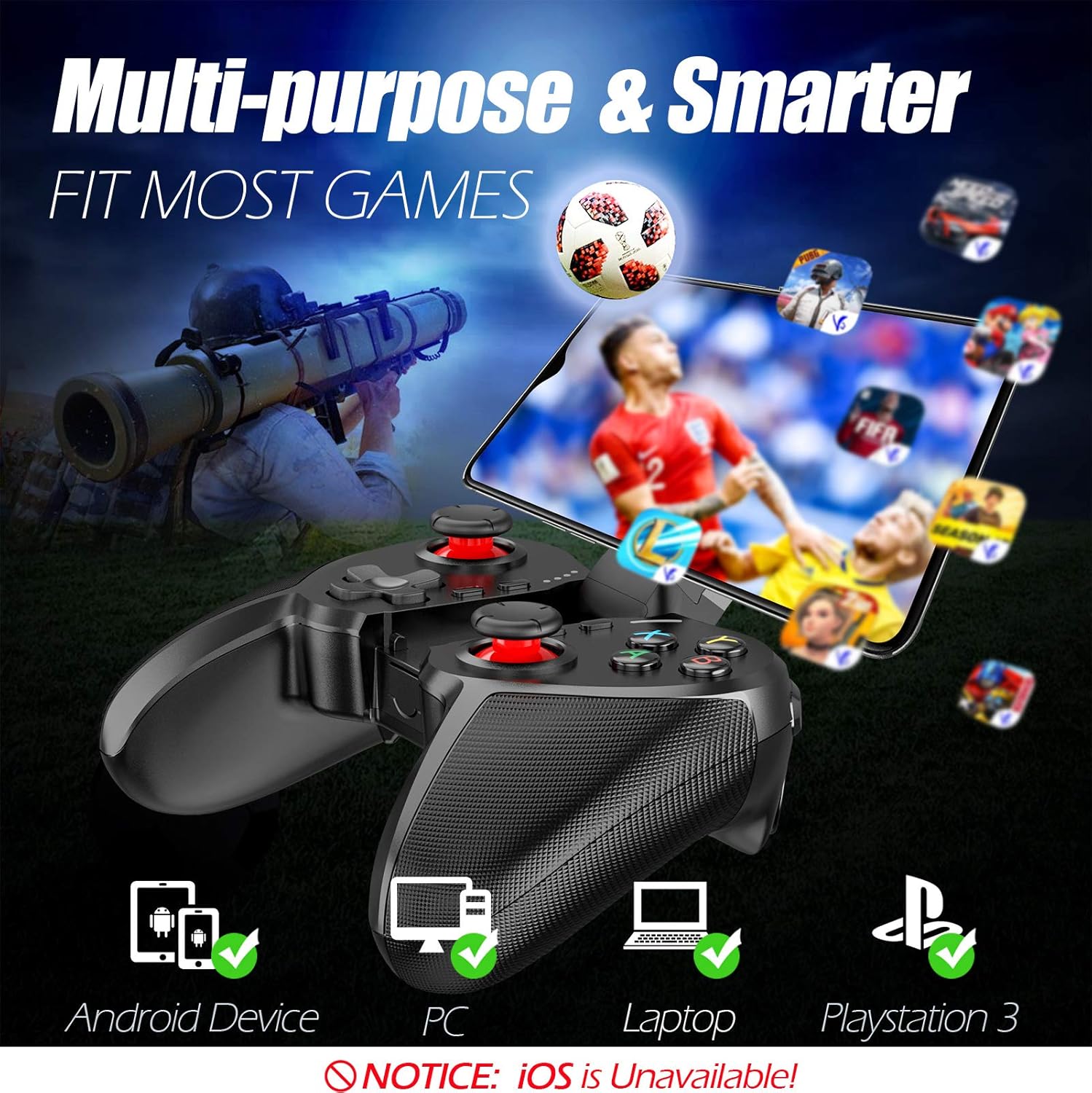
Figure 1: The TERIOS controller is compatible with Android devices, PCs, Laptops, and PlayStation 3.

Figure 2: Detail of the controller's built-in smartphone bracket, accurate buttons, and comfortable soft rubber grips.
ማዋቀር እና ግንኙነት
1. መቆጣጠሪያውን መሙላት
Before first use, fully charge the controller. Connect the provided Micro USB cable to the controller's charging port and the other end to a USB power source (e.g., computer USB port, USB wall adapter). The indicator lights will show charging status and turn off when fully charged.

Figure 3: The controller features a 400mAh battery, providing 12-14 hours of playtime with a 2-3 hour charging time.
2. ማብራት / ማጥፋት
- ለማብራት፡- ተጭነው ይያዙት። ቤት button for 2 seconds. The indicator lights will flash.
- ለማጥፋት፡- ተጭነው ይያዙት። ቤት button for 5 seconds until the indicator lights turn off. The controller will automatically power off after 5 minutes of inactivity.
3. Bluetooth Pairing (Android Smartphones / PS3)
- መቆጣጠሪያው መጥፋቱን ያረጋግጡ።
- On your Android smartphone or PS3, enable Bluetooth.
- ተጭነው ይያዙት። ቤት button on the controller until the indicator lights flash rapidly, indicating pairing mode.
- On your device, search for new Bluetooth devices. Select "TERIOS Gamepad" or similar from the list.
- ከተገናኘ በኋላ ጠቋሚው መብራቱ ጠንካራ ይሆናል.
4. ፒሲ ግንኙነት
For PC connection, the controller typically uses a USB dongle (often included). Insert the USB dongle into an available USB port on your PC. The controller should automatically connect. If not, press the ቤት button to initiate connection.
5. Initial Setup and App (V3 App)
For optimal customization and compatibility with certain mobile games, it is recommended to download the V3 app from the Google Play Store. This app allows you to map virtual keys on your screen to the physical buttons of the controller.
- Download the "V3" app from the Google Play Store.
- Connect the TERIOS gamepad to your smartphone via Bluetooth.
- Open the V3 app and follow the on-screen instructions to customize key mappings for your desired games.

Figure 4: The V3 app allows for easy customization of virtual keys to match controller buttons, creating more combinations.
የአሠራር መመሪያዎች
1. የአዝራር አቀማመጥ እና ተግባራት

Figure 5: The TERIOS Mobile Game Controller with a smartphone securely mounted in its integrated holder.
- የግራ አናሎግ ዱላ፡ ዋናው የእንቅስቃሴ ቁጥጥር።
- የቀኝ አናሎግ ዱላ፡ የካሜራ መቆጣጠሪያ ወይም ሁለተኛ ደረጃ እንቅስቃሴ።
- ዲ-ፓድ (አቅጣጫ ፓድ): Precise directional input.
- ABXY አዝራሮች፡- መደበኛ የእርምጃ አዝራሮች (A፣ B፣ X፣ Y)።
- L1/L2, R1/R2 Buttons: Shoulder and trigger buttons for various in-game actions.
- አዝራር ምረጥ ፦ በተለምዶ ለምናሌ አሰሳ ወይም ለተወሰኑ የጨዋታ ተግባራት ያገለግላል።
- የጀምር አዝራር፡- Typically used for pausing games or accessing menus.
- መነሻ አዝራር፡- Powers on/off, enters pairing mode, and returns to home screen on some devices.
- ቱርቦ አዝራር፡- Activates the turbo function for other buttons.
- ግልጽ አዝራር; Deactivates the turbo function.

Figure 6: The dual analog sticks are designed for precise control and execution in games.
2. የቱርቦ ተግባር
The Turbo function allows a button to be pressed repeatedly as long as you hold it down, which is useful for rapid-fire actions in games.
- ለማግበር ተጭነው ይያዙት። ቱርቦ button, then press the desired action button (e.g., A, B, X, Y, L1, R1). Release both buttons. Now, holding down the action button will activate turbo fire.
- ለማሰናከል፡- ተጭነው ይያዙት። አጽዳ button, then press the action button for which turbo was activated. Release both buttons.

Figure 7: The dedicated Turbo button enables rapid-fire functionality with one click.
3. Smartphone Holder Usage
The integrated smartphone holder can accommodate most smartphone sizes. Gently extend the holder and place your smartphone securely within the clamps. Ensure the phone is centered for balance.
ጥገና
- ማጽዳት፡ መቆጣጠሪያውን ለማጽዳት ለስላሳና ደረቅ ጨርቅ ይጠቀሙ። ሻካራ ማጽጃዎችን ወይም ሟሟቶችን አይጠቀሙ።
- ማከማቻ፡ መቆጣጠሪያውን በቀጥታ ከፀሀይ ብርሀን እና ከከፍተኛ ሙቀት ርቆ በቀዝቃዛና ደረቅ ቦታ ያከማቹ።
- የባትሪ እንክብካቤ የባትሪውን ዕድሜ ለማራዘም መቆጣጠሪያውን ብዙ ጊዜ ሙሉ በሙሉ ከመሙላት ይቆጠቡ። ለረጅም ጊዜ ጥቅም ላይ ባይውልም እንኳ በመደበኛነት ኃይል ይሙሉት።
መላ መፈለግ
| ጉዳይ | ሊሆን የሚችል ምክንያት | መፍትሄ |
|---|---|---|
| መቆጣጠሪያው በብሉቱዝ በኩል አይገናኝም። | መቆጣጠሪያው በማጣመር ሁነታ ላይ አይደለም፤ የመሣሪያው ብሉቱዝ ጠፍቷል፤ ጣልቃ ገብነት። | Ensure controller is in pairing mode (rapid flashing lights). Check device Bluetooth settings. Move closer to the device. Try restarting both controller and device. |
| አዝራሮች ምላሽ የማይሰጡ ወይም የዘገዩ ናቸው። | Low battery; software glitch; interference. | Charge the controller fully. Restart the controller. Ensure no other strong wireless signals are nearby. For mobile games, check V3 app settings. |
| ተቆጣጣሪው በተደጋጋሚ ይቋረጣል. | Low battery; too far from device; interference. | Charge the controller. Stay within the recommended Bluetooth range. Minimize wireless interference. |
| የቱርቦ ተግባር አይሰራም። | Incorrect activation sequence; button not supported. | Ensure you press and hold TURBO, then press the desired action button, then release both. Some games or buttons may not fully support turbo. |
የምርት ዝርዝሮች
| ባህሪ | ዝርዝር |
|---|---|
| የምርት ስም | ቴሪዮስ |
| ሞዴል | ቲ-12 |
| የግንኙነት ቴክኖሎጂ | ብሉቱዝ 4.0 |
| ተስማሚ መሣሪያዎች | Android Smartphones, Windows PC, PlayStation 3 |
| የኃይል ምንጭ | በባትሪ የተጎላበተ (ሊቲየም ፖሊመር) |
| የባትሪ አቅም | 400mAh (approx. 1.48 Watt Hours) |
| የጨዋታ ጊዜ | እስከ 12-14 ሰአታት |
| የኃይል መሙያ ጊዜ | 2-3 ሰዓታት |
| የአዝራሮች ብዛት | 16 (including ABXY, D-pad, analog sticks, L/R triggers/bumpers, Select, Start, Home, Turbo, Clear) |
| ልዩ ባህሪያት | Turbo Function, Dual Analog Sticks, In-built Smartphone Holder, Responsive Action Buttons |
| መጠኖች (ጥቅል) | 17 x 12.4 x 7.7 ሴ.ሜ |
| ክብደት (ጥቅል) | 310 ግ |
የዋስትና እና የድጋፍ መረጃ
The TERIOS Mobile Game Controller is designed for durability and performance. For any product-related inquiries, technical support, or warranty claims, please refer to the contact information provided with your purchase or visit the official TERIOS support webጣቢያ. እባክዎ ለዋስትና ዓላማዎች የግዢ ማረጋገጫዎን ያቆዩ።
Ask a question about this manual
Ask about setup, troubleshooting, compatibility, parts, safety, or missing instructions. Manuals+ will review the question and use this page’s manual context to help answer it.