
1. መግቢያ
This manual provides comprehensive instructions for setting up, operating, and maintaining your Microsoft Surface Go 2 tablet. The Surface Go 2 is a versatile 10.5-inch touch-screen device, powered by an Intel Pentium processor, 8GB of RAM, and a 128GB SSD, running Windows 10. It is designed for portability and efficiency, suitable for various tasks from productivity to entertainment.
2. ክፍሎች እና ወደቦች
Familiarize yourself with the physical components and connection ports of your Surface Go 2.
2.1 መሣሪያ አብቅቷልview
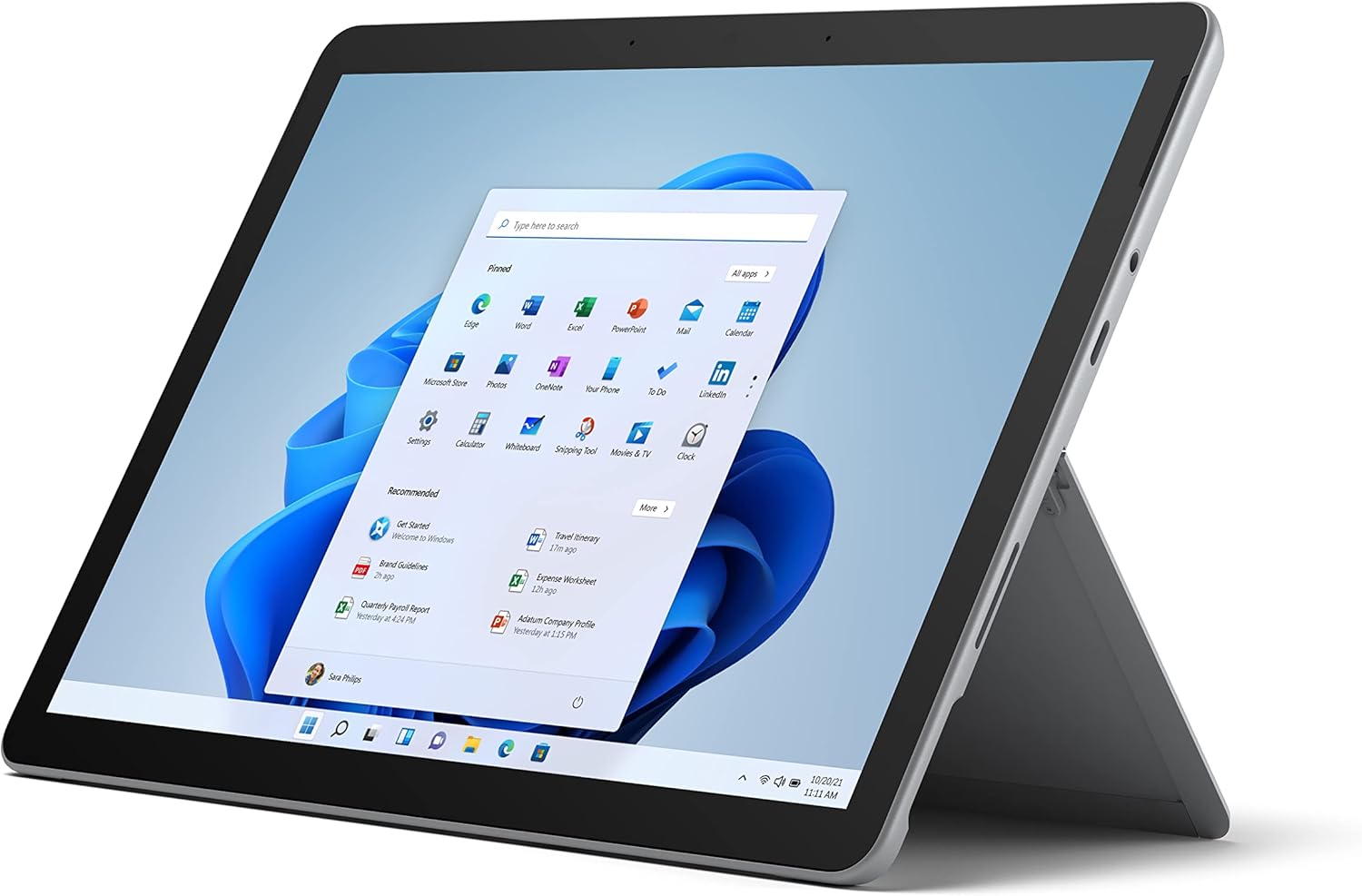
Figure 2.1: Microsoft Surface Go 2 tablet in landscape orientation, showcasing the Windows desktop interface.
2.2 Side Ports and Buttons
- የዩኤስቢ ዓይነት-C ወደብ፡- ለውሂብ ማስተላለፍ፣ የቪዲዮ ውፅዓት እና ኃይል መሙላት።
- 3.5 ሚሜ የጆሮ ማዳመጫ ጃክ፡ የጆሮ ማዳመጫዎችን ወይም ውጫዊ የድምጽ መሳሪያዎችን ለማገናኘት.
- የገጽታ ማገናኛ ወደብ፡ Magnetic port for charging and connecting to Surface Dock (sold separately).
- የማይክሮ ኤስዲ ካርድ አንባቢ፦ For expanding storage with a microSD card.
- የድምጽ አዝራሮች፡- የድምጽ መጠንን ለማስተካከል።
- የኃይል ቁልፍ፡- To turn the device on/off or put it to sleep.

ምስል 2.2፡ የጎን ፕሮfile of the Surface Go 2, illustrating the various ports and buttons along its edge.
2.3 የተቀናጀ የኪክስ ስታንድ
The Surface Go 2 features an integrated kickstand on the back, allowing for multiple viewing angles. This enables comfortable use in various modes, such as tablet, laptop (with Type Cover), or studio mode.

Figure 2.3: The Surface Go 2 with its Type Cover keyboard attached and the kickstand deployed, demonstrating its laptop-like configuration.
3. የመጀመሪያ ደረጃ ማዋቀር
Follow these steps to set up your Surface Go 2 for the first time.
3.1 ማብራት እና መሰረታዊ ማዋቀር
- መሣሪያውን መሙላት; Connect the included power adapter to the Surface Connect port on your device and plug it into a power outlet.
- አብራ፡ Press and hold the power button located on the top edge of the device until the Microsoft logo appears on the screen.
- የማያ ገጽ ላይ ጥያቄዎችን ተከተል፡- The device will guide you through selecting your region, language, and connecting to a Wi-Fi network.
- Microsoft Account Setup: Sign in with an existing Microsoft account or create a new one. This is essential for accessing Microsoft services and applications.
- የግላዊነት ቅንብሮች፡ Review and adjust your privacy settings as prompted.
- ዊንዶውስ ሰላም፡ Set up facial recognition for faster and more secure sign-in (optional).
4. የአሠራር መመሪያዎች
The Surface Go 2 offers flexible interaction methods.
4.1 የንክኪ ማያ ገጽ ዳሰሳ
The 10.5-inch PixelSense display supports 10-point multi-touch. You can navigate Windows 10 using gestures similar to a smartphone or tablet:
- መታ ያድርጉ፡ ንጥሎችን ይምረጡ ወይም መተግበሪያዎችን ይክፈቱ።
- ያንሸራትቱ በይዘት ይሸብልሉ ወይም በማያ ገጹ መካከል ያስሱ።
- መቆንጠጥ-ለማጉላት፡ የይዘት መጠንን ያሳድጉ ወይም ይቀንሱ።
- ተጭነው ይያዙ፡ Access context menus (right-click equivalent).
4.2 Using the Type Cover Keyboard (Sold Separately)
Attach the Type Cover keyboard to transform your Surface Go 2 into a laptop. The keyboard connects magnetically to the bottom edge of the tablet.
- አባሪ፡ Align the Type Cover with the magnetic connector at the bottom of the Surface Go 2 until it snaps into place.
- በመተየብ ላይ፡ Use the physical keys for efficient text input.
- የመከታተያ ሰሌዳ፡ The integrated trackpad allows for precise cursor control and multi-touch gestures.

Figure 4.1: The Surface Go 2 tablet separated from its Type Cover keyboard, illustrating the modular design.
4.3 Using the Surface Pen (Sold Separately)
The Surface Pen (sold separately) enhances creativity and productivity, allowing for natural writing and drawing directly on the screen.

Figure 4.2: The Surface Go 2 tablet displayed with a compatible Surface Pen, highlighting its digital inking capabilities.
5. ጥገና
Proper care ensures the longevity and performance of your Surface Go 2.
- ማያ ገጹን ማጽዳት; ለስላሳ፣ ከቆሸሸ ነፃ የሆነ ጨርቅ በትንሹ ተጠቀምampበውሃ ወይም በተፈቀደ የስክሪን ማጽጃ የተነከረ። ጠንከር ያሉ ኬሚካሎችን ያስወግዱ።
- የመሳሪያውን አካል ማጽዳት; ውጫዊውን ለስላሳ እና ደረቅ ጨርቅ ይጥረጉ.
- የሶፍትዌር ማሻሻያ ጥሩ አፈጻጸም እና ደህንነትን ለማረጋገጥ በመደበኛነት የዊንዶውስ ዝመናዎችን ይፈልጉ እና ይጫኑ። ወደ ሂድ መቼቶች > አዘምን እና ደህንነት > የዊንዶውስ ዝመና.
- የባትሪ እንክብካቤ የባትሪውን ዕድሜ ከፍ ለማድረግ፣ ከፍተኛ የሙቀት መጠንን ያስወግዱ እና በተቻለ መጠን የባትሪውን ኃይል ከ20% እስከ 80% ባለው ጊዜ ውስጥ ለማቆየት ይሞክሩ።
- የማከማቻ አስተዳደር፡ በየጊዜው ግልጽ ጊዜያዊ files and unnecessary data to free up storage space. Go to ቅንብሮች > ስርዓት > ማከማቻ.
6. መላ መፈለግ
የተለመዱ ጉዳዮች እና መፍትሄዎቻቸው.
- መሳሪያ የማይበራ፡ መሣሪያው መሙላቱን ያረጋግጡ። የኃይል አስማሚውን ያገናኙ እና እንደገና ለማብራት ከመሞከርዎ በፊት ጥቂት ደቂቃዎችን ይጠብቁ።
- የማያ ንክኪ ምላሽ የማይሰጥ፡ Restart the device. If the issue persists, check for pending Windows updates or consider a system restore.
- የWi-Fi ግንኙነት ችግሮች፡- Verify your Wi-Fi network is active. Restart your router and the Surface Go 2. Check Wi-Fi settings on the device.
- ቀርፋፋ አፈጻጸም፡ አላስፈላጊ መተግበሪያዎችን ይዝጉ። ከፍተኛ ሀብቶችን የሚወስዱ የጀርባ ሂደቶችን ያረጋግጡ (የተግባር አስተዳዳሪ)። በቂ ነፃ የማከማቻ ቦታ ያረጋግጡ።
- ባትሪ በፍጥነት ማፍሰስ; Adjust screen brightness, disable unnecessary background apps, and ensure all software is up to date.
7. ዝርዝሮች
| ባህሪ | ዝርዝር |
|---|---|
| ማሳያ | 10.5" PixelSense 10-Point Touch Display |
| ጥራት | 1920 x 1280 (216 ፒፒአይ) |
| ፕሮሰሰር | 1.6 GHz Intel Pentium 4425Y Dual-Core Processor |
| ራም | 8 ጊባ |
| ማከማቻ | 128GB SSD |
| ግራፊክስ | የተቀናጀ ኢንቴል ኤችዲ ግራፊክስ 615 |
| ገመድ አልባ | Wi-Fi 5 (802.11ac) | Bluetooth 4.1 |
| ካሜራዎች | 8MP Rear Camera | 5MP Front Camera |
| ወደቦች | USB Type-C, 3.5 mm Headphone Jack, Surface Connect, MicroSD Card Reader |
| የባትሪ ህይወት | እስከ 9 ሰዓታት (መደበኛ አጠቃቀም) |
| ስርዓተ ክወና | ዊንዶውስ 10 |
| ክብደት | 1.15 ፓውንድ (በግምት) |
| መጠኖች | 6.8 x 9.64 x 0.32 ኢንች |
8. ዋስትና እና ድጋፍ
This Microsoft Surface Go 2 is a renewed product. Renewed products are eligible for replacement or refund under the Amazon Renewed Guarantee if you are not satisfied with your purchase. For specific terms and conditions, please refer to the Amazon Renewed program details.
For further technical support or inquiries, please visit the official Microsoft Surface support webጣቢያ ወይም የደንበኛ አገልግሎታቸውን ያነጋግሩ።