
መግቢያ
ይህ መመሪያ የእርስዎን Microsoft Surface Pro 8 ለማዋቀር፣ ለማንቀሳቀስ፣ ለመጠገን እና ችግሮችን ለመፍታት አስፈላጊ መረጃዎችን ይሰጣል። የመሣሪያዎን ምርጥ አፈጻጸም እና ረጅም ዕድሜ ለማረጋገጥ ይህንን መመሪያ በደንብ ያንብቡ።
በሣጥኑ ውስጥ ያለው ነገር፡-
- የSurface Pro 8 መሳሪያ
- የኃይል አቅርቦት
- የ AC ገመድ
- የፈጣን ጅምር መመሪያ (QSG)
- የቁጥጥር ሰነዶች
ማዋቀር
Follow these steps to set up your Surface Pro 8 for the first time.
- መሣሪያውን መሙላት; Connect the power supply to your Surface Pro 8 and a power outlet. Allow the device to charge for at least 30 minutes before initial use.
- አብራ፡ Press the power button located on the top edge of the device. The Microsoft logo will appear, followed by the Windows 11 setup screen.
- Initial Windows 11 Setup: Follow the on-screen prompts to select your language, region, connect to a Wi-Fi network, and set up your Microsoft account.
- Connect Accessories (Sold Separately): If you have a Surface Pro Signature Keyboard or Surface Slim Pen 2, attach the keyboard to the magnetic port at the bottom edge of the Surface Pro 8. The pen can be paired via Bluetooth or stored in the keyboard's charging slot.
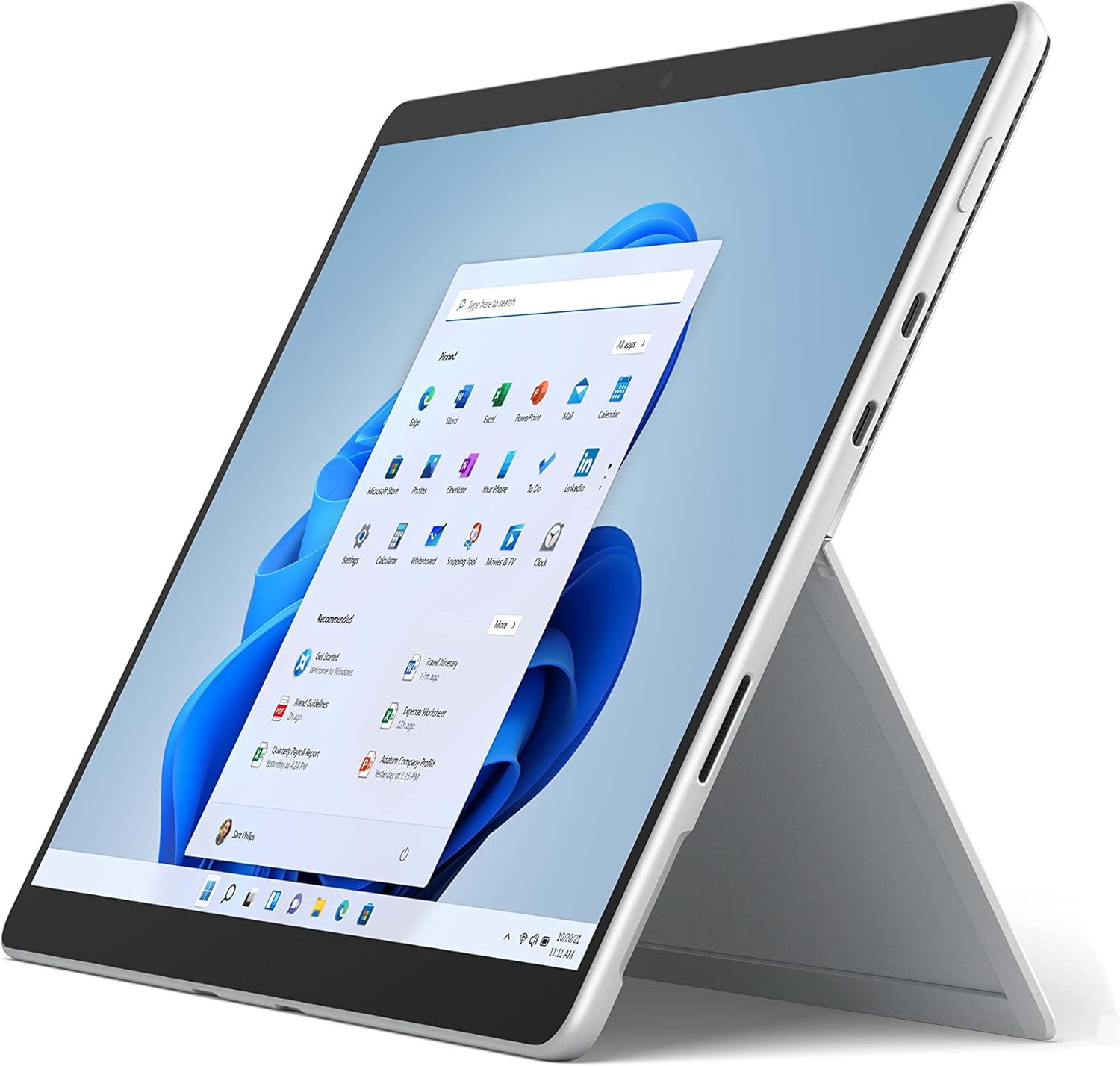
The image above shows the Microsoft Surface Pro 8 in tablet mode, with its 13-inch touchscreen displaying the Windows 11 Start menu. The device is silver with a black bezel, showcasing its sleek design and the intuitive user interface of Windows 11.

This image illustrates the Microsoft Surface Pro 8 alongside its optional accessories: the Surface Slim Pen 2 and the Surface Pro Signature Keyboard. The tablet is shown in a horizontal orientation, with the pen and keyboard positioned below it, highlighting the device's versatility and ecosystem.
የአሠራር መመሪያዎች
The Surface Pro 8 offers flexible usage modes to suit various tasks.
የጡባዊ ሁነታ:
Use the Surface Pro 8 as a standalone tablet for touch-based interactions. The 13-inch touchscreen supports multi-touch gestures for navigation and app control.
የላፕቶፕ ሁነታ፡
Attach the Surface Pro Signature Keyboard (sold separately) to transform your device into a laptop. The integrated kickstand allows for adjustable viewing ማዕዘኖች.

The image displays a side profile of the Microsoft Surface Pro 8 with its integrated kickstand fully extended, supporting the device at an angle. This view highlights the thin design and the functionality of the kickstand for hands-free use.

This image shows the Microsoft Surface Pro 8 with the Surface Pro Signature Keyboard attached, viewed from the side. The device is propped up by its kickstand, demonstrating its laptop configuration, ready for typing and productivity.
Using the Surface Slim Pen 2 (Sold Separately):
The Surface Slim Pen 2 provides a natural writing and drawing experience. It can be used for note-taking, sketching, and navigating the interface. Tactile signals enhance the pen-on-paper feel in supported applications.

The image depicts a hand holding a black Surface Slim Pen 2, actively writing or drawing on the screen of the Microsoft Surface Pro 8. This illustrates the precision and natural feel of using the pen for creative or productive tasks on the device.
Windows 11 Features:
- የስናፕ አቀማመጦች፡ ክፍት መስኮቶችዎን በብቃት ያደራጁ።
- መግብሮች ግላዊ መረጃን በጨረፍታ ይድረሱበት።
- የማይክሮሶፍት መደብር፡ መተግበሪያዎችን ያውርዱ እና ይጫኑ።
ጥገና
Proper care ensures the longevity and performance of your Surface Pro 8.
ማጽዳት፡
- ለስላሳ፣ ከቆሸሸ ነፃ የሆነ ጨርቅ ይጠቀሙ መampened with water or an approved screen cleaner to wipe the screen.
- ኃይለኛ ኬሚካሎችን፣ ጠበኛ ቁሳቁሶችን ወይም ኤሮሶል የሚረጩ ነገሮችን ያስወግዱ።
- ከማጽዳትዎ በፊት መሳሪያው መጥፋቱን እና መሰካቱን ያረጋግጡ።
የባትሪ እንክብካቤ
- የባትሪውን ዕድሜ ሊያበላሹ ስለሚችሉ ከፍተኛ ሙቀትን ያስወግዱ።
- የባትሪውን ጤና ለማሻሻል ባትሪውን ሙሉ በሙሉ ያለማቋረጥ ቻርጅ ማድረግ ወይም ለረጅም ጊዜ 100% ቻርጅ ማድረግን ያስወግዱ።
የሶፍትዌር ማሻሻያ
መሳሪያዎ የቅርብ ጊዜ የደህንነት ጥገናዎች እና የአፈጻጸም ማሻሻያዎች እንዳሉት ለማረጋገጥ የዊንዶውስ ዝመናዎችን በመደበኛነት ይፈትሹ እና ይጫኑ። ወደ ቅንብሮች> የዊንዶውስ ዝመና.
መላ መፈለግ
ሊያጋጥሙህ ለሚችሉ የተለመዱ ጉዳዮች መፍትሄዎች እዚህ አሉ።
መሳሪያ አይበራም
- መሳሪያው መሙላቱን ያረጋግጡ። የኃይል አቅርቦቱን ያገናኙና ለማብራት ከመሞከርዎ በፊት ለጥቂት ደቂቃዎች ይጠብቁ።
- የኃይል ዳግም ማስጀመር ያከናውኑ፡ የኃይል አዝራሩን ለ30 ሰከንዶች ተጭነው ይያዙት፣ ከዚያም ይልቀቁት። ለማብራት እንደገና ለአጭር ጊዜ ይጫኑት።
የማያ ገጽ ጉዳዮች፡-
- ማያ ገጹ ምላሽ የማይሰጥ ከሆነ መሣሪያውን እንደገና ለማስጀመር ይሞክሩ።
- Adjust brightness settings in the Windows Action Center or Display Settings.
የግንኙነት ችግሮች፡-
- For Wi-Fi issues, ensure Wi-Fi is enabled and try reconnecting to your network. Restart your router if necessary.
- For Bluetooth issues, ensure Bluetooth is enabled and try re-pairing your device.
For more detailed troubleshooting or persistent issues, visit the official Microsoft Surface support webድህረ ገጽ ወይም የማይክሮሶፍት ደንበኛ አገልግሎትን ያግኙ።
ዝርዝሮች
የማይክሮሶፍት ሰርፋየር ፕሮ 8 ቁልፍ ቴክኒካዊ ዝርዝሮች።
| ባህሪ | ዝርዝር መግለጫ |
|---|---|
| የቋሚ ማያ ገጽ ማሳያ መጠን | 13 ኢንች |
| ከፍተኛው ማያ ገጽ ጥራት | 2880x1920 ፒክስል |
| ፕሮሰሰር | 4.2 GHz core_i5 (Intel Evo Platform) |
| ራም | 8 ጊባ LPDDR4 |
| ሃርድ ድራይቭ | 128 ጊባ SSD |
| ግራፊክስ ኮፕሮሰሰር | Intel Iris Xe ግራፊክስ |
| ስርዓተ ክወና | ዊንዶውስ 11 |
| የገመድ አልባ አይነት | 802.11 ኤክስ |
| የእቃው ክብደት | 1.96 ፓውንድ |
| የምርት ልኬቶች | 12.22 x 9.06 x 1.97 ኢንች |
| ወደቦች | 2x USB-C Thunderbolt 4, 3.5mm headphone jack, Surface Connect port |

ይህ ምስል መቀራረብ ያቀርባል view of the side of the Microsoft Surface Pro 8, highlighting its connectivity options. Visible ports include two USB-C Thunderbolt 4 ports and a 3.5mm headphone jack, demonstrating the device's modern and versatile input/output capabilities.

The image displays an internal view of the Microsoft Surface Pro 8, revealing its sophisticated engineering. Key components such as the Intel processor, cooling system, and battery are visible, illustrating the hardware that powers the device's performance.
ዋስትና እና ድጋፍ
የሕግ ማስተባበያ
Some accessories and software sold separately. Available colors and materials may vary by market and configuration. Battery life varies significantly based on usage, network and feature configuration, signal strength, settings and other factors. See Surface.com for details. Requires Dolby encoded content and audio. Pen storage and charging available on select Keyboards. Tactile signals with Surface Slim Pen 2 can be experienced on some applications on Surface Delia running Windows 11. Surface Slim Pen 2 sold separately.
የምርት ዋስትና፡-
Your Microsoft Surface Pro 8 comes with a limited hardware warranty. Please refer to the regulatory documents included in your product packaging for specific terms and conditions, including warranty duration and coverage details. Proof of purchase may be required for warranty claims.
የደንበኛ ድጋፍ፡
For technical assistance, warranty service, or additional product information, please visit the official Microsoft Support website or contact Microsoft customer service directly. Support resources include FAQs, troubleshooting guides, and contact options for live assistance.