
Diswoe Controller for Nintendo Switch
Diswoe Wireless Pro Controller User Manual
Model: Controller for Nintendo Switch
መግቢያ
Thank you for choosing the Diswoe Wireless Pro Controller. This gamepad is designed to enhance your gaming experience on Nintendo Switch, Switch Lite, OLED, and PC. It features advanced functionalities such as a 6-axis gyro, adjustable Turbo function, dual shock vibration, and a comfortable ergonomic design for extended play sessions. This manual provides detailed instructions on setup, operation, maintenance, and troubleshooting to ensure optimal performance of your controller.

Figure 1: Diswoe Wireless Pro Controller
የጥቅል ይዘቶች
- Diswoe Wireless Pro Controller
- የዩኤስቢ ባትሪ መሙያ ገመድ
- የተጠቃሚ መመሪያ
የመቆጣጠሪያ አቀማመጥ

ምስል 2፡ የመቆጣጠሪያ አዝራር አቀማመጥ
- Left 3D Stick: ለአቅጣጫ እንቅስቃሴ።
- D ፓድ፡ Directional Pad for precise inputs.
- መነሻ አዝራር፡- ወደ ኮንሶሉ መነሻ ማያ ገጽ ይመለሳል።
- የቅጽበታዊ ገጽ እይታ አዝራር፡ Captures in-game screenshots.
- ቱርቦ አዝራር፡- የቱርቦ ተግባርን ያነቃቃል እና ያስተካክላል።
- +/- አዝራሮች፡- System menu navigation, volume control.
- A/B/X/Y አዝራሮች፡- መደበኛ የድርጊት አዝራሮች.
- Right 3D Stick: ለካሜራ ቁጥጥር ወይም ለዒላማ።
- L1/R1 አዝራሮች፡- የትከሻ አዝራሮች።
- L2/R2 አዝራሮች፡- ቀስቅሴ አዝራሮች.
- TAPY-C Port: USB-C port for charging and wired connection.
ማዋቀር
1. የመነሻ ኃይል መሙላት
Before first use, fully charge the controller. Connect the supplied USB charging cable to the controller's USB-C port and the other end to a USB power source (e.g., Switch dock, PC, or USB wall adapter). The charging time is approximately 2-3 hours for a full charge, providing up to 12 hours of continuous gameplay.

Figure 3: Battery and Charging Indication
2. Pairing with Nintendo Switch/Switch Lite/OLED
- ከመነሻ ምናሌው "ተቆጣጣሪዎች" > "የመያዝ/የትእዛዝ ለውጥ" የሚለውን ይምረጡ።
- While on the "Change Grip/Order" screen, press and hold the Home button on the Diswoe controller for 3-5 seconds until the LED indicators start flashing rapidly.
- Once paired, the corresponding player LED(s) on the controller will light up solid.
- The controller supports up to 4 players simultaneously.

Figure 4: Controller in use with Nintendo Switch
3. Connecting to PC (Wired Only)
The Diswoe controller can be connected to a PC via the USB charging cable. No specific driver installation is required for basic functionality.
- የኬብሉን የዩኤስቢ-ሲ ጫፍ ከመቆጣጠሪያው ጋር እና የዩኤስቢ-ኤ ጫፍን ከፒሲዎ ጋር ያገናኙ።
- The PC should automatically recognize the controller as a gamepad.
የአሠራር መመሪያዎች
1. መሰረታዊ ቁጥጥሮች
Utilize the Left and Right 3D sticks for analog movement and camera control. The D-pad provides precise digital inputs. The A/B/X/Y buttons are for in-game actions. L1/R1 and L2/R2 serve as shoulder and trigger buttons respectively.
2. Gyro Axis Motion Sensors
The controller features a high-quality 6-axis centrifugal chip for precise somatosensory targeting. This allows for motion control in compatible games, enabling actions like rotation, tilt, and acceleration-based inputs.

Figure 5: 6-Axis Gyro Motion Sensors in Action
3. Adjustable TURBO Function
The Turbo function allows for rapid, automatic pressing of a button. To set up Turbo:
- ተጭነው ይያዙት። የቱርቦ ቁልፍ, then press the desired action button (A/B/X/Y/L1/R1/L2/R2) to enable Turbo for that button.
- To adjust Turbo speed, press and hold the የቱርቦ ቁልፍ እና ያንቀሳቅሱ Right 3D stick Up/Down. There are 3 speeds: 5 shots/s, 12 shots/s, and 20 shots/s.
- To clear Turbo for a specific button, press and hold the የቱርቦ ቁልፍ and press the action button again. To clear all Turbo settings, press and hold the የቱርቦ ቁልፍ ለ 5 ሰከንድ.

ምስል 6፡ የቱርቦ ተግባር ማግበር
4. Dual Shock Vibration Adjustment
The controller features dual motors for realistic vibration feedback. You can adjust the vibration intensity:
- ተጭነው ይያዙት። የቱርቦ ቁልፍ እና ያንቀሳቅሱ Left 3D stick Up/Down to cycle through 3 vibration intensities: Low, Medium, and Strong.
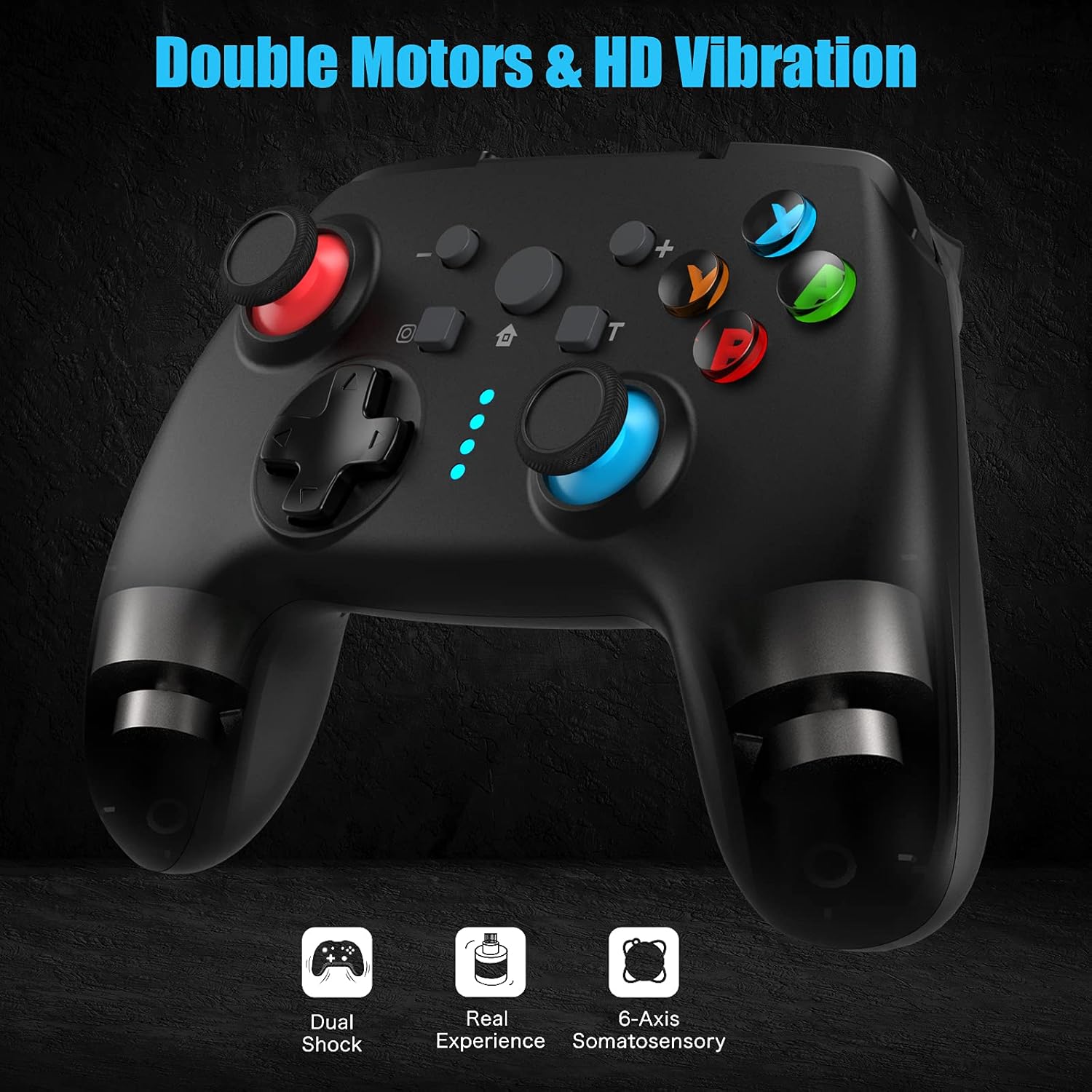
Figure 7: Dual Shock Vibration Feature
5. Screenshot Capture
የሚለውን ይጫኑ የቅጽበታዊ ገጽ እይታ ቅጽበታዊ ገጽ እይታ (located near the Home button) to instantly capture your in-game moments.
6. የማንቂያ ተግባር
When the Switch console is in sleep mode, you can press the የመነሻ አዝራር on the controller to wake up the console and automatically reconnect the controller.
ጥገና
1. የኃይል መሙያ መመሪያዎች
- Charge the controller when the battery indicator is low.
- ከመጠን በላይ መሙላትን ያስወግዱ; አንዴ ሙሉ ኃይል ከሞላ በኋላ ያላቅቁ።
- The controller supports charging while playing.
2. ጽዳት እና ማከማቻ
- መቆጣጠሪያውን ለስላሳና ደረቅ ጨርቅ ያጽዱ። ጠጣር ኬሚካሎችን ወይም ሻካራ ቁሳቁሶችን አይጠቀሙ።
- መቆጣጠሪያውን በቀጥታ ከፀሀይ ብርሀን እና ከከፍተኛ ሙቀት ርቆ በቀዝቃዛና ደረቅ ቦታ ያከማቹ።
- If not used for an extended period, charge the controller at least once every three months to maintain battery health.
3. ራስ-ሰር እንቅልፍ ተግባር
The controller will automatically enter sleep mode after 5 minutes of no input to conserve battery life. Press any button to wake it up.
መላ መፈለግ
- መቆጣጠሪያው እየተገናኘ/እየተጣመረ አይደለም፡
- ተቆጣጣሪው መሙላቱን ያረጋግጡ።
- Make sure the Switch console is updated to the latest system version.
- Try restarting the Switch console.
- Repeat the pairing process carefully.
- If issues persist, try connecting the controller via USB cable to the Switch dock (if applicable) to force a connection, then try wireless pairing again.
- Buttons or sticks unresponsive:
- የባትሪውን ደረጃ ይፈትሹ.
- Ensure the controller is within the 10m wireless range.
- Restart the controller by holding the Home button for 10 seconds until it turns off, then turn it back on.
- If connected to PC, try a different USB port.
- ንዝረት የማይሰራ ወይም በጣም ደካማ/ጠንካራ ያልሆነ፡
- Adjust the vibration intensity as described in the "Operating Instructions" section.
- Ensure the game supports vibration feedback.
- የቱርቦ ተግባር አይሰራም፦
- Ensure you have correctly assigned the Turbo function to the desired button.
- Check if the Turbo speed is set appropriately.
ዝርዝሮች
| ባህሪ | ዝርዝር |
|---|---|
| የምርት ስም | ውድቅ |
| የሞዴል ስም | ለኔንቲዶ ቀይር መቆጣጠሪያ |
| የግንኙነት ቴክኖሎጂ | Wireless (Bluetooth), USB (Wired) |
| የመቆጣጠሪያ አይነት | የጨዋታ ሰሌዳ |
| ተስማሚ መድረኮች | Nintendo Switch, Switch Lite, OLED, PC |
| የባትሪ ዓይነት | ሊቲየም-አዮን (600 ሚአሰ) |
| የኃይል መሙያ ጊዜ | በግምት. 2-3 ሰዓታት |
| የመጫወቻ ጊዜ | እስከ 12 ሰዓታት ድረስ |
| ገመድ አልባ ክልል | እስከ 10 ሜትር |
| ልዩ ባህሪያት | 6-Axis Gyro, Adjustable Turbo, Dual Shock Vibration, Screenshot Capture, Wake-up Function |
| የአዝራሮች ብዛት | 16 |
| ቀለም | ጥቁር |
ዋስትና እና ድጋፍ
Information regarding specific warranty terms and conditions for this product is not provided in the available data. For warranty claims, technical support, or further inquiries, please contact the manufacturer or your point of purchase. Keep your purchase receipt as proof of purchase.
Manufacturer: Diswoe
Ask a question about this manual
Ask about setup, troubleshooting, compatibility, parts, safety, or missing instructions. Manuals+ will review the question and use this page’s manual context to help answer it.