
ማይክሮሶፍት 2026
Microsoft Modern USB-C Headphones User Manual
ሞዴል፡ 2026
መግቢያ
The Microsoft Modern USB-C Headphones are designed to provide high-quality audio for calls, meetings, and general use, particularly optimized for Microsoft Teams. They offer clear sound, a noise-reducing microphone, and intuitive controls for enhanced productivity and communication.
የጥቅል ይዘቶች
- Microsoft Modern USB-C Headset
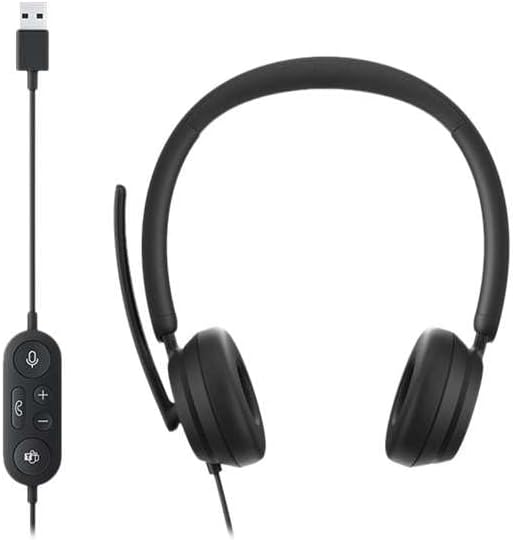
Image: The Microsoft Modern USB-C Headphones, featuring the headset with its attached USB-C cable and inline control unit. The control unit has buttons for mute, volume up/down, call answer/end, and a Microsoft Teams button.
ማዋቀር
የጆሮ ማዳመጫውን በማገናኘት ላይ
- Locate an available USB-C port on your computer or compatible device.
- Plug the USB-C connector of the headset into the USB-C port.
- Your operating system (Windows 11/10/8.1/8 or Mac OS 11.0/10.15) should automatically detect and install the necessary drivers.
የማይክሮፎን ማስተካከያ
- The microphone boom is flexible. Position it approximately one inch from your mouth for optimal voice pickup.
- The microphone features noise reduction to minimize background distractions during calls.

ምስል፡ መቀራረብ view of the earcups and the adjustable microphone boom of the Microsoft Modern USB-C Headphones.
የጆሮ ማዳመጫውን በማንቀሳቀስ ላይ
የመስመር ውስጥ መቆጣጠሪያዎች
The inline control unit provides convenient access to essential functions:
- ድምጸ-ከል ያድርጉ- Press to mute or unmute your microphone. An indicator light on the control unit may show mute status.
- የድምጽ ከፍ / ታች አዝራሮች የመስማት ችሎታውን ያስተካክሉ።
- የጥሪ አዝራር፡- ጥሪን ለመመለስ ወይም ለማቆም ይጫኑ ፡፡
- የማይክሮሶፍት ቡድኖች አዝራር፡- Quickly launch or bring Microsoft Teams to the foreground.

ምስል: ዝርዝር view of the inline control unit, showing the microphone mute, volume up/down, call, and Microsoft Teams buttons.
ምቾት እና ዲዛይን
The headset features padded and lightweight earcups designed for extended wear, ensuring comfort during long calls or work sessions.

Image: A close-up showing the soft, padded earcup of the Microsoft Modern USB-C Headphones, highlighting its comfortable design.
ጥገና
- ማጽዳት፡ የጆሮ ማዳመጫውን ለማጽዳት ለስላሳ እና ደረቅ ጨርቅ ይጠቀሙ. ኃይለኛ ኬሚካሎችን ወይም ሻካራ ቁሳቁሶችን ከመጠቀም ይቆጠቡ.
- ማከማቻ፡ የጆሮ ማዳመጫውን ጥቅም ላይ በማይውሉበት ጊዜ ቀዝቃዛና ደረቅ ቦታ ያስቀምጡ። ከፍተኛ የሙቀት መጠንን ያስወግዱ።
- የኬብል እንክብካቤ; Do not excessively bend or pull the USB-C cable to prevent damage.
መላ መፈለግ
| ችግር | መፍትሄ |
|---|---|
| ከጆሮ ማዳመጫ ምንም ድምፅ የለም። |
|
| ማይክሮፎን አይሰራም |
|
| Headset not recognized by computer |
|
ዝርዝሮች
| የምርት ስም | ማይክሮሶፍት |
| የሞዴል ስም | I6N-00009 |
| የንጥል ሞዴል ቁጥር | 2026 |
| የግንኙነት ቴክኖሎጂ | ባለገመድ (ዩኤስቢ-ሲ) |
| የጆሮ አቀማመጥ | ከጆሮ በላይ |
| የቅጽ ምክንያት | በጆሮ ላይ |
| ቁሳቁስ | የውሸት ቆዳ |
| የመቆጣጠሪያ ዓይነት | የጥሪ መቆጣጠሪያ |
| ተስማሚ መሣሪያዎች | የዩኤስቢ-ሲ ተኳሃኝ መሣሪያዎች |
| የስርዓተ ክወና ተኳኋኝነት | Windows 11 / 10 / 8.1 / 8, Mac OS 11.0/10.15 |
| የምርት ልኬቶች | 16 x 3.99 x 24.99 ሴ.ሜ |
| የእቃው ክብደት | 390 ግ |
| የውሃ መቋቋም ደረጃ | የውሃ መቋቋም |
ዋስትና እና ድጋፍ
የዋስትና መረጃ እና የቴክኒክ ድጋፍ ለማግኘት፣ እባክዎን ኦፊሴላዊውን የማይክሮሶፍት ድጋፍን ይመልከቱ። website or contact Microsoft customer service. Details regarding specific warranty periods and terms are typically provided with your purchase documentation or available online.
You can find support resources at the official Microsoft support page: ድጋፍ.microsoft.com
Ask a question about this manual
Ask about setup, troubleshooting, compatibility, parts, safety, or missing instructions. Manuals+ will review the question and use this page’s manual context to help answer it.