
TERIOS TERIOS 5S
የቴሪዮስ ገመድ አልባ መቆጣጠሪያ የተጠቃሚ መመሪያ
Model: TERIOS 5S (ASIN: B09KLR5DCZ)
መግቢያ
This user manual provides comprehensive instructions for the TERIOS Wireless Controller, designed for an enhanced gaming experience. This controller is compatible with PlayStation 4, PS4 Pro, and PS4 Slim consoles.

ምስል፡ ፊት ለፊት view of the green TERIOS Wireless Controller, showcasing የእሱ ergonomic ንድፍ እና የአዝራር አቀማመጥ።
በሣጥኑ ውስጥ ያለው
ጥቅሉን ሲከፍቱ፣እባክዎ የሚከተሉት ነገሮች በሙሉ መኖራቸውን ያረጋግጡ።
- 1 x TERIOS Wireless Controller
- 1 x የዩኤስቢ ባትሪ መሙያ ገመድ
- 1 x Controller User Manual (this document)

Image: The TERIOS Wireless Controller, USB charging cable, and user manual laid out, representing the package contents.
የምርት ባህሪያት
The TERIOS Wireless Controller is equipped with several features designed to enhance your gaming experience:
- ገመድ አልባ ግንኙነት: Connects wirelessly to your PS4 console via Bluetooth 4.2 for a stable connection up to 8 meters.
- Built-in Speaker & Headset Jack: Features an integrated speaker and a 3.5mm stereo headset jack for immersive audio.
- Multitouch Pad: A central multitouch pad expands gaming possibilities and interaction.
- አጋራ አዝራር፡- Allows for live-streaming and sharing gameplay moments without interrupting your session.
- ባለሁለት አናሎግ ዱላዎች፡- Provides pinpoint accuracy and enhanced sensitivity for precise control.
- Double Shock Vibration: Integrated motors provide haptic feedback for an immersive gaming experience.
- Turbo Feature: Enables rapid-fire functionality for certain in-game actions.
- ዳግም ሊሞላ የሚችል ባትሪ፡ Equipped with a 1000mAh lithium battery, offering 10-12 hours of continuous use on a single charge.
- Ergonomic ንድፍ; Conforms to the palm structure for comfortable extended gaming sessions.

ምስል፡ መቀራረብ views highlighting the built-in speaker, share button, and multitouch pad functionalities of the controller.

Image: Visuals illustrating the Bluetooth 4.2 connection, ergonomic design for comfortable grip, and the placement of advanced gaming buttons.

Image: The controller with a visual emphasis on its dual analog sticks, indicating their role in providing a better gaming experience.
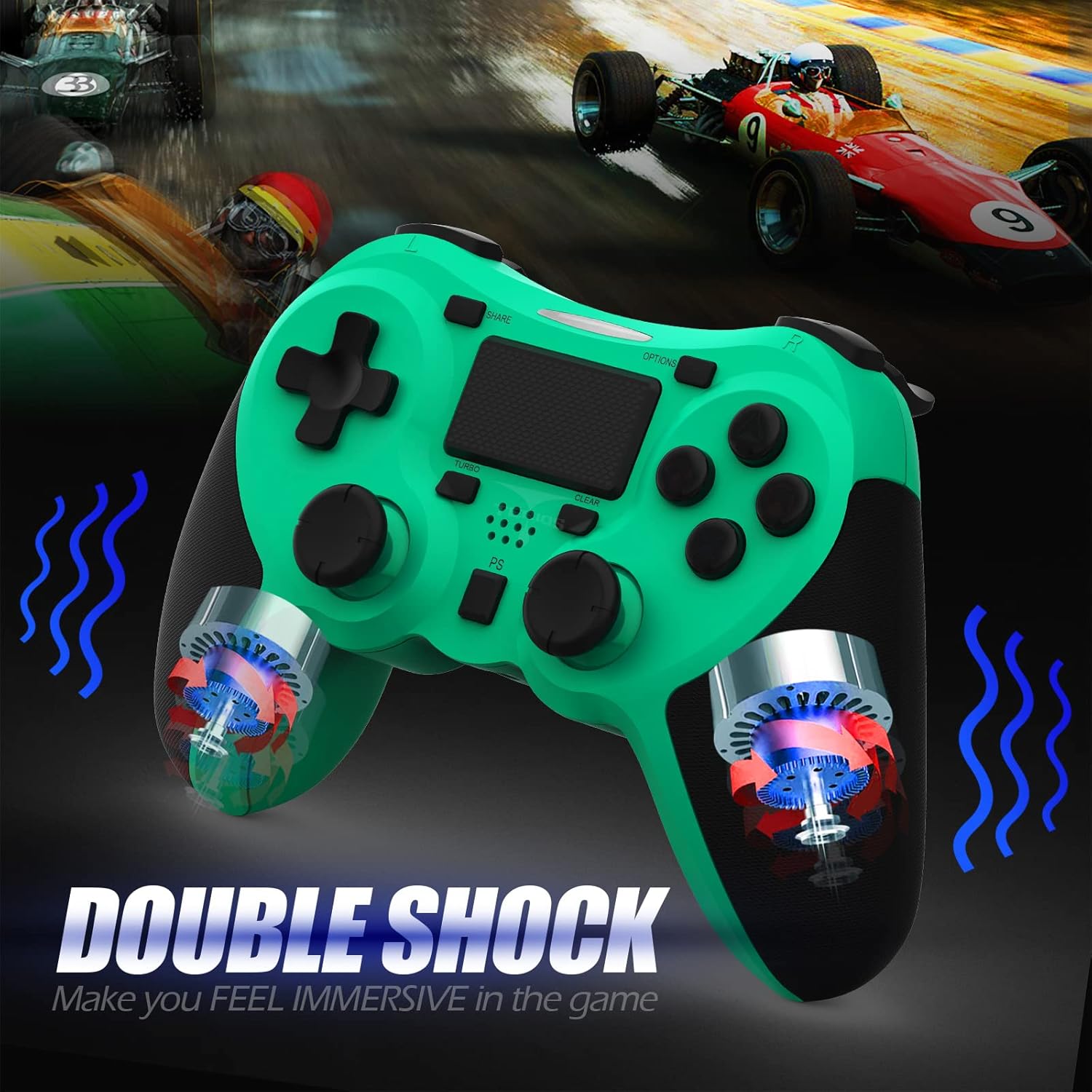
ምስል: ውስጣዊ view of the controller highlighting the double shock vibration motors, designed to provide immersive haptic feedback.
የማዋቀር መመሪያ
1. የመነሻ ኃይል መሙላት
Before first use, fully charge the controller. Connect the supplied USB charging cable to the controller's micro USB port and the other end to a USB port on your PlayStation 4 console or a compatible USB wall adapter.
- Charging Time: Approximately 2-3 hours for a full charge.
- Battery Life: Up to 10-12 hours of continuous gameplay.
- የመጠባበቂያ ጊዜ፡ እስከ 30 ቀናት።
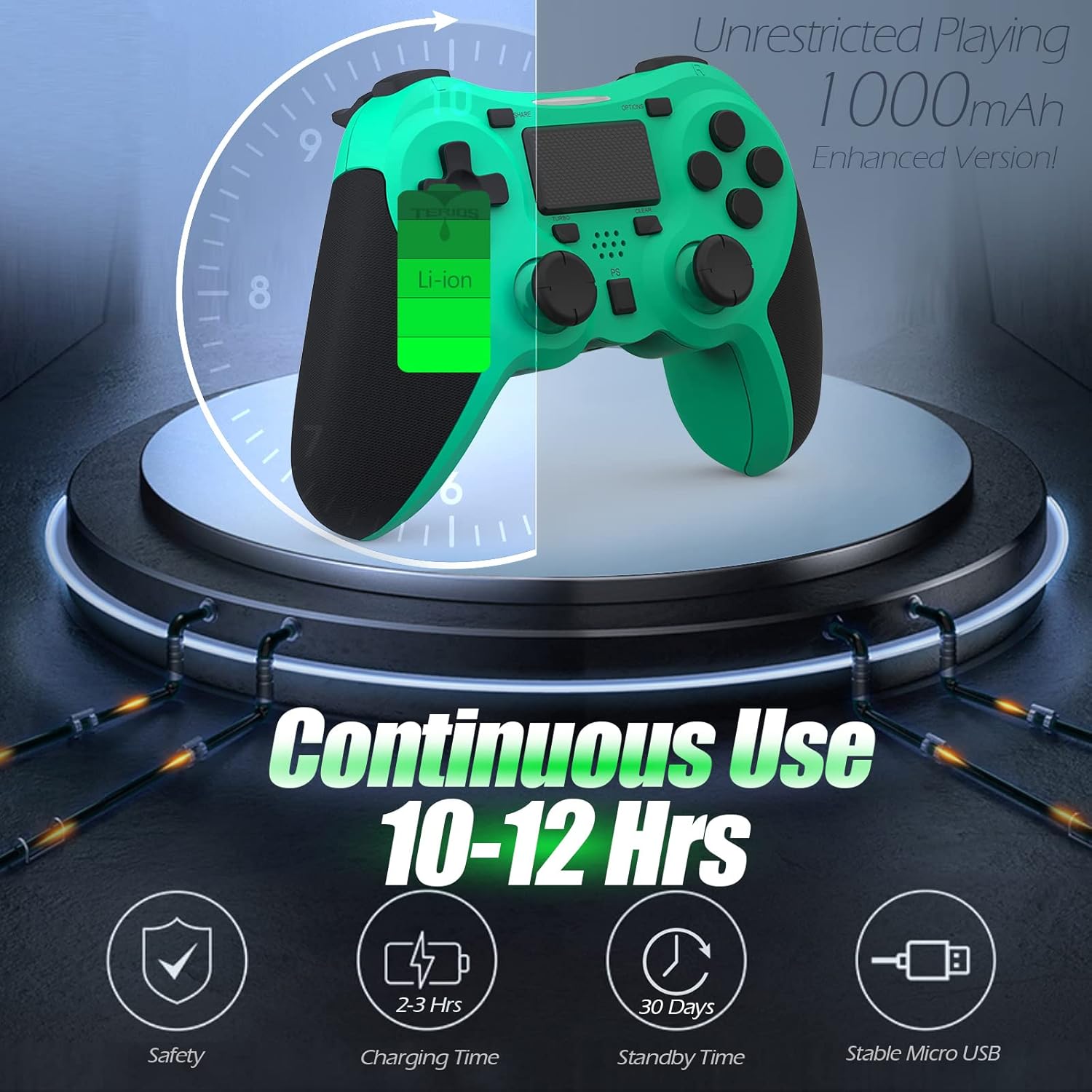
Image: A visual representation of the controller's 1000mAh battery, indicating 10-12 hours of continuous use, 2-3 hours charging time, and 30 days standby time.
2. ከ PlayStation 4 ጋር ማጣመር
መቆጣጠሪያውን ከእርስዎ PS4 ኮንሶል ጋር ለማጣመር፡-
- የ PS4 ኮንሶልዎ መብራቱን ያረጋግጡ።
- Connect the controller to the PS4 console using the USB charging cable.
- የሚለውን ይጫኑ የ PS ቁልፍ (located in the center of the controller). The light bar on the controller will flash, then glow a solid color, indicating successful pairing.
- አንዴ ከተጣመረ በኋላ፣ ገመድ አልባ ጨዋታ ለማድረግ የዩኤስቢ ገመዱን ማቋረጥ ይችላሉ።
ማስታወሻ፡- If the controller does not pair, ensure it is charged and try connecting it to a different USB port on the console. For persistent issues, refer to the Troubleshooting section.
የአሠራር መመሪያዎች
መሰረታዊ ቁጥጥሮች
| አካል | ተግባር |
|---|---|
| PS አዝራር | Powers on the controller, accesses the PS4 home screen, switches users, or turns off the console (long press). |
| የአጋራ አዝራር | Accesses the Share menu to capture screenshots, record video clips, or broadcast gameplay. |
| አማራጮች አዝራር | Pauses games, accesses in-game menus, or confirms selections. |
| የአቅጣጫ አዝራሮች (ዲ-ፓድ) | Navigates menus and provides directional input in games. |
| የድርጊት አዝራሮች (ትሪያንግል፣ ክብ፣ መስቀል፣ ካሬ) | Performs in-game actions, confirms, or cancels selections. |
| Left/Right Sticks (L3/R3) | Controls character movement, camera, or other analog inputs. Pressing down on the sticks activates L3/R3 buttons. |
| የL1/R1 አዝራሮች | Trigger various in-game actions, often for aiming or secondary functions. |
| L2/R2 ቀስቅሴዎች | Analog triggers for actions like accelerating, braking, or firing weapons. |
| Multitouch Pad | Provides touch input for specific game interactions or navigation. |
| 3.5 ሚሜ የጆሮ ማዳመጫ ጃክ | Connects compatible headsets for game audio and voice chat. |
ልዩ ተግባራት
የቱርቦ ባህሪ
The Turbo feature allows for rapid, continuous input of a button press, useful for actions like rapid firing in games.
- ተጭነው ይያዙት። TURBO አዝራር (located below the touchpad).
- While holding TURBO, press the action button you wish to apply the rapid-fire function to (e.g., Square, Cross, Circle, Triangle, L1, R1, L2, R2).
- Release both buttons. The selected action button will now continuously register presses as long as it is held down.
- To disable Turbo for a specific button, repeat the process: hold TURBO and press the button again.
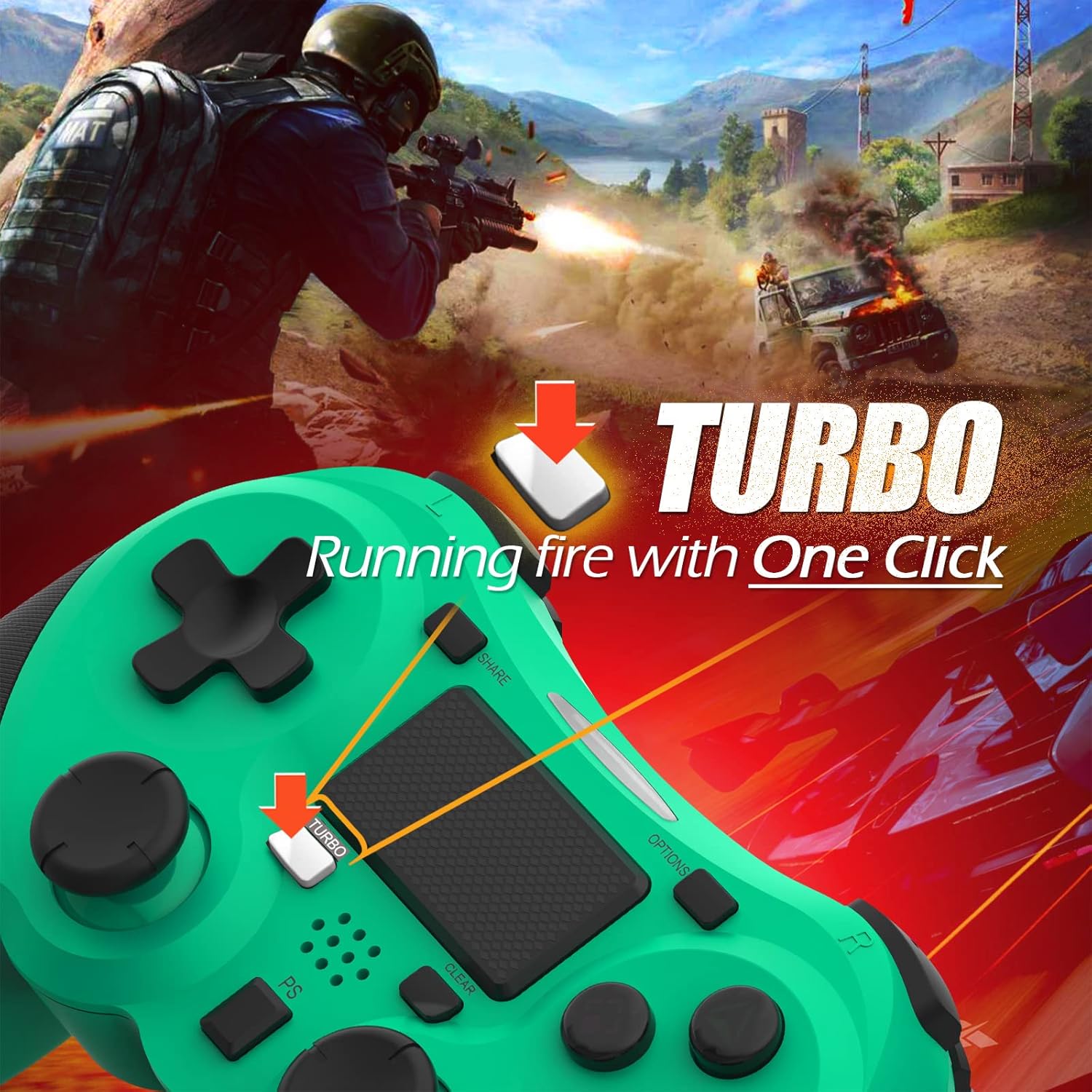
Image: A visual guide demonstrating how to activate the Turbo feature on the controller for rapid-fire actions.
Share Button Functionality
The SHARE button provides quick access to PS4's sharing features:
- ነጠላ ፕሬስ; Opens the Share menu, allowing you to save a screenshot, save a video clip, or start a broadcast.
- ሎንግ ፕሬስ Takes a screenshot directly.
- ድርብ ማተሚያ የቪዲዮ ቀረጻ ይጀምራል/ያቆማል።
ጥገና
Proper maintenance ensures the longevity and optimal performance of your TERIOS Wireless Controller.
ማጽዳት
- የመቆጣጠሪያውን ወለል ለማጽዳት ለስላሳ እና ደረቅ ጨርቅ ይጠቀሙ።
- ለግትር ቆሻሻ፣ በትንሹ መampጨርቁን በውሃ ወይም መለስተኛ፣ የማይበላሽ ማጽጃ ያድርጉ። ከመጠን በላይ እርጥበትን ያስወግዱ።
- ጠጣር ኬሚካሎችን፣ መሟሟቶችን ወይም ጠለፋ ቁሳቁሶችን አይጠቀሙ፣ ምክንያቱም እነዚህ ንጥረ ነገሮች የመቆጣጠሪያውን አጨራረስ እና የውስጥ ክፍሎችን ሊጎዱ ይችላሉ።
ማከማቻ
- መቆጣጠሪያውን ከፀሐይ ብርሃን፣ ከፍተኛ ሙቀት እና ከፍተኛ እርጥበት ራቅ ባለ ቀዝቃዛና ደረቅ ቦታ ያስቀምጡ።
- Avoid placing heavy objects on the controller to prevent damage to buttons or analog sticks.
የባትሪ እንክብካቤ
- To preserve battery life, avoid fully discharging the controller frequently.
- ለረጅም ጊዜ ከተከማቸ፣ ከማከማቸትዎ በፊት ባትሪውን እስከ 50% ድረስ ይሙሉት።
- Recharge the controller at least once every three months if not in use to prevent deep discharge.
መላ መፈለግ
If you encounter issues with your TERIOS Wireless Controller, please refer to the following common solutions:
መቆጣጠሪያው እየተገናኘ/እየተጣመረ አይደለም
- ባትሪ ይፈትሹ፡ Ensure the controller is sufficiently charged. Connect it to the PS4 via USB cable to charge.
- እንደገና ያጣምሩ፡ Connect the controller to the PS4 with the USB cable and press the PS button to re-establish the connection.
- Reset Controller: Locate the small reset button hole on the underside of the controller (near the L2 button). Use a straightened paperclip or a similar thin object to press and hold the button for 3-5 seconds. This will reset the controller. After resetting, attempt to re-pair it with the PS4.
- ጣልቃ ገብነት፡- Move closer to the PS4 console to rule out wireless interference.
Buttons or Sticks Unresponsive/Lagging
- Reset Controller: Perform a hard reset as described above.
- አጽዳ፡ Ensure no debris is lodged around the buttons or sticks. Clean the controller as per the Maintenance section.
- Firmware፡ Ensure your PS4 system software is up to date.
ከመጠን በላይ ንዝረት
- Reset Controller: A reset can often resolve unexpected vibration issues.
- የጨዋታ ቅንብሮች፡- Check in-game settings for vibration intensity.
ዝርዝሮች
| ባህሪ | ዝርዝር |
|---|---|
| ሞዴል | TERIOS 5S |
| ASIN | B09KLR5DCZ |
| ተኳኋኝነት | PlayStation 4, PS4 Pro, PS4 Slim |
| ግንኙነት | Wireless (Bluetooth 4.2), USB |
| የባትሪ ዓይነት | ሊቲየም ፖሊመር (1 ተካትቷል) |
| የባትሪ አቅም | 1000mAh |
| ቀጣይነት ያለው አጠቃቀም ጊዜ | 10-12 ሰዓታት |
| የኃይል መሙያ ጊዜ | 2-3 ሰዓታት |
| የመጠባበቂያ ጊዜ | እስከ 30 ቀናት ድረስ |
| የእቃው ክብደት | 10.8 አውንስ (306 ግራም ገደማ) |
| የጥቅል ልኬቶች | 6.69 x 5.24 x 2.72 ኢንች |
| አምራች | ቴሪዮስ |
| የመጀመሪያ ቀን ይገኛል። | ጥቅምት 28 ቀን 2021 ዓ.ም |
ዋስትና እና ድጋፍ
TERIOS stands behind the quality of its products. This controller comes with a የ 1 ዓመት ዋስትና ከተገዛበት ቀን ጀምሮ የማምረቻ ጉድለቶችን ይሸፍናል.
For customer support, technical assistance, or warranty claims, please contact TERIOS customer service through the platform where you purchased the product or visit the official TERIOS store page for contact information.
We are committed to providing premium customer support and ensuring your satisfaction with our products.
Ask a question about this manual
Ask about setup, troubleshooting, compatibility, parts, safety, or missing instructions. Manuals+ will review the question and use this page’s manual context to help answer it.