
1. ማዋቀር
1.1 የጥቅል ይዘቶች
የሚከተሉት ነገሮች በጥቅልዎ ውስጥ መካተታቸውን ያረጋግጡ፡-
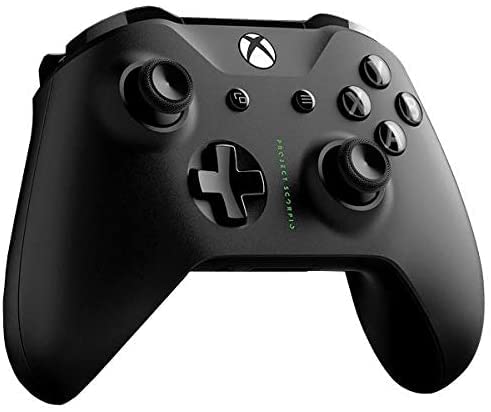
- Microsoft Xbox Wireless Controller - Project Scorpio Edition
- AA Batteries (may be included depending on retailer)
1.2 ባትሪዎችን መጫን
To power your controller:
- በመቆጣጠሪያው ጀርባ ላይ ያለውን የባትሪ ክፍል ክዳን ይክፈቱ።
- ሁለት የ AA ባትሪዎችን ያስገቡ፣ ትክክለኛውን የፖላራይቲ (+ እና -) ያረጋግጡ።
- የባትሪውን ክፍል ደህንነቱ በተጠበቀ ሁኔታ ይዝጉ።
1.3 ከ Xbox One ጋር መገናኘት
መቆጣጠሪያዎን ከ Xbox One ኮንሶል ጋር በገመድ አልባ ለማገናኘት፦
- የXbox One ኮንሶልዎን ያብሩ።
- ተጭነው ይያዙት። የ Xbox አዝራር
 on your controller to turn it on. The Xbox button will flash.
 - የሚለውን ይጫኑ የማጣመር አዝራር on your Xbox One console (located on the front or side, depending on the model).
- በ 20 ሰከንዶች ውስጥ ቁልፉን ተጭነው ይያዙ የማጣመር አዝራር
 on the top edge of your controller (next to the USB port). The Xbox button on the controller will flash more rapidly.
 - Once the Xbox button on the controller glows solid, it is connected.
1.4 Connecting to Windows 10 PC via Bluetooth
To connect your controller to a Windows 10 PC using Bluetooth:
- Ensure your Windows 10 PC has Bluetooth enabled.
- ተጭነው ይያዙት። የ Xbox አዝራር ለማብራት በመቆጣጠሪያዎ ላይ።
- ተጭነው ይያዙት። የማጣመር አዝራር on the top edge of your controller for three seconds. The Xbox button will flash rapidly.
- በእርስዎ ፒሲ ላይ ወደ ይሂዱ ቅንብሮች > መሳሪያዎች > ብሉቱዝ እና ሌሎች መሳሪያዎች.
- ይምረጡ ብሉቱዝ ወይም ሌላ መሳሪያ ያክሉ > ብሉቱዝ.
- ይምረጡ የ Xbox ገመድ አልባ መቆጣጠሪያ ከዝርዝሩ ውስጥ.
- Once the Xbox button on the controller glows solid, it is connected.
A black Xbox Wireless Controller, featuring the Project Scorpio Special Edition details, with textured grips and the Xbox logo button at the top center. This image illustrates the overall design of the controller.
2. መቆጣጠሪያዎን ማስተዳደር
2.1 የመቆጣጠሪያ አቀማመጥ እና ተግባራት
የXbox Wireless Controller ለቀላል የጨዋታ አጨዋወት መደበኛ አቀማመጥ አለው፡
- የ Xbox አዝራር: Powers on the controller/console, opens the Guide, and indicates connection status.
- View አዝራር: Changes views or displays more information in games and apps.
- የምናሌ አዝራር: Accesses game or app menus, such as Settings or Options.
- A, B, X, Y አዝራሮች: Action buttons for in-game commands.
- ዲ-ፓድ: Directional pad for precise input.
- Left and Right Thumbsticks: For movement and camera control. Pressing them down acts as a button.
- የግራ እና የቀኝ ባምፐርስ (LB፣ RB): Located on the top edge, typically used for quick actions.
- የግራ እና የቀኝ ቀስቅሴዎች (LT፣ RT): Analog triggers for variable input, such as acceleration or firing.
- 3.5ሚሜ ስቴሪዮ የጆሮ ማዳመጫ ጃክ: For connecting compatible headsets.
2.2 Using the 3.5mm Headset Jack
To use a headset with your controller:
- Plug any compatible 3.5mm stereo headset directly into the jack located at the bottom of the controller.
- Audio settings can be adjusted via the Xbox Guide or Windows sound settings.
3. ጥገና
3.1 Cleaning Your Controller
የመቆጣጠሪያዎን ገጽታ እና ተግባር ለመጠበቅ፦
- Use a soft, dry, lint-free cloth to wipe the surface of the controller.
- ለግትር ቆሻሻ፣ በትንሹ መampጨርቁን በውሃ ያጠቡ። ከመጠን በላይ እርጥበትን ያስወግዱ።
- Do not use harsh chemicals, abrasive cleaners, or solvents, as these can damage the controller's finish.
3.2 ማከማቻ
When not in use, store your controller in a cool, dry place away from direct sunlight and extreme temperatures. Remove batteries if storing for extended periods to prevent leakage.
4. መላ መፈለግ
4.1 Controller Not Turning On
- ባትሪዎችን ይፈትሹ፡ Ensure batteries are correctly inserted and have sufficient charge. Replace with fresh AA batteries if necessary.
- የኃይል ዑደት፡- Remove and reinsert the batteries, then try turning the controller on again.
4.2 የግንኙነት ጉዳዮች
- መቆጣጠሪያውን እንደገና ያጣምሩ; Follow the connection steps in Section 1.3 or 1.4 to re-pair the controller with your Xbox One or Windows 10 PC.
- ጣልቃ ገብነት፡- Ensure there are no obstructions or other wireless devices causing interference between the controller and the console/PC.
- Firmware ያዘምኑ፡ Connect the controller to your Xbox One or PC via a USB cable and check for controller firmware updates.
- Bluetooth Driver (PC): Ensure your PC's Bluetooth drivers are up to date.
4.3 Button or Stick Malfunction
- ንፁህ መቆጣጠሪያ; Ensure no debris is lodged around buttons or sticks. Refer to Section 3.1.
- Test in Different Games/Apps: Determine if the issue is specific to one application or system-wide.
- Reset Controller: In some cases, removing batteries for a few minutes can reset internal components.
5. ዝርዝሮች
| ባህሪ | ዝርዝር |
|---|---|
| የምርት ስም | ማይክሮሶፍት |
| የሞዴል ስም | Project Scorpio |
| ተስማሚ መሣሪያዎች | Xbox One, Windows 10 PCs and tablets |
| የመቆጣጠሪያ አይነት | የጨዋታ ሰሌዳ |
| የግንኙነት ቴክኖሎጂ | ብሉቱዝ ፣ ሽቦ አልባ |
| የሃርድዌር መድረክ | Xbox One |
| የኃይል ምንጭ | በባትሪ የሚሰራ (AA) |
| ቀለም | Green (Project Scorpio Edition) |
6. ዋስትና እና ድጋፍ
This product is a Certified Refurbished item. Certified Refurbished products are tested and certified to look and work like new, with limited to no wear, by a third-party refurbisher. The refurbishing process includes functionality testing, cosmetic inspection, and repackaging.
The product is backed by a minimum 90-day warranty from the date of purchase. For specific warranty details and claims, please refer to the documentation provided by the refurbisher or contact the seller directly.
For further technical assistance or support, please visit the official Microsoft Xbox support webጣቢያ ወይም የደንበኛ አገልግሎታቸውን ያነጋግሩ።