
መግቢያ
This manual provides detailed instructions for the installation, operation, and maintenance of your Everycom EC-901 80mm Thermal POS Receipt Printer. Please read this manual thoroughly before using the printer to ensure proper functionality and to prevent damage.
የደህንነት መረጃ
- Ensure the printer is connected to a power source with the correct voltage.
- Do not expose the printer to water or high humidity.
- ማተሚያውን በቀጥታ የፀሐይ ብርሃን ውስጥ ወይም በሙቀት ምንጮች አጠገብ ከማስቀመጥ ይቆጠቡ.
- Use only specified thermal paper for optimal performance and to prevent damage to the print head.
- አታሚውን እራስዎ ለመበተን ወይም ለመጠገን አይሞክሩ። ብቃት ያላቸውን የአገልግሎት ባለሙያዎችን ያነጋግሩ።
የጥቅል ይዘቶች
ሁሉም እቃዎች በጥቅሉ ውስጥ መኖራቸውን ያረጋግጡ፡-
- Everycom EC-901 Thermal POS Receipt Printer
- Roll paper × 1 Roll (for initial testing)
- CD-ROM (containing Drivers, Utility Software, Manuals)
- የወረቀት መመሪያ
- Paper Bearing
- የዩኤስቢ ገመድ
- የኃይል አስማሚ ገመድ
ምርት አልቋልview
The Everycom EC-901 is a compact 80mm (3-inch) thermal POS receipt printer designed for efficient and reliable printing. It features a USB and LAN interface for versatile connectivity.

ምስል 1: የፊት view of the Everycom EC-901 Thermal POS Receipt Printer.
ቁልፍ ባህሪዎች
- ፈጣን የህትመት ፍጥነት; Up to 160mm per second for quick receipt output.
- ቀላል የወረቀት ጭነት; Drop-in paper loading mechanism for quick and easy media changes.
- የታመቀ ንድፍ Low space requirement with an integrated power supply.
- Variable Paper Width: Supports 80mm paper width.
- ግንኙነት፡ USB and LAN interface options.
- ከፍተኛ ጥራት፡ 203 x 203 DPI for clear print quality.
- ዝቅተኛ የድምፅ ደረጃዎች; Operates quietly, suitable for various work environments.

Figure 2: Top-open design for easy paper roll installation.
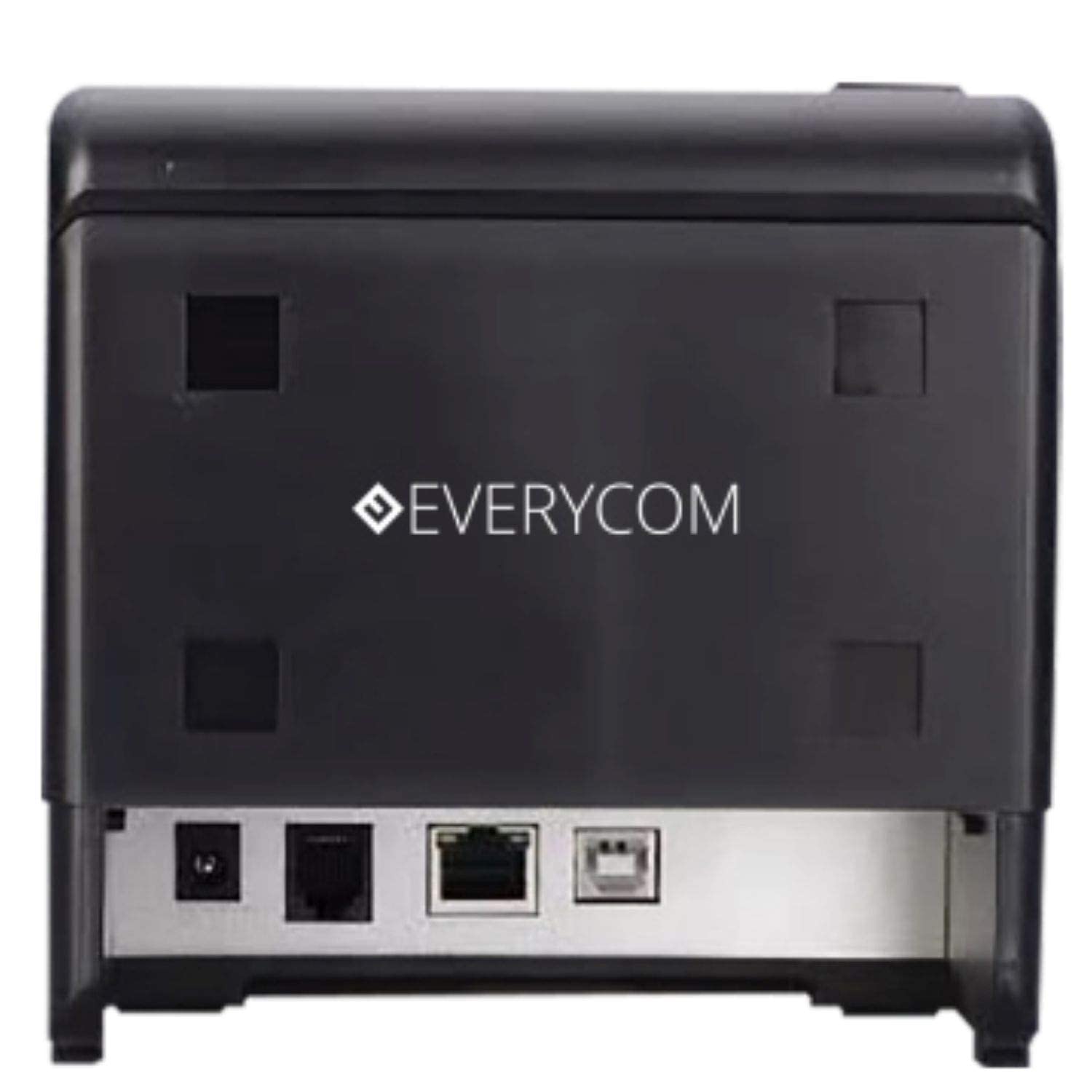
ምስል 3: የኋላ view showing USB and LAN connectivity ports.

Figure 4: The EC-901 printer is designed for low noise operation.

Figure 5: The EC-901 printer features an easy-to-use design for paper installation.
ማዋቀር
1. አታሚውን በማገናኘት ላይ
- Connect the power adapter cable to the printer's power port and then plug it into a suitable electrical outlet.
- For USB connection: Connect one end of the USB cable to the printer's USB port and the other end to your computer.
- For LAN connection: Connect an Ethernet cable to the printer's LAN port and the other end to your network router or switch.
- Turn on the printer using the power switch located on the front or side of the device.
2. የወረቀት ጥቅልሉን መትከል
- Open the printer cover by pressing the release button or lifting the cover.
- Insert the thermal paper roll into the compartment with the paper feeding from the bottom and exiting towards the front.
- ትንሽ መጠን ያለው ወረቀት ከመቁረጫው በላይ ይጎትቱ።
- የአታሚውን ሽፋን ወደ ቦታው እስኪገባ ድረስ በጥብቅ ይዝጉት።
3. የአሽከርካሪዎች መጫኛ
Insert the provided CD-ROM into your computer's CD/DVD drive. Follow the on-screen instructions to install the printer drivers and utility software. Drivers are typically compatible with Windows operating systems, including Windows 10.
የአሠራር መመሪያዎች
ጠቋሚ መብራቶች፡-
- ኃይል፡- አታሚው መብራቱን ያመለክታል።
- ስህተት፡- Lights up or flashes to indicate an error (e.g., print head overheating, cover open).
- ወረቀት ፦ Indicates low paper or no paper.
Basic Printing:
Once the printer is connected and drivers are installed, you can print receipts from your POS software or any application that supports printing. Ensure the Everycom EC-901 is selected as the default printer or the desired printer in your application's print settings.
ጥገና
ማተሚያውን ማጽዳት;
- Turn off the printer and disconnect the power cable before cleaning.
- ለስላሳ፣ ከቆሸሸ ነፃ የሆነ ጨርቅ ይጠቀሙ መampened with isopropyl alcohol to gently clean the thermal print head. Allow it to dry completely before use.
- Wipe the exterior of the printer with a soft, dry cloth. Do not use abrasive cleaners.
Replacing Paper:
When the PAPER indicator lights up or printing becomes faint, replace the paper roll following the steps outlined in the "Installing the Paper Roll" section.
መላ መፈለግ
| ችግር | ሊሆን የሚችል ምክንያት | መፍትሄ |
|---|---|---|
| አታሚ አይበራም። | የኃይል ገመድ ተቆርጧል ወይም የኃይል መውጫ ችግር። | የኃይል ገመድ ግንኙነቶችን ያረጋግጡ። የኃይል መውጫው ተግባራዊ መሆኑን ያረጋግጡ። |
| No printing or blank output. | No paper, paper loaded incorrectly, or print head issue. | Check paper roll and ensure it's loaded correctly. Clean the print head if necessary. Verify printer drivers are installed. |
| PAPER indicator is on. | Paper roll is empty or low. | የወረቀት ጥቅልን ይተኩ. |
| ERROR indicator is on. | Printer cover open, print head overheating, or other internal error. | Ensure the printer cover is closed properly. Turn off the printer, wait a few minutes for it to cool down, then restart. If the issue persists, contact support. |
| አታሚ በኮምፒዩተር አልታወቀም። | Driver not installed or USB/LAN cable issue. | Reinstall printer drivers. Check USB/LAN cable connections. Try a different port or cable. |
ዝርዝሮች
| ባህሪ | ዝርዝር |
|---|---|
| የሞዴል ስም | EC-901 |
| የህትመት ቴክኖሎጂ | ሙቀት |
| የህትመት ሚዲያ | ወረቀት (መደበኛ የሙቀት) |
| ከፍተኛው የሚዲያ መጠን | 3 ኢንች (80 ሚሜ) |
| ከፍተኛው የህትመት ፍጥነት | 160 ሚሜ / ሰከንድ |
| ጥራት | 203 x 203 ዲ ፒ አይ |
| የግንኙነት ቴክኖሎጂ | USB, LAN Interface |
| የአታሚ ውፅዓት | ሞኖክሮም |
| ስርዓተ ክወና | ዊንዶውስ 10 (እና ከሌሎች የዊንዶውስ ስሪቶች ጋር ተኳሃኝ) |
| የምርት ልኬቶች (LxWxH) | 19.8 x 14.8 x 14.8 ሴ.ሜ |
| የእቃው ክብደት | 1.8 ኪ.ግ |
| ልዩ ባህሪ | Without Auto cutter |
ዋስትና እና ድጋፍ
For technical assistance, warranty claims, or any product-related inquiries, please contact Everycom customer support.
- ከክፍያ ነጻ ቁጥር፡- 1800 121 4480
- የስራ ሰዓታት፡- Monday - Saturday, 10:00 AM - 6:30 PM (Except on Public Holidays)