
OMOTON WK003
OMOTON 2.4GHz Wireless AZERTY Keyboard Instruction Manual
ሞዴል: WK003
ብራንድ፡ ኦሞቶን
1. መግቢያ
Thank you for choosing the OMOTON 2.4GHz Wireless AZERTY Keyboard. This ultra-slim, silent keyboard is designed for comfortable and efficient typing across various Windows operating systems. This manual provides detailed instructions for setting up, operating, maintaining, and troubleshooting your new keyboard to ensure optimal performance.
2. የጥቅል ይዘቶች
Please check the package contents carefully. If any items are missing or damaged, please contact OMOTON customer support.
- 1 x OMOTON 2.4GHz Wireless AZERTY Keyboard
- 1 x የዩኤስቢ ተቀባዩ
- 1 x የተጠቃሚ መመሪያ
3. የማዋቀር መመሪያ
Follow these steps to set up your OMOTON wireless keyboard:
- ባትሪዎችን ይጫኑ Open the battery compartment on the back of the keyboard. Insert two AAA batteries (not included), ensuring correct polarity. Close the compartment.
- የዩኤስቢ መቀበያ አስገባ፡ Locate the USB receiver, which is magnetically stored in the battery compartment. Plug the USB receiver into an available USB port on your computer.

Image: Battery compartment with USB receiver and AAA batteries.
- አብራ፡ Slide the ON/OFF switch located on the top right side of the keyboard to the "ON" position.
- አገናኝ፡ Your computer should automatically detect and install the necessary drivers for the keyboard. No additional software is required.

Image: Plug & Play setup with USB receiver.
የቁልፍ ሰሌዳው አሁን ለአገልግሎት ዝግጁ ነው።
4. የአሠራር መመሪያዎች
4.1 መሰረታዊ ትየባ
Simply begin typing. The keyboard features a standard AZERTY layout for familiar use.
4.2 Fn Lock Function
The keyboard includes a convenient Fn Lock function. By default, the F1-F12 keys perform their standard function. To access the multimedia shortcuts directly without pressing the Fn key, activate the Fn Lock.
- Activate/Deactivate Fn Lock: ተጫን Fn + Échap simultaneously. When activated, the multimedia functions (e.g., volume control, home page) will be directly accessible by pressing F1-F12. When deactivated, F1-F12 will perform their standard functions, and multimedia actions will require pressing ኤፍኤን + ኤፍኤክስ.

Image: Fn Lock function and multimedia keys.
4.3 የመልቲሚዲያ አቋራጮች
The keyboard provides 12 multimedia shortcuts for quick access to common functions. These can be used directly when Fn Lock is active, or by pressing Fn in combination with the respective F-key when Fn Lock is inactive.
| ቁልፍ | ተግባር |
|---|---|
| F1 | ድምጸ-ከል አድርግ |
| F2 | የድምጽ መጠን መቀነስ |
| F3 | የድምጽ መጠን መጨመር |
| F4 | የቀድሞ ትራክ |
| F5 | ተጫወት/ ለአፍታ አቁም |
| F6 | ቀጣይ ትራክ |
| F7 | Brightness Down (System Dependent) |
| F8 | Brightness Up (System Dependent) |
| F9 | ፍለጋ |
| F10 | መነሻ ገጽ |
| F11 | ቅዳ |
| F12 | ለጥፍ |
4.4 ተኳኋኝነት
This keyboard is compatible with Windows 11, 10, 8, 7, XP, and Vista, making it suitable for a wide range of desktop and laptop computers.
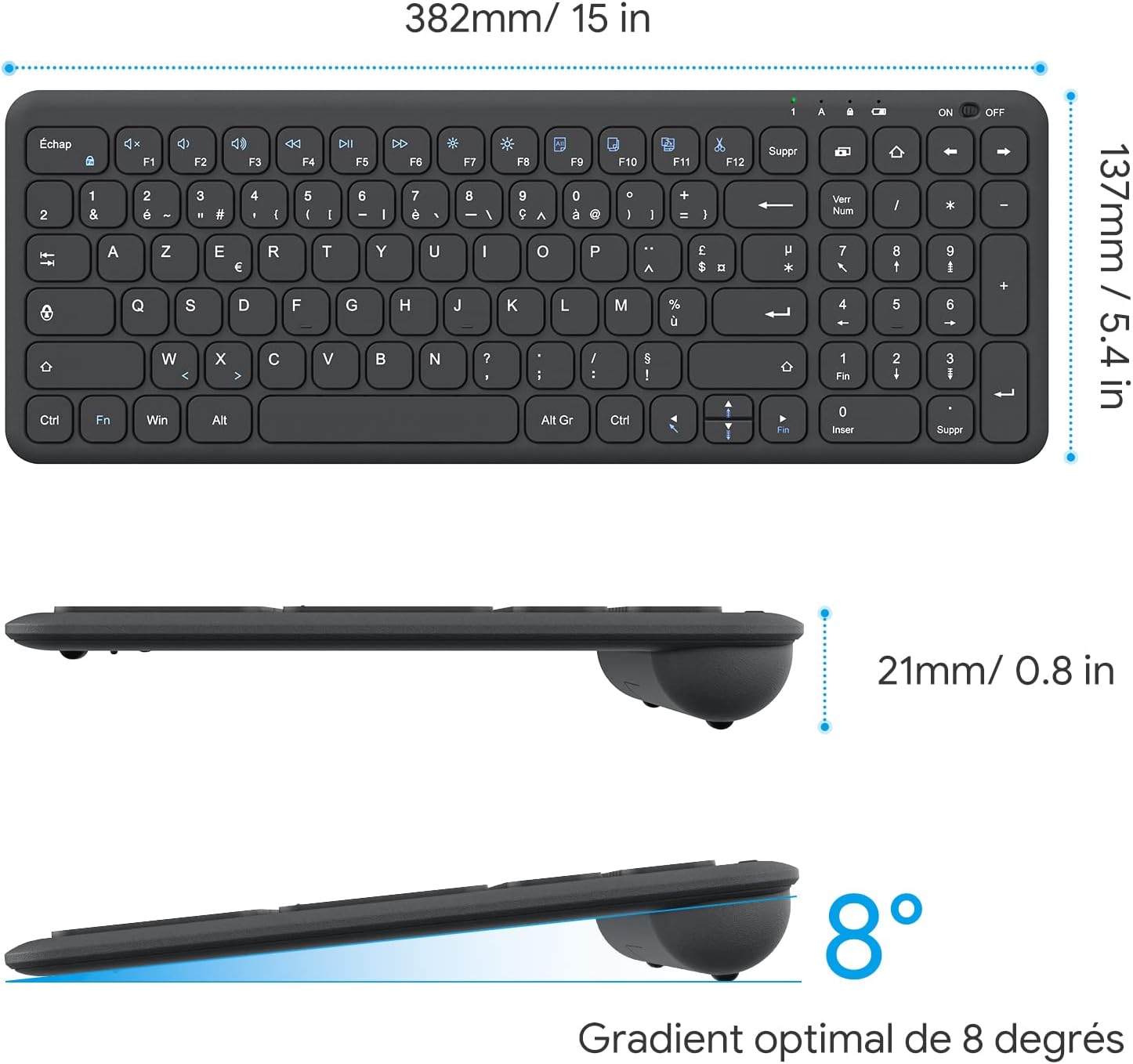
Image: Keyboard compatibility with Windows systems.
5. ጥገና
5.1 የባትሪ መተካት
When the keyboard's performance degrades or the indicator light flashes, it's time to replace the batteries. Open the battery compartment on the back and replace the two AAA batteries with new ones, observing polarity.
5.2 ጽዳት
የቁልፍ ሰሌዳዎን ለማጽዳት፣ ወለሉን በለስላሳ፣ d በቀስታ ይጥረጉamp cloth. Avoid using harsh chemicals or abrasive materials. Ensure the keyboard is turned off before cleaning.
5.3 USB Receiver Storage
For convenience and to prevent loss, the USB receiver can be magnetically stored inside the keyboard's battery compartment when not in use or during transport.
6. መላ መፈለግ
በቁልፍ ሰሌዳዎ ላይ ችግሮች ካጋጠሙዎት፣ እባክዎ የሚከተሉትን የተለመዱ መፍትሄዎች ይመልከቱ፦
- የቁልፍ ሰሌዳ ምላሽ አይሰጥም፡-
- የቁልፍ ሰሌዳ መብራቱን ያረጋግጡ።
- ባትሪዎቹ በትክክል መጫኑን እና በቂ ክፍያ ካላቸው ያረጋግጡ። አስፈላጊ ከሆነ ይተኩ.
- የዩኤስቢ ተቀባይው በኮምፒውተርዎ ላይ ከሚሰራ የዩኤስቢ ወደብ ጋር ደህንነቱ በተጠበቀ ሁኔታ መሰካቱን ያረጋግጡ። የተለየ የዩኤስቢ ወደብ ይሞክሩ።
- ኮምፒተርዎን እንደገና ያስጀምሩ.
- Lagging or intermittent input:
- Ensure the keyboard is within the effective operating range (up to 10 meters) of the USB receiver.
- Reduce potential interference by moving the keyboard closer to the receiver or away from other wireless devices (e.g., Wi-Fi routers, cordless phones).
- Check battery level. Low batteries can affect wireless performance.
- የተወሰኑ ቁልፎች አይሰሩም:
- Gently clean around the affected key to remove any debris.
- If the issue persists, contact OMOTON customer support for further assistance.
7. ዝርዝሮች
Detailed technical specifications for the OMOTON Wireless AZERTY Keyboard:
| ባህሪ | ዝርዝር |
|---|---|
| የምርት ስም | ኦሞቶን |
| ሞዴል | WK003 |
| የግንኙነት ቴክኖሎጂ | 2.4GHz ገመድ አልባ (USB ተቀባይ) |
| የቁልፍ ሰሌዳ አቀማመጥ | AZERTY |
| ተስማሚ መሣሪያዎች | PC, Desktop, Laptop |
| ተስማሚ ስርዓተ ክወናዎች | Windows 11/10/8/7/XP/Vista |
| ልዩ ባህሪያት | 12 Multimedia Shortcuts, Fn Lock, Silent Keys, Ultra-Slim Design, Magnetic USB Receiver Storage |
| ቀለም | ጥቁር |
| የኃይል ምንጭ | 2 x AAA ባትሪዎች (አልተካተተም) |
| ልኬቶች (L x W x H) | 38.1 x 13.7 x 2 ሴሜ (15 x 5.4 x 0.8 ኢንች) |
| የቁልፎች ብዛት | 99 |
| ቁልፍ መቀየሪያ ዓይነት | Tactile (Scissor-mechanism) |
| Optimal Gradient | 8 ዲግሪ |

Image: Keyboard dimensions and ergonomic design.

Image: Scissor-mechanism key design.
8. የዋስትና መረጃ
OMOTON products typically come with a manufacturer's warranty. Please refer to the warranty card included with your product or visit the official OMOTON webዝርዝር የዋስትና ውሎችን እና ሁኔታዎችን ለማግኘት ድህረ ገጽ። የግዢ ደረሰኝዎን ለማንኛውም የዋስትና ጥያቄዎች እንደ የግዢ ማረጋገጫ ያስቀምጡ።
9. የደንበኛ ድጋፍ
If you have any questions, require technical assistance, or experience issues not covered in this manual, please do not hesitate to contact OMOTON customer support. You can usually find contact information on the OMOTON official webጣቢያ ወይም ምርቱን በገዙበት ቸርቻሪ በኩል።
Ask a question about this manual
Ask about setup, troubleshooting, compatibility, parts, safety, or missing instructions. Manuals+ will review the question and use this page’s manual context to help answer it.