
1. መግቢያ
Welcome to the BOSGAME H77 Mini PC user manual. This guide provides essential information for setting up, operating, maintaining, and troubleshooting your new mini PC. Please read this manual thoroughly to ensure proper usage and to maximize the performance and longevity of your device.
2. ምርት አብቅቷልview
The BOSGAME H77 is a compact yet powerful mini PC designed for a wide range of applications, from daily productivity to light gaming. It features an AMD Ryzen 7 7735HS processor, 32GB DDR5 RAM, and a 512GB NVMe M.2 SSD, offering high performance in a small form factor.

Figure 2.1: Powerful Performance. This image illustrates the core specifications of the BOSGAME H77 Mini PC, emphasizing its AMD Ryzen 7 7735HS processor with 8 cores, 16 threads, a clock speed range of 3.2 to 4.75GHz, and a Thermal Design Power (TDP) of 35W. A benchmark comparison for Cinebench R23 (Multi-Core) is also shown, positioning the 7735HS favorably against other Ryzen models.

Figure 2.2: Speedy Response. This image highlights the gaming capabilities of the BOSGAME H77 Mini PC, powered by AMD Radeon 680M integrated graphics. It displays estimated frames per second (FPS) for popular games such as League of Legends (148.0 FPS), Fortnite (132.0 FPS), CS:GO (135.0 FPS), Grand Theft Auto (98.0 FPS), and DOTA 2 (178.0 FPS), indicating smooth performance. The image also notes the system's 32GB DDR5 RAM, 512GB SSD, and support for up to 2TB HDD.

Figure 2.3: Triple Screen Display Support. This image demonstrates the BOSGAME H77 Mini PC's ability to support up to three displays simultaneously. It features two HDMI 2.0 ports and one Type-C (USB4.0) port, allowing for a versatile multi-monitor setup suitable for daily tasks, work, and entertainment. Key features like Wi-Fi 6, Bluetooth 5.2, cooling fan with heat sink, and 4K 60Hz support are also highlighted.
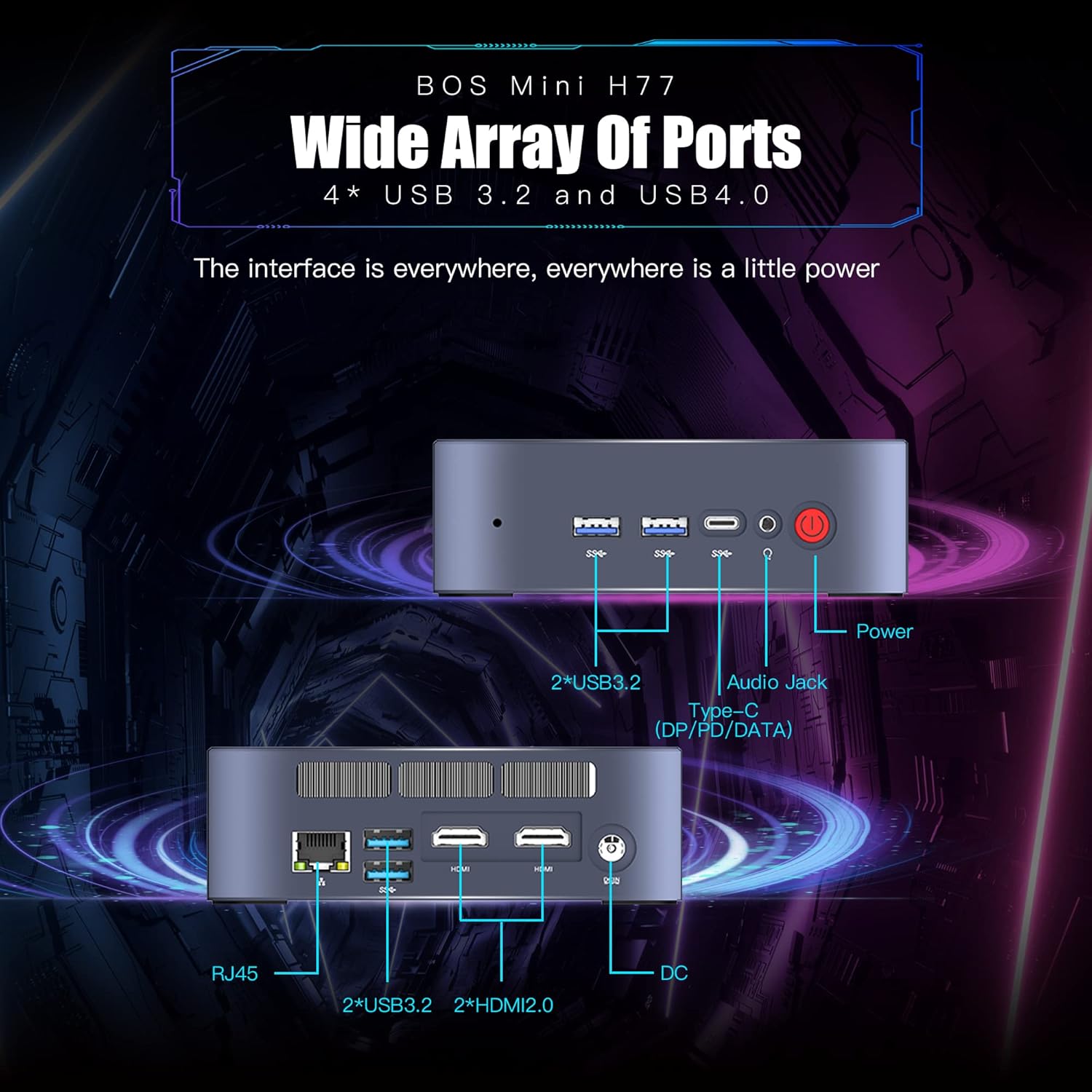
Figure 2.4: Wide Array of Ports. ይህ ምስል በዝርዝር ያቀርባል view of the BOSGAME H77 Mini PC's connectivity options. The front panel includes two USB 3.2 ports, one USB4.0 Type-C port (supporting DP/PD/DATA), an audio jack, and the power button. The rear panel features an RJ45 Ethernet port, two additional USB 3.2 ports, two HDMI 2.0 ports, and the DC power input. This comprehensive selection of ports ensures broad compatibility with various peripherals and displays.

Figure 2.5: Compact Design. This image emphasizes the compact and space-saving design of the BOSGAME H77 Mini PC. With a 0.6L body and dimensions of 126mm (length), 112mm (width), and 40.8mm (height), its honeycomb design is both aesthetically pleasing and functional, allowing it to fit into various environments without occupying much space.
3. የማዋቀር መመሪያ
3.1 የጥቅል ይዘቶች
ከመቀጠልዎ በፊት፣ ሁሉም እቃዎች በጥቅሉ ውስጥ መኖራቸውን ያረጋግጡ፡
- ቦስጌም H77 ሚኒ ፒሲ
- የኃይል አስማሚ
- HDMI ገመድ
- የተጠቃሚ መመሪያ (ይህ ሰነድ)
3.2 ማገናኛ ፔሪፈራል
- የግንኙነት ማሳያ; Use the provided HDMI cable to connect your monitor to one of the HDMI ports on the rear of the Mini PC. For triple display, connect additional monitors using the second HDMI port and the USB4.0 Type-C port (requires a compatible adapter, not included).
- የቁልፍ ሰሌዳ እና መዳፊት ያገናኙ፡ Plug your USB keyboard and mouse into any available USB 3.2 ports on the front or rear of the Mini PC.
- የግንኙነት ኃይል; የኃይል አስማሚውን ከሚኒ ፒሲ ጀርባ ላይ ካለው የዲሲ ግብዓት ወደብ ጋር ያገናኙ፣ ከዚያም አስማሚውን ከኃይል መውጫ ጋር ይሰኩት።
- የአውታረ መረብ ግንኙነት (አማራጭ) For a wired connection, plug an Ethernet cable into the RJ45 port on the rear. For wireless, ensure Wi-Fi is enabled during initial setup or via Windows settings.
3.3 የመጀመሪያ ቡት-አፕ
- በሚኒ ፒሲ ፊት ለፊት ያለውን የኃይል ቁልፍ ይጫኑ። የኃይል አመልካች መብራቱ ያበራል።
- Follow the on-screen instructions to complete the Windows 11 Pro setup. This typically involves selecting your region, language, creating a user account, and connecting to a network.
4. የአሠራር መመሪያዎች
4.1 ማብራት / ማጥፋት
- አብራ፡ የኃይል አዝራሩን አንዴ ይጫኑ።
- ዝጋ፡ Click the Windows Start button, then select Power > Shut down. Do not unplug the power adapter directly without proper shutdown to prevent data loss.
- እንደገና ጀምር፥ የዊንዶውስ ጀምር አዝራሩን ጠቅ ያድርጉ እና ከዚያ Power > Restart የሚለውን ይምረጡ።
4.2 የአውታረ መረብ ግንኙነት
- ዋይ ፋይ፡ To connect to a wireless network, click the Wi-Fi icon in the taskbar, select your desired network, and enter the password. The device supports Wi-Fi 6 for fast wireless speeds.
- ኢተርኔት፡ If an Ethernet cable is connected, the system will automatically detect and connect to the wired network.
- ብሉቱዝ፡ To connect Bluetooth devices (e.g., headphones, speakers), go to Windows Settings > Bluetooth & devices, and pair your device. The Mini PC supports Bluetooth 5.2.
4.3 የዩኤስቢ ወደቦችን መጠቀም
The BOSGAME H77 features multiple USB 3.2 ports and a versatile USB4.0 Type-C port. These ports can be used for connecting external storage, peripherals, or for data transfer.
- ዩኤስቢ 3.2: Provides high-speed data transfer for compatible devices.
- የዩኤስቢ 4.0 ዓይነት-ሲ፡ This port supports DisplayPort (DP) for video output, Power Delivery (PD) for charging compatible devices, and high-speed data transfer.
4.4 የሶስትዮሽ ማሳያ ማዋቀር
To utilize the triple display feature:
- Connect your primary monitor to one HDMI port.
- Connect your second monitor to the other HDMI port.
- Connect your third monitor to the USB4.0 Type-C port using a compatible USB-C to DisplayPort or USB-C to HDMI adapter (sold separately).
- Once connected, right-click on the desktop, select "Display settings," and configure your displays (extend, duplicate, etc.) as needed.
5. ጥገና
5.1 Cleaning the Mini PC
አዘውትሮ ማጽዳት የመሳሪያዎን ዕድሜ ለማራዘም እና ጥሩ አፈፃፀም እንዲኖር ይረዳል።
- ውጫዊ፡ Use a soft, dry, lint-free cloth to wipe the exterior surfaces. For stubborn marks, slightly dampጨርቁን በውሃ. ኃይለኛ ኬሚካሎችን ያስወግዱ.
- የአየር ማናፈሻ; የአየር ፍሰትን በአግባቡ ለማረጋገጥ እና ከመጠን በላይ ሙቀትን ለመከላከል በየጊዜው የተጨመቀ አየር ከአየር ማናፈሻ ግሪሎች ለማጽዳት ይጠቀሙ።
5.2 የሶፍትዌር ዝመናዎች
Keep your Windows 11 Pro operating system and drivers updated to ensure security, stability, and performance.
- የዊንዶውስ ዝመናዎች; ወደ የዊንዶውስ ቅንብሮች > የዊንዶውስ ዝመና ይሂዱ እና የሚገኙ ዝመናዎችን ያረጋግጡ።
- የአሽከርካሪ ማሻሻያ Visit the BOSGAME official website for the latest drivers for your H77 Mini PC.
5.3 የማከማቻ አስተዳደር
The 512GB NVMe M.2 SSD provides fast storage. To maintain performance:
- አላስፈላጊውን በመደበኛነት ሰርዝ files እና መተግበሪያዎች.
- Utilize Windows Disk Cleanup tool to free up space.
- Consider external storage solutions for large files if the internal SSD becomes full.
6. መላ መፈለግ
ይህ ክፍል ከ BOSGAME H77 Mini ፒሲዎ ጋር ሊያጋጥሙዎት የሚችሉ የተለመዱ ችግሮችን ይዳስሳል።
6.1 ምንም ኃይል የለም
- የኃይል አስማሚው ደህንነቱ በተጠበቀ ሁኔታ ከሚኒ ፒሲ እና ከሚሰራ የኃይል ማሰራጫ ጋር መገናኘቱን ያረጋግጡ።
- ሌላ መሳሪያ በመጫን የኃይል ማከፋፈያው የሚሰራ መሆኑን ያረጋግጡ።
- ለሚታዩ ጉዳቶች የኃይል አስማሚውን ያረጋግጡ።
6.2 ምንም ማሳያ የለም
- Confirm the HDMI cable (or USB-C display cable) is securely connected to both the Mini PC and the monitor.
- Ensure the monitor is powered on and set to the correct input source (HDMI 1, HDMI 2, DisplayPort, etc.).
- Try connecting the Mini PC to a different monitor or TV to rule out monitor issues.
6.3 የአውታረ መረብ ግንኙነት ጉዳዮች
- ዋይ ፋይ፡ Check if Wi-Fi is enabled in Windows settings. Restart your router/modem. Ensure you are within range of your Wi-Fi network.
- ኢተርኔት፡ Verify the Ethernet cable is properly connected. Check your router/modem for internet access.
6.4 የስርዓት ፍጥነት መቀነስ ወይም ቅዝቃዜ
- ከበስተጀርባ የሚሰሩ አላስፈላጊ መተግበሪያዎችን ዝጋ።
- ከፍተኛ ሲፒዩ፣ ራም ወይም ዲስክ የሚጠቀሙ ሂደቶች ካሉ የተግባር አስተዳዳሪን (Ctrl+Shift+Esc) ያረጋግጡ።
- Ensure your system is up-to-date with the latest Windows and driver updates.
- የዲስክ ጽዳት ያከናውኑ እና ተንኮል አዘል ዌር መኖሩን ያረጋግጡ።
እዚህ ያልተሸፈኑ ችግሮች ካጋጠሙዎት፣ ለተጨማሪ እርዳታ እባክዎን የድጋፍ ክፍሉን ይመልከቱ።
7. ዝርዝሮች
| ባህሪ | ዝርዝር መግለጫ |
|---|---|
| የምርት ስም | BOSGAME |
| የሞዴል ቁጥር | H77 |
| ስርዓተ ክወና | ዊንዶውስ 11 ፕሮ |
| የሲፒዩ ሞዴል | AMD Ryzen 7 7735HS (8 Cores, 16 Threads) |
| የሲፒዩ ፍጥነት | Up to 4.75 GHz (Base 3.2 GHz) |
| ግራፊክስ ኮፕሮሰሰር | የተቀናጀ AMD Radeon 680M ግራፊክስ |
| RAM ማህደረ ትውስታ የተጫነ መጠን | 32 ጊባ DDR5 SDRAM |
| የማህደረ ትውስታ ቦታዎች ይገኛሉ | 2 |
| የሃርድ ዲስክ መግለጫ | 512 ጊባ NVMe M.2 SSD |
| የቪዲዮ ውፅዓት በይነገጽ | 2x HDMI, 1x USB4.0 Type-C (DP support) |
| የማሳያ ጥራት ከፍተኛ | 3840 x 2160 ፒክስል (4ኬ) |
| ጠቅላላ የዩኤስቢ ወደቦች | 4x USB 3.2, 1x USB4.0 Type-C |
| የግንኙነት ቴክኖሎጂ | Ethernet, HDMI, LAN, Wi-Fi |
| የገመድ አልባ ተኳሃኝነት | Wi-Fi 6 (802.11ax)፣ ብሉቱዝ 5.2 |
| የማቀዝቀዣ ዘዴ | አየር |
| ቀለም | ጥቁር |
| ተጨማሪ ባህሪያት | የማህደረ ትውስታ ካርድ አንባቢ |
8. ዋስትና እና ድጋፍ
Your BOSGAME H77 Mini PC comes with a standard manufacturer's warranty. Please refer to the warranty card included in your package for specific terms and conditions, including warranty duration and coverage details.
For technical support, troubleshooting assistance, or warranty claims, please visit the official BOSGAME webጣቢያ ወይም የደንበኛ አገልግሎታቸውን ያነጋግሩ። ድጋፍ በሚፈልጉበት ጊዜ የግዢ ደረሰኝዎን እና የምርት መለያ ቁጥርዎን ምቹ ያድርጉት።