
1. ማዋቀር
This section provides instructions for the initial setup of your TCL 55S41 television, including unpacking, stand installation, wall mounting, and connecting external devices.
1.1 ማሸግ
- ቴሌቪዥኑን ከማሸጊያው በጥንቃቄ ያስወግዱት።
- Ensure all accessories are present: remote control, AAA batteries, power cord, and stand components.
- ለወደፊት መጓጓዣ ወይም የአገልግሎት ፍላጎቶች የማሸጊያ ቁሳቁሶችን ያስቀምጡ።
1.2 የቆመ መጫኛ
If you are not wall-mounting the television, install the included stand according to these steps:
- Place the television face-down on a soft, clean surface to prevent screen damage.
- Align the stand legs with the screw holes on the bottom of the television. The stand separation distance is approximately 41.5 inches.
- Secure each stand leg using the provided M4 x 25 screws (4 screws total). Tighten securely with a screwdriver.
- Carefully lift the television to an upright position on a stable, level surface.
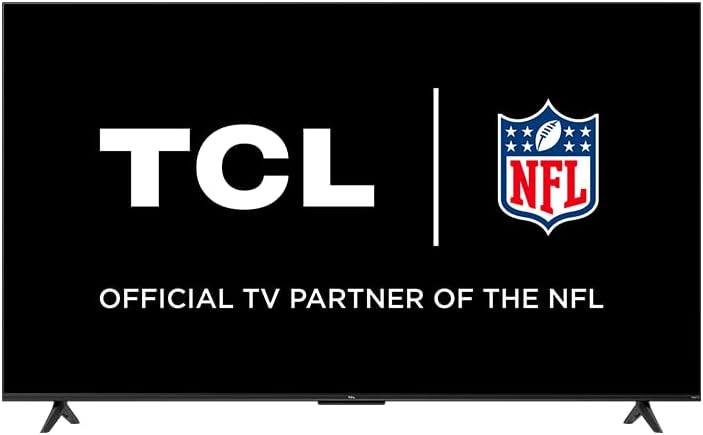
Image: The TCL 55S41 television with its stand attached, illustrating the typical appearance after stand installation. The stand provides stable support for the television on a flat surface.
1.3 ግድግዳ መትከል
If you plan to wall-mount your television, ensure you use a VESA-compatible wall mount (sold separately) that supports the television's weight and size.
- The VESA wall mount pattern for this model is 200 ሚሜ x 200 ሚሜ.
- Use M6 x 12 screws for attaching the wall mount bracket to the television.
- Follow the instructions provided with your specific wall mount for safe and secure installation.
- Remove the stand legs before wall mounting.
1.4 ማገናኛ መሳሪያዎች
Connect your external devices to the appropriate ports on the back of the television.
- HDMI ግብዓቶች፡- The TV features 4 HDMI inputs, including 1 eARC port for enhanced audio return channel functionality. Use these for connecting Blu-ray players, game consoles, cable boxes, etc.
- Composite Audio/Video Input: 1 input for older devices using RCA cables.
- ዲጂታል ኦፕቲካል ኦዲዮ ውፅዓት፡- 1 output for connecting to soundbars or audio receivers.
- የጆሮ ማዳመጫ ጃክ 1 output for private listening with headphones.
- የ RF አንቴና ግቤት፡ 1 input for connecting an antenna for over-the-air broadcasts.
- ዩኤስቢ 2.0 ወደብ 1 port for connecting USB storage devices to play media.
- የኢተርኔት ወደብ ለገመድ የበይነመረብ ግንኙነት።
- የገመድ አልባ ግንኙነት; Supports 802.11ac 2x2 Dual Band (2.4GHz & 5GHz) Wi-Fi for wireless internet access.
ምስል፡ አጠቃላይ view of the TCL 55S41 television, indicating the typical location of various input and output ports on the rear panel for connecting external devices.
1.5 Initial Power On and Roku Setup
- Connect the power cord to the television and then to a power outlet.
- በርቀት መቆጣጠሪያው ላይ ወይም በቴሌቪዥኑ ላይ የኃይል አዝራሩን ይጫኑ.
- Follow the on-screen instructions to complete the Roku guided setup, which includes selecting your language, connecting to a network, and activating your Roku account.
2. ቴሌቪዥንን በማስኬድ ላይ
This section details the basic operation of your TCL Roku TV, including remote control functions, smart features, and input selection.
2.1 የርቀት መቆጣጠሪያ
The included remote control (model RC280) requires two "AAA" batteries. It provides intuitive control over your television and Roku OS.
- የኃይል ቁልፍ፡- ቴሌቪዥኑን ያበራል ወይም ያጠፋል።
- የአቅጣጫ ፓድ ምናሌዎችን ይዳስሳል እና ንጥሎችን ይመርጣል።
- መነሻ አዝራር፡- ወደ Roku መነሻ ማያ ገጽ ይመለሳል።
- ተመለስ አዝራር፡- ወደ ቀዳሚው ማያ ገጽ ይመለሳል።
- የድምጽ አዝራሮች፡- የቴሌቪዥኑን መጠን ያስተካክላል።
- ድምጸ-ከል ያድርጉ- ድምጹን ድምጸ-ከል ያደርገዋል ወይም ያጠፋል።
- አቋራጭ ቁልፎች; ለታዋቂ የዥረት ቻናሎች የተወሰኑ አዝራሮች።
2.2 Smart Features (Roku TV)
Your TCL TV is powered by Roku OS, offering a wide range of smart features:
- የዥረት ቻናሎች፡- Access thousands of streaming channels for movies, TV shows, news, sports, and more.
- የድምጽ ቁጥጥር፡- The TV works with Siri, Alexa, and Hey Google for voice commands to search for content, launch apps, or switch inputs.
- ኤርፕሌይ፡ ቪዲዮዎችን፣ ፎቶዎችን እና ሙዚቃዎችን ከእርስዎ የአፕል መሳሪያዎች በቀጥታ ያጋሩ።
- ሊበጅ የሚችል መነሻ ማያ ገጽ፡ Organize your favorite channels and inputs for quick access.
- የሮኩ የሞባይል መተግበሪያ፦ Use the free Roku mobile app for private listening via headphones, voice control, and as an alternative remote.
2.3 የግቤት ምርጫ
To switch between connected devices or the antenna input:
- From the Roku home screen, navigate to the desired input tile (e.g., HDMI 1, Antenna TV).
- የሚለውን ይጫኑ OK button on your remote to select the input.
2.4 የድምጽ ባህሪያት
- ዶልቢ ዲጂታል ፕላስ፡ Enhanced audio quality for compatible content.
- የግል ማዳመጥ፡ Use the Roku mobile app with headphones for personal audio.
2.5 Live TV Pause
If you have an antenna connected, you can pause live TV for up to 30 minutes. A USB drive (sold separately) is required for this feature.
3. ጥገና
ትክክለኛ ጥገና የቴሌቪዥንዎን ረጅም ጊዜ እና ጥሩ አፈፃፀም ያረጋግጣል።
3.1 ጽዳት
- ስክሪን፡ ስክሪኑን ለስላሳና ልጣጭ በሌለው ጨርቅ በቀስታ ይጥረጉ። ለጠንካራ ምልክቶች፣ በቀጥታ በማያ ገጹ ላይ ሳይሆን በጨርቁ ላይ የተተገበረውን ለቴሌቪዥኖች የተነደፈ የስክሪን ማጽጃ ይጠቀሙ።
- ካቢኔ የቲቪ ካቢኔን ለስላሳ እና ደረቅ ጨርቅ ይጥረጉ. ገላጭ ማጽጃዎችን ወይም ፈሳሾችን ከመጠቀም ይቆጠቡ።
- ከማጽዳትዎ በፊት ሁልጊዜ ቴሌቪዥኑን ይንቀሉ.
3.2 የሶፍትዌር ዝመናዎች
Your TCL Roku TV receives automatic software updates to improve performance and add new features. Ensure your TV is connected to the internet for these updates.
4. መላ መፈለግ
This section provides solutions to common issues you might encounter with your TCL 55S41 television.
4.1 ምንም ኃይል የለም
- የኤሌክትሪክ ገመዱ በቴሌቪዥኑ እና በኤሌክትሪክ መሰኪያው ላይ ደህንነቱ በተጠበቀ ሁኔታ መያያዙን ያረጋግጡ።
- ሌላ መሳሪያ በመጫን የኃይል ማከፋፈያው የሚሰራ መሆኑን ያረጋግጡ።
- የርቀት መቆጣጠሪያውን ብቻ ሳይሆን የኃይል አዝራሩን በራሱ ቴሌቪዥኑ ላይ ለመጫን ይሞክሩ።
4.2 No Picture / Poor Picture Quality
- ትክክለኛው የግቤት ምንጭ መመረጡን ያረጋግጡ።
- Check all cable connections (HDMI, composite) to external devices.
- If using an antenna, check antenna connection and try rescanning for channels.
- በቲቪ ሜኑ ውስጥ የምስል ቅንጅቶችን (ብሩህነት፣ ንፅፅር፣ ወዘተ) ያስተካክሉ።
4.3 ምንም የድምፅ / ደካማ የድምፅ ጥራት
- የድምጽ መጠኑን ያረጋግጡ እና ቴሌቪዥኑ እንዳልጠፋ ያረጋግጡ።
- If using external audio equipment (soundbar, receiver), ensure it is powered on and correctly connected.
- የድምጽ ውፅዓት ቅንብሮችን በቴሌቪዥን ምናሌ ውስጥ ያረጋግጡ።
4.4 የርቀት መቆጣጠሪያ ምላሽ አይሰጥም
- Replace the batteries with fresh "AAA" batteries.
- በርቀት መቆጣጠሪያው እና በቴሌቪዥኑ IR ዳሳሽ መካከል ምንም እንቅፋቶች አለመኖራቸውን ያረጋግጡ።
- Try pairing the remote again if it's a voice remote (refer to Roku TV settings).
4.5 የአውታረ መረብ ግንኙነት ጉዳዮች
- የWi-Fi ራውተርዎን እና ሞደሞችዎን በርቶ እና እየሰራ መሆኑን ለማረጋገጥ ያረጋግጡ።
- የእርስዎን ራውተር እና ሞደም እንደገና ያስጀምሩ።
- ወደ የቴሌቪዥኑ አውታረ መረብ ቅንብሮች ይሂዱ እና ከWi-Fi አውታረ መረብዎ ጋር እንደገና ለመገናኘት ይሞክሩ።
- ባለገመድ ግንኙነት የሚጠቀሙ ከሆነ የኤተርኔት ገመዱ ደህንነቱ በተጠበቀ ሁኔታ መገናኘቱን ያረጋግጡ።
5. ዝርዝሮች
Detailed technical specifications for the TCL 55S41 55-inch 4-Series 4K UHD HDR LED Smart Roku TV.
| ባህሪ | ዝርዝር መግለጫ |
|---|---|
| የሞዴል ስም | 55S41 |
| የስክሪን መጠን | 55 ኢንች (54.6 ኢንች) Viewየሚችል) |
| የፓነል ጥራት | 3840 x 2160 (4ኬ ዩኤችዲ) |
| የማደስ ደረጃ | 60 Hz |
| የማሳያ ቴክኖሎጂ | LED-LCD |
| የኤችዲአር ቅርጸት ይደገፋል | HDR10፣ HLG |
| ስማርት መድረክ | ሮኩ ቲቪ |
| የድምጽ ውፅዓት ኃይል | 10 ዋ + 10 ዋ |
| ፕሪሚየም ኦዲዮ | ዶልቢ ዲጂታል ፕላስ |
| የኤችዲኤምአይ ግብዓቶች | 4 (1 eARC) |
| ዩኤስቢ 2.0 ወደቦች | 1 |
| የገመድ አልባ ግንኙነት | 802.11ac 2x2 Dual Band (2.4GHz & 5GHz) |
| የኤተርኔት ወደብ | 1 |
| የምርት መጠን (WxHxD) ከመቆሚያ ጋር | 48.3" x 29.8" x 10.1" |
| Product Size (WxHxD) without Stand | 48.3" x 28" x 3.2" |
| Product Weight with Stand | 22.5 ፓውንድ |
| Product Weight without Stand | 22 ፓውንድ |
| VESA የግድግዳ ተራራ ንድፍ | 200 ሚሜ x 200 ሚሜ |
| የ VESA ጠመዝማዛ መጠን | M6 x 12 |
| የርቀት መቆጣጠሪያን ያካትታል | RC280 |
| የርቀት መቆጣጠሪያ የባትሪ ዓይነት | Two "AAA" |
| ዩፒሲ | 846042065061 |
6. ዋስትና እና ድጋፍ
Information regarding the product warranty and how to obtain support.
6.1 የዋስትና መረጃ
This TCL television comes with a የ 1 ዓመት የተወሰነ ዋስትና. This warranty covers manufacturing defects and issues arising from normal use. Please refer to the warranty card included with your product or visit the official TCL webለሙሉ ውሎች እና ሁኔታዎች ጣቢያ።
6.2 የደንበኛ ድጋፍ
For technical assistance, troubleshooting beyond this manual, or warranty claims, please contact TCL Customer Support. You can typically find support contact information (phone, email, or live chat) on the official TCL website. When contacting support, have your TV model number (55S41) and serial number ready.