
1. መግቢያ
This manual provides essential information for setting up, operating, and maintaining your Bmax Y13 13.3-inch 2-in-1 Touchscreen Laptop. Please read this manual thoroughly before using your device to ensure optimal performance and longevity.

Figure 1: The Bmax Y13 2-in-1 laptop showcasing its versatile convertible design.
2. ማዋቀር
2.1 Unboxing እና የመጀመሪያ ምርመራ
Your Bmax Y13 laptop is carefully packaged to prevent damage during transit. Upon receiving your device, inspect the packaging for any signs of damage. Carefully remove the laptop and all accessories from the box.
ቪዲዮ 1፡ ቦክስ ማውጣት እና መጀመሪያ ላይview of the Bmax Y13 laptop, demonstrating its physical features and included accessories.
2.2 ማብራት እና የመጀመሪያ ማዋቀር
Connect the provided power adapter to the laptop's DC port and a power outlet. Press the power button located on the side of the device. Follow the on-screen instructions to complete the initial Windows setup, including language selection, network connection, and user account creation.
2.3 System Updates and Driver Installation
After the initial setup, it is highly recommended to perform the following steps:
- Install All Windows Updates: Ensure your operating system is up-to-date for optimal security and performance.
- Install and Run 'Intel Driver Support Assistant': This tool helps identify and install the latest drivers for your Intel components, ensuring compatibility and peak performance.
3. ሃርድዌር አልቋልview
3.1 አካላዊ ባህሪያት
The Bmax Y13 features a sleek, thin all-metal body, weighing approximately 2.8 lbs (1.25 kg) and measuring 12.1" x 8.2" x 0.6". This design makes it highly portable and stylish.

Figure 2: The Bmax Y13's ultra-thin and lightweight metal body, ideal for portability.
3.2 ወደቦች እና ግንኙነት
The laptop is equipped with various ports for versatile connectivity:
- የቀኝ ጎን፡ Audio jack, Type-C data-only port, Micro-SD card slot, Power on/off button.
- የግራ ጎን፡ 12V-2A Power port, Type-C full functionality port (for data transfer, power delivery, and video out).

ምስል 3: ዝርዝር view of the right-side ports on the Bmax Y13.
3.3 የቁልፍ ሰሌዳ እና የመዳሰሻ ሰሌዳ
The Bmax Y13 features a full-sized, backlit keyboard with two adjustable brightness levels (On/Off, 2-level adjustable via 'Fn+F2'). The keys offer good tactile feedback and travel for comfortable typing. The touchpad is generously sized and responsive.

Figure 4: The backlit keyboard of the Bmax Y13, illustrating the function key for backlight control.
3.4 Display and Convertible Modes
The laptop boasts a 13.3-inch Full HD (1920 x 1080) IPS multi-touch screen with a narrow bezel, providing an immersive viewing experience and excellent color reproduction. The 360-degree durable hinge allows for six versatile usage modes: Laptop, Stand, Tent, Tablet, Portable, and Drawing.

Figure 5: The Bmax Y13 in various convertible configurations.

Figure 6: Visual representation of the six versatile usage modes.
4. የአሠራር መመሪያዎች
4.1 አጠቃላይ አጠቃቀም
The Bmax Y13 is designed for everyday productivity and entertainment. It handles common applications like web browsing, document editing, and media playback efficiently. The Intel Celeron N4120 Quad Core Processor (up to 2.6GHz) combined with 8GB DDR4 RAM and a 256GB SSD ensures smooth operation.
Video 2: Demonstration of the Bmax Y13's performance in web browsing, media streaming, and light gaming.
4.2 Touchscreen Gestures
The multi-touch screen supports 10-finger input with high precision. Common gestures include:
- ባለ ሁለት ጣት ማንሸራተት; Scroll through content.
- በሁለት ጣቶች መቆንጠጥ; አሳንስ ወይም አሳንስ።
- ባለ ሶስት ጣት መታ ያድርጉ፡ Open search or switch applications.
- ባለአራት ጣት መታ ያድርጉ፡ Open action center.
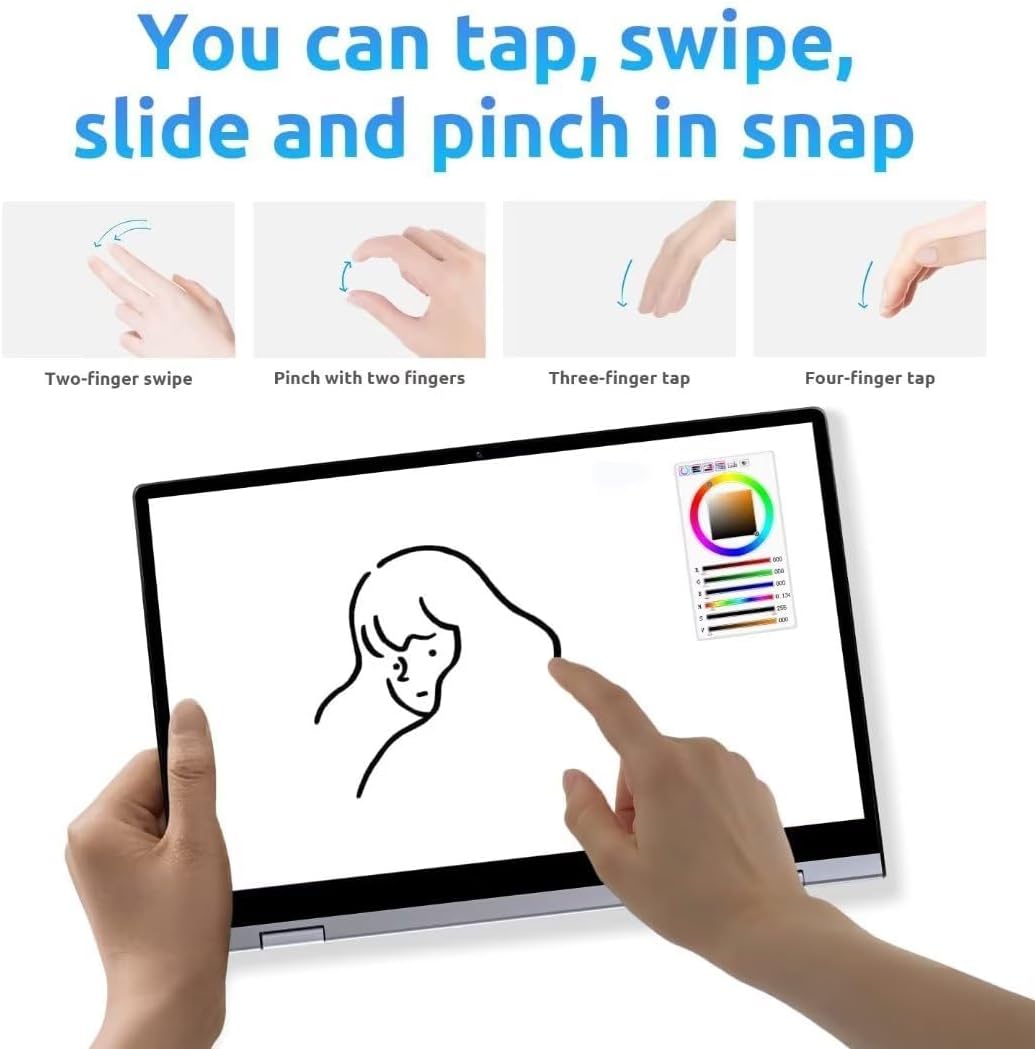
Figure 7: Common touchscreen gestures for navigation and interaction.
4.3 ገመድ አልባ የስክሪን ፕሮጀክሽን
The Bmax Y13 supports wireless screen projection, allowing you to display content from your laptop onto a larger screen or projector. This feature is particularly useful for presentations or sharing media.

Figure 8: Using the touchscreen for presentations or content display.
5. ዝርዝሮች
| ባህሪ | ዝርዝር መግለጫ |
|---|---|
| የቋሚ ማያ ገጽ ማሳያ መጠን | 13.3 ኢንች |
| የማያ ጥራት | 1920 x 1080 ፒክሰሎች (ኤፍኤችዲ) |
| ፕሮሰሰር | Intel Celeron N4120 Quad Core (up to 2.6GHz) |
| ራም | 8 ጊባ LPDDR4 |
| ሃርድ ድራይቭ | 256 ጊባ SSD |
| ግራፊክስ ኮፕሮሰሰር | ኢንቴል ዩኤችዲ ግራፊክስ 600 |
| የገመድ አልባ አይነት | 802.11a/g/n/ac, Bluetooth 5.0 |
| ስርዓተ ክወና | ስርዓተ ክወና 10 |
| የእቃው ክብደት | 2.75 ፓውንድ (1.25 ኪ.ግ) |
| የምርት ልኬቶች | 12.6 x 8.2 x 0.6 ኢንች |
| አማካይ የባትሪ ህይወት | 6 ሰዓታት |
6. ጥገና
To ensure the longevity and optimal performance of your Bmax Y13 laptop, follow these maintenance guidelines:
- ማጽዳት፡ ማያ ገጹን እና ውጫዊውን ለማጽዳት ለስላሳ እና ለስላሳ ጨርቅ ይጠቀሙ. ግትር ለሆኑ ማጭበርበሮች፣ መampጨርቁን በውሃ ወይም በስክሪኑ ደህንነቱ የተጠበቀ ማጽጃ። ኃይለኛ ኬሚካሎችን ያስወግዱ.
- የሙቀት መጠን፡ Operate the laptop within recommended temperature ranges. Avoid exposing it to extreme heat or cold, and ensure proper ventilation to prevent overheating.
- የሶፍትዌር ማሻሻያ Regularly update your operating system and drivers to benefit from performance improvements, security patches, and new features.
- የባትሪ እንክብካቤ For optimal battery life, avoid fully discharging the battery frequently. If storing the laptop for an extended period, charge it to about 50-70%.
7. መላ መፈለግ
If you encounter issues with your Bmax Y13, try the following troubleshooting steps:
- ኃይል የለም፡ የኃይል አስማሚው ደህንነቱ በተጠበቀ ሁኔታ ከሁለቱም ከላፕቶፕ እና ከሚሰራ የኃይል ማከፋፈያ ጋር መገናኘቱን ያረጋግጡ። የኃይል ማከፋፈያው የሚሰራ መሆኑን ያረጋግጡ.
- የማያ ገጽ ጉዳዮች፡- If the screen is blank or flickering, try restarting the laptop. If using an external display, ensure the cable connection is secure.
- ቀርፋፋ አፈጻጸም፡ Close unnecessary applications, check for malware, and ensure your operating system and drivers are updated. Consider freeing up storage space on the SSD.
- የዋይፋይ/ብሉቱዝ ግንኙነት፦ Ensure Wi-Fi and Bluetooth are enabled in Windows settings. Restart your router or Bluetooth device if connection issues persist.
- የማያ ንክኪ ምላሽ የማይሰጥ፡ Restart the laptop. If the issue continues, check for driver updates for the touchscreen.
8. ዋስትና እና ድጋፍ
For warranty information and technical support, please refer to the documentation included with your product or visit the official Bmax webጣቢያ. ለዋስትና ጥያቄዎች የግዢ ማረጋገጫዎን ያስቀምጡ።