
Zenwire E520h
Zenwire E520h Projector User Manual
Model: E520h | Brand: Zenwire
1. መግቢያ
This manual provides detailed instructions for the setup, operation, and maintenance of your Zenwire E520h projector. Please read this manual thoroughly before using the device to ensure proper functionality and to maximize your viewልምድ.
The Zenwire E520h is a Full HD 1080p projector with 4K support, featuring Android 9.0, dual-band WiFi (2.4/5 GHz), and Bluetooth 5.0 for versatile home theater entertainment.
2. የጥቅል ይዘቶች
ሁሉም እቃዎች በጥቅሉ ውስጥ መኖራቸውን ያረጋግጡ፡-
- Zenwire E520h Projector
- የርቀት መቆጣጠሪያ (ባትሪዎች አልተካተቱም)
- የኃይል ገመድ
- HDMI ገመድ
- AV Cable (stereo)
- የተጠቃሚ መመሪያ

The image above displays the Zenwire E520h projector along with its standard accessories: a remote control, power cable, HDMI cable, and AV cable. These components are essential for setting up and operating your projector.
3. ምርት አብቅቷልview
Familiarize yourself with the various parts and connections of your Zenwire E520h projector.

ይህ ምስል አጠቃላይ እይታን ይሰጣል view of the projector from different angles, highlighting the lens, control panel, ventilation grilles, and various input/output ports located on the sides and rear of the device.

The Zenwire E520h projector supports a wide range of multimedia devices, including streaming sticks (Roku, Fire TV, Chromecast), external audio systems, USB storage, gaming consoles (Xbox, PlayStation), mobile devices (phones, tablets), DVD players, and computers (laptops, desktops) via its various input ports.
4. ማዋቀር
4.1 አቀማመጥ
Position the projector on a stable, flat surface. Ensure adequate ventilation around the device. The optimal projection distance ranges from 1.2 to 6 meters, allowing for screen sizes from 36 to 200 inches.

This image demonstrates how varying the distance between the projector and the screen affects the projected image size, showing examples for 45, 120, and 200-inch displays.
4.2 የኃይል ግንኙነት
Connect the power cable to the projector's power input and then plug it into a suitable electrical outlet.
4.3 የመነሻ ኃይል በርቷል
Press the power button on the projector or the remote control to turn on the device. The projector will boot into the Android 9.0 operating system.
5. የአሠራር መመሪያዎች
5.1 የትኩረት እና የኪስቶን እርማት
Adjust the focus ring around the lens until the image is clear. Use the 4D keystone correction feature to adjust the image shape if the projector is not perfectly perpendicular to the screen. This can be done via the remote control or on-screen settings.

This image illustrates the process of adjusting the focus ring on the projector lens and demonstrates the effect of keystone correction on the projected image, ensuring a rectangular display even when the projector is angled.
5.2 አንድሮይድ 9.0 ስማርት ሲስተም
The projector runs on Android 9.0, allowing direct access to streaming applications like YouTube, Netflix, HBO, and Spotify. Navigate the interface using the remote control.

The image above shows the projector's smart interface, featuring a grid of popular streaming applications, demonstrating the integrated Android 9.0 system's capability to run apps directly.
5.3 የገመድ አልባ ግንኙነት (ዋይፋይ እና ብሉቱዝ)
ዋይፋይ፡ Connect to your home network using the integrated 2.4/5 GHz WiFi. This enables Miracast and Airplay for wireless screen mirroring from iOS, Android, and Windows devices.

This image illustrates the projector's wireless connectivity, showing it mirroring content from a smartphone and tablet, and highlighting its compatibility with iOS, Android, and Windows 10 devices for screen sharing.
ብሉቱዝ 5.0: Pair with external Bluetooth speakers, soundbars, or headphones for enhanced audio. Go to the settings menu to manage Bluetooth devices.
5.4 ባለገመድ ግንኙነት
The projector features multiple ports for wired connections:
- HDMI (x2): Connect laptops, gaming consoles, Blu-ray players, or streaming devices.
- ዩኤስቢ፡ ሚዲያውን በቀጥታ ከዩኤስቢ አንጻፊዎች ያጫውቱ።
- ኤቪ Connect older devices using the included AV cable.
- Mini-Jack: ለውጫዊ የድምጽ ውፅዓት።
- Micro-SD/TF Card Reader: For playing media from memory cards.
6. ጥገና
6.1 ሌንስን ማጽዳት
የፕሮጀክተር ሌንሱን በተለይ ለእይታ ንጣፎች በተዘጋጀ ለስላሳ እና ከተሸፈነ ጨርቅ በቀስታ ይጥረጉ። ሻካራ ማጽጃዎችን ወይም ከመጠን በላይ ኃይልን አይጠቀሙ.
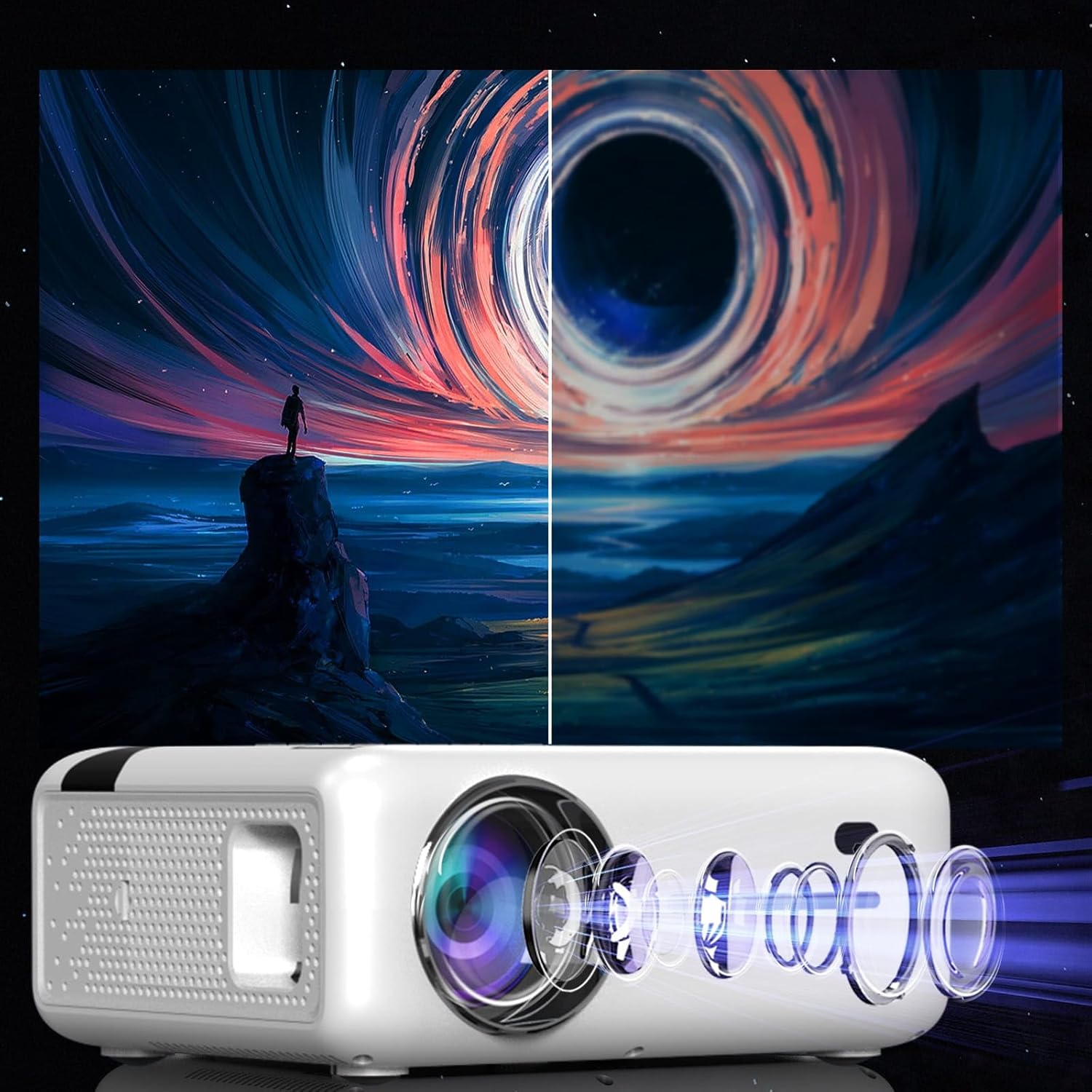
This diagram illustrates the multi-element lens system of the projector, highlighting the precision optics that require careful handling during cleaning to maintain image quality.
6.2 የአየር ማናፈሻ
Ensure that the projector's ventilation openings are not blocked to prevent overheating. Regularly check for dust accumulation and clean if necessary using compressed air.
6.3 ማከማቻ
When not in use for extended periods, store the projector in a cool, dry place, away from direct sunlight and excessive dust. Use the original packaging or a protective case.
7. መላ መፈለግ
| ችግር | ሊሆን የሚችል ምክንያት | መፍትሄ |
|---|---|---|
| ምንም ምስል አልታየም። | Power cable disconnected, incorrect input source, lens cap on. | Check power connection, select correct input source (HDMI, USB, etc.), remove lens cap. |
| የደበዘዘ ምስል | Focus not adjusted, keystone incorrect. | Adjust the focus ring, use keystone correction. |
| ድምጽ የለም። | Volume too low, incorrect audio output selected, external device muted. | Increase projector volume, check audio settings, ensure external device is not muted. |
| የ WiFi ግንኙነት ችግሮች | Incorrect password, router too far, interference. | Verify WiFi password, move projector closer to router, check for other wireless devices. |
8. ዝርዝሮች
| ባህሪ | ዝርዝር |
|---|---|
| ሞዴል | Zenwire E520h |
| ቤተኛ ውሳኔ | 1920 x 1080p (Full HD) |
| የሚደገፍ ውሳኔ | እስከ 4 ኪ |
| ብሩህነት | 9000 lumens (300 ANSI) |
| የንፅፅር ሬሾ | 2000፡1 |
| ስርዓተ ክወና | አንድሮይድ 9.0 |
| ዋይፋይ | 2.4/5 GHz (Miracast, Airplay support) |
| ብሉቱዝ | 5.0 |
| ግንኙነት | 2x HDMI, USB, AV, Mini-Jack, Micro-SD/TF |
| የፕሮጀክሽን መጠን | 36-200 ኢንች |
| የፕሮጀክት ርቀት | 1.2 - 6 ሜትር |
| የቁልፍ ማስተካከያ | 4D (manual and auto) |
| ጥራዝtage | 230 ቮልት |
| መጠኖች (ጥቅል) | 23 x 18.5 x 10.5 ሴ.ሜ |
| ክብደት (ጥቅል) | 1.2 ኪ.ግ |
9. ዋስትና እና ድጋፍ
For warranty information and technical support, please refer to the contact details provided with your purchase documentation or visit the official Zenwire webጣቢያ. ለዋስትና ጥያቄዎች የግዢ ማረጋገጫዎን ያስቀምጡ።
Ask a question about this manual
Ask about setup, troubleshooting, compatibility, parts, safety, or missing instructions. Manuals+ will review the question and use this page’s manual context to help answer it.