
መግቢያ
This manual provides detailed instructions for the setup, operation, and maintenance of your Zenwire USB-C Hub 10-in-1 Adapter. Please read this manual thoroughly before using the device to ensure optimal performance and longevity.

Image: The Zenwire USB-C Hub, a compact gray device, is shown connected to various cables and accessories, including HDMI, USB, Ethernet, and SD cards, illustrating its multi-functionality.
ምርት አልቋልview
The Zenwire USB-C Hub is a versatile 10-in-1 adapter designed to expand the connectivity of your USB-C enabled devices. It features a durable aluminum alloy shell for efficient heat dissipation.
ቁልፍ ባህሪያት እና ወደቦች፡
- HDMI 2.1 ወደብ፡ Supports resolutions up to 8K@30Hz or 4K@120Hz, with backward compatibility for lower resolutions.
- ማሳያ ወደብ 1.4፡ Supports resolutions up to 8K@30Hz or 4K@120Hz, with backward compatibility for lower resolutions.
- USB-C Power Delivery (PD) 100W Port: Allows fast charging of your host device while using the hub, providing up to 100W power.
- 2 x የዩኤስቢ 3.0 ወደቦች፡ Offers data transfer speeds up to 5 Gbps, 10 times faster than USB 2.0.
- ኤስዲ ካርድ አንባቢ፡- Supports SD cards up to 2TB.
- የማይክሮ ኤስዲ ካርድ አንባቢ፦ Supports MicroSD cards up to 2TB.
- RJ-45 Gigabit Ethernet Port: Provides a stable wired internet connection with speeds up to 1000 Mbps.
- 3.5ሚሜ ኦዲዮ ጃክ፡ For connecting headphones, microphones, or external speakers.
- USB-C 3.1 / Thunderbolt 3.0 Host Connection: Connects the hub to your laptop or compatible device.

ምስል: ዝርዝር view of the Zenwire USB-C Hub, highlighting its 10 ports including 3.5mm audio, Type-C PD100W, DP1.6, HDMI2.1, Gigabit Ethernet, USB3.0 5Gbps, SD, and MicroSD slots.

Image: A close-up of the Zenwire USB-C Hub, emphasizing its aluminum alloy shell designed for effective heat dissipation, ensuring the device remains cool during operation.
ማዋቀር
- ከአስተናጋጅ መሣሪያ ጋር ይገናኙ፡ Plug the integrated USB-C cable of the Zenwire Hub into a compatible USB-C or Thunderbolt 3.0/4.0 port on your laptop, tablet, or smartphone. The hub is Plug & Play and typically requires no driver installation.
- የኃይል አቅርቦት (አማራጭ)፦ If your host device requires charging or if you are connecting power-intensive peripherals, connect your original USB-C power adapter to the USB-C PD 100W port on the hub.
- ተያያዥ ነገሮች፡- Connect your desired devices (monitors, USB drives, Ethernet cable, SD/MicroSD cards, audio devices) to the corresponding ports on the hub.
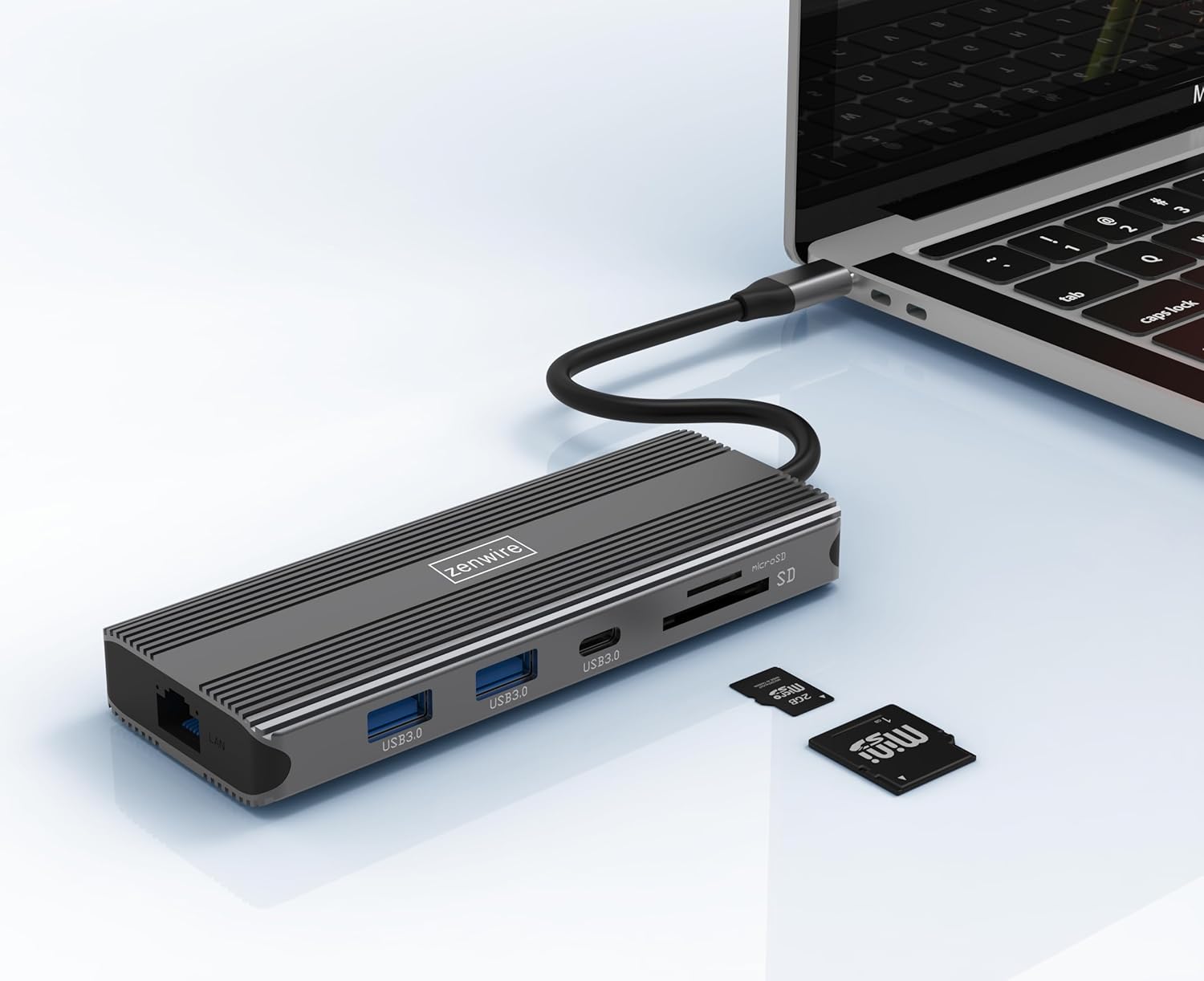
Image: The Zenwire USB-C Hub is shown connected to a laptop via its integrated USB-C cable, with SD and MicroSD cards placed nearby, illustrating a typical setup scenario.
የአሠራር መመሪያዎች
የግንኙነት ማሳያ;
The hub supports connecting up to two external monitors simultaneously via its HDMI 2.1 and DisplayPort 1.4 interfaces. Both can display video in 4K@60Hz concurrently.
- ነጠላ መቆጣጠሪያ፡ Connect your monitor to either the HDMI or DisplayPort.
- ድርብ ማሳያዎች፡ Connect one monitor to the HDMI port and another to the DisplayPort.

Image: A laptop is displayed connected to two larger external monitors, demonstrating the multi-display capability of the Zenwire USB-C Hub.
Multi-Display Modes (MacOS vs. Windows):
The behavior of multiple external displays can vary between operating systems.
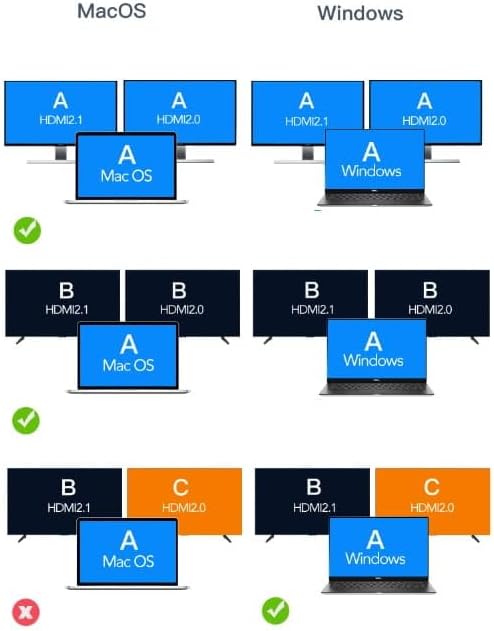
Image: A diagram illustrating different multi-display configurations for MacOS and Windows. It shows that MacOS typically supports extended desktop across two external monitors (A, B) and the laptop screen (A), while Windows can support extended desktop across three screens (A, B, C) or mirrored displays.
- ማኮስ፡ Typically supports extended desktop across two external monitors (A, B) and the laptop screen (A). Mirroring is also supported.
- ዊንዶውስ፡ Supports extended desktop across three screens (A, B, C) or mirrored displays, offering more flexibility for multi-monitor setups.
HDMI 2.1 and DisplayPort 1.4 Advanced Features:
These ports offer higher refresh rates and advanced features for an enhanced visual experience:
- ከፍተኛ የዝውውር ፍጥነት; Up to 48 Gbps for HDMI 2.1, ensuring high data throughput.
- eARC (የተሻሻለ የድምጽ መመለሻ ቻናል)፦ For higher audio quality and support for object-based audio formats like Dolby Atmos and DTS-X.
- ቪአርአር (ተለዋዋጭ የማደሻ መጠን) Useful for gaming, where refresh rates are not constant.
- ALLM (ራስ-ዝቅተኛ መዘግየት ሁነታ) Automatically detects content like games and switches the device to a low-latency mode.
- QMS (Quick Media Switching): The image on the screen changes immediately when switching between content.
- QFT (Quick Frame Transport): Reduces input lag further.
- ተለዋዋጭ ኤችዲአር፦ Adjusts the image parameters during content transmission for higher quality visuals. Supports HDR 10 and 10+.
የድምጽ ግንኙነት፡
The 3.5mm audio jack allows connection of various audio devices:
- ማይክሮፎኖች
- የጆሮ ማዳመጫዎች
- Headphones with integrated microphone
- ውጫዊ ድምጽ ማጉያዎች
ጥገና
- ማጽዳት፡ ማዕከሉን ለማጽዳት ለስላሳና ደረቅ ጨርቅ ይጠቀሙ። ፈሳሽ ማጽጃዎችን ወይም ሻካራ ቁሳቁሶችን ያስወግዱ።
- ማከማቻ፡ ማዕከሉን በቀጥታ ከፀሀይ ብርሀን እና ከከፍተኛ ሙቀት ርቆ በቀዝቃዛና ደረቅ ቦታ ያከማቹ።
- አያያዝ፡ መሳሪያውን ከመጣል ወይም ለጠንካራ ተጽእኖዎች ከማድረግ ተቆጠብ።
- የሙቀት መበታተን; The aluminum alloy shell is designed for effective heat dissipation. Ensure the hub is placed in a well-ventilated area during prolonged use.
መላ መፈለግ
- ምንም የማሳያ ውጤት የለም፡
- ከማዕከሉ የሚገኘው የዩኤስቢ-ሲ ገመድ ከአስተናጋጅ መሣሪያዎ ጋር ደህንነቱ በተጠበቀ ሁኔታ መገናኘቱን ያረጋግጡ።
- Verify that the HDMI/DisplayPort cable is firmly connected to both the hub and the monitor.
- Check your host device's display settings to ensure the external monitor is detected and configured correctly (e.g., extended, mirrored).
- Try a different HDMI/DisplayPort cable or monitor to rule out cable/monitor issues.
- የኃይል አቅርቦት የለም፦
- የዩኤስቢ-ሲ የኃይል አስማሚዎ ከማዕከሉ PD ወደብ ጋር መገናኘቱን እና በትክክል እየሰራ መሆኑን ያረጋግጡ።
- የአስተናጋጅ መሣሪያዎ የዩኤስቢ-ሲ የኃይል አቅርቦትን የሚደግፍ መሆኑን ያረጋግጡ።
- የዩኤስቢ መሣሪያዎች ያልታወቁ፡-
- Reconnect the USB device to a different USB 3.0 port on the hub.
- Ensure the USB device is functioning correctly by connecting it directly to your host device.
- Some high-power USB devices may require external power if the hub's PD port is not utilized.
- የኤተርኔት ግንኙነት ጉዳዮች፡-
- የኢተርኔት ገመዱ ከሁለቱም ሃብል እና ከራውተርዎ/ሞደምዎ ጋር ደህንነቱ በተጠበቀ ሁኔታ የተገናኘ መሆኑን ያረጋግጡ።
- በአስተናጋጅ መሣሪያዎ ላይ የአውታረ መረብ ቅንብሮችን ያረጋግጡ።
- Ensure your router/modem is working correctly.
- የኤስዲ/ማይክሮኤስዲ ካርድ አልተገኘም፦
- ካርዱ በትክክለኛው ማስገቢያ ውስጥ ሙሉ በሙሉ መገባቱን ያረጋግጡ።
- Check if the card is formatted correctly and readable by your operating system.
- የካርድ ችግሮችን ለማስወገድ የተለየ ካርድ ይሞክሩ።
ዝርዝሮች
| የምርት ስም | ዘንዊር |
| ሞዴል | Zenwire USB-C Hub |
| ግንኙነት | USB-C 3.1 / Thunderbolt 3.0 (Host) |
| ወደቦች |
|
| የውሂብ ማስተላለፍ ፍጥነት | USB 3.0: 5 Gbps; Ethernet: 1000 Mbps |
| የኃይል አቅርቦት | እስከ 100 ዋ |
| ቁሳቁስ | የአሉሚኒየም ቅይጥ ሼል |
| ልኬቶች (L x W x H) | 118 x 48 x 15 ሚ.ሜ |
| ክብደት | 109 ግ |
| የኬብል ርዝመት | በግምት 15 ሴ.ሜ |
| የስርዓተ ክወና ተኳኋኝነት | Windows 11/10/8/7, Apple macOS, Linux, Android, iPad Pro iOS (USB-C models) |

ምስል፡ አንግል view of the Zenwire USB-C Hub, showcasing its compact design and the integrated USB-C host cable.
ዋስትና እና ድጋፍ
Zenwire products are designed for reliability and performance. For warranty information and technical support, please refer to the official Zenwire webጣቢያ ወይም ቸርቻሪዎን ያነጋግሩ። ለዋስትና ጥያቄዎች የግዢ ደረሰኝዎን ያስቀምጡ።
For the latest software updates or driver information (if applicable), please visit the Zenwire support page. This device is designed to be Plug & Play, generally not requiring additional drivers.