
DUODUOGO T30
DUODUOGO 10.1 inch Android Tablet User Manual
ሞዴል፡ T30
1. መግቢያ
Welcome to the user manual for your new DUODUOGO 10.1 inch Android Tablet. This device is designed to provide a seamless and powerful experience for all your digital needs, from entertainment to productivity. Please read this manual carefully to ensure proper use and to maximize the performance and longevity of your tablet.

Figure 1.1: DUODUOGO 10.1 inch Android Tablet and accessories.
2. በሳጥኑ ውስጥ ያለው
ጥቅሉን ሲከፍቱ፣እባክዎ የሚከተሉት ነገሮች በሙሉ መካተታቸውን ያረጋግጡ።
- 1 x DUODUOGO 10.1 inch Android Tablet
- 1 x የጡባዊ መያዣ
- 1 x ዓይነት-C የዩኤስቢ ገመድ
- 1 x ኃይል መሙያ
- 1 x የተጠቃሚ መመሪያ
3. ምርት አብቅቷልview
The DUODUOGO T30 tablet is engineered for high performance and user convenience. Below are key features and components:
3.1. አፈጻጸም እና ማከማቻ
Equipped with a powerful octa-core processor and 8GB RAM (4GB physical + 4GB virtual memory), the tablet ensures smooth multitasking and fast application loading. The 64GB internal storage is expandable up to 1TB via a TF card, providing ampለሁላችሁም የሚሆን ቦታ files.

Figure 3.1: Performance and Storage Capabilities.

Figure 3.2: Octa-Core Processor for Enhanced Performance.
3.2. Display and Audiovisual
Experience vibrant visuals on the 10.1-inch IPS HD display with a resolution of 1920x1200 pixels. The tablet features dual speakers for an immersive audio experience and supports Widevine L1 DRM for high-quality streaming content.
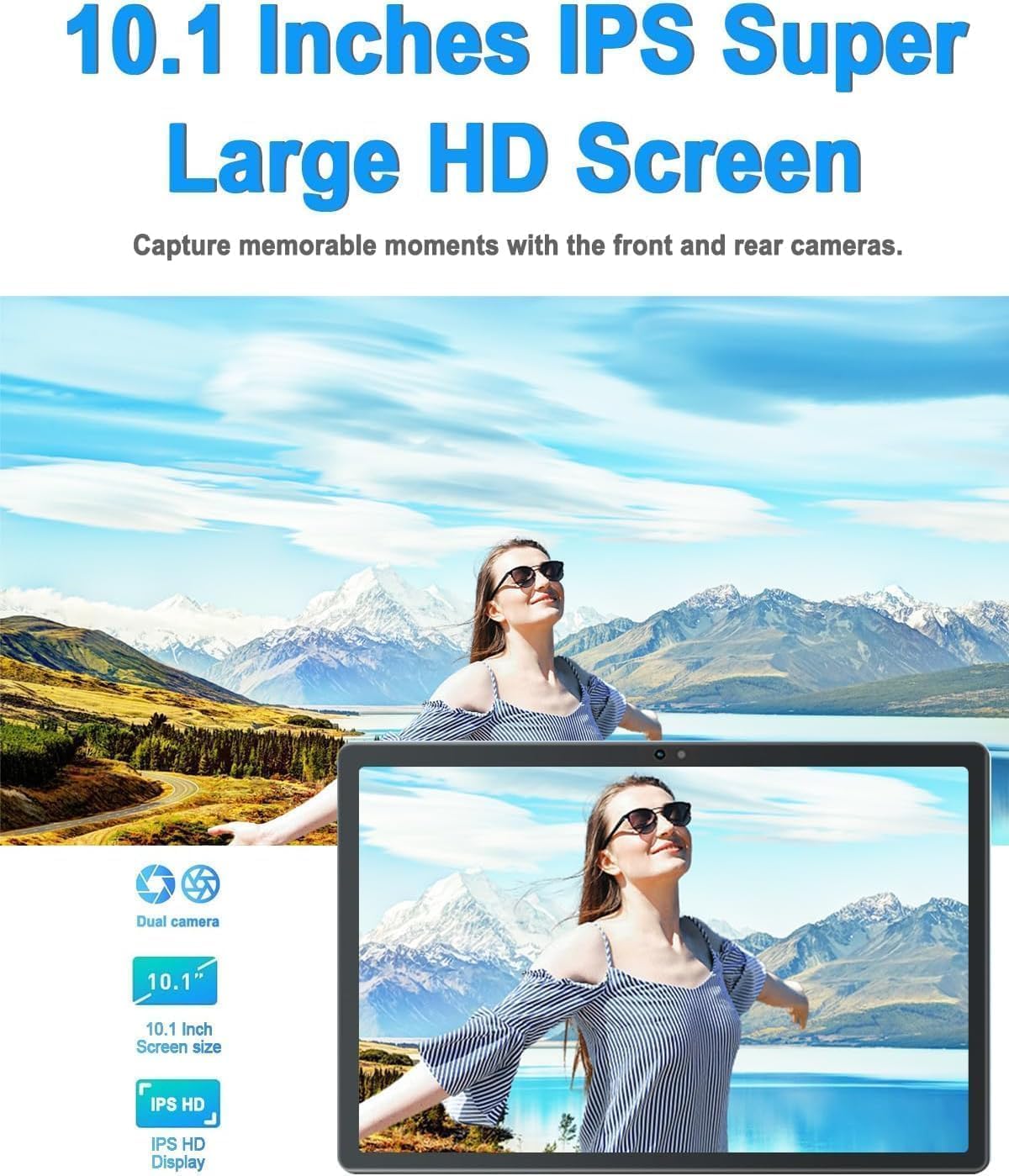
Figure 3.3: 10.1-inch IPS HD Display and Dual Cameras.

Figure 3.4: Immersive Audiovisual Experience.
3.3. Cameras and Connectivity
Capture moments with the 8MP rear camera and 5MP front camera. The tablet supports stable Wi-Fi (802.11ac) and Bluetooth 4.3 for seamless connectivity. It also includes GPS navigation capabilities.

Figure 3.5: Key Features and Connectivity Options.
3.4. Software and Battery
The tablet runs on the latest Android system and is GMS certified, ensuring full access to the Google Play Store and all its applications. A 6000 mAh battery provides extended usage time for various activities.

Figure 3.6: Google GMS Certification and App Access.
ቪዲዮ 3.1፡ አልቋልview of the 10.1 inch Android Tablet's features and capabilities.
4. የማዋቀር መመሪያ
4.1. የመነሻ ኃይል መሙላት
Before first use, fully charge your tablet. Connect the Type-C USB cable to the tablet's charging port and the other end to the provided charger. Plug the charger into a power outlet. The battery indicator on the screen will show charging progress.
4.2. ማብራት / ማጥፋት
- ለማብራት፡- Press and hold the Power button (usually located on the side or top edge) until the DUODUOGO logo appears.
- ለማጥፋት፡- የኃይል አማራጮች ምናሌ እስኪታይ ድረስ የኃይል አዝራሩን ተጭነው ይቆዩ. "ኃይል ጠፍቷል" ን ይምረጡ እና ያረጋግጡ.
4.3. የመነሻ ማዋቀር አዋቂ
The first time you power on the tablet, you will be guided through a setup wizard. Follow the on-screen prompts to:
- ቋንቋዎን ይምረጡ።
- ከWi-Fi አውታረ መረብ ጋር ይገናኙ።
- በጉግል መለያዎ ይግቡ ወይም አዲስ ይፍጠሩ።
- የማያ ገጽ መቆለፊያ (ፒን ፣ ስርዓተ-ጥለት ፣ የይለፍ ቃል) ያዋቅሩ።
- Review እና ውሎችን እና ሁኔታዎችን ይቀበሉ።
5. የአሠራር መመሪያዎች
5.1. በይነገጽ ማሰስ
- ንካ፡ እሱን ለመምረጥ አንድ አዶ ወይም አማራጭ ይንኩ።
- ነክተው ይያዙ፡ Press and hold an item to access more options.
- ያንሸራትቱ በማያ ገጾች መካከል ለማሸብለል ወይም ለማሰስ ጣትዎን በማያ ገጹ ላይ ይጎትቱ።
- መቆንጠጥ ፎቶዎችን ለማጉላት ወይም ለማሳነስ ሁለት ጣቶችን ይጠቀሙ web ገጾች.
5.2. መሰረታዊ ተግባራት
- መነሻ ስክሪን፡ Tap the Home button (circle icon) to return to the main screen.
- የቅርብ ጊዜ መተግበሪያዎች፡- የቅርብ ጊዜ መተግበሪያዎች አዝራሩን (ካሬ አዶ) ንካ view እና በቅርብ ጊዜ ጥቅም ላይ የዋሉ መተግበሪያዎች መካከል ይቀያይሩ።
- ተመለስ፡ Tap the Back button (triangle icon) to go back to the previous screen.
- ማሳወቂያዎች፡- የማሳወቂያ ፓነሉን እና ፈጣን ቅንብሮችን ለመድረስ ከማያ ገጹ ላይኛው ክፍል ወደ ታች ያንሸራትቱ።
- የድምጽ መቆጣጠሪያ፡- Use the physical Volume Up/Down buttons on the side of the tablet.
5.3. ከ Wi-Fi ጋር በመገናኘት ላይ
- ወደ ሂድ ቅንብሮች > አውታረ መረብ እና በይነመረብ > ዋይ ፋይ.
- Wi-Fi ቀይር On.
- ከዝርዝሩ ውስጥ የሚፈልጉትን አውታረ መረብ ይምረጡ።
- የይለፍ ቃሉን ከተጠየቀ ያስገቡ እና መታ ያድርጉ ተገናኝ.
5.4. ካሜራዎችን መጠቀም
Open the Camera app from your home screen or app drawer. You can switch between the front and rear cameras using the camera switch icon. Tap the shutter button to take a photo or start/stop video recording.

Figure 5.1: HD Large Screen Display for optimal viewing
6. ጥገና እና እንክብካቤ
To ensure the longevity and optimal performance of your DUODUOGO tablet, follow these maintenance guidelines:
- ማጽዳት፡ ስክሪኑን እና አካሉን ለማጽዳት ለስላሳ፣ ከላጣ ነፃ የሆነ ጨርቅ ይጠቀሙ። ለጠንካራ ቆሻሻዎች፣ ትንሽ ቆልampጨርቁን በውሃ ወይም በስክሪን ማጽጃ. ኃይለኛ ኬሚካሎችን ያስወግዱ.
- የሙቀት መጠን፡ ክኒኑን ለረጅም ጊዜ ለከፍተኛ ሙቀት (ሙቅ ወይም ቅዝቃዜ) ወይም በቀጥታ ለፀሐይ ብርሃን አያጋልጡት።
- የውሃ መጋለጥ; ይህ ታብሌት ውሃ የማያሳልፍ አይደለም። ከፈሳሽ ጋር ንክኪን ያስወግዱ።
- ማከማቻ፡ ለረጅም ጊዜ ጥቅም ላይ በማይውልበት ጊዜ፣ ጡባዊውን ቀዝቃዛና ደረቅ ቦታ ያስቀምጡት።
- የሶፍትዌር ማሻሻያ ጡባዊዎ የቅርብ ጊዜ ባህሪያት እና የደህንነት ጥገናዎች እንዳሉት ለማረጋገጥ የስርዓት ዝመናዎችን በመደበኛነት ይፈትሹ እና ይጫኑ። ወደሚከተለው ይሂዱ ቅንብሮች > ስርዓት > የስርዓት ዝመና.
7. መላ መፈለግ
If you encounter issues with your tablet, refer to the following common problems and solutions:
- ጡባዊው አይበራም፦
- Ensure the battery is charged. Connect the charger and wait a few minutes before attempting to power on.
- Press and hold the Power button for at least 10-15 seconds to force a restart. - ስክሪን ምላሽ የማይሰጥ ነው፡-
- Restart the tablet.
- Ensure your hands are clean and dry. - የWi-Fi ግንኙነት ችግሮች፡-
- Ensure Wi-Fi is enabled in Settings.
- Restart your Wi-Fi router.
- Forget the network in tablet settings and reconnect.
- Ensure you are within range of the Wi-Fi signal. - መተግበሪያዎች እየሰበሩ ወይም እየቀዘቀዙ ነው፦
- Close and reopen the app.
- Clear the app's cache (Settings > Apps > [App Name] > Storage & cache > Clear cache).
- Update the app from Google Play Store.
- Uninstall and reinstall the app. - ዝቅተኛ አፈጻጸም;
- Close unused apps running in the background.
- Clear cache and temporary files.
- Ensure sufficient storage space is available.
- Restart the tablet regularly. - ባትሪው በፍጥነት ይጠፋል;
- Reduce screen brightness.
- Turn off Wi-Fi, Bluetooth, and GPS when not in use.
- Close background apps.
- Limit notifications.
- Check battery usage in Settings to identify power-hungry apps.
If the problem persists, please contact DUODUOGO customer support for further assistance.
8. ዝርዝሮች
| ባህሪ | ዝርዝር መግለጫ |
|---|---|
| የምርት ስም | ዱኦዱኦጎ |
| የሞዴል ቁጥር | T30 |
| ስርዓተ ክወና | አንድሮይድ |
| የስክሪን መጠን | 10.1 ኢንች |
| የማያ ጥራት | 1920 x 1200 pixels IPS |
| ፕሮሰሰር | Octa-Core, 2 GHz (MediaTek) |
| ራም | 8GB (4GB + 4GB ምናባዊ) |
| የውስጥ ማከማቻ | 64 ጊባ |
| ሊሰፋ የሚችል ማከማቻ | እስከ 1 ቴባ (TF ካርድ) |
| የኋላ ካሜራ | 8 ሜፒ |
| የፊት ካሜራ | 5 ሜፒ |
| የባትሪ አቅም | 6000 ሚአሰ |
| የገመድ አልባ አይነት | 802.11ac Wi-Fi |
| ብሉቱዝ | ብሉቱዝ 4.3 |
| ግንኙነት | Type-C USB, 3.5mm Headphone Jack |
| የእቃው ክብደት | 1.04 ፓውንድ |
| የምርት ልኬቶች | 9.6 x 6.4 x 0.32 ኢንች |
9. ዋስትና እና ድጋፍ
Your DUODUOGO tablet comes with a standard manufacturer's warranty. Please refer to the warranty card included in your product packaging for specific terms and conditions, including warranty period and coverage details.
For technical support, troubleshooting assistance, or warranty claims, please contact DUODUOGO customer service through the contact information provided on the product packaging or the official DUODUOGO webጣቢያ.
እባክዎ ለዋስትና ዓላማዎች የግዢ ማረጋገጫዎን ያቆዩ።
Ask a question about this manual
Ask about setup, troubleshooting, compatibility, parts, safety, or missing instructions. Manuals+ will review the question and use this page’s manual context to help answer it.