
መግቢያ
Thank you for choosing the MoKo Bluetooth AZERTY Keyboard. This manual provides detailed instructions to help you set up, operate, and maintain your keyboard, ensuring optimal performance with your Microsoft Surface Pro device. Please read this manual thoroughly before use.
ተኳኋኝነት
This keyboard is specifically designed for the following Microsoft Surface Pro models:
- Surface Pro 7 Plus (2021)
- Surface Pro 7 (2019)
- Surface Pro 6
- Surface Pro 5 (Pro 2017)
- Surface Pro 4
- Surface Pro 3
The keyboard dimensions are approximately 29.5 cm (11.6 inches) in length, 21.7 cm (8.54 inches) in width, and 0.6 cm (0.23 inches) in height, providing a similar typing experience to official Surface Pro keyboards.
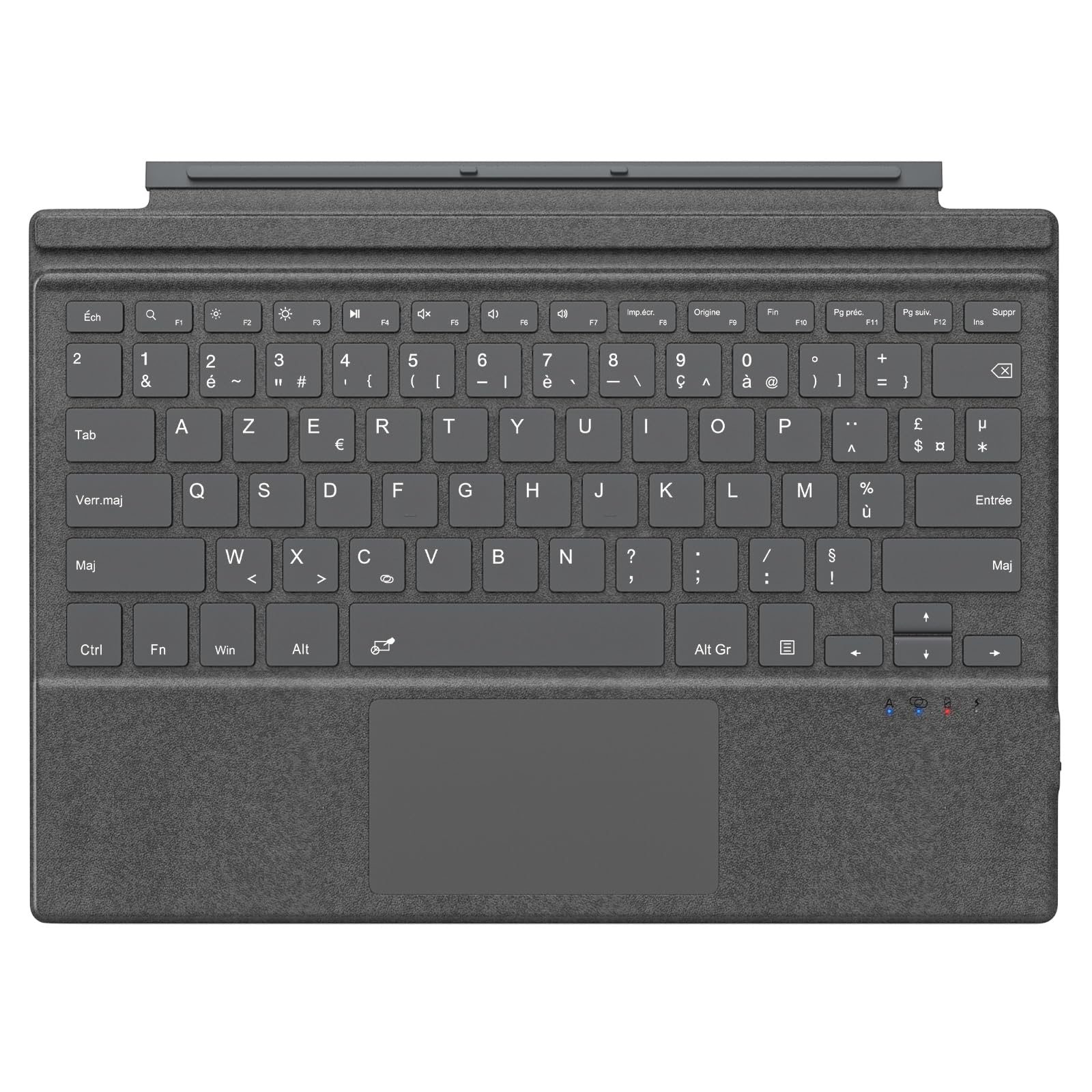
Image: The MoKo Bluetooth AZERTY Keyboard shown with several Microsoft Surface Pro models, illustrating compatibility.
በሣጥኑ ውስጥ ያለው
ከማሸጊያው በኋላ፣ እባክዎ ሁሉም እቃዎች መኖራቸውን ያረጋግጡ፡-
- MoKo Bluetooth AZERTY Keyboard
- የዩኤስቢ ባትሪ መሙያ ገመድ
ማዋቀር
1. የቁልፍ ሰሌዳውን መሙላት
The keyboard is equipped with a built-in 520mAh lithium battery. Before initial use, or when the battery is low, charge the keyboard using the provided USB cable.
- የዩኤስቢ ቻርጅ ገመዱን ትንሽ ጫፍ በቁልፍ ሰሌዳው ላይ ካለው ቻርጅ ፖርት ጋር ያገናኙ።
- Connect the larger end of the USB cable to a USB power source (e.g., computer, wall adapter).
- የኃይል መሙያ አመልካች መብራቱ ይበራል። ሙሉ በሙሉ ከተሞላ በኋላ ብርሃኑ ቀለሙን ሊቀይር ወይም ሊጠፋ ይችላል።
ሙሉ ክፍያ በግምት 25 ሰዓታት ያለማቋረጥ አገልግሎት ይሰጣል።

ምስል፡ መቀራረብ view of the keyboard's charging port with a USB cable connected, indicating the charging process.
2. የብሉቱዝ ማጣመር
To connect your keyboard to your Surface Pro:
- የቁልፍ ሰሌዳው መሙላቱን እና መብራቱን ያረጋግጡ።
- On your Surface Pro, go to ቅንብሮች > መሳሪያዎች > ብሉቱዝ እና ሌሎች መሳሪያዎች.
- ብሉቱዝን ያብሩ።
- የሚለውን ይጫኑ Fn ቁልፍ እና C key simultaneously on the keyboard to enter pairing mode. The Bluetooth indicator light on the keyboard will flash.
- On your Surface Pro, click ብሉቱዝ ወይም ሌላ መሳሪያ ያክሉ > ብሉቱዝ.
- Select "MoKo Keyboard" (or similar name) from the list of available devices.
- Follow any on-screen prompts to complete the pairing process. The Bluetooth indicator light on the keyboard will stop flashing once connected.
The keyboard can be used attached to your Surface Pro or detached for flexible positioning. The effective Bluetooth connection range is approximately 10 meters (33 feet).

Image: A Surface Pro tablet with the MoKo keyboard detached, illustrating the wireless Bluetooth connection capability.
የአሠራር መመሪያዎች
Keyboard Layout and Keys
This keyboard features an AZERTY layout with 105 keys, providing a full-size typing experience. The keys utilize a scissor-switch mechanism for comfortable and responsive typing.

ምስል: ዝርዝር view of the keyboard's AZERTY layout, highlighting the scissor-switch keys and integrated trackpad.
Trackpad Functionality
The integrated trackpad allows for precise navigation and control of your Surface Pro. To activate or deactivate the trackpad, press the Fn ቁልፍ እና የጠፈር አሞሌ በአንድ ጊዜ.
ማስታወሻ፡- Please remove any protective film from the trackpad surface before use to ensure proper functionality.
የሚስተካከሉ የትየባ ማዕዘኖች
The keyboard's design allows for two different typing angles, providing an ergonomic and comfortable experience whether you are working on a desk, lap, or other surface.

Image: A Surface Pro with the keyboard attached, demonstrating the two possible ergonomic typing angles.
የኃይል አስተዳደር
ራስ -ሰር የእንቅልፍ ሁኔታ
To conserve battery life, the keyboard will automatically enter sleep mode after 10 minutes of inactivity. The Bluetooth connection will automatically disconnect during this period.
Reconnecting After Sleep
To wake the keyboard and re-establish the Bluetooth connection, simply press any key. The keyboard will automatically attempt to reconnect to the last paired device.

Image: An illustration of the keyboard's power management, including automatic sleep mode and USB-C charging.
ጥገና
To ensure the longevity and optimal performance of your MoKo keyboard, follow these maintenance guidelines:
- ማጽዳት፡ የቁልፍ ሰሌዳውን ገጽ ለማፅዳት ለስላሳ ፣ ደረቅ ፣ ከቆሻሻ ነፃ የሆነ ጨርቅ ይጠቀሙ። ለግትር ቆሻሻ፣ በትንሹ መampበጨርቁ ላይ በውሃ ወይም ለስላሳ የጽዳት መፍትሄ. ከመጠን በላይ እርጥበትን ያስወግዱ.
- ማከማቻ፡ ጥቅም ላይ በማይውልበት ጊዜ የቁልፍ ሰሌዳውን በቀጥታ ከፀሐይ ብርሃን እና ከከፍተኛ ሙቀት ርቆ በቀዝቃዛና ደረቅ ቦታ ያከማቹ።
- ፈሳሾችን ያስወግዱ; Do not expose the keyboard to liquids. It is not waterproof.
- በጥንቃቄ ይያዙ; የቁልፍ ሰሌዳውን ከመጣል ወይም ለጠንካራ ተጽእኖዎች ከማድረግ ይቆጠቡ.
መላ መፈለግ
በቁልፍ ሰሌዳዎ ላይ ችግሮች ካጋጠሙዎት የሚከተሉትን የተለመዱ መፍትሄዎች ይመልከቱ፦
| ችግር | መፍትሄ |
|---|---|
| የቁልፍ ሰሌዳ አይበራም። | Ensure the keyboard is charged. Connect it to a power source using the USB cable. |
| በብሉቱዝ በኩል ማጣመር አልተቻለም | 1. Ensure the keyboard is in pairing mode (Fn + C). 2. Make sure Bluetooth is enabled on your Surface Pro. 3. Delete any previous keyboard pairings on your Surface Pro and try again. 4. Ensure the keyboard is within the 10-meter range. |
| የቁልፍ ሰሌዳ በተደጋጋሚ ይቋረጣል | 1. Ensure the keyboard is charged. 2. Avoid placing obstacles between the keyboard and your Surface Pro. 3. Reconnect the Bluetooth connection manually if needed. |
| ትራክፓድ ምላሽ እየሰጠ አይደለም | 1. Ensure the trackpad is activated (Fn + Spacebar). 2. Remove any protective film from the trackpad surface. 3. Restart the keyboard and try again. |
| ቁልፎች ምላሽ እየሰጡ አይደሉም | 1. Ensure the keyboard is properly connected via Bluetooth. 2. የባትሪውን ደረጃ ያረጋግጡ እና አስፈላጊ ከሆነ ይሙሉት። 3. Restart your Surface Pro and the keyboard. |
ዝርዝሮች
| ባህሪ | ዝርዝር |
|---|---|
| የምርት ስም | ሞኮ |
| የሞዴል ስም | Clavier Français |
| የሞዴል ቁጥር | B0CPLZXMFK |
| የግንኙነት ቴክኖሎጂ | ብሉቱዝ |
| የቁልፍ ሰሌዳ መግለጫ | የተዋሃደ |
| ልዩ ባህሪ | Ergonomic |
| ቀለም | ግራጫ |
| የቁልፍ ሰሌዳ አቀማመጥ | AZERTY |
| የቁልፎች ብዛት | 105 |
| የመቀየሪያ አይነት | መቀስ መቀየሪያ |
| የኃይል ምንጭ | Battery Powered (520mAh Lithium) |
| የምርት ልኬቶች (L x W x H) | 29.5 ሴሜ x 21.7 ሴሜ x 0.6 ሴሜ (11.6 x 8.54 x 0.23 ኢንች) |
| የእቃው ክብደት | 10.93 አውንስ |
| ቁሳቁስ | ኤቢኤስ (Acrylonitrile Butadiene Styrene) |
| ተስማሚ ስርዓተ ክወና | Windows (Minimum Windows 10) |

Image: A technical diagram illustrating the precise dimensions of the MoKo Bluetooth AZERTY Keyboard.
ዋስትና እና ድጋፍ
For warranty information or technical support, please refer to the documentation provided with your purchase or contact MoKo customer service directly through their official webምርቱ የተገዛበት ጣቢያ ወይም ቸርቻሪ።

