
1. መግቢያ
This manual provides essential information for the proper setup, operation, and maintenance of your NexiGo NG17QH 4K Portable Monitor. Please read this manual thoroughly before using the device to ensure optimal performance and to prevent damage. Keep this manual for future reference.

Image: The NexiGo NG17QH 4K Portable Monitor, showcasing its sleek design and smart cover.
2. የጥቅል ይዘቶች
Verify that all items listed below are included in your package. If any items are missing or damaged, please contact NexiGo customer support.
- NexiGo NG17QH 4K Portable Monitor
- Smart Cover / Stand
- USB-C ወደ USB-C ገመድ
- ሚኒ ኤችዲኤምአይ ወደ ኤችዲኤምአይ ገመድ
- ዩኤስቢ-ኤ ወደ ዩኤስቢ-ሲ የኃይል ገመድ
- የኃይል አስማሚ
3. ምርት አብቅቷልview
Familiarize yourself with the ports and controls on your NexiGo NG17QH portable monitor.
ምስል፡ ዝርዝር view of the monitor's ports and controls.
ወደቦች እና አዝራሮች;
- ሙሉ-ተለይቶ የቀረበ የዩኤስቢ-ሲ ወደብ ፦ Used for power, video, and audio transmission with compatible devices.
- አነስተኛ HDMI ወደብ፡ Used for video and audio transmission with HDMI-compatible devices.
- የኃይል ቁልፍ፡- Press and hold to power the monitor on or off. Short press to access the OSD menu.
- የኃይል አመልካች ብርሃን Indicates the monitor's power status.
- Multi-Function Key: Used to navigate the OSD menu and adjust settings.
- OTG Interface (USB-C): Allows connection of USB peripherals like keyboards or mice when the monitor is connected via the full-featured USB-C port.
- 3.5 ሚሜ የጆሮ ማዳመጫ ጃክ; ውጫዊ የድምጽ መሳሪያዎችን ለማገናኘት.
4. ማዋቀር
Follow these steps to set up your NexiGo NG17QH portable monitor.
4.1 ሞኒተሩን ማብቃት።
- Using a single USB-C cable (Full-Featured): If your device (laptop, smartphone) supports full-featured USB-C output, connect the monitor to your device using the provided USB-C to USB-C cable. This single cable can provide both power and display signal.
- Using an external power adapter: If your device does not provide sufficient power or if you are using the Mini HDMI port, connect the provided USB-A to USB-C power cable to the monitor's full-featured USB-C port and plug the USB-A end into the power adapter, then into a wall outlet.
4.2 ከመሳሪያዎች ጋር መገናኘት
- Laptop/PC (USB-C): Connect the monitor to your laptop/PC using the USB-C to USB-C cable. Ensure your laptop's USB-C port supports DisplayPort Alternate Mode.
- Laptop/PC (HDMI): Connect the monitor to your laptop/PC using the Mini HDMI to HDMI cable. Ensure the monitor is powered externally via the USB-C power cable.
- Gaming Consoles (PS5, Xbox, Switch): Connect the monitor to your console using the Mini HDMI to HDMI cable. Ensure the monitor is powered externally via the USB-C power cable.
- ዘመናዊ ስልክ፡ Connect the monitor to your smartphone using the USB-C to USB-C cable. Ensure your smartphone's USB-C port supports video output.
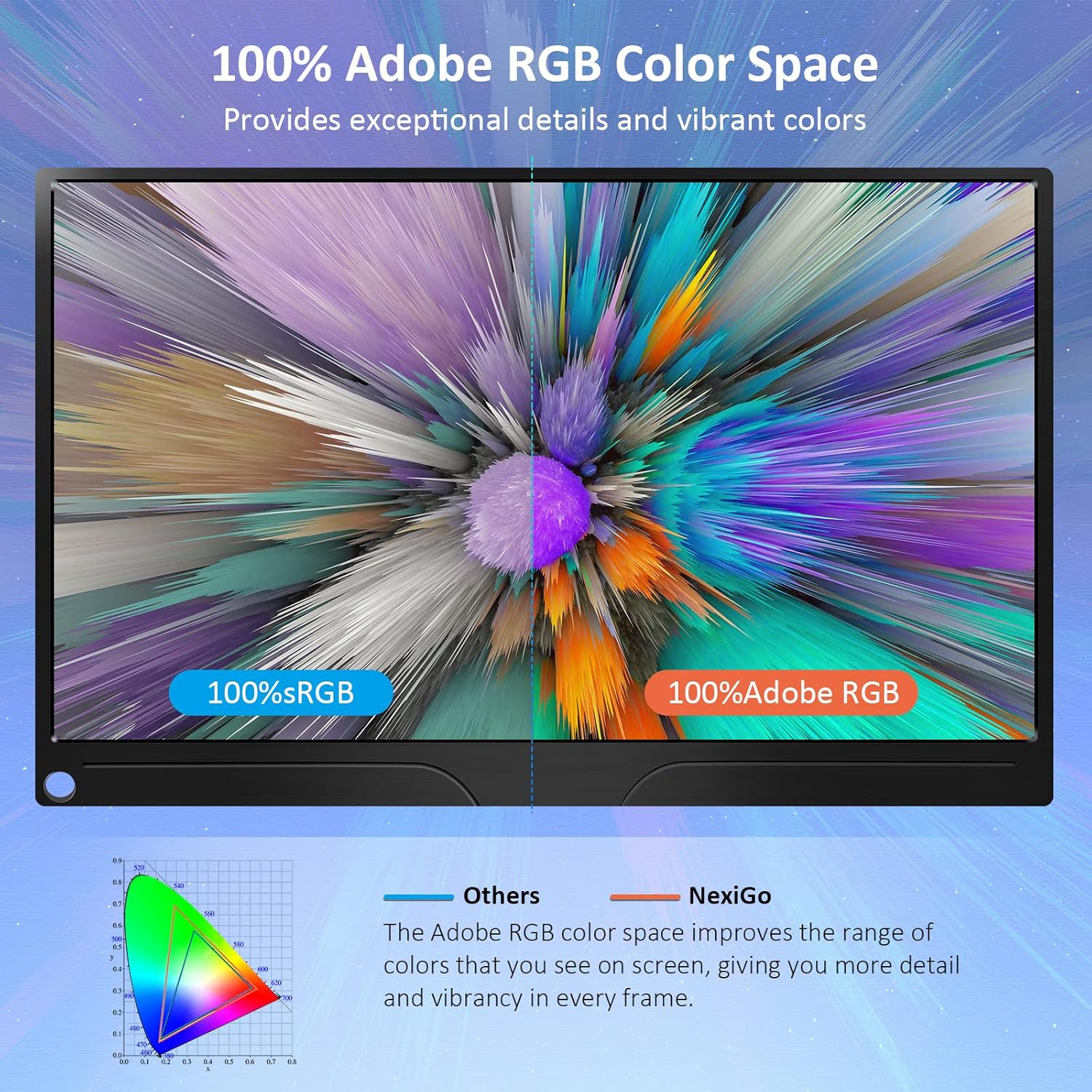
Image: The portable monitor connected to a laptop, demonstrating an extended display setup.
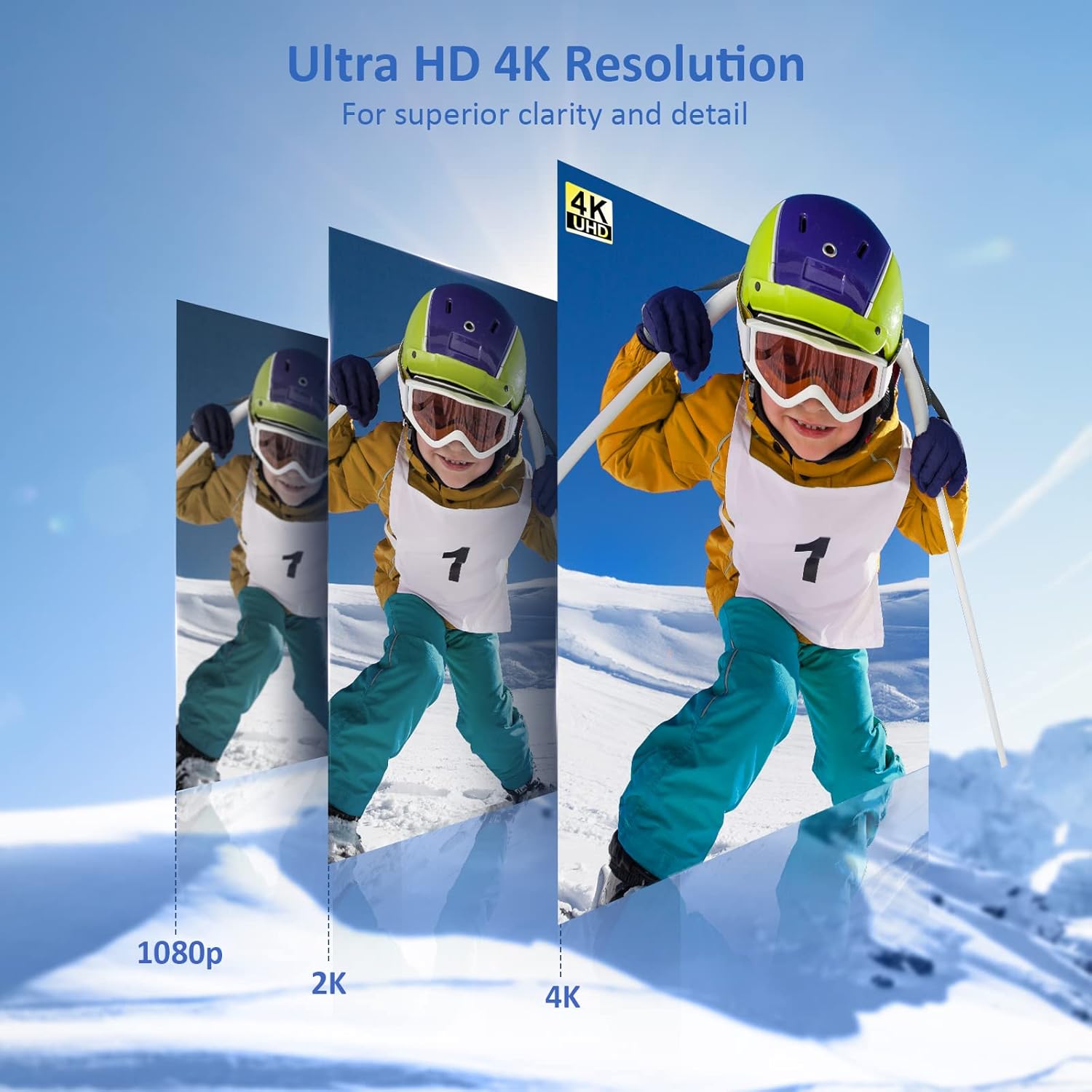
Image: The portable monitor connected to a smartphone, displaying content.
4.3 VESA ማፈናጠጥ
The monitor is compatible with VESA mounts (75x75mm). To mount the monitor, remove the smart cover and attach it to a compatible VESA arm or wall mount using appropriate screws (not included).
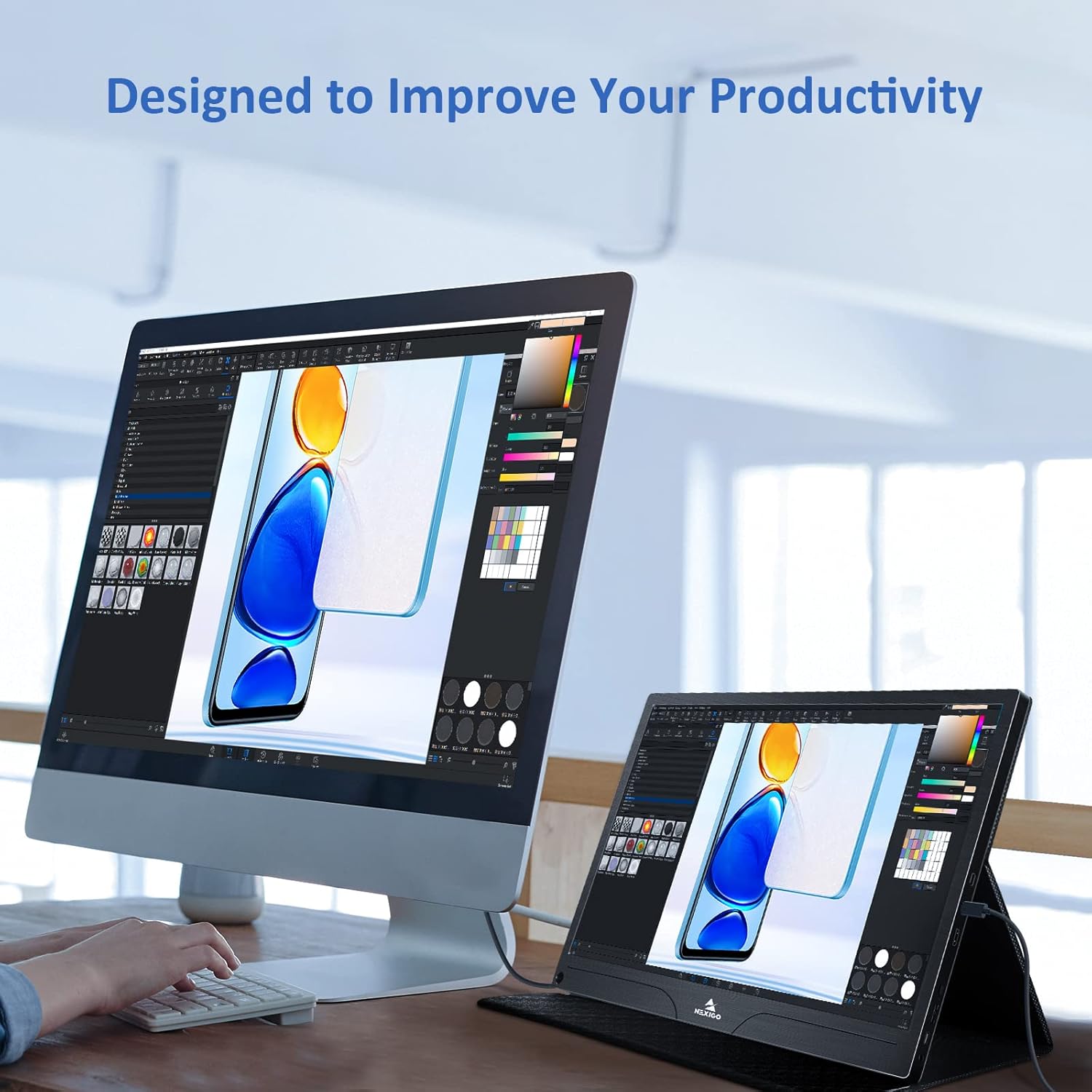
Image: The monitor mounted on a VESA-compatible desk arm.
5. ሞኒተሩን መስራት
5.1 ማብራት / ማጥፋት
ተጭነው ይያዙት። የኃይል አዝራር for approximately 3 seconds to turn the monitor on or off.
5.2 የማያ ገጽ ላይ ማሳያ (OSD) ምናሌ
The OSD menu allows you to adjust various display settings. Short press the የኃይል አዝራር to open the OSD menu. Use the ባለብዙ ተግባር ቁልፍ ለማሰስ እና አማራጮችን ለመምረጥ።
- ላይ ታች: Move the Multi-Function Key up or down to navigate through menu options.
- አስገባ፡ Press the Multi-Function Key inward to select an option or confirm a setting.
- ውጣ፡ Press the Power Button to exit the current menu or the OSD.
5.3 የማሳያ ቅንብሮች
- ብሩህነት/ንፅፅር፡ የማሳያውን አጠቃላይ ብርሃን እና ንፅፅር ያስተካክሉ።
- የቀለም ቅንጅቶች የቀለም ሙቀት፣ ቀለም እና ሙሌት ቀይር።
- ኤችዲአር ሁነታ፡ ተኳኋኝ ይዘት ያለው የተሻሻለ የእይታ ጥራት ለማግኘት ከፍተኛ ተለዋዋጭ ክልልን ያንቁ ወይም ያሰናክሉ።
- FreeSync፡ Enable FreeSync for smoother gaming experiences by synchronizing the monitor's refresh rate with your GPU's frame rate.
- ምጥጥነ ገጽታ፡ የማሳያውን ምጥጥን አስተካክል (ለምሳሌ፡ 16፡9፣ 4፡3)።
5.4 የድምጽ ቅንብሮች
Adjust the volume of the built-in dual speakers or connected headphones through the OSD menu.
6. ጥገና
- ማያ ገጹን ማጽዳት; ለስላሳ፣ ከቆሸሸ ነፃ የሆነ ጨርቅ በትንሹ ተጠቀም መampበውሃ ወይም በማይበላሽ የስክሪን ማጽጃ የተነከረ። ፈሳሹን በቀጥታ በማያ ገጹ ላይ አይረጩ።
- ሲን ማጽዳትasing: ማሳያውን ይጥረጉ ሐasing with a soft, dry cloth. Avoid using harsh chemicals or solvents.
- ማከማቻ፡ When not in use, store the monitor in a cool, dry place, preferably in its original packaging or smart cover to protect it from dust and scratches.
- ከባድ ሁኔታዎችን ያስወግዱ; ሞኒተሩን ለከፍተኛ ሙቀት፣ እርጥበት ወይም ቀጥተኛ የፀሐይ ብርሃን አያጋልጡት።
7. መላ መፈለግ
If you encounter issues with your monitor, refer to the following table for common problems and solutions.
| ችግር | ሊሆን የሚችል ምክንያት | መፍትሄ |
|---|---|---|
| No display / "No Signal" message | የተሳሳተ የኬብል ግንኙነት፣ በቂ ያልሆነ የኃይል አቅርቦት፣ የተሳሳተ የግቤት ምንጭ። | Ensure cables are securely connected. Verify external power is supplied if needed. Check the input source setting in the OSD menu. |
| ሞኒተሩ አይበራም። | የኃይል አቅርቦት የለም፣ ገመድ ጉድለት አለበት። | Ensure the power adapter is connected and working. Try a different USB-C cable or power source. |
| የሚያብረቀርቅ ማያ | Faulty cable, unstable power, incompatible resolution/refresh rate. | Replace the cable. Ensure stable power. Adjust the display resolution or refresh rate on your connected device. |
| ኦዲዮ የለም | Volume too low, incorrect audio output setting, faulty cable. | Increase volume via OSD or connected device. Ensure the monitor is selected as the audio output device on your source. Check cable connections. |
| OTG port not working | Monitor not powered via full-featured USB-C, device incompatibility. | Ensure the monitor is connected to a device via the full-featured USB-C port that supports OTG functionality. |
8. ዝርዝሮች
Detailed technical specifications for the NexiGo NG17QH 4K Portable Monitor.
| ባህሪ | ዝርዝር መግለጫ |
|---|---|
| የሞዴል ቁጥር | NG17QH |
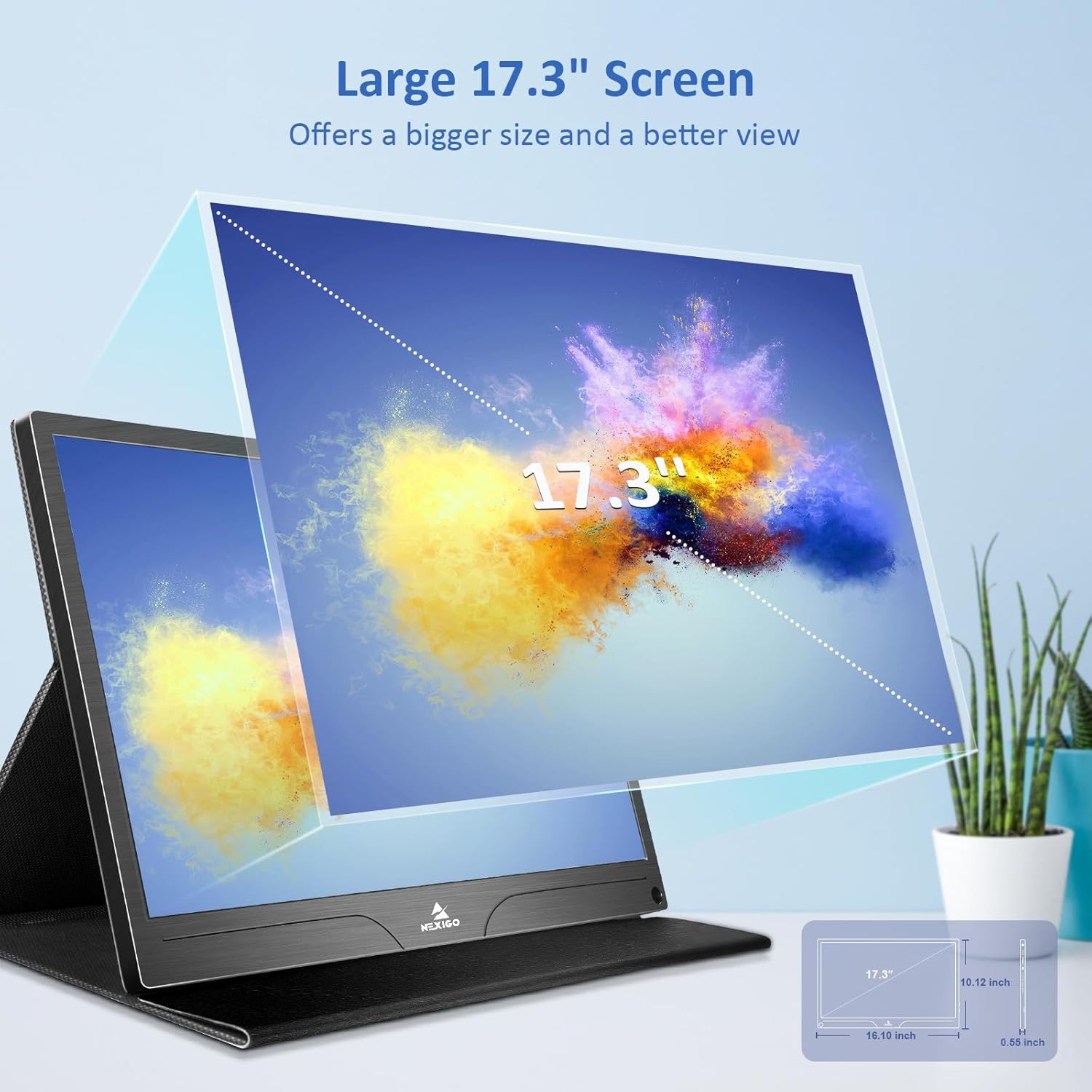
| የስክሪን መጠን | 17.3 ኢንች |
| ጥራት | 3840 x 2160 (4ኬ ዩኤችዲ) |
| የፓነል ዓይነት | አይፒኤስ |
| ብሩህነት | 400 ሲዲ/ሜXNUMX |
| ቀለም ጋሙት | 100% Adobe RGB |
| ምጥጥነ ገጽታ | 16፡9 |
| Viewማእዘን | 178° |
| ባህሪያት | FreeSync, HDR, Eye Care Screen |
| ተናጋሪዎች | Dual Built-in Speakers |
| ግንኙነት | Full-Featured USB-C (x1), Mini HDMI (x1), OTG USB-C (x1), 3.5mm Audio Jack (x1) |
| የ VESA ተኳኋኝነት | 75 x 75 ሚ.ሜ |
| የምርት ልኬቶች | 16.1 x 10.12 x 0.55 ኢንች |
| የእቃው ክብደት | 6.39 ፓውንድ |

Image: Visual comparison of 1080p, 2K, and 4K resolutions, demonstrating the clarity of the 4K display.
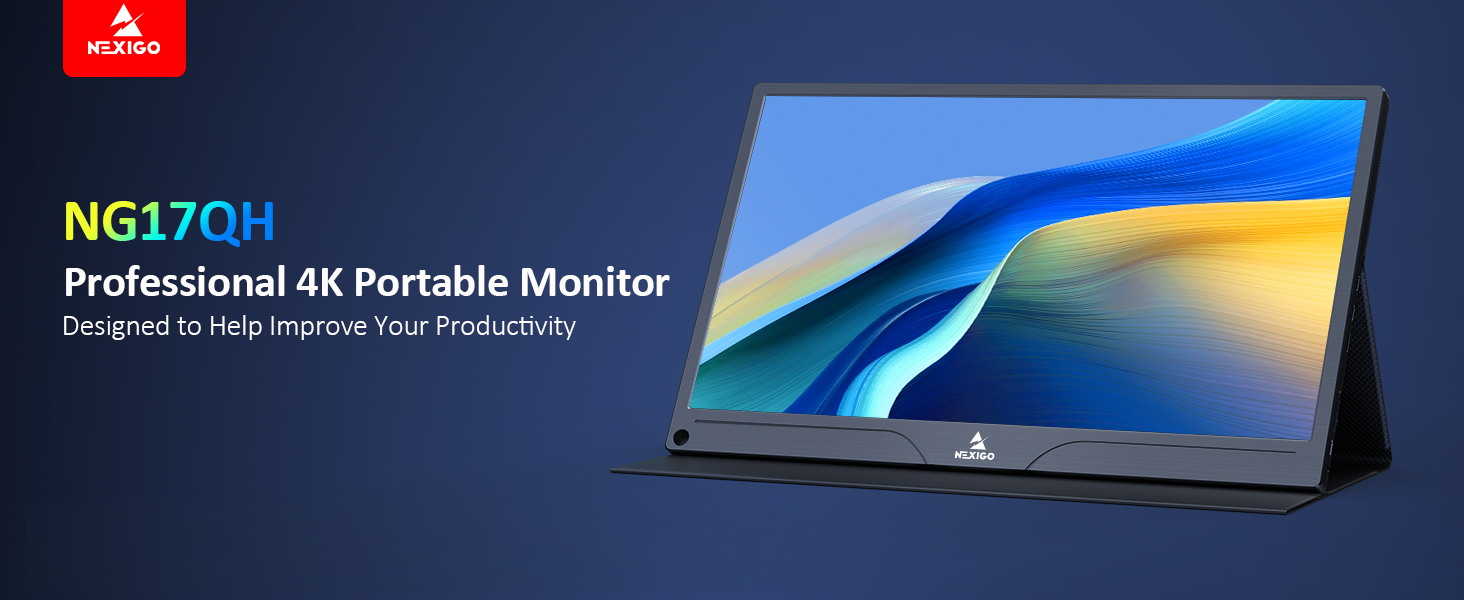
Image: A visual representation of 100% Adobe RGB color space coverage, indicating vibrant and detailed color reproduction.
9. ዋስትና እና ድጋፍ
Your NexiGo NG17QH Portable Monitor comes with a manufacturer's warranty. For detailed warranty information, product registration, or technical support, please visit the official NexiGo webጣቢያ ወይም በቀጥታ የደንበኛ አገልግሎታቸውን ያግኙ። ለዋስትና ጥያቄዎች የግዢ ደረሰኝዎን እንደ ግዢ ማረጋገጫ ያቆዩት።
NexiGo Official Webጣቢያ፡ www.nexigo.com