
መግቢያ
Thank you for choosing the TECKNET TK-MS317 Bluetooth Wireless Mouse. This manual provides detailed instructions for setting up, operating, and maintaining your mouse to ensure optimal performance. Please read this manual thoroughly before use and retain it for future reference.
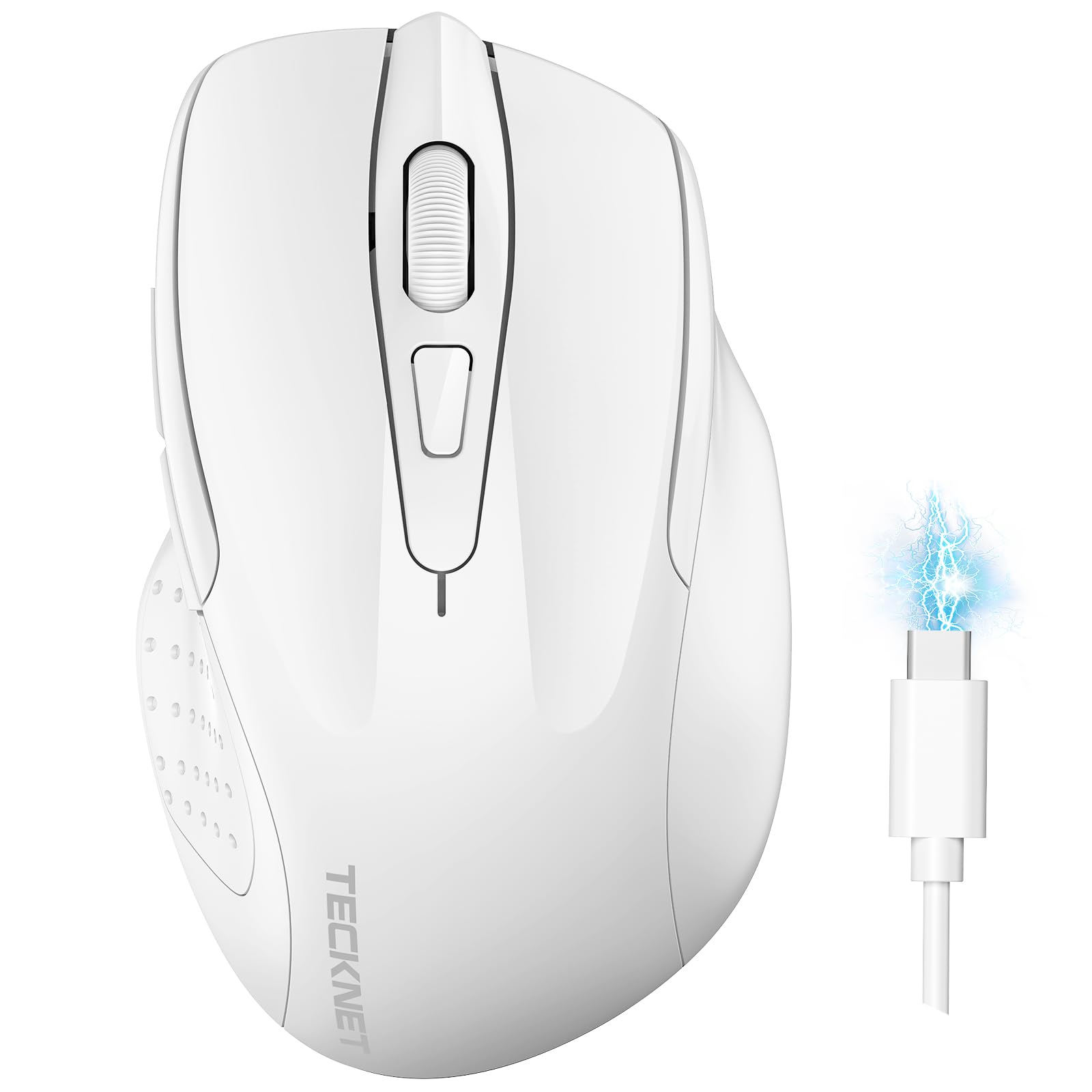
Image: The TECKNET TK-MS317 Bluetooth Wireless Mouse, showcasing its ergonomic design and sleek white finish.
የምርት ባህሪያት
- የሶስትዮሽ ግንኙነት ሁነታዎች፡ Supports Bluetooth 5.0, Bluetooth 3.0, and 2.4GHz wireless connectivity, allowing seamless switching between up to two devices.
- የሚስተካከለው ዲፒአይ፡ Six adjustable DPI levels (800/1200/1600/2400/3200/4800) for precise control and adaptability to various tasks.
- ዳግም ሊሞላ የሚችል ባትሪ፡ Equipped with a 700 mAh rechargeable battery, providing extended usage on a single charge. Can be used while charging via USB-C.
- ጸጥ ያሉ ጠቅታዎች፡- Designed for quiet operation, reducing click noise by 90% for a focused work environment.
- Ergonomic ንድፍ; Contoured shape fits comfortably in the palm, reducing hand fatigue during prolonged use.
- ኢነርጂ ቁጠባ፡ Features a key-wake function and automatic sleep mode to conserve battery life.
- ሁለንተናዊ ተኳኋኝነት Compatible with Windows 11/10/8/7/XP/Vista, Mac OS, Linux, Android, and iOS (BT 5.0 for iOS 10.4+).

Image: Illustration highlighting the silent click feature of the mouse, showing a quiet work environment.

Image: Diagram illustrating the ergonomic curvature of the TECKNET TK-MS317 mouse, designed for comfortable hand fit.
የማዋቀር መመሪያዎች
1. አይጤውን በመሙላት ላይ
Before first use, or when the battery is low, connect the mouse to a power source using the provided USB-C cable. The charging indicator light will illuminate. A full charge typically takes about two hours and can last for 1 to 2 months of intensive use.

Image: The TECKNET TK-MS317 mouse connected via a USB-C cable for charging, highlighting its 700mAh battery capacity.
2. በ2.4GHz ገመድ አልባ በኩል መገናኘት
- የዩኤስቢ 2.4ጂ ተቀባይን ያግኙ፣ ብዙውን ጊዜ በመዳፊት ግርጌ ላይ ባለው ክፍል ውስጥ ይቀመጣል።
- የዩኤስቢ መቀበያውን በኮምፒዩተርዎ ላይ ካለው የዩኤስቢ-ኤ ወደብ ይሰኩት።
- በመዳፊት ግርጌ ላይ ያለውን የሞድ መራጭ ወደ "2.4ጂ" ቦታ ይቀይሩት።
- The mouse should automatically connect to your computer. If not, try moving the mouse or restarting your computer.
3. በብሉቱዝ (BT5.0 / BT3.0) መገናኘት
- Switch the mode selector on the bottom of the mouse to either "BT5.0" or "BT3.0" position.
- Press and hold the Bluetooth pairing button (usually located near the mode switch) for 3-5 seconds until the indicator light starts flashing, indicating pairing mode.
- On your device (computer, laptop, tablet, smartphone), go to Bluetooth settings.
- ፈልግ new devices. You should see "TECKNET Mouse" or a similar name appear in the list.
- Select the mouse to pair. Once connected, the indicator light on the mouse will stop flashing.
- To switch between paired Bluetooth devices or to the 2.4G mode, simply use the mode selector switch on the bottom of the mouse.

Image: Diagram showing the three connection modes (2.4G, Bluetooth 5.0, Bluetooth 3.0) of the TECKNET TK-MS317 mouse, connecting to a laptop and a tablet.
የአሠራር መመሪያዎች
1. የዲፒአይ ማስተካከያ
The mouse features a DPI button, typically located behind the scroll wheel. Press this button to cycle through the six available DPI settings: 800, 1200, 1600, 2400, 3200, and 4800. Select the DPI that best suits your task and preference for cursor speed and precision.

Image: Visual representation of the TECKNET TK-MS317 mouse highlighting its 6 levels of adjustable DPI, up to 4800 DPI.
2. ሁነታ መቀየር
Use the physical switch on the underside of the mouse to select your desired connection mode: 2.4G, BT5.0, or BT3.0. This allows you to quickly switch between different devices without re-pairing.
3. የኃይል ቁጠባ ሁነታ
The mouse will automatically enter sleep mode after a period of inactivity to conserve battery. To wake the mouse, simply move it or click any button.
ጥገና
1. ማጽዳት
አይጥዎን ለማጽዳት, ለስላሳ እና ደረቅ ጨርቅ ይጠቀሙ. ለግትር ቆሻሻ, ትንሽ መamp cloth with mild soap can be used, ensuring no liquid enters the mouse. Avoid using harsh chemicals or abrasive materials.
2. የባትሪ እንክብካቤ
- በተደጋጋሚ ባትሪውን ሙሉ በሙሉ ከመሙላት ይቆጠቡ።
- ለረጅም ጊዜ ጥቅም ላይ በማይውልበት ጊዜ አይጤውን በቀዝቃዛና ደረቅ ቦታ ያከማቹ።
- ለኃይል መሙላት የቀረበውን የዩኤስቢ-ሲ ገመድ ወይም የተረጋገጠ ተመጣጣኝ ብቻ ይጠቀሙ።
መላ መፈለግ
- አይጥ ምላሽ እየሰጠ አይደለም፡-
- አይጥ መሙላቱን ያረጋግጡ።
- Check if the mode switch is set correctly (2.4G, BT5.0, or BT3.0).
- ለ2.4ጂ ሁነታ፣ የዩኤስቢ ተቀባይው ደህንነቱ በተጠበቀ ሁኔታ መሰካቱን ያረጋግጡ።
- ለብሉቱዝ ሁነታ፣ ብሉቱዝ በመሳሪያዎ ላይ መንቃቱን እና አይጤው መገናኘቱን ያረጋግጡ። አስፈላጊ ከሆነ እንደገና ለማጣመር ይሞክሩ.
- Try connecting the mouse to a different USB port or device to rule out port/device issues.
- የማያቋርጥ ግንኙነት;
- መዳፊቱን ወደ ተቀባዩ/መሳሪያው ቅርብ ያድርጉት።
- አይጡን በብረት ላይ ከመጠቀም ይቆጠቡ፣ ይህም ገመድ አልባ ምልክቶችን ሊያስተጓጉል ይችላል።
- Ensure there are no other strong wireless interference sources nearby.
- የጠቋሚ እንቅስቃሴ የተሳሳተ ነው፡-
- በመዳፊት ስር ያለውን የኦፕቲካል ዳሳሽ ያፅዱ።
- መዳፊቱን በተለየ ወለል ወይም የመዳፊት ፓድ ላይ ለመጠቀም ይሞክሩ።
- የዲፒአይ ቅንብርን ወደ ዝቅተኛ እሴት ያስተካክሉ።
ዝርዝሮች
| የሞዴል ቁጥር | TK-MS317 |
| የምርት ስም | TECNET |
| የግንኙነት ሁነታዎች | 2.4GHz ገመድ አልባ፣ ብሉቱዝ 5.0፣ ብሉቱዝ 3.0 |
| የዲፒአይ ደረጃዎች | 800፣ 1200፣ 1600፣ 2400፣ 3200፣ 4800፣XNUMX |
| የአዝራሮች ብዛት | 6 |
| የባትሪ ዓይነት | አብሮ የተሰራ 700 ሚአሰ ዳግም ሊሞላ የሚችል የሊቲየም ባትሪ |
| የኃይል መሙያ ወደብ | ዩኤስቢ-ሲ |
| ክብደት | 150 ግራም |
| ተኳኋኝነት | Windows 11/10/8/7/XP/Vista, Mac OS, Linux, Android, iOS (10.4+ for BT 5.0) |
ዋስትና እና ድጋፍ
TECKNET offers a 36-month warranty for registered users of this product. If you encounter any issues with your TECKNET TK-MS317 Bluetooth Wireless Mouse, please do not hesitate to contact our professional customer service team for assistance.
For warranty claims or technical support, please visit the official TECKNET webጣቢያ ወይም ከምርት ማሸጊያ ጋር የቀረበውን የእውቂያ መረጃ ይመልከቱ።


