
መግቢያ
This manual provides essential instructions for setting up, operating, and maintaining your Plimpton PlimPad Kids20 tablet. This device is designed for children, featuring Android 14, an Octa-core processor, 8GB RAM (expandable), 64GB ROM (expandable to 1TB), and a durable EVA shockproof case. It includes pre-installed Google Kids Space and parental control features to ensure a safe and educational experience.
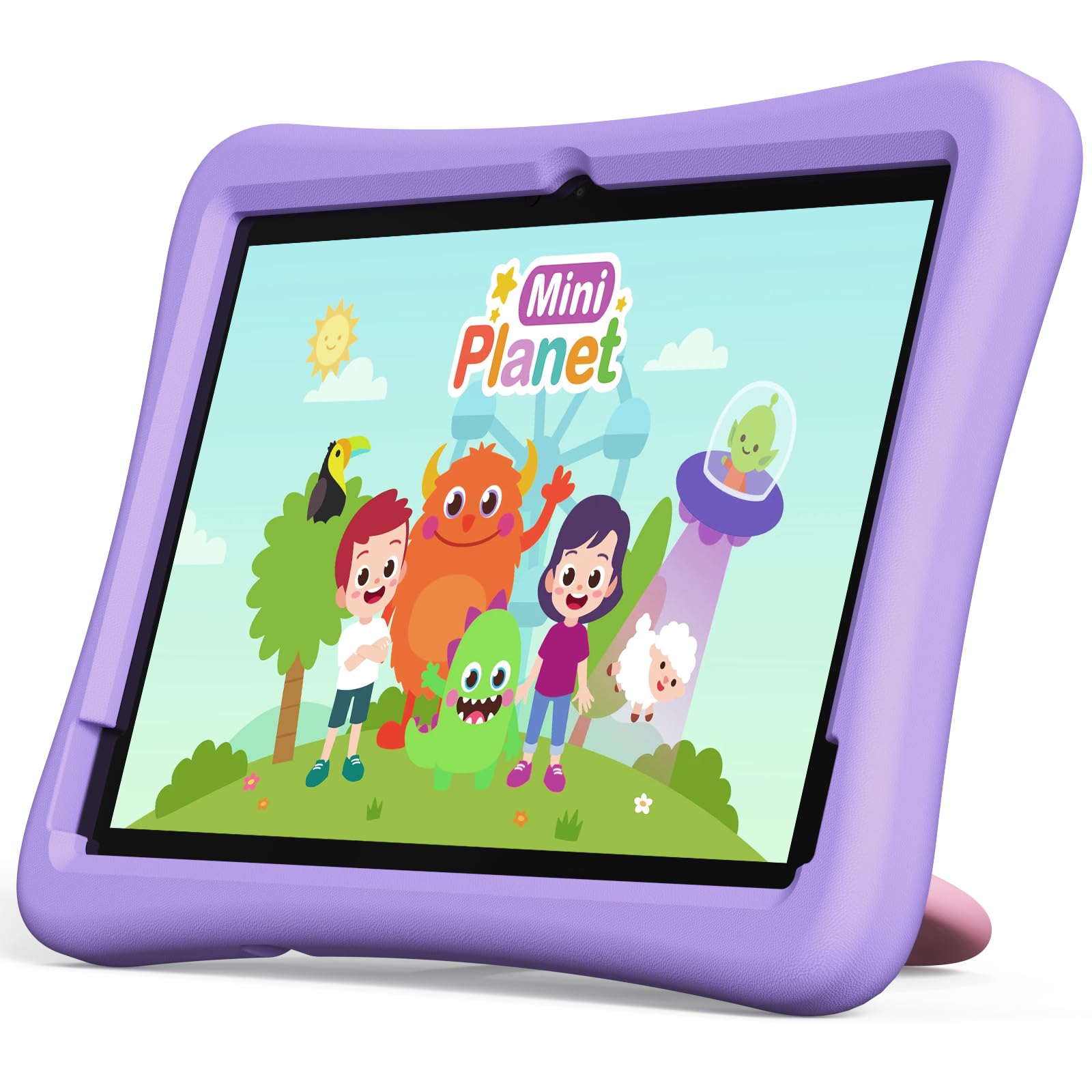
Image: The Plimpton PlimPad Kids20 tablet in its violet shockproof EVA case.
በሣጥኑ ውስጥ ያለው
ማዋቀሩን ከመቀጠልዎ በፊት ሁሉም እቃዎች በጥቅሉ ውስጥ መኖራቸውን ያረጋግጡ።
- 1x Plimpton PlimPad Kids20 Tablet
- 1x የዩኤስቢ አስማሚ
- 1x 1.8m Charging Cable
- 1 x የተጠቃሚ መመሪያ
ማዋቀር
1. ጡባዊውን መሙላት
Before first use, fully charge the tablet.
- Connect the USB charging cable to the tablet's USB Type-C port.
- የዩኤስቢ አስማሚውን በኤሌክትሪክ ሶኬት ላይ ይሰኩ።
- The charging indicator will illuminate. Allow several hours for a full charge.
2. ማብራት / ማጥፋት
- ለማብራት፡- ማያ ገጹ እስኪበራ ድረስ የኃይል አዝራሩን ተጭነው ይያዙ ፡፡
- ለማጥፋት፡- የኃይል አዝራሩን ተጭነው ይያዙ እና ከዚያ በማያ ገጹ ላይ ካሉት አማራጮች ውስጥ "Power off" የሚለውን ይምረጡ።
- ዳግም ለመጀመር፡- የኃይል አዝራሩን ተጭነው ይያዙ እና ከዚያ ከአማራጮች ውስጥ "ዳግም አስጀምር" ን ይምረጡ።
3. የመጀመሪያ ደረጃ ማዋቀር
Upon first power-on, follow the on-screen prompts to configure your tablet. This typically includes:
- ቋንቋዎን መምረጥ።
- Connecting to a Wi-Fi network (supports Wi-Fi 6, 2.4GHz + 5.0GHz).
- Setting up a Google account. This is crucial for accessing Google Kids Space and downloading apps.
- Configuring date and time.
4. የማይክሮ ኤስዲ ካርድ ማስገባት
The tablet supports Micro SD cards up to 1TB for expanded storage.
- Locate the Micro SD card slot on the side of the tablet.
- ማይክሮ ኤስዲ ካርዱ ወደ ቦታው እስኪገባ ድረስ በጥንቃቄ ወደ ማስገቢያው ያስገቡ።
- The tablet will detect the new storage. You may be prompted to format it for use as portable or internal storage.
የጡባዊውን አሠራር
1. መሰረታዊ ዳሰሳ
The PlimPad Kids20 uses a capacitive touchscreen for interaction.
- መታ ያድርጉ፡ አንድ ንጥል ይምረጡ ወይም መተግበሪያ ይክፈቱ።
- መታ ያድርጉ እና ይያዙ: የአውድ ምናሌዎችን ይድረሱ ወይም አዶዎችን ያንቀሳቅሱ።
- ያንሸራትቱ Navigate through screens or scroll within applications.
- መቆንጠጥ-ለማጉላት፡ Enlarge or reduce content (e.g., photos, web ገጾች).
2. የጉግል የልጆች ቦታ
The tablet comes with Google Kids Space pre-installed, offering a curated selection of educational and entertaining content.

Image: A child and adult interacting with the tablet, showing the Google Kids Space interface.
- Access Kids Space from the home screen or app drawer.
- Content includes interactive educational apps, books, games, and videos.
- Content is teacher-approved and designed to promote learning and creativity.
3. Parental Controls (Google Family Link)
Manage your child's tablet usage and ensure a safe online environment using Google Family Link.

Image: A child using the tablet, with an overlay indicating Google Family Link for parental control.
- Download the Google Family Link app on your own device.
- Link your child's Google account on the tablet to your Family Link account.
- Through Family Link, you can:
- Set screen time limits.
- የመተግበሪያ ውርዶችን ያጽድቁ ወይም ያግዱ።
- አስተዳድር webየጣቢያ መዳረሻ.
- Track device location.
4. ግንኙነት
- ዋይ ፋይ፡ Connect to wireless networks via Settings > Network & internet > Wi-Fi. The tablet supports dual-band Wi-Fi (2.4/5 GHz) for fast and stable connections.
- ብሉቱዝ 5.3: እንደ የጆሮ ማዳመጫዎች ወይም ድምጽ ማጉያዎች ካሉ የብሉቱዝ መሳሪያዎች ጋር በቅንብሮች > የተገናኙ መሳሪያዎች > ብሉቱዝ በኩል ያጣምሩ።
5. የካሜራ አጠቃቀም
ታብሌቱ 5ሜፒ የኋላ ካሜራ እና 2ሜፒ የፊት ካሜራ አለው።
- የካሜራ መተግበሪያውን ከመነሻ ማያ ገጽ ወይም ከመተግበሪያው መሳቢያ ይክፈቱ።
- አስፈላጊ ከሆነ የፊትና የኋላ ካሜራዎችን ይቀያይሩ።
- ፎቶዎችን ለማንሳት ወይም ቪዲዮዎችን ለመቅረጽ የመዝጊያ አዝራሩን መታ ያድርጉ።
ጥገና
1. ጡባዊውን ማጽዳት
- ማያ ገጹን እና ገላውን ለማፅዳት ለስላሳ ፣ ከጥጥ ነፃ የሆነ ጨርቅ ይጠቀሙ።
- ለግትር ማጭበርበሮች በትንሹ መampጨርቁን በውሃ ወይም በስክሪን ማጽጃ.
- ኃይለኛ ኬሚካሎችን ወይም ገላጭ ቁሳቁሶችን ያስወግዱ.
2. የሶፍትዌር ዝመናዎች
ጥሩ አፈጻጸም እና ደህንነትን ለማረጋገጥ የሶፍትዌር ማሻሻያዎችን በመደበኛነት ያረጋግጡ እና ይጫኑ።
- ወደ ቅንብሮች> ስርዓት> የስርዓት ዝመና ይሂዱ።
- የሚገኙ ማሻሻያዎችን ለማውረድ እና ለመጫን በማያ ገጽ ላይ ያሉትን መመሪያዎች ይከተሉ።
3. የማከማቻ አስተዳደር
To maintain performance, periodically manage the tablet's storage.
- ወደ ቅንብሮች> ማከማቻ ይሂዱ ወደ view የማከማቻ አጠቃቀም.
- ጥቅም ላይ ያልዋሉ መተግበሪያዎችን ያራግፉ።
- አላስፈላጊ ሰርዝ files, photos, or videos.
- ትልቅ ተንቀሳቀስ files to an inserted Micro SD card.
መላ መፈለግ
ችግሮች ካጋጠሙዎት ድጋፍን ከማነጋገርዎ በፊት የሚከተሉትን መፍትሄዎች ይሞክሩ።
| ችግር | መፍትሄ |
|---|---|
| ጡባዊው አይበራም። | Ensure the tablet is fully charged. Connect it to the charger for at least 30 minutes, then try powering on again. |
| የWi-Fi ግንኙነት ችግሮች። | Restart the tablet and your Wi-Fi router. Check Wi-Fi settings to ensure the correct network is selected and the password is entered correctly. |
| መተግበሪያዎች እየተበላሹ ወይም እየቀዘቀዙ ናቸው። | Close and reopen the app. Clear the app's cache (Settings > Apps > [App Name] > Storage & cache > Clear cache). If the problem persists, uninstall and reinstall the app. |
| ዘገምተኛ አፈጻጸም. | ጥቅም ላይ ያልዋሉ መተግበሪያዎችን ዝጋ። መሸጎጫ እና ጊዜያዊ አጽዳ files. Consider uninstalling large, unused applications or moving data to an SD card. Restart the tablet. |
| ስክሪን ምላሽ አይሰጥም። | Perform a forced restart by holding the Power button for approximately 10-15 seconds until the tablet restarts. |
ዝርዝሮች
Key technical specifications for the Plimpton PlimPad Kids20 tablet.
| ባህሪ | ዝርዝር |
|---|---|
| የሞዴል ስም | Plimpad Kids20 |
| ስርዓተ ክወና | አንድሮይድ 14 |
| ፕሮሰሰር | Allwinner A523 Octa-core (up to 2.0 GHz) |
| ራም | 8 GB (4 GB + 4 GB extended virtual memory) |
| የውስጥ ማከማቻ (ሮም) | 64 ጊባ |
| ሊሰፋ የሚችል ማከማቻ | Up to 1 TB via Micro SD card |
| የስክሪን መጠን | 10.1 ኢንች |
| የማሳያ ጥራት | 1280 x 800 ፒክስል (ኤችዲ አይፒኤስ) |
| የማሳያ ዓይነት | LCD, G+G wear-resistant glass |
| የባትሪ አቅም | 6000 mAh Lithium-ion (22.8 Wh) |
| የኋላ ካሜራ | 5 ሜጋፒክስል |
| የፊት ካሜራ | 2 ሜጋፒክስል |
| ዋይ ፋይ | Wi-Fi 6 (802.11ax), Dual-band (2.4 GHz + 5.0 GHz) |
| ብሉቱዝ | ብሉቱዝ 5.3 |
| ወደቦች | USB Type-C, 3.5mm Headphone Jack, Micro SD slot |
| ልዩ ባህሪያት | Stereo Speakers, USB OTG support, Eye-care screen, EVA shockproof case with 360-degree rotating handle |
| መጠኖች | 24L x 16.1W x 0.9H ሴሜ |
ዋስትና እና ድጋፍ
The Plimpton PlimPad Kids20 tablet comes with a የ 2 ዓመት ነፃ የመተኪያ ዋስትና.
For any issues, including screen damage or operational problems, please contact our professional after-sales customer service. Refer to the contact information provided with your purchase or on the official Plimpton webጣቢያ.
ጠቃሚ፡- Do not attempt to repair the device yourself, as this may void your warranty.