መግቢያ
Thank you for choosing the Ourlife WiFi Extender. This device is designed to expand your existing Wi-Fi network coverage, eliminate dead spots, and provide a stable, high-speed internet connection throughout your home or office. With a data transfer rate of up to 300Mbps on the 2.4GHz band, it is ideal for streaming, online gaming, and general internet use. This manual provides detailed instructions for setup, operation, and troubleshooting.
የደህንነት መረጃ
- መሳሪያውን ለውሃ ወይም እርጥበት አያጋልጡ.
- መሳሪያውን እራስዎ ለመበተን ወይም ለመጠገን አይሞክሩ.
- በአምራቹ የቀረበውን ወይም የሚመከር የኃይል አስማሚውን ብቻ ይጠቀሙ።
- መሳሪያውን ከሙቀት ምንጮች እና ከፀሀይ ብርሀን ያርቁ.
- ከመጠን በላይ ሙቀትን ለመከላከል በመሳሪያው ዙሪያ ትክክለኛውን አየር ማናፈሻን ያረጋግጡ.
የጥቅል ይዘቶች
የጥቅሉን ይዘት በጥንቃቄ ያረጋግጡ። ማንኛውም እቃ ከጠፋ ወይም ከተበላሸ፣ ቸርቻሪዎን ያነጋግሩ።
- Ourlife WiFi Extender (repeater body)
- የተጠቃሚ መመሪያ
ምርት አልቋልview
ኦurlife WiFi Extender features a compact design with four high-gain external antennas for enhanced signal penetration and coverage. It includes an Ethernet port for wired connections.
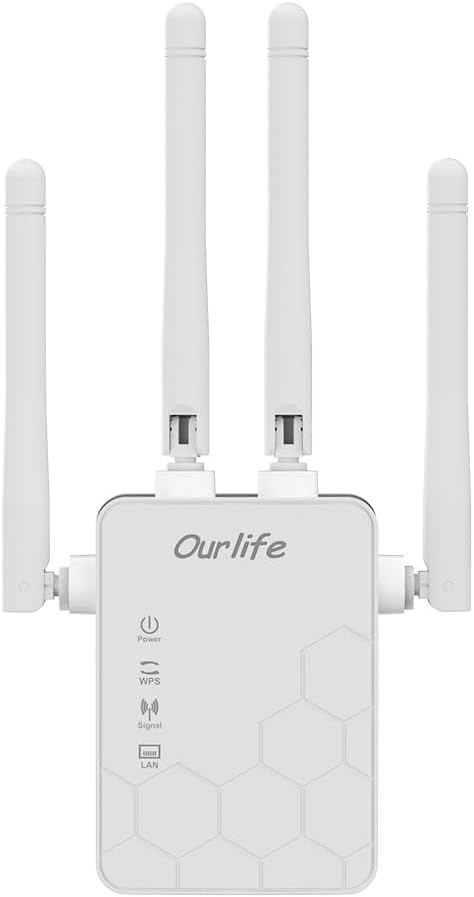
ምስል፡ ፊት ለፊት view of the Ourlife WiFi Extender, showing the Ourlife logo, power indicator, WPS button, signal strength indicator, and LAN port indicator. Four external antennas are visible.
ቁልፍ አካላት፡-
- የኃይል አመልካች፡- መሣሪያው ሲበራ ያበራል።
- WPS አዝራር፡- Used for quick, one-button setup with compatible routers.
- የሲግናል አመልካች፡- Shows the strength of the Wi-Fi signal received from the main router.
- LAN ወደብ፡ An Ethernet port for connecting wired devices or for setting up the extender in Access Point (AP) mode.
- ውጫዊ አንቴናዎች; Four adjustable antennas to optimize signal reception and transmission.

ምስል: ጎን view of the Ourlife WiFi Extender with dimensions. The device measures approximately 17.2cm/6.8in in height, 5.4cm/2.1in in width, and 3.3cm/1.3in in depth.
ማዋቀር
ኦurlife WiFi Extender offers two primary setup methods: WPS (Wi-Fi Protected Setup) for quick connection, and manual setup via a web አሳሽ.
Method 1: WPS Setup (Recommended for quick setup)
- አብራ፡ Plug the Ourlife WiFi Extender into an electrical outlet near your main Wi-Fi router. Wait for the Power indicator to light up.
- በኤክስተንደር ላይ WPSን ይጫኑ፡- Press the WPS button on the Ourlife WiFi Extender. The WPS indicator light will start blinking.
- በራውተር ላይ WPS ን ይጫኑ፡- Within 2 minutes, press the WPS button on your main Wi-Fi router.
- ግንኙነትን ይጠብቁ፡- The WPS indicator on the extender will stop blinking and remain solid when the connection is established. The Signal indicator will also light up, indicating a successful connection.
- ማራዘሚያውን ወደ ሌላ ቦታ ያዛውሩ Once connected, unplug the extender and move it to a location halfway between your router and the Wi-Fi dead zone. Ensure the Signal indicator shows a strong signal (usually green or multiple bars) for optimal performance.

Image: Visual representation of the four simple setup steps: 1. Unbox, 2. Plug it in, 3. Press the button (WPS), 4. And Pair (with router).
ዘዴ 2: በእጅ ማዋቀር በኩል Web አሳሽ
- አብራ፡ Plug the Ourlife WiFi Extender into an electrical outlet near your computer or mobile device.
- ወደ Extender's Wi-Fi ይገናኙ፡ On your computer or mobile device, connect to the Wi-Fi network named "Ourlife_Extender" (or similar, check the label on the device). No password is required for the initial connection.
- ክፈት Web አሳሽ፡ ክፈት ሀ web browser (e.g., Chrome, Firefox, Safari) and enter the default IP address or domain name (e.g., 192.168.10.1 or reapeter.net) into the address bar. Refer to the device label or included mini-manual for the exact address.
- ግባ፡ ነባሪውን የተጠቃሚ ስም እና የይለፍ ቃል ያስገቡ (ብዙውን ጊዜ አስተዳዳሪ/አስተዳዳሪ).
- ሁነታን ይምረጡ፡- Choose "Repeater Mode" or "AP Mode" based on your needs.
- ተደጋጋሚ ሁነታ፡ Extends your existing Wi-Fi network wirelessly.
- የኤፒ ሁነታ (የመዳረሻ ነጥብ): Converts a wired internet connection into a wireless Wi-Fi hotspot. Connect an Ethernet cable from your router to the extender's LAN port.
- አውታረ መረብ አዋቅር፡
- ለተደጋጋሚ ሁነታ፦ Select your main Wi-Fi network from the list, enter its password, and choose whether to keep the same SSID or create a new one for the extended network.
- ለኤፒ ሁነታ፦ Set a new SSID (network name) and password for the Wi-Fi hotspot.
- ቅንብሮችን ተግብር፡ ቅንብሮቹን ያስቀምጡ እና ማራዘሚያው እንደገና እስኪጀመር ይጠብቁ።
- ማራዘሚያውን ወደ ሌላ ቦታ ያዛውሩ Once configured, unplug and relocate the extender to an optimal position.
በመስራት ላይ
After successful setup, the Ourlife WiFi Extender will operate automatically. The Signal indicator will provide visual feedback on the connection quality.
መሣሪያዎችን ማገናኘት;
- ገመድ አልባ መሳሪያዎች; Connect your smartphones, tablets, laptops, and other Wi-Fi enabled devices to the extended Wi-Fi network (the SSID you configured during setup).
- Wired Devices (via LAN Port): If you are using the extender in Repeater mode, you can connect a wired device (e.g., desktop PC, smart TV, game console) to the extender's LAN port using an Ethernet cable to provide it with network access.
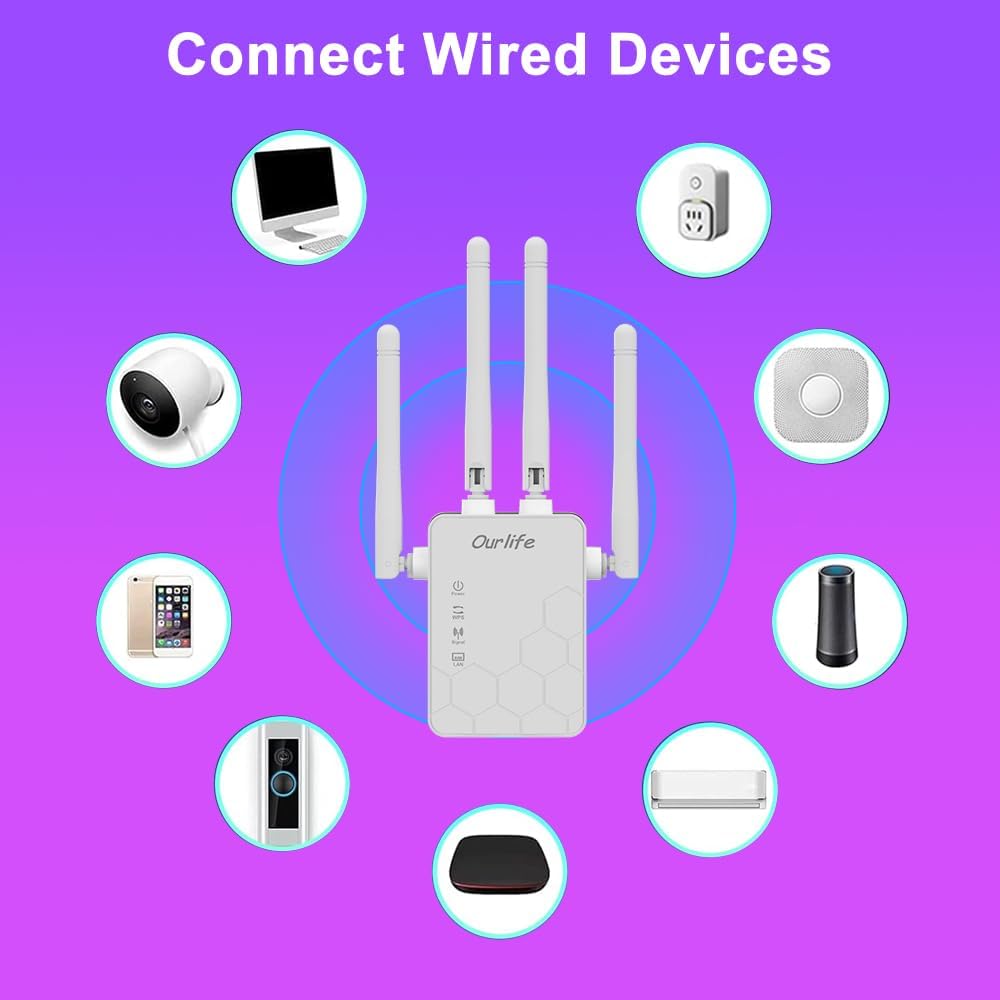
Image: Diagram showing various wired and wireless devices (e.g., desktop computer, smart plug, smart speaker, air conditioner, smart doorbell, security camera, smartphone) that can connect to the Ourlife WiFi Extender.

Image: The Ourlife WiFi Extender plugged into a wall outlet, with an Ethernet cable connected to its LAN port, illustrating its capability to provide a wired connection.
ጥገና
Regular maintenance helps ensure the longevity and optimal performance of your Ourlife WiFi Extender.
- ማጽዳት፡ መሳሪያውን ለማጽዳት ለስላሳ እና ደረቅ ጨርቅ ይጠቀሙ. ፈሳሽ ማጽጃዎችን ወይም ኤሮሶሎችን አይጠቀሙ.
- የጽኑዌር ዝማኔዎች ፦ በየጊዜው የአምራቹን ያረጋግጡ website for firmware updates. Updating firmware can improve performance, add features, and fix bugs.
- ዳግም ማስጀመር ፦ If you experience network issues, try restarting the extender by unplugging it from the power outlet for 10 seconds and then plugging it back in.
- ምርጥ አቀማመጥ፡ Ensure the extender is placed in an open area, away from large metal objects, concrete walls, and other electronic devices that may cause interference.
መላ መፈለግ
If you encounter issues with your Ourlife WiFi Extender, refer to the following common problems and solutions:
| ችግር | ሊሆን የሚችል መፍትሄ |
|---|---|
| ማራዘሚያው እየበራ አይደለም። | ማራዘሚያው ደህንነቱ በተጠበቀ ሁኔታ ከሚሰራ የኤሌክትሪክ ሶኬት ጋር መሰካቱን ያረጋግጡ። ሌላ ሶኬት ይሞክሩ። |
| Cannot connect to the extender's Wi-Fi for setup. | Ensure you are connecting to the correct default SSID (e.g., "Ourlife_Extender"). Try restarting the extender and your device. |
| የWPS ማዋቀር አልተሳካም። | Ensure your router supports WPS. Press the WPS button on both devices within the 2-minute window. Try manual setup if WPS continues to fail. |
| ከተራዘመው አውታረ መረብ ጋር ከተገናኙ በኋላ የኢንተርኔት አገልግሎት የለም። | Check if your main router has internet access. Relocate the extender closer to your main router to ensure a strong signal (check Signal indicator). Reconfigure the extender. |
| Slow speeds on the extended network. | Relocate the extender to an optimal position where the Signal indicator shows a strong connection to the main router. Avoid placing it near interference sources. Ensure your main router is providing good speeds. |
| የመግቢያ የይለፍ ቃል ረስተዋል ለ web የአስተዳደር ገጽ. | Perform a factory reset on the extender (usually by pressing and holding a reset button for 5-10 seconds). This will revert all settings to default, including the login credentials. |
ዝርዝሮች
| ባህሪ | ዝርዝር |
|---|---|
| የምርት ስም | Ourlአይፍ |
| ሞዴል | Ourlife WiFi Extender 300Mbps |
| ASIN | B0D7HB4DBC |
| የውሂብ ማስተላለፍ ፍጥነት | በሰከንድ 300 ሜጋቢትስ (2.4GHz) |
| አንቴናዎች | 4 ከፍተኛ ትርፍ ያላቸው ውጫዊ አንቴናዎች |
| የኤተርኔት ወደብ | 1 x LAN ወደብ |
| ቀለም | ነጭ |
| ግንኙነት | Wireless-N (802.11n/g/b) |
| የደህንነት ፕሮቶኮሎች | Supports Wireless Security (WPA/WPA2) |
| መጠኖች (በግምት) | 17.2 ሴሜ (H) x 5.4 ሴሜ (ወ) x 3.3 ሴሜ (ዲ) |
ዋስትና እና ድጋፍ
For warranty information and technical support, please refer to the documentation included with your purchase or visit the official Ourlአይፍ website. You can also contact Ourlife customer service directly for assistance with product setup, troubleshooting, or warranty claims.
Ourlife Store Link: Visit the Ourlife Store on Amazon