
1. መግቢያ
The BoxWave SlimKeys Bluetooth Keyboard is designed for portable use, offering a comfortable typing experience with its chiclet-style keys. This manual provides instructions for setting up, operating, maintaining, and troubleshooting your keyboard.
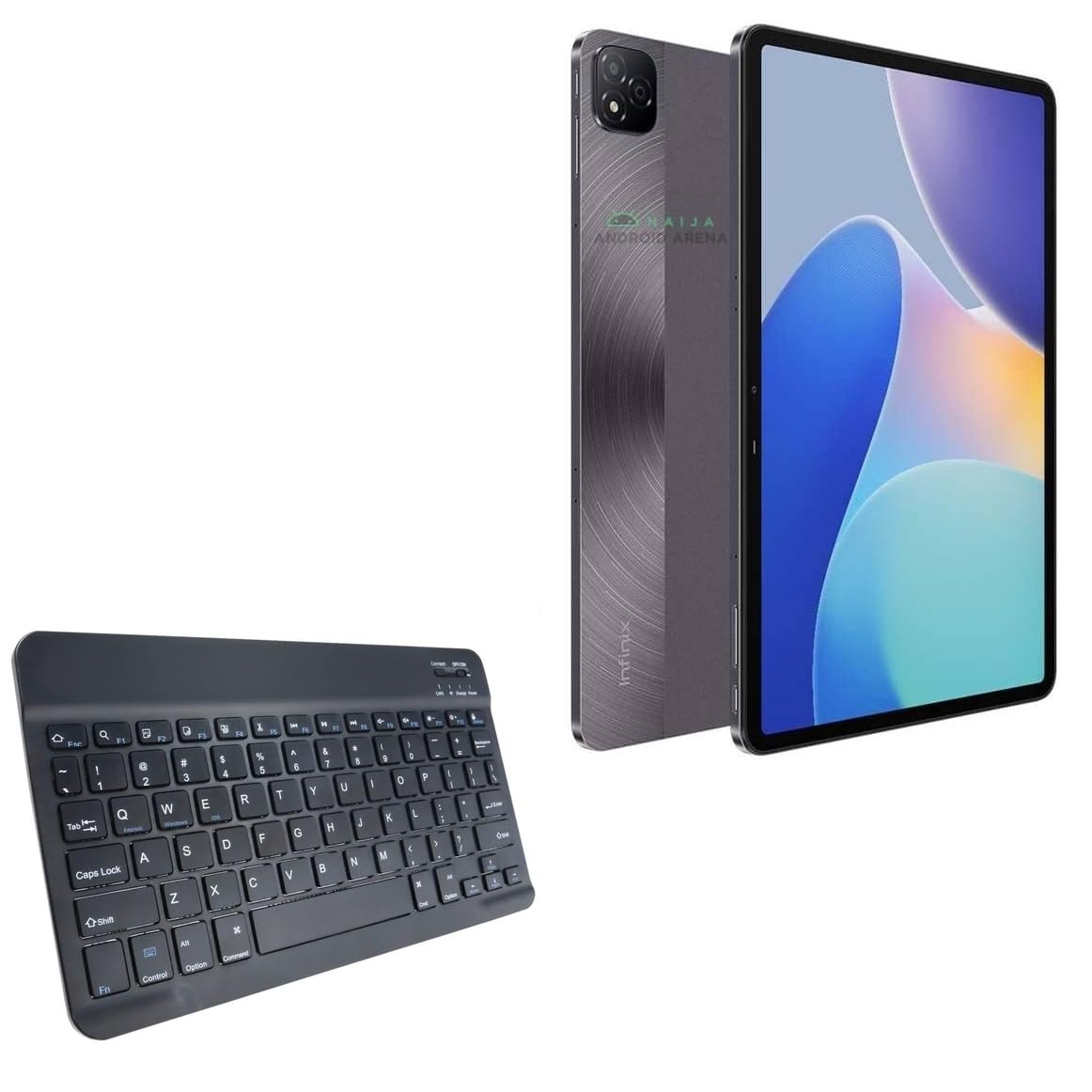
ምስል 1.1፡ ከላይ ወደ ታች view of the BoxWave SlimKeys Bluetooth Keyboard.
2. የጥቅል ይዘቶች
እባክዎን ጥቅሉን ለሚከተሉት ነገሮች ያረጋግጡ፡
- BoxWave SlimKeys Bluetooth Keyboard
- የኃይል መሙያ ገመድ (ዩኤስቢ)
- የተጠቃሚ መመሪያ (ይህ ሰነድ)
3. ማዋቀር
3.1 የቁልፍ ሰሌዳውን መሙላት
Before initial use, fully charge the keyboard. Connect the provided USB charging cable to the keyboard's charging port and to a USB power source. The charging indicator light will illuminate during charging and turn off when fully charged.

Image 3.1: The keyboard connected to its charging cable.
To conserve battery life, use the built-in ON/OFF switch when the keyboard is not in use. The keyboard features an energy-efficient Bluetooth 3.0 design to reduce power drain.
3.2 ከመሣሪያዎ ጋር ማጣመር
- Ensure the keyboard is charged and powered on using the ON/OFF switch located on the top right.
- የሚለውን ይጫኑ ተገናኝ button on the keyboard. The Bluetooth indicator light will begin to flash, indicating it is in pairing mode.
- On your device (e.g., Infinix Xpad, tablet, smartphone, computer), navigate to the Bluetooth settings.
- በመሳሪያዎ ላይ ብሉቱዝን ያንቁ እና የሚገኙ መሳሪያዎችን ይፈልጉ።
- ምረጥ"SlimKeys Keyboard"ወይም ከተገኙት መሳሪያዎች ዝርዝር ውስጥ ተመሳሳይ ስም።
- Follow any on-screen prompts to complete the pairing process. A successful connection will be indicated by the Bluetooth light on the keyboard turning solid or off, depending on the model.
The SlimKeys keyboard utilizes Bluetooth 3.0 for quick and reliable pairing across various operating systems, including Android, Windows, and iOS.
4. ኦፕሬሽን
4.1 አጠቃላይ አጠቃቀም
The SlimKeys Bluetooth Keyboard provides a full QWERTY layout with chiclet-style keys for comfortable and efficient typing. Its compact and lightweight design makes it suitable for travel and on-the-go productivity.

Image 4.1: User typing on the SlimKeys Bluetooth Keyboard.
4.2 Specialized Function Keys
The keyboard includes specialized function keys (F1-F12) that provide quick access to common commands. These functions may vary slightly depending on your device's operating system.

ምስል 4.2፡ አልቋልview of specialized function keys.
- Esc (Home): Returns to home screen.
- F1 (Search): Opens search function.
- F2 (Select All): Selects all content.
- F3 (Copy): Copies selected content.
- F4 (Paste): Pastes copied content.
- F5 (Cut): Cuts selected content.
- F6 (Skip Back): Skips to previous track.
- F7 (Play/Pause): Plays or pauses media.
- F8 (Skip Forward): Skips to next track.
- F9 (Volume Down): Decreases volume.
- F10 (Volume Up): Increases volume.
- F11 (Brightness Down): Decreases screen brightness.
- F12 (Brightness Up): Increases screen brightness.
- Delete (Lock): Locks the device.
To activate these functions, press the corresponding F-key. Some functions may require pressing the Fn key simultaneously, depending on your device's operating system and settings.
5. ጥገና
- ማጽዳት፡ የቁልፍ ሰሌዳውን ለማጽዳት ለስላሳ፣ ደረቅ፣ ከቆሻሻ ነጻ የሆነ ጨርቅ ይጠቀሙ። ለግትር ቆሻሻ፣ በትንሹ መampen the cloth with water or a mild electronics cleaner. Avoid excessive moisture.
- ማከማቻ፡ When not in use for extended periods, store the keyboard in a cool, dry place. Ensure the keyboard is powered off to preserve battery life.
- የባትሪ እንክብካቤ በተደጋጋሚ ባትሪውን ሙሉ በሙሉ ከመሙላት ይቆጠቡ። የባትሪን ጤንነት ለመጠበቅ በቋሚነት ጥቅም ላይ ባይውልም እንኳ የቁልፍ ሰሌዳውን በመደበኛነት ኃይል ይሙሉ።
- ፈሳሾችን ያስወግዱ; የውስጥ አካላትን ጉዳት ለመከላከል የቁልፍ ሰሌዳውን ከፈሳሽ ያርቁ።
- ከፍተኛ የሙቀት መጠንን ያስወግዱ; Do not expose the keyboard to extreme heat or cold, as this can affect battery performance and overall functionality.
6. መላ መፈለግ
6.1 የቁልፍ ሰሌዳው አይገናኝም/አይጣመርም
- ኃይልን ይፈትሹ፡ የቁልፍ ሰሌዳው መብራቱን እና በቂ የባትሪ ኃይል እንዳለው ያረጋግጡ።
- Re-enable Bluetooth: ያጥፉ እና ከዚያ በመሳሪያዎ ላይ ብሉቱዝን ያብሩ።
- እንደገና ያጣምሩ፡ Go to your device's Bluetooth settings, forget or unpair the "SlimKeys Keyboard" if it's listed, then repeat the pairing steps (Section 3.2).
- ርቀት፡ Ensure the keyboard is within the effective range of your device (typically up to 10 meters or 33 feet).
- ጣልቃ ገብነት፡- ጣልቃ ሊያስከትሉ ከሚችሉ ሌሎች ሽቦ አልባ መሳሪያዎች ይራቁ።
- መሣሪያዎችን እንደገና ያስጀምሩ Restart both your device and the keyboard.
6.2 ምላሽ የማይሰጡ ቁልፎች
- የባትሪ ደረጃ፡ Check if the keyboard battery is low. Charge the keyboard if necessary.
- ግንኙነት፡- Verify that the keyboard is still connected via Bluetooth to your device.
- አጽዳ ቁልፎች፡- ከቁልፎቹ ስር ምንም ፍርስራሽ አለመግባቱን ያረጋግጡ።
- እንደገና ጀምር፥ የቁልፍ ሰሌዳውን ያጥፉ እና እንደገና ያብሩት።
6.3 Lag or Delayed Input
- የባትሪ ደረጃ፡ Low battery can sometimes affect performance.
- ርቀት/ጣልቃ ገብነት፡ Reduce distance to the device and minimize potential interference sources.
- Device Performance: Ensure your connected device is not under heavy load, which could affect Bluetooth responsiveness.
7. ዝርዝሮች
| የሞዴል ስም | SlimKeys Bluetooth Keyboard |
| ግንኙነት | ብሉቱዝ 3.0 |
| ተኳኋኝነት | Android, Windows, iOS devices (e.g., Infinix Xpad) |
| መጠኖች (በግምት) | 9.5 inches (Width) x 5.75 inches (Depth) x 0.2 inches (Height) |
| ክብደት | 8.6 አውንስ (244 ግራም ገደማ) |
| የባትሪ ዓይነት | የምርት ዝርዝር (ተካትቷል) |
| የባትሪ ህይወት | Up to 30 days (active use), 6 months (standby) |
| አምራች | ቦክስዌቭ |
| ASIN | B0DFZ2S7C4 |

Image 7.1: Approximate dimensions of the SlimKeys Bluetooth Keyboard.
8. ዋስትና እና ድጋፍ
For warranty information and technical support, please refer to the documentation included with your purchase or visit the official BoxWave website. You may also contact BoxWave customer service directly for assistance.
Manufacturer: BoxWave
ለተጨማሪ እርዳታ፣ እባክዎን ይጎብኙ፡- www.boxwave.com