
1. መግቢያ
Thank you for choosing the MEETION BTM011 Ergonomic Wireless Bluetooth Vertical Mouse. This device is designed to provide a comfortable and efficient computing experience by promoting a natural hand position, reducing wrist strain. It offers versatile connectivity options for multiple devices and adjustable precision to suit various tasks.

The ergonomic design of the MEETION vertical mouse helps maintain a natural hand and wrist posture, reducing discomfort compared to traditional mice.
2. የጥቅል ይዘቶች
- MEETION BTM011 Ergonomic Wireless Bluetooth Vertical Mouse
- USB 2.4G Receiver (stored in the mouse battery compartment)
- ከዩኤስቢ-ኤ ወደ ዩኤስቢ- ሲ አስማሚ
- የተጠቃሚ መመሪያ
3. ምርት አብቅቷልview
Familiarize yourself with the various components and buttons of your MEETION BTM011 mouse.

ዝርዝር view of the mouse components, including the Mode Switching Button, Power Switch (ON/OFF), Low Battery Indicator, Charging Indicator, DPI Speed Switch Button, 2.4G Connection Indicator, Bluetooth 1 Connection Indicator, and Bluetooth 2 Connection Indicator.
- የግራ አዝራር፡ መደበኛ የግራ-ጠቅታ ተግባር።
- የቀኝ አዝራር፡- መደበኛ የቀኝ ጠቅታ ተግባር።
- የማሽከርከር ጎማ፡ For scrolling up and down.
- አስተላልፍ አዝራር፡- ወደ ውስጥ ወደፊት ይሄዳል web አሳሾች ወይም file አሳሾች.
- ተመለስ አዝራር፡- ወደ ውስጥ ወደ ኋላ ይመራል። web አሳሾች ወይም file አሳሾች.
- የዲፒአይ መቀየሪያ አዝራር፡- የጠቋሚ ትብነትን ያስተካክላል።
- ሁነታ መቀየሪያ አዝራር፡- Switches between 2.4G, Bluetooth 1, and Bluetooth 2 modes.
- የኃይል ማብሪያ / ማጥፊያ/ መዳፊቱን ያበራል ወይም ያጠፋል.
- የባትሪ ክፍል፡ Located at the bottom, for 1x AA battery and USB receiver storage.
4. የማዋቀር መመሪያዎች
4.1 የባትሪ ጭነት
The mouse requires one AA battery (not included).
- በመዳፊት ግርጌ ላይ የባትሪውን ክፍል ሽፋን ያግኙ።
- ሽፋኑን ይክፈቱት.
- ትክክለኛውን ዋልታ (+/-) በማረጋገጥ አንድ AA ባትሪ ያስገቡ።
- የባትሪውን ክፍል ደህንነቱ በተጠበቀ ሁኔታ ይዝጉ።

Insert one AA battery into the compartment. The USB receiver is also stored here.
4.2 ማብራት / ማጥፋት
Slide the power switch located on the bottom of the mouse to the "ON" position to turn it on. Slide to "OFF" to conserve battery when not in use.
4.3 የግንኙነት ሁነታዎች
The MEETION BTM011 mouse supports three connection modes: 2.4GHz wireless (via USB receiver) and two independent Bluetooth 5.3 channels (BT1 and BT2). You can connect to up to three devices simultaneously and switch between them.

The mouse supports 2.4G wireless and two Bluetooth 5.3 connections for seamless switching between devices.
4.4 2.4GHz የዩኤስቢ ግንኙነት
- የዩኤስቢ መቀበያውን ከመዳፊት የባትሪ ክፍል ውስጥ ያስወግዱ።
- Insert the USB receiver into an available USB-A port on your computer. If your computer only has USB-C ports, use the provided USB-A to USB-C adapter.
- የኃይል ማብሪያ / ማጥፊያውን በመጠቀም መዳፊቱን ያብሩ.
- Press the Mode Switching Button until the 2.4G Connection Indicator (green light) lights up. The mouse should now be connected.
4.5 የብሉቱዝ ግንኙነት (BT1 / BT2)
- የኃይል ማብሪያ / ማጥፊያውን በመጠቀም መዳፊቱን ያብሩ.
- Press the Mode Switching Button to select either Bluetooth 1 (BT1) or Bluetooth 2 (BT2). The corresponding blue indicator light will blink, indicating pairing mode.
- On your device (computer, laptop, tablet, smartphone), go to Bluetooth settings.
- ፈልግ new devices. You should find "Meetion_MS_BT1" or "Meetion_MS_BT2".
- Select the device to pair. Once paired, the blue indicator light will stop blinking and remain solid for a few seconds.

Visual guide for connecting the mouse via 2.4G USB receiver and Bluetooth modes.
5. የአሠራር መመሪያዎች
5.1 የዲፒአይ ማስተካከያ
The mouse features 4 adjustable DPI levels: 1200, 1600, 2400, and 3200. Press the DPI Switch Button (located behind the scroll wheel) to cycle through these settings. Each press changes the cursor speed, allowing you to select the precision suitable for your task.
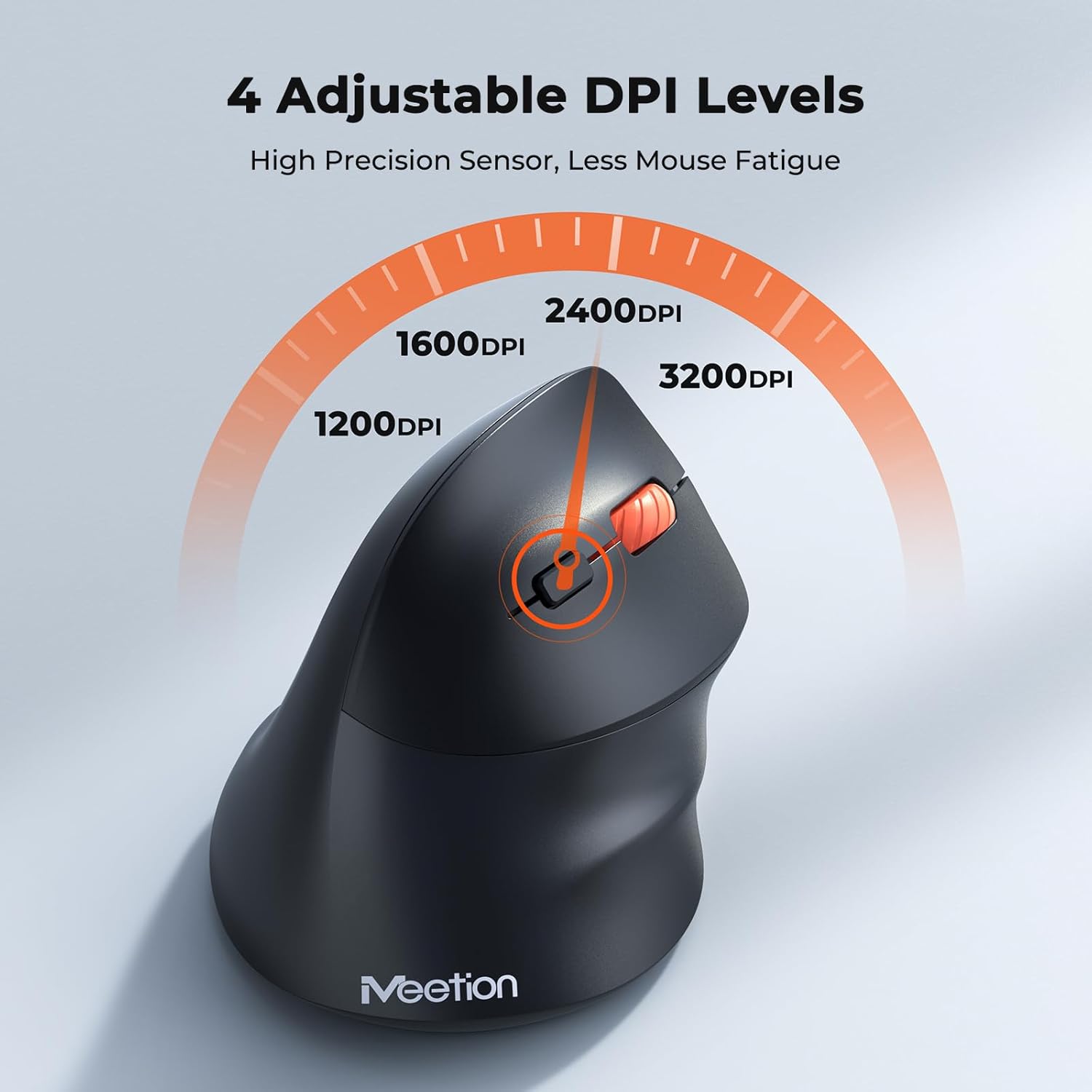
Adjust the DPI to match your preference for cursor speed and precision.
5.2 ባለብዙ መሣሪያ መቀያየር
To switch between connected devices, simply press the Mode Switching Button located on the bottom of the mouse. The corresponding indicator light (green for 2.4G, blue for BT1/BT2) will illuminate to show the active connection.
5.3 Forward/Back Buttons
Use the Forward and Back buttons, conveniently located on the side of the mouse, for quick navigation in web አሳሾች ፣ file አሳሾች እና እነዚህን ተግባራት የሚደግፉ ሌሎች መተግበሪያዎች።
6. የኃይል አስተዳደር
6.1 Auto-Sleep Mode
To conserve battery life, the mouse will automatically enter sleep mode after 20 minutes of inactivity. This intelligent feature helps extend the battery's operational time.
6.2 Waking the Mouse
To wake the mouse from sleep mode, simply press any button. It will instantly reconnect to the last active device.
6.3 የባትሪ ህይወት
With typical usage, a single AA battery can power the mouse for up to 3 months. Actual battery life may vary based on usage patterns and battery quality.
7. ጥገና
የመዳፊትዎን ምርጥ አፈጻጸም እና ረጅም ዕድሜ ለማረጋገጥ የሚከተሉትን የጥገና መመሪያዎች ይከተሉ፡
- ማጽዳት፡ የመዳፊቱን ገጽታ ለማጽዳት ለስላሳ እና ደረቅ ጨርቅ ይጠቀሙ. ለግትር ቆሻሻ, ትንሽ መamp ጨርቅ መጠቀም ይቻላል፣ ነገር ግን እርጥበት ወደ መሳሪያው ውስጥ እንዳይገባ ያረጋግጡ። ጠጣር ኬሚካሎችን ወይም ሻካራ ማጽጃዎችን ያስወግዱ።
- የባትሪ መተካት፡ Replace the AA battery when the low battery indicator lights up or when mouse performance degrades. Always dispose of used batteries responsibly.
- ማከማቻ፡ ለረጅም ጊዜ ጥቅም ላይ በማይውልበት ጊዜ፣ አይጡን ያጥፉና ደረቅና ቀዝቃዛ ቦታ ያስቀምጡት።
8. መላ መፈለግ
If you encounter issues with your MEETION BTM011 mouse, refer to the following solutions:
| ችግር | መፍትሄ |
|---|---|
| አይጥ ምላሽ እየሰጠ አይደለም። |
|
| የጠቋሚ እንቅስቃሴው ያልተስተካከለ ወይም ቀርፋፋ ነው |
|
| በብሉቱዝ መገናኘት አልተቻለም |
|
| Forward/Back buttons not working |
|
9. ዝርዝሮች
| ባህሪ | ዝርዝር |
|---|---|
| ሞዴል | BTM011 |
| ግንኙነት | 2.4GHz Wireless, Bluetooth 5.3 (BT1, BT2) |
| የዲፒአይ ደረጃዎች | 1200 / 1600 / 2400 / 3200 |
| አዝራሮች | 7 (Left, Right, Scroll Wheel, Forward, Back, DPI Switch, Mode Switch) |
| የኃይል ምንጭ | 1 x AA ባትሪ (አልተካተተም) |
| ራስ-እንቅልፍ | ከ 20 ደቂቃዎች እንቅስቃሴ-አልባነት በኋላ |
| ተኳኋኝነት | Windows, Mac OS, Linux, Android, iOS (for iPad/iPhone) |
| ቁሳቁስ | ፕላስቲክ |
| መጠኖች (በግምት) | 4.4 x 3.29 x 2.74 ኢንች (11.18 x 8.36 x 6.96 ሴሜ) |
10. ዋስትና እና ድጋፍ
10.1 የዋስትና መረጃ
MEETION products are designed and manufactured to the highest quality standards. This product is covered by a limited warranty against defects in materials and workmanship. Please retain your proof of purchase for warranty claims. Specific warranty terms may vary by region; refer to your local retailer or the official MEETION webለዝርዝሮች ጣቢያ።
10.2 የደንበኛ ድጋፍ
For technical assistance, troubleshooting, or general inquiries, please contact MEETION customer support:
- ኢሜይል፡- service@meetion.com
- Webጣቢያ፡ Visit the official MEETION webለተደጋጋሚ ጥያቄዎች እና ለተጨማሪ ግብዓቶች ጣቢያ።


