
1. መግቢያ
ስለገዙ እናመሰግናለንasing the KTC 24-inch WQHD 100Hz IPS Monitor. This manual provides essential information for the safe and efficient use of your new monitor. Please read it thoroughly before use and keep it for future reference.
This monitor features a 24-inch IPS panel with WQHD (2560x1440) resolution, offering stunning visual clarity and vibrant colors with 122% sRGB coverage. A 100Hz refresh rate and FreeSync & G-Sync compatibility ensure smooth, tear-free visuals, ideal for both office work and casual gaming. Advanced eye care technologies, including blue light reduction and flicker-free operation, provide a comfortable viewing experience even during extended use. The monitor also supports HDR10 for enhanced dynamic range and features flexible connectivity options with HDMI and DisplayPort.
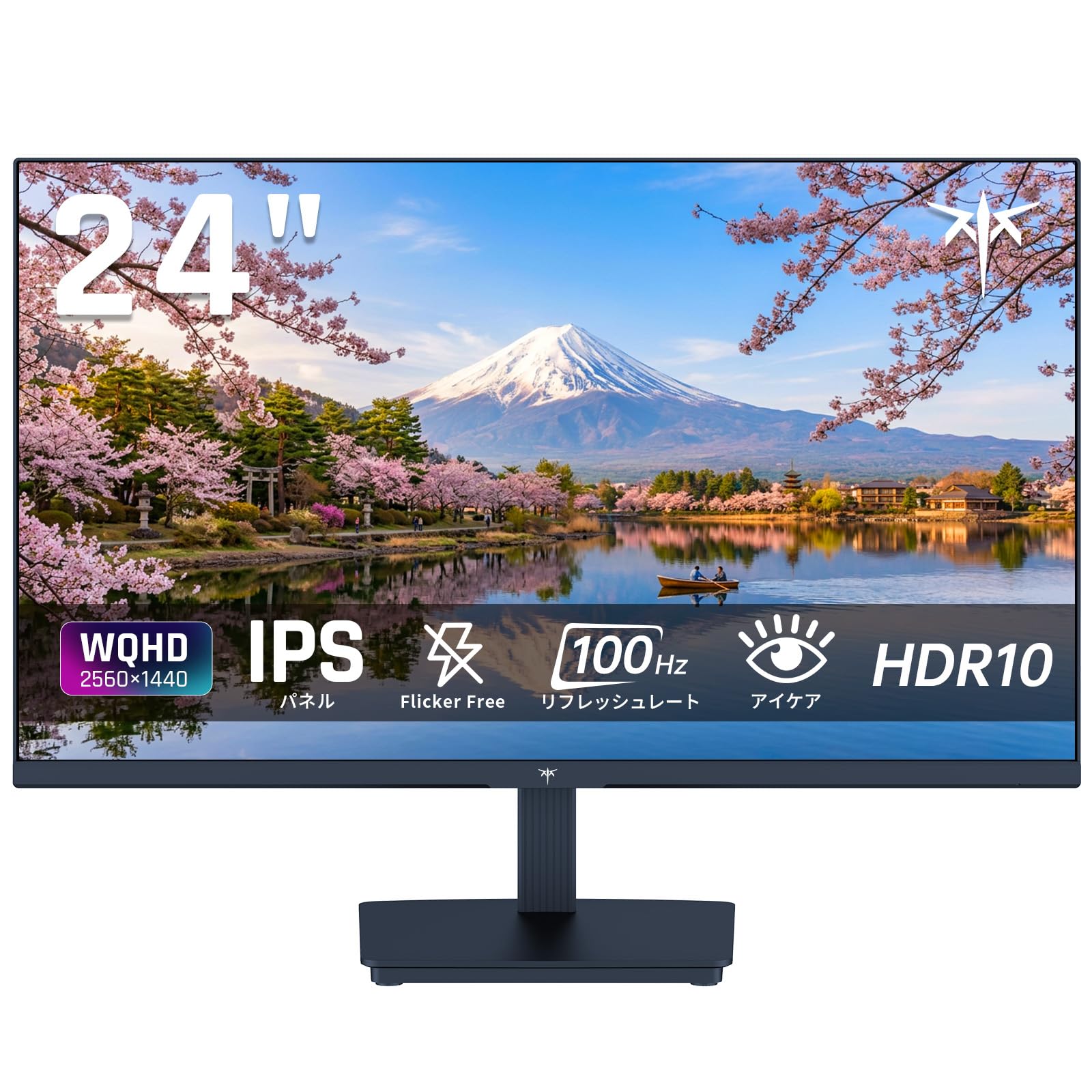
Image: KTC 24-inch WQHD 100Hz IPS Monitor.
2. የደህንነት መረጃ
Please observe the following safety precautions to prevent damage to the monitor or injury to yourself or others:
- መቆጣጠሪያውን ለዝናብ፣ ለእርጥበት እና ለከፍተኛ ሙቀት አያጋልጡት።
- ከመጠን በላይ ሙቀትን ለመከላከል በመቆጣጠሪያው ዙሪያ ትክክለኛውን አየር ማናፈሻን ያረጋግጡ.
- ከተቆጣጣሪው ጋር የቀረበውን የኃይል አስማሚ ብቻ ይጠቀሙ።
- ከባድ ነገሮችን በኤሌክትሪክ ገመድ ወይም መቆጣጠሪያ ላይ ከማስቀመጥ ተቆጠብ።
- Do not attempt to disassemble or repair the monitor yourself. Contact qualified service personnel.
- ማሳያውን ከጠንካራ መግነጢሳዊ መስኮች ያርቁ።
3. የጥቅል ይዘቶች
ሁሉም እቃዎች በጥቅሉ ውስጥ መኖራቸውን ያረጋግጡ፡-
- KTC 24-inch WQHD 100Hz IPS Monitor (H24T27)
- ሞኒተር ቤዝ
- HDMI ገመድ
- የኃይል አስማሚ
- የተጠቃሚ መመሪያ
4. ማዋቀር
4.1 ማቆሚያውን መሰብሰብ
- ሞኒተሩን እና መሠረቱን ከማሸጊያው በጥንቃቄ ያስወግዱት።
- የማቆሚያውን አንገት ወደ መቆጣጠሪያ ፓነል ያያይዙት.
- Secure the base to the stand neck using the provided screws.
4.2 ተቆጣጣሪውን ማገናኘት
ተገቢውን ገመዶች በመጠቀም ማሳያውን ከኮምፒዩተርዎ ወይም ከሌሎች መሳሪያዎች ጋር ያገናኙ።
- የኃይል ግንኙነት; Connect the power adapter to the monitor's DC input and then plug it into a power outlet.
- የቪዲዮ ግንኙነት፡- Use the supplied HDMI cable or a DisplayPort cable to connect your computer's video output to the corresponding port on the monitor.
- የድምጽ ውፅዓት፡- If desired, connect headphones or external speakers to the 3.5mm audio output jack.

Image: Close-up of the KTC monitor's rear ports, including DC power, HDMI, DisplayPort, and audio out.
5. የአሠራር መመሪያዎች
5.1 ማብራት / ማጥፋት
እሱን ለማብራት ወይም ለማጥፋት በተቆጣጣሪው ላይ የሚገኘውን የኃይል ቁልፍ ተጫን።
5.2 የማያ ገጽ ላይ ማሳያ (OSD) ምናሌ
The OSD menu allows you to adjust various monitor settings. Use the control buttons (usually located on the back or bottom of the monitor) to navigate the menu and make selections.
5.3 የማሳያ ቅንብሮች
- ጥራት፡ The monitor supports WQHD (2560x1440) resolution for sharp and detailed images. Ensure your graphics card is set to this resolution for optimal display.
- የማደስ መጠን፡ Enjoy smooth visuals with a 100Hz refresh rate. This can be configured in your operating system's display settings.
- የቀለም ጋሜት; The monitor offers 122% sRGB coverage for rich and accurate colors.

Image: KTC monitor highlighting key features like IPS panel, 100Hz, WQHD, 24-inch, Adaptive Sync, and blue light reduction.

Image: Comparison of WQHD (2560x1440) and FHD (1920x1080) resolutions, demonstrating enhanced detail with WQHD.

Image: Comparison of 100Hz and 60Hz refresh rates, showing smoother motion with 100Hz.
5.4 Adaptive Sync (FreeSync & G-Sync)
The monitor supports both FreeSync and G-Sync technologies to eliminate screen tearing and stuttering, providing a fluid gaming experience. Ensure this feature is enabled in your graphics card settings and the monitor's OSD.

Image: Monitor display showing HDR10 content on one side and standard HDR on the other, along with FreeSync & G-Sync comparison (ON/OFF).
5.5 የአይን እንክብካቤ ባህሪያት
The monitor includes Flicker-Free technology and a Blue Light Reduction mode to minimize eye strain during prolonged use. These settings can be adjusted via the OSD menu.

Image: KTC monitor displaying eye care features: Low Blue Light (ON/OFF) and Flicker-Free (ON/OFF).
5.6 የኤችዲአር10 ድጋፍ
This monitor supports HDR10, providing a wider range of colors and contrasts for a more immersive viewing experience. Ensure HDR is enabled in your device's display settings for compatible content.
5.7 የሚስተካከለው መቆሚያ
The monitor stand allows for tilt adjustment from -5° to 15°, enabling you to find the most comfortable viewአንግል።

ምስል: ጎን view of the KTC monitor demonstrating the tilt-adjustable stand (-5° to 15°).
5.8 ሰፊ Viewማእዘን
The IPS panel provides a wide 178-degree viewing angle, ensuring consistent color and image quality from almost any perspective.

Image: KTC monitor showcasing a wide 178-degree viewing angle with consistent color.
6. ጥገና
6.1 መቆጣጠሪያውን ማጽዳት
- ከማጽዳትዎ በፊት ሁልጊዜ መቆጣጠሪያውን ይንቀሉ.
- ለስላሳ፣ ከቆሸሸ ነፃ የሆነ ጨርቅ በትንሹ ተጠቀም መampበውሃ የታሸገ ወይም ለስላሳ የማይበገር የስክሪን ማጽጃ።
- ማጽጃውን በቀጥታ በስክሪኑ ላይ አይረጩ።
- ኃይለኛ ኬሚካሎችን ወይም ሻካራ ቁሳቁሶችን ከመጠቀም ይቆጠቡ.
6.2 አጠቃላይ እንክብካቤ
- Keep the monitor in a clean, dry environment.
- ማያ ገጹን ከሹል ነገሮች ይጠብቁ።
- When moving the monitor, handle it carefully and avoid putting pressure on the screen.
7. መላ መፈለግ
በእርስዎ ማሳያ ላይ ችግሮች ካጋጠሙዎት የሚከተሉትን የተለመዱ ችግሮች እና መፍትሄዎች ይመልከቱ፡
| ችግር | ሊሆን የሚችል መፍትሄ |
|---|---|
| በማያ ገጹ ላይ ምንም ምስል የለም | Check power connections. Ensure video cable is securely connected to both monitor and computer. Select correct input source via OSD. |
| ምስሉ የደበዘዘ ወይም የተዛባ ነው። | Ensure the display resolution is set to 2560x1440. Check video cable for damage. |
| ስክሪን መቀደድ ወይም መንተባተብ | Verify FreeSync/G-Sync is enabled in both monitor OSD and graphics card settings. |
| ከጆሮ ማዳመጫዎች/ድምጽ ማጉያዎች ምንም ድምፅ የለም። | Check audio cable connection. Ensure volume is not muted on monitor or computer. |
| አለመብራቱን ይቆጣጠሩ | Check power outlet and power adapter connection. Try a different power outlet. |
If the problem persists after trying these solutions, please contact KTC customer support.
8. ዝርዝሮች
Detailed technical specifications for the KTC H24T27 monitor:
| ባህሪ | ዝርዝር መግለጫ |
|---|---|
| የምርት ስም | ኬቲሲ |
| የሞዴል ቁጥር | H24T27 |
| የስክሪን መጠን | 24 ኢንች |
| ጥራት | WQHD (2560 x 1440 pixels) |
| ምጥጥነ ገጽታ | 16፡9 |
| የፓነል ዓይነት | አይፒኤስ |
| የስክሪን ወለል | ነጸብራቅ ያልሆነ |
| የማደስ ደረጃ | 100 Hz |
| የምላሽ ጊዜ | 7 ሚሴ |
| የንፅፅር ሬሾ | 1300፡1 |
| ብሩህነት | 300 ሲዲ/ሜXNUMX |
| ቀለም ጋሙት | 122% sRGB |
| Viewማእዘን | 178 ዲግሪ |
| ኤችዲአር ቴክኖሎጂ | HDR10 |
| አስማሚ ማመሳሰል | FreeSync, G-Sync |
| ግንኙነት | 1x HDMI፣ 1x DisplayPort፣ Audio Out |
| የኃይል ፍጆታ | 12 ዋት |
| ጥራዝtage | 100 ቮልት |
| ልኬቶች (D x W x H) | 18.3 x 54 x 40.5 ሴ.ሜ |
| ተጨማሪ ባህሪያት | Adaptive Sync, Eye Care, Flicker-Free, Blue Light Filter, Tilt Adjustment |
| ተስማሚ መሣሪያዎች | የጨዋታ ኮንሶሎች፣ ላፕቶፖች |
| ቀለም | ጥቁር |
| ቅርጽ | ጠፍጣፋ |
| መነሻ | ቻይና |
9. ዋስትና እና ድጋፍ
9.1 የዋስትና መረጃ
Your KTC monitor comes with a የ 3 ዓመት የአምራች ዋስትና. In the event of a product defect, a free replacement will be provided. Please note that this warranty does not cover loss or damage caused by customer negligence.

Image: KTC's 3-year free replacement warranty details and contact information.
9.2 የደንበኛ ድጋፍ
For any inquiries or concerns, please feel free to contact us. We are committed to providing full support to ensure your satisfaction.
ስልክ፡ 050-3606-8990
ኢሜይል፡- support@ktcplay.com
You can also contact support through Amazon:

Image: Step-by-step guide on how to contact customer support via Amazon.
10. ምርት አብቅቷልview ቪዲዮ
ይህንን ቪዲዮ ለእይታ እይታ ይመልከቱview of the KTC QHD computer monitor and its features.
Video: This video showcases the KTC QHD computer monitor, highlighting its 2560x1440 (2K) resolution, 100Hz refresh rate, FreeSync and G-Sync compatibility, flicker-free and low blue light features, 8-bit & 116% sRGB color gamut, 3-side frameless design, -5° to 15° tilt adjustable stand, and available sizes (24, 27, 32 inches). It emphasizes its suitability for professional office use.