
Bonacell B0DT8G5RST
Bonacell Wireless Controller Instruction Manual
Model: B0DT8G5RST
መግቢያ
Thank you for choosing the Bonacell Wireless Controller. This manual provides detailed instructions for setting up, operating, and maintaining your controller. Please read this manual carefully before use to ensure optimal performance and longevity of your device.

Image: The Bonacell Wireless Controller, black with blue illuminated buttons, shown alongside its white USB receiver adapter.
የምርት ባህሪያት
- ሰፊ ተኳኋኝነት Supports PS4, PS5, PC (Windows), Android, and iOS devices.
- ባለሁለት ሞተር ንዝረት፦ Enhances gaming immersion with realistic haptic feedback.
- 6-Axis Gyroscope Sensor: Provides precise motion control for supported games.
- የቱርቦ ተግባር Enables continuous rapid input for specific buttons.
- 3.5ሚሜ ኦዲዮ ጃክ፡ Allows connection of headphones for in-game audio.
- የመዳሰሻ ሰሌዳ Integrated touchpad for additional control options.
- RGB Multi-color Buttons: Customizable lighting effects for personalized aesthetics.
- ረጅም የባትሪ ህይወት; አብሮ የተሰራው 1000mAh ባትሪ ለረጅም ጊዜ አገልግሎት ይሰጣል።

ምስል፡ መቀራረብ views highlighting the controller's 360-degree joysticks, 3.5mm headphone jack, and 6-axis gyroscope sensor.
ማዋቀር እና ግንኙነት
1. መቆጣጠሪያውን መሙላት
The controller is equipped with a 1000mAh battery. Before first use, or when the battery is low, charge the controller using the provided Type-C cable or a compatible charging base.
- የኃይል መሙያ ጊዜ: በግምት 2.5 ሰአታት.
- የአጠቃቀም ጊዜ፡- በሙሉ ኃይል እስከ 16 ሰዓታት ድረስ።

Image: Visual representation of the controller's battery specifications, including its 1000mAh capacity, working time, and charging duration.
2. Connecting to PS5 (Wireless Receiver)
To play PS5 games, the controller must be connected via the wireless receiver. Direct Type-C cable connection does not support PS5 games.
- ደረጃ 1፡ Plug the wireless receiver adapter into a USB port on your PS5 console. Briefly press the pairing button on the adapter.
- ደረጃ 2፡ On the Bonacell Wireless Controller, press and hold the ሼር ያድርጉ አዝራር እና ከዚያ ይያዙ P button simultaneously for 5 seconds to enter pairing mode.
- ደረጃ 3፡ Once successfully paired, the lights on both the controller and the adapter will remain illuminated.
Note: For the first connection, it is recommended to activate the device with a USB cable before attempting wireless pairing.
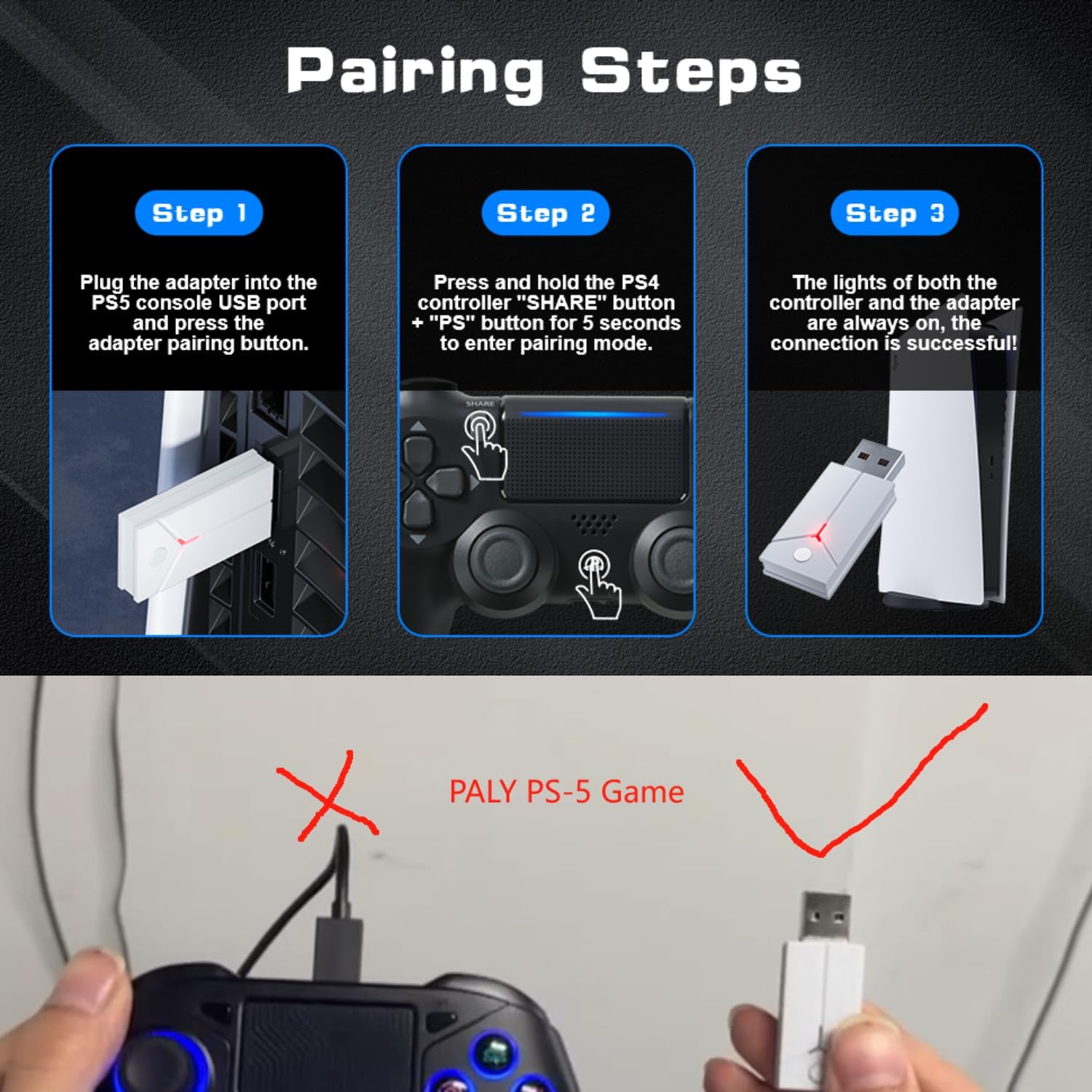
Image: A three-step visual guide demonstrating how to pair the controller with a PS5 console using the USB adapter.
3. ከፒሲ ጋር መገናኘት (ባለገመድ)
Connect the controller to your PC directly using the Type-C data cable.
4. Connecting to PC (Bluetooth)
- ደረጃ 1፡ Ensure your PC's Bluetooth function is enabled.
- ደረጃ 2፡ On the Bonacell Wireless Controller, press and hold the ሼር ያድርጉ አዝራር እና P button simultaneously for 3 seconds to enter pairing mode.
- ደረጃ 3፡ On your PC, search for and select the controller from the list of available Bluetooth devices to complete the pairing.
5. Connecting to Android and iOS (Bluetooth)
Supports iOS 13+ devices.
- ደረጃ 1፡ Activate the Bluetooth function on your mobile phone or tablet.
- ደረጃ 2፡ On the Bonacell Wireless Controller, press and hold the ሼር ያድርጉ አዝራር እና P button simultaneously for 3 seconds to enter pairing mode.
- ደረጃ 3፡ On your mobile device, search for and select the controller from the list of available Bluetooth devices to complete the pairing.

Image: An illustration showing the Bonacell Wireless Controller's compatibility with various platforms such as PS5, PS4, PC, Android, and iOS.
የአሠራር መመሪያዎች
1. RGB Multi-color Button Customization
- To change the light color: Press and hold the L3 አዝራር እና R3 button simultaneously for 3 seconds. The controller will vibrate for 1 second, indicating that the light color can now be changed.
- To switch light effect modes: Press and hold the አዘጋጅ አዝራር እና R3 button simultaneously. Cycle through modes: Colorful → Monochrome → Colorful Transformation → Monochrome Breathing.
2. የቱርቦ ተግባር
The Turbo function allows for continuous rapid input of a button press. This can be useful in games requiring fast, repeated actions.
Specific instructions for activating and deactivating the Turbo function are typically found in the game's control settings or may involve a combination of the Turbo button (if present) and another action button. Refer to the controller's quick start guide or product packaging for exact button combinations if not detailed here.

Image: An illustration highlighting the dual vibration motors and the Turbo function capability of the controller.
ጥገና
- ማጽዳት፡ መቆጣጠሪያውን ለማጽዳት ለስላሳና ደረቅ ጨርቅ ይጠቀሙ። ጠበኛ ኬሚካሎችን ወይም ሻካራ ቁሳቁሶችን ከመጠቀም ይቆጠቡ።
- ማከማቻ፡ መቆጣጠሪያውን በቀጥታ ከፀሀይ ብርሀን እና ከከፍተኛ ሙቀት ርቆ በቀዝቃዛና ደረቅ ቦታ ያከማቹ።
- የባትሪ እንክብካቤ የባትሪውን ዕድሜ ለማራዘም መቆጣጠሪያውን ብዙ ጊዜ ሙሉ በሙሉ ከመሙላት ይቆጠቡ። ለረጅም ጊዜ ጥቅም ላይ ባይውልም እንኳ በመደበኛነት ኃይል ይሙሉት።
መላ መፈለግ
- መቆጣጠሪያው እየተገናኘ አይደለም፦
- ተቆጣጣሪው መሙላቱን ያረጋግጡ።
- Verify the correct pairing procedure for your device (PS5, PC, Android/iOS).
- For PS5, ensure you are using the wireless receiver.
- For Bluetooth connections, ensure Bluetooth is enabled on your host device and the controller is in pairing mode.
- መቆጣጠሪያውንም ሆነ የአስተናጋጅ መሣሪያውን እንደገና ለማስጀመር ይሞክሩ።
- አዝራሮች ወይም ጆይስቲክ ምላሽ የማይሰጡባቸው ነገሮች፡
- መቆጣጠሪያው በትክክል መገናኘቱን ያረጋግጡ።
- በአዝራሮቹ/ጆይስቲክስ ዙሪያ ያሉ ማንኛውንም አካላዊ እንቅፋቶች ወይም ፍርስራሾችን ያረጋግጡ።
- If connected via PC, ensure drivers are up to date.
- ንዝረት አይሰራም;
- Ensure the game supports vibration feedback.
- ንዝረት መንቃቱን ለማረጋገጥ የውስጠ-ጨዋታ ቅንብሮችን ያረጋግጡ።
ዝርዝሮች
| ባህሪ | ዝርዝር |
|---|---|
| የምርት ስም | የገመድ አልባ መቆጣጠሪያ |
| የሞዴል ቁጥር | B0DT8G5RST |
| መጠኖች | 165 x 105 x 45 ሚ.ሜ |
| ክብደት | 0.26 kg (Item Package Weight: 300 g) |
| የባትሪ አቅም | 1000 ሚአሰ ሊቲየም አዮን |
| የአጠቃቀም ጊዜ | እስከ 16 ሰዓታት ድረስ |
| የኃይል መሙያ ጊዜ | በግምት 2.5 ሰዓታት |
| የመሙያ ዘዴ | Base or Type-C charging |
| ግንኙነት | 2.4GHz USB Receiver, Bluetooth, USB-C (wired) |
| ተኳኋኝነት | PS4, PS5, PC (Windows), Android (iOS 13+) |
| ቁልፍ ባህሪያት | Dual Shock Motor, Six-Axis Gyroscope, Touchpad, 3.5mm Audio Jack, Turbo Function, RGB Buttons |
| ቁሳቁስ | ኤቢኤስ |
ዋስትና እና ድጋፍ
For warranty information or technical support, please refer to the product packaging or contact Bonacell customer service through the retailer's platform where the product was purchased.
ተዛማጅ ሰነዶችB0DT8G5RST


Ask a question about this manual
Ask about setup, troubleshooting, compatibility, parts, safety, or missing instructions. Manuals+ will review the question and use this page’s manual context to help answer it.