
1. መግቢያ
The MEETION DirectorD-KB is a wireless ergonomic keyboard designed for comfortable and natural typing. It features a scientific wave key design and a built-in firm wrist rest to support your hands during extended use. This keyboard offers broad compatibility with Windows and macOS devices through a 2.4GHz wireless connection.

Image: The MEETION DirectorD-KB Wireless Ergonomic Keyboard positioned on a wooden desk, showcasing its wave-curved design and integrated wrist rest.
2. የጥቅል ይዘቶች
ሁሉም እቃዎች በጥቅሉ ውስጥ መኖራቸውን ያረጋግጡ፡-
- 1 x MEETION DirectorD-KB Wireless Ergonomic Keyboard
- 1 x የተጠቃሚ መመሪያ
- 1 x USB-A 2.4GHz Wireless Receiver
- 1 x ዩኤስቢ-ሲ አስማሚ
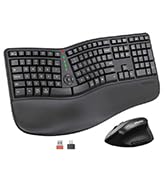
Image: Contents of the MEETION DirectorD-KB package, including the keyboard, user manual, USB-A receiver, and USB-C adapter.
3. የማዋቀር መመሪያዎች
3.1. የባትሪ ጭነት
- የባትሪውን ክፍል በቁልፍ ሰሌዳው ስር ያግኙት።
- የባትሪውን ክፍል ክዳን ይክፈቱ.
- Insert two AAA batteries (not included) into the compartment, ensuring correct polarity.
- የባትሪውን ክፍል ደህንነቱ በተጠበቀ ሁኔታ ይዝጉ።

Image: The underside of the keyboard showing the battery compartment for two AAA batteries and details on power saving features.
3.2. ተቀባዩን በማገናኘት ላይ
- Locate the USB-A 2.4GHz wireless receiver, typically found in the slot inside the keyboard's battery compartment or in the accessory pouch.
- For devices with a USB-A port: Plug the USB-A receiver directly into an available USB-A port on your computer.
- For devices with a USB-C port: Attach the provided USB-C adapter to the USB-A receiver, then plug the combined unit into an available USB-C port on your computer.
- The keyboard is plug-and-play and should connect automatically.
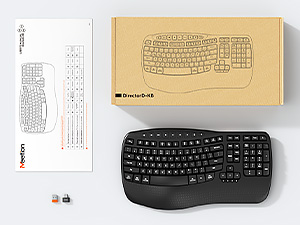
Image: Step-by-step guide on connecting the USB-A receiver with the USB-C adapter to a computer's USB-C port.
3.3. ማብራት
After installing batteries and connecting the receiver, slide the power switch on the keyboard to the 'ON' position. The keyboard is now ready for use.
4. የአሠራር መመሪያዎች
4.1. Ergonomic Design and Wrist Rest
The keyboard features a wave-shaped key layout and a firm, integrated wrist rest. This design guides your hands and wrists into a natural, relaxed typing position, reducing strain during long typing sessions.

Image: A user's hands resting comfortably on the integrated wrist rest while typing on the ergonomic keyboard.
4.2. ሊስተካከል የሚችል ማዘንበል
Utilize the adjustable tilt legs on the underside of the keyboard to find your preferred typing angle. Different angles can further enhance comfort and reduce wrist fatigue.

ምስል: የጎን ፕሮfiles of the keyboard demonstrating three different adjustable tilt angles for personalized comfort.
4.3. Dual System Layout (Windows/macOS)
The keyboard supports both Windows and macOS layouts. To switch between operating systems:
- ተጫን FN + ጥ ለዊንዶውስ አቀማመጥ.
- ተጫን ኤፍኤን + ወ for macOS layout.
4.4. የመልቲሚዲያ ቁልፎች
The keyboard includes dedicated and combined multimedia keys for quick access to functions like volume control, media playback, and more.
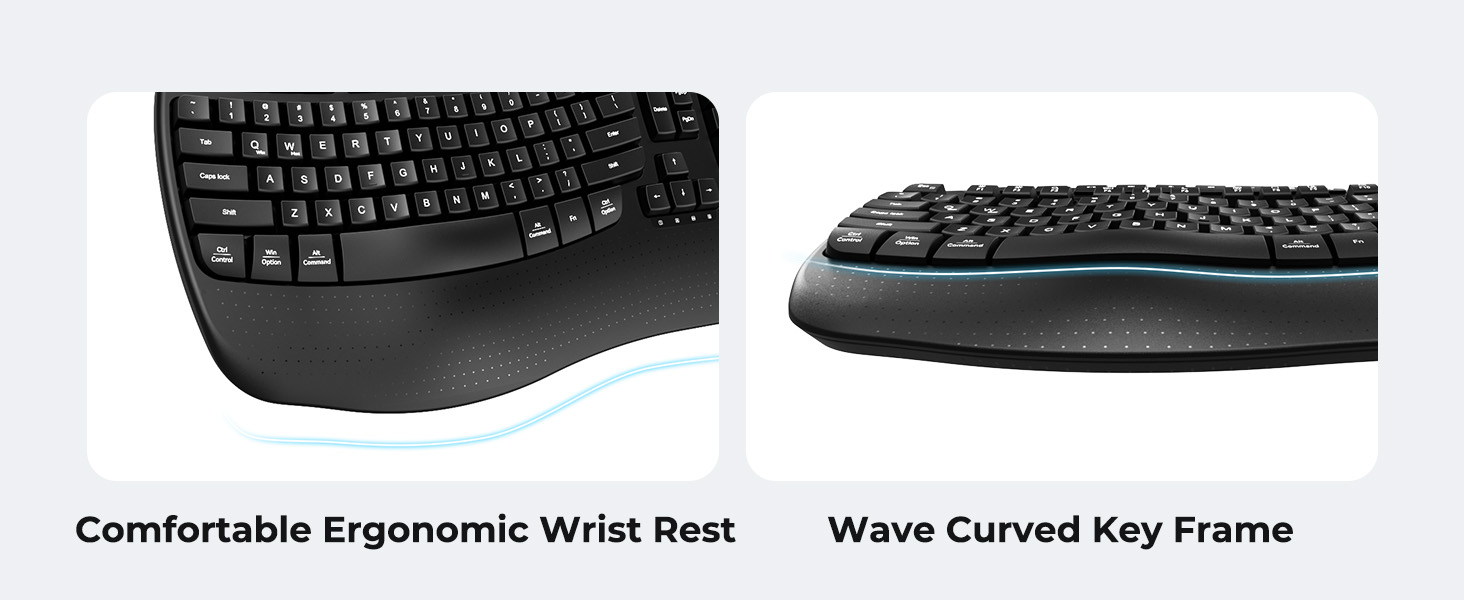
Image: A visual representation of the independent and combined multimedia keys available on the keyboard.
4.5. Intelligent Power Saving
The keyboard features an auto-sleep mode to conserve battery life. After 20 minutes of inactivity, it will enter hibernation. To wake it up, simply press any key.

Image: Close-up of the keyboard's indicator lights, showing status for Num Lock, Caps Lock, FN Lock, and low battery warning.
5. ጥገና
የቁልፍ ሰሌዳዎን ረጅም ዕድሜ እና ጥሩ አፈጻጸም ለማረጋገጥ እነዚህን የጥገና መመሪያዎች ይከተሉ፡
- ማጽዳት፡ የቁልፍ ሰሌዳውን ወለል ለማጽዳት ለስላሳ እና ደረቅ ጨርቅ ይጠቀሙ። ለበለጠ ጽዳት፣ ትንሽ ጠብታamp ለስላሳ ሳሙና ያለው ጨርቅ መጠቀም ይቻላል፣ ይህም ምንም አይነት ፈሳሽ ወደ ቁልፍ ክዳኖች ወይም ወደ ውስጣዊ ክፍሎች እንዳይገባ ያረጋግጣል።
- ፈሳሾችን ያስወግዱ; የቁልፍ ሰሌዳውን ከመጠን በላይ እርጥበት ወይም በላዩ ላይ ፈሳሽ እንዳይፈስ አያጋልጡት።
- ማከማቻ፡ የቁልፍ ሰሌዳውን በቀጥታ ከፀሀይ ብርሀን እና ከከፍተኛ ሙቀት ርቆ በቀዝቃዛና ደረቅ ቦታ ያከማቹ።
- የባትሪ መተካት፡ Replace batteries promptly when the low battery indicator appears to maintain consistent performance.
6. መላ መፈለግ
If you encounter issues with your MEETION DirectorD-KB keyboard, refer to the following common solutions:
- የቁልፍ ሰሌዳ ምላሽ አይሰጥም፡-
- የቁልፍ ሰሌዳው በርቶ እንደሆነ ያረጋግጡ።
- ባትሪዎቹ በትክክል መጫኑን እና አለመሟሟታቸውን ያረጋግጡ። አስፈላጊ ከሆነ ይተኩ።
- Verify that the USB receiver is securely plugged into your computer's USB port (or via the USB-C adapter).
- መቀበያውን ወደ ሌላ የዩኤስቢ ወደብ ለመሰካት ይሞክሩ።
- ኮምፒተርዎን እንደገና ያስጀምሩ.
- የዘገየ ወይም የሚቆራረጥ ግንኙነት;
- Ensure the keyboard is within the effective range of the receiver (typically up to 10 meters).
- Minimize interference from other wireless devices by moving them further away.
- መቀበያውን በትላልቅ የብረት ዕቃዎች አጠገብ ከማስቀመጥ ይቆጠቡ።
- ቁልፎች በትክክል የማይሰሩበት ሁኔታ;
- Check for any physical obstructions under the keycaps.
- Ensure the correct operating system layout (Windows/macOS) is selected using FN+Q or FN+W.
7. ዝርዝሮች
| ባህሪ | ዝርዝር |
|---|---|
| የምርት ስም | ስብሰባ |
| የሞዴል ቁጥር | DirectorD-KB |
| የግንኙነት ቴክኖሎጂ | 2.4G Wireless (USB-A, USB-C Adapter) |
| ተስማሚ መሣሪያዎች | Laptop, PC (Windows XP/7/8/10/11 & macOS X 10.6 or later) |
| የቁልፍ ሰሌዳ አቀማመጥ | QWERTY |
| የቁልፎች ብዛት | 113 |
| ልዩ ባህሪያት | Ergonomic, Hotkeys and Media Keys, Integrated Stand, Wave Keys, Wrist Rest |
| የምርት ልኬቶች (L x W x H) | 17.39" x 9.43" x 1.81" |
| ቁሳቁስ | ፕላስቲክ |
| የኃይል ምንጭ | ባትሪ (2 x AAA፣ አልተካተተም) |
8. ይፋዊ የምርት ቪዲዮ
ቪዲዮ፡ ይፋዊ የምርት ቪዲዮ ማሳያasing the features and ergonomic design of the MEETION DirectorD-KB Wave Ergonomic Wireless Keyboard. (Duration: 0:39)
9. ዋስትና እና ድጋፍ
This MEETION DirectorD-KB Wireless Ergonomic Keyboard comes with a 1-year manufacturer's warranty.
For further assistance, troubleshooting, or warranty claims, please visit the official MEETION store or contact customer support.
Official MEETION Store: MEETION Store on Amazon


