1. መግቢያ
This manual provides comprehensive instructions for the installation, operation, and maintenance of your AutoSky ADC-201 Dash Cam. Please read this manual thoroughly before using the device to ensure proper functionality and to maximize your user experience. Keep this manual for future reference.
2. በሳጥኑ ውስጥ ያለው
ከዚህ በታች የተዘረዘሩት ሁሉም እቃዎች በጥቅልዎ ውስጥ መካተታቸውን ያረጋግጡ፡-
- AutoSky ADC-201 Dash Camera
- Memory Card (pre-installed or separate)
- Mount (adhesive or suction cup)
- Power Cable (car charger)
- የተጠቃሚ መመሪያ

ምስል 2.1፡ The AutoSky ADC-201 Dash Cam package contents, showing the dash camera, a memory card, the mounting bracket, and the car power adapter.
3. ምርት አብቅቷልview
The AutoSky ADC-201 is a compact dash camera designed to record your journeys in 2K Ultra HD resolution. It features a 140-degree wide-angle lens for extensive road coverage and built-in Wi-Fi for seamless smartphone connectivity.
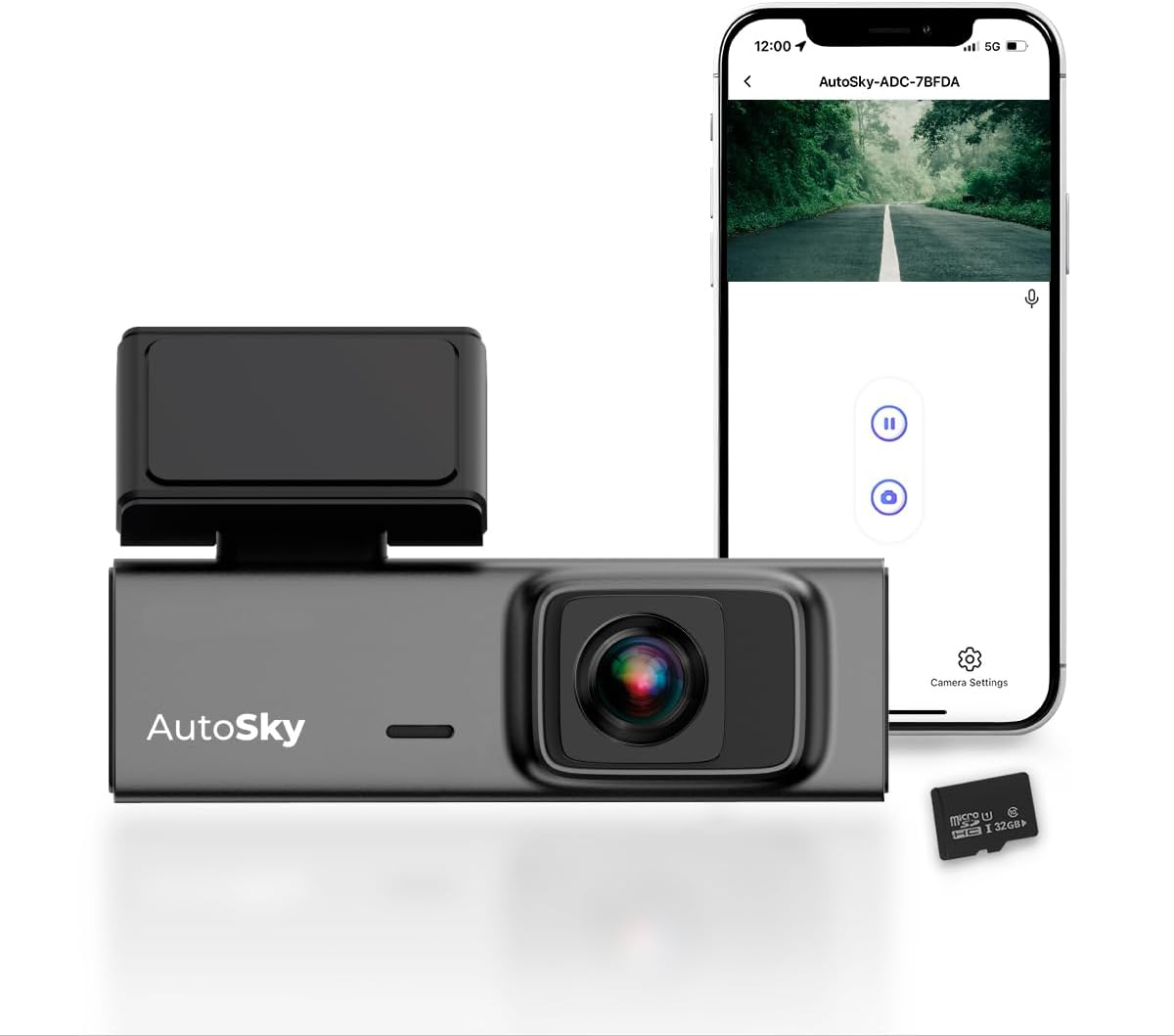
ምስል 3.1፡ The AutoSky ADC-201 Dash Cam with its companion smartphone app and included memory card.
4. ማዋቀር እና መጫን
4.1. የማህደረ ትውስታ ካርዱን ማስገባት
Locate the memory card slot on the dash cam. Insert the provided microSD card with the gold contacts facing the camera's front. Ensure it clicks into place. A memory card is essential for recording footage.
4.2. ዳሽ ካሜራን መጫን
- የዳሽ ካም ለመጫን ያሰቡበትን የፊት መስታወትዎን ቦታ ያጽዱ። የእርስዎን መቆለፊያ እንዳያደናቅፍ ያረጋግጡ። view የመንገዱን.
- ተራራውን ከዳሽ ካሜራ ጋር ያያይዙት.
- መከላከያ ፊልሙን ከተሰካው ማጣበቂያ ፓድ ያስወግዱ።
- Firmly press the mount onto the chosen area of the windshield for at least 30 seconds.
- Adjust the camera angle to ensure the lens captures the road ahead clearly.
4.3. የኃይል ግንኙነት
Connect the provided car charger to the dash cam's power input port and plug the other end into your vehicle's 12V power outlet (cigarette lighter socket). The dash cam will typically power on automatically when your vehicle starts.

ምስል 4.1፡ The AutoSky ADC-201 Dash Cam mounted on a car windshield, demonstrating its discreet placement and wireless connectivity.
5. የአሠራር መመሪያዎች
5.1. አውቶማቲክ ቀረጻ
Once powered on, the dash cam will automatically begin recording. Footage is saved to the inserted memory card. The camera records in continuous loops, overwriting the oldest files when the memory card is full, unless protected by the G-sensor or manual lock.
5.2. Foo መድረስtage
ፎtage can be accessed and managed primarily through the dedicated smartphone application. Refer to Section 6 for details on connecting your dash cam to your smartphone.

ምስል 5.1፡ The dash cam actively recording, capturing clear 2K video of the road ahead.
6. Smartphone App Connectivity
The AutoSky ADC-201 features built-in Wi-Fi for seamless connection to your smartphone, allowing for live view, video playback, settings adjustment, and footagሠ ማውረድ.
6.1. መተግበሪያውን ማውረድ
ፈልግ the official AutoSky Dash Cam app in your smartphone's app store (iOS App Store or Google Play Store) and install it.
6.2. Connecting to the Dash Cam
- የዳሽ ካም መብራቱን ያረጋግጡ።
- Open the AutoSky app on your smartphone.
- Follow the in-app instructions to connect to the dash cam's Wi-Fi network. The Wi-Fi network name (SSID) and password can usually be found on the dash cam's screen or in the included quick start guide.
- Once connected, you can access live footage, browse recorded videos, download clips to your phone, and modify camera settings.

ምስል 6.1፡ The AutoSky Dash Cam connected to a smartphone via Wi-Fi, showing the live feed and app controls.
7. የላቁ ባህሪያት
7.1. ጂ-ሴንሰር (የአደጋ ጊዜ ቀረጻ)
The built-in G-sensor automatically detects sudden movements, impacts, or collisions. When triggered, it locks the current video segment, preventing it from being overwritten by loop recording. This ensures critical event footagኢ ተጠብቆ ይቆያል።
7.2. Loop ቀረጻ
Loop recording ensures continuous recording by overwriting the oldest unprotected files when the memory card reaches its capacity. This eliminates the need for manual memory card management.
7.3. የጊዜ መዘግየት ቀረጻ
Time-lapse recording captures footage at a lower frame rate, condensing long periods into short, viewable videos. This feature is useful for monitoring parking or extended journeys efficiently.
7.4. የመኪና ማቆሚያ ሁነታ
When enabled, Parking Mode allows the dash cam to monitor your vehicle while parked. It typically uses the G-sensor to detect impacts or motion detection to record events when the vehicle is stationary. ማስታወሻ፡- This feature often requires a continuous power supply (hardwire kit, not included) to function when the vehicle's ignition is off.

ምስል 7.1፡ Illustration of the dash cam's parking mode, providing surveillance for your vehicle when parked.
8. ጥገና
8.1. የማህደረ ትውስታ ካርድ ቅርጸት
It is recommended to format the memory card regularly (e.g., once a month) using the dash cam's app settings. This helps maintain optimal recording performance and prevents data corruption. ማስጠንቀቂያ፡- ቅርጸት በካርዱ ላይ ያለውን ሁሉንም ውሂብ ይሰርዛል።
8.2. ሌንስን ማጽዳት
Gently wipe the dash cam lens with a soft, lint-free cloth to ensure clear video quality. Avoid using abrasive cleaners or materials that could scratch the lens.
9. መላ መፈለግ
- ዳሽ ካም እየበራ አይደለም፡
የኃይል ገመዱ ከዳሽ ካም እና ከተሽከርካሪው 12 ቮልት የኃይል መውጫ ጋር ደህንነቱ በተጠበቀ ሁኔታ መገናኘቱን ያረጋግጡ። የተሽከርካሪው የኃይል መውጫ እየሰራ መሆኑን ያረጋግጡ። - የቀረጻ ችግሮች (ለምሳሌ፣ ቀረጻ የለም፣ የተበላሸ) fileዎች):
Ensure a memory card is properly inserted and formatted. Try formatting the card again via the app. If issues persist, try a different, high-quality memory card. - የ Wi-Fi ግንኙነት ችግሮች፡
Make sure the dash cam is powered on. Restart both the dash cam and your smartphone. Ensure you are connecting to the correct Wi-Fi network provided by the dash cam. - ደካማ የቪዲዮ ጥራት;
Clean the dash cam lens. Ensure the protective film has been removed from the lens. Check settings in the app to confirm 2K resolution is selected.
10. ዝርዝሮች
| ባህሪ | ዝርዝር መግለጫ |
|---|---|
| የሞዴል ስም | ኤዲሲ-201 |
| የቪዲዮ ቀረጻ ጥራት | 2K Ultra HD |
| መስክ View | 140 ዲግሪዎች |
| የግንኙነት ቴክኖሎጂ | ብሉቱዝ ፣ Wi-Fi |
| ልዩ ባህሪያት | G-Sensor, Loop Recording, Time-lapse Recording, Wifi Connectivity |
| የምርት ልኬቶች | 1.2 x 3.4 x 1.5 ኢንች |
| የእቃው ክብደት | 12.7 አውንስ |
| የመጫኛ አይነት | ዳሽቦርድ ተራራ |
11. ዋስትና እና ድጋፍ
For warranty information and technical support, please refer to the warranty card included in your product packaging or visit the official AutoSky website. You may also contact AutoSky customer service directly for assistance with your ADC-201 Dash Cam.