
1. ምርት አብቅቷልview
The MechLands Aula F75 PRO is a 75% layout wireless mechanical gaming keyboard designed for efficiency and customization. It features a gasket-mounted structure with five-layer sound dampening, tri-mode connectivity (Bluetooth 5.0, 2.4GHz wireless, USB-C wired), hot-swappable switches, a versatile control knob, and customizable RGB lighting.
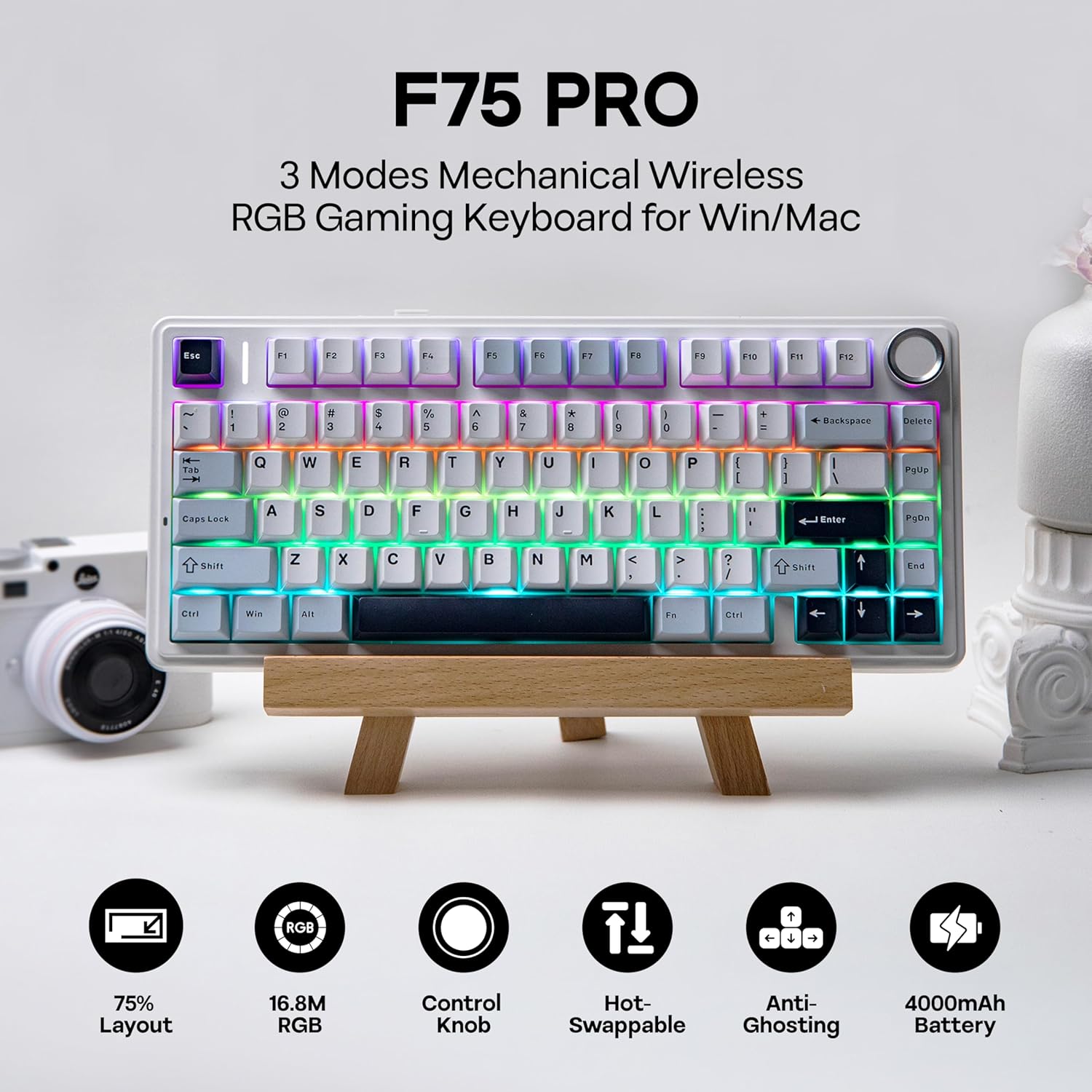
Image 1.1: The MechLands Aula F75 PRO keyboard showcasinግ 75% የታመቀ አቀማመጥ እና ሕያው የ RGB የኋላ መብራት።
2. የጥቅል ይዘቶች
ሁሉም እቃዎች በጥቅሉ ውስጥ መኖራቸውን ያረጋግጡ፡-
- MechLands Aula F75 PRO Wireless Gaming Keyboard
- የዩኤስቢ ገመድ (አይነት-ሲ)
- የቁልፍ ማስገቢያ
- የተጠቃሚ መመሪያ (ይህ ሰነድ)

Image 2.1: Contents of the F75 PRO package, including the keyboard, USB cable, and keycap puller.
3. ማዋቀር እና ግንኙነት
3.1 የቁልፍ ሰሌዳውን መሙላት
Before initial use, fully charge the keyboard using the provided USB-C cable. Connect one end to the keyboard's USB-C port and the other end to a powered USB port on your computer or a wall adapter. The keyboard features a 4000mAh battery.

Image 3.1: The keyboard's battery life, indicating up to 18 hours with RGB backlight on and 267 hours with RGB backlight off.
3.2 የግንኙነት ሁነታዎች
The F75 PRO supports three connectivity modes: Bluetooth 5.0, 2.4GHz wireless, and USB-C wired. Use the switch located on the back of the keyboard to select your desired mode.

Image 3.2: The connectivity switch on the keyboard, allowing selection between USB, BT, and 2.4G modes.
3.2.1 2.4GHz ገመድ አልባ ግንኙነት
- Set the switch on the keyboard to "2.4G".
- የ2.4GHz ዩኤስቢ መቀበያ በኮምፒዩተርዎ ላይ ወዳለው የዩኤስቢ ወደብ ይሰኩት።
- The keyboard will automatically connect.
3.2.2 የብሉቱዝ ግንኙነት
- Set the switch on the keyboard to "BT".
- On your device (PC, laptop, smartphone, tablet), enable Bluetooth and search for new devices.
- Select "AULA F75 PRO" from the list of available devices to pair.
- The keyboard can connect to up to five devices simultaneously. Use shortcut keys (e.g., Fn + 1/2/3) to switch between paired devices.
3.2.3 የዩኤስቢ-ሲ ገመድ ግንኙነት
- Set the switch on the keyboard to "USB".
- የዩኤስቢ-ሲ ገመዱን ከቁልፍ ሰሌዳው ወደ ኮምፒውተርዎ ያገናኙ።
- The keyboard will be recognized as a wired device.

Image 3.3: The F75 PRO keyboard connected to various devices, illustrating its multi-device compatibility.
4. የአሠራር መመሪያዎች
4.1 Control Knob Functions
The versatile control knob provides quick access to various functions:
- አሽከርክር፡ Adjust volume or media.
- ይጫኑ፡- የድምጽ ድምጸ-ከል አንሳ/አጥፋ።
- ያዝ፡ Change RGB lighting settings.

Image 4.1: The multi-functional control knob on the F75 PRO keyboard, used for volume, media, and RGB adjustments.
4.2 RGB የመብራት መቆጣጠሪያ
The F75 PRO features 16.8 million RGB colors with 16 preset lighting effects. Additional effects and customization are available via the software driver.
- Fn + \: Toggle between different backlight effects.
- Fn + ትር፡ Toggle between different backlight colors.
- የመያዣ ቁልፍ፡ Access RGB settings directly from the knob.

Image 4.2: Demonstrates the RGB backlighting and key combinations for changing effects and colors.
4.3 የሶፍትዌር ፕሮግራሚንግ
Download the official AULA software driver for advanced customization options, including key remapping, macro editing, backlight settings, and debounce adjustment.

Image 4.3: Screenshot of the AULA software interface for customizing keyboard settings.
5. ጥገና
5.1 ሙቅ-ተለዋዋጭ መቀየሪያዎች
The F75 PRO features full-key hot-swappable sockets, allowing you to change switches without soldering. This enables easy customization and replacement of individual switches.
- Use the provided keycap puller to carefully remove the keycap.
- Use a switch puller (not included, but commonly available) to gently remove the switch from its socket.
- Align the pins of the new switch with the holes in the PCB and press firmly until it clicks into place. Ensure pins are not bent.
- የቁልፍ መያዣውን ይተኩ.

Image 5.1: Demonstration of removing and replacing hot-swappable switches on the F75 PRO keyboard.
5.2 አጠቃላይ ጽዳት
የቁልፍ ሰሌዳዎን አፈፃፀም እና ገጽታ ለመጠበቅ፦
- ከማጽዳትዎ በፊት የቁልፍ ሰሌዳውን ከመሳሪያዎ ያላቅቁ።
- አቧራ እና ፍርስራሽ ከቁልፍ ክዳኖቹ መካከል ለማስወገድ ለስላሳ ብሩሽ ወይም የተጨመቀ አየር ይጠቀሙ።
- ለግትር ቆሻሻ፣ በትንሹ መampen a microfiber cloth with water or a mild cleaning solution and wipe the keycaps and casinሰ. ከመጠን በላይ እርጥበትን ያስወግዱ።
6. መላ መፈለግ
- የቁልፍ ሰሌዳ ምላሽ አይሰጥም፡-
- የቁልፍ ሰሌዳ መሙላቱን ያረጋግጡ።
- Check the connectivity switch is set to the correct mode (USB, 2.4G, or BT).
- For 2.4GHz, ensure the USB receiver is properly plugged in.
- For Bluetooth, ensure the keyboard is paired and selected on your device. Try re-pairing if necessary.
- ለገመድ ግንኙነት የተለየ የዩኤስቢ ወደብ ወይም ገመድ ይሞክሩ።
- የ RGB መብራት አይሰራም ወይም ትክክል አይደለም፡-
- የቁልፍ ሰሌዳ መብራቱን ያረጋግጡ።
- Use Fn + \ or Fn + Tab to cycle through effects and colors.
- Check the software driver for advanced lighting settings.
- የማይመዘገቡ ወይም ሁለት ጊዜ የማይተይቡ ቁልፎች፡-
- ማንኛውንም ፍርስራሽ ለማስወገድ በተጎዳው ቁልፍ ዙሪያ ያጽዱ።
- If using hot-swappable switches, try reseating the switch or replacing it with a spare.
- Update the keyboard firmware via the official software.
7. ዝርዝሮች
| የምርት ስም | ሜችላንድስ |
| ሞዴል | F75 PRO |
| አቀማመጥ | 75% (80 ቁልፎች + 1 ኖብ) |
| ግንኙነት | ብሉቱዝ 5.0፣ 2.4GHz ገመድ አልባ፣ ዩኤስቢ-ሲ ሽቦ |
| መቀየሪያዎች | LEOBOG Reaper Switches (Linear), Hot-Swappable |
| የኋላ መብራት | RGB (16.8M colors, 16 preset effects) |
| የባትሪ አቅም | 4000mAh |
| Polling Rate (Wired/2.4GHz) | 1000Hz |
| የሕዝብ አስተያየት መስጫ ፍጥነት (ብሉቱዝ) | 125Hz |
| ልኬቶች (L x W x H) | 12.7" x 5.64" x 1.7" (32.27ሴሜ x 14.32ሴሜ x 4.32ሴሜ) |
| ክብደት | 975 ግ |
| የቁልፍ መያዣ ቁሳቁስ | ፒቢቲ |

Image 7.1: Detailed dimensions and weight of the F75 PRO keyboard.
8. ዋስትና እና ድጋፍ
The MechLands Aula F75 PRO keyboard comes with a የ 1 ዓመት ዋስትና from the date of purchase. For warranty claims, technical support, or further assistance, please contact MechLands customer service or visit the official MechLands store on Amazon:
9. የምርት ቪዲዮዎች
Video 9.1: Demonstration of typing on the MechLands Aula F75 PRO keyboard, highlighting its sound and feel.