
1. መግቢያ
This user manual provides detailed instructions for the KTC M27P6 27-inch MiniLED Gaming Monitor. Please read this manual thoroughly before operating the device to ensure proper usage and optimal performance. Keep this manual for future reference.
The KTC M27P6 is a high-performance gaming monitor featuring a 27-inch MiniLED panel with 1152 local dimming zones, offering exceptional contrast and brightness up to HDR1400. It supports dual display modes: 4K resolution at 160Hz and Full HD resolution at 320Hz, providing versatility for various gaming and professional needs. Key features include a 1ms GtG response time, Adaptive Sync technology, and comprehensive connectivity options including USB-C with 65W power delivery and KVM functionality.

ምስል፡ አልቋልview of KTC M27P6 monitor's key features including MiniLED, 1152 local dimming zones, dual mode 4K@160Hz/FHD@320Hz, USB-C, KVM, HDR1400, 145% sRGB, Fast IPS, and Adaptive-Sync.
2. የደህንነት መረጃ
- እንዳይወድቅ ለመከላከል ሁልጊዜ ሞኒተሩን በተረጋጋና ጠፍጣፋ መሬት ላይ ያድርጉት።
- የኤሌክትሪክ ንዝረት ወይም እሳትን ለማስወገድ ሞኒተሩን ለዝናብ ወይም ለእርጥበት አያጋልጡት።
- Keep the monitor away from direct sunlight, heat sources, or extreme temperatures.
- በተቆጣጣሪው ዙሪያ ትክክለኛውን አየር ማናፈሻን ያረጋግጡ። የአየር ማናፈሻ ክፍተቶችን አያግዱ.
- በአምራቹ የቀረቡትን ወይም የሚመከሩትን የኃይል አስማሚ እና ኬብሎችን ብቻ ይጠቀሙ።
- Unplug the power cord from the outlet if the monitor will not be used for a long period.
- መቆጣጠሪያውን እራስዎ ለመጠገን አይሞክሩ. ሁሉንም አገልግሎቶች ብቁ ለሆኑ የአገልግሎት ሰራተኞች ያመልክቱ።
- ስክሪኑን በሹል ነገሮች ከመንካት ይቆጠቡ።
3. የጥቅል ይዘቶች
ሁሉም ክፍሎች በጥቅልዎ ውስጥ መኖራቸውን ያረጋግጡ። ማንኛውም እቃ ከጎደለ ወይም ከተበላሸ፣ ቸርቻሪዎን ያነጋግሩ።
- KTC M27P6 27-inch MiniLED Gaming Monitor
- የክትትል ማቆሚያ (ቤዝ እና ክንድ)
- የኃይል አስማሚ
- የኃይል ገመድ
- HDMI ገመድ
- የማሳያPort ገመድ
- የ USB-C ገመድ
- USB-B to USB-A Cable (for KVM/USB Hub)
- የተጠቃሚ መመሪያ (ይህ ሰነድ)
- የዋስትና ካርድ
4. ተቆጣጠርview
4.1 ፊት View
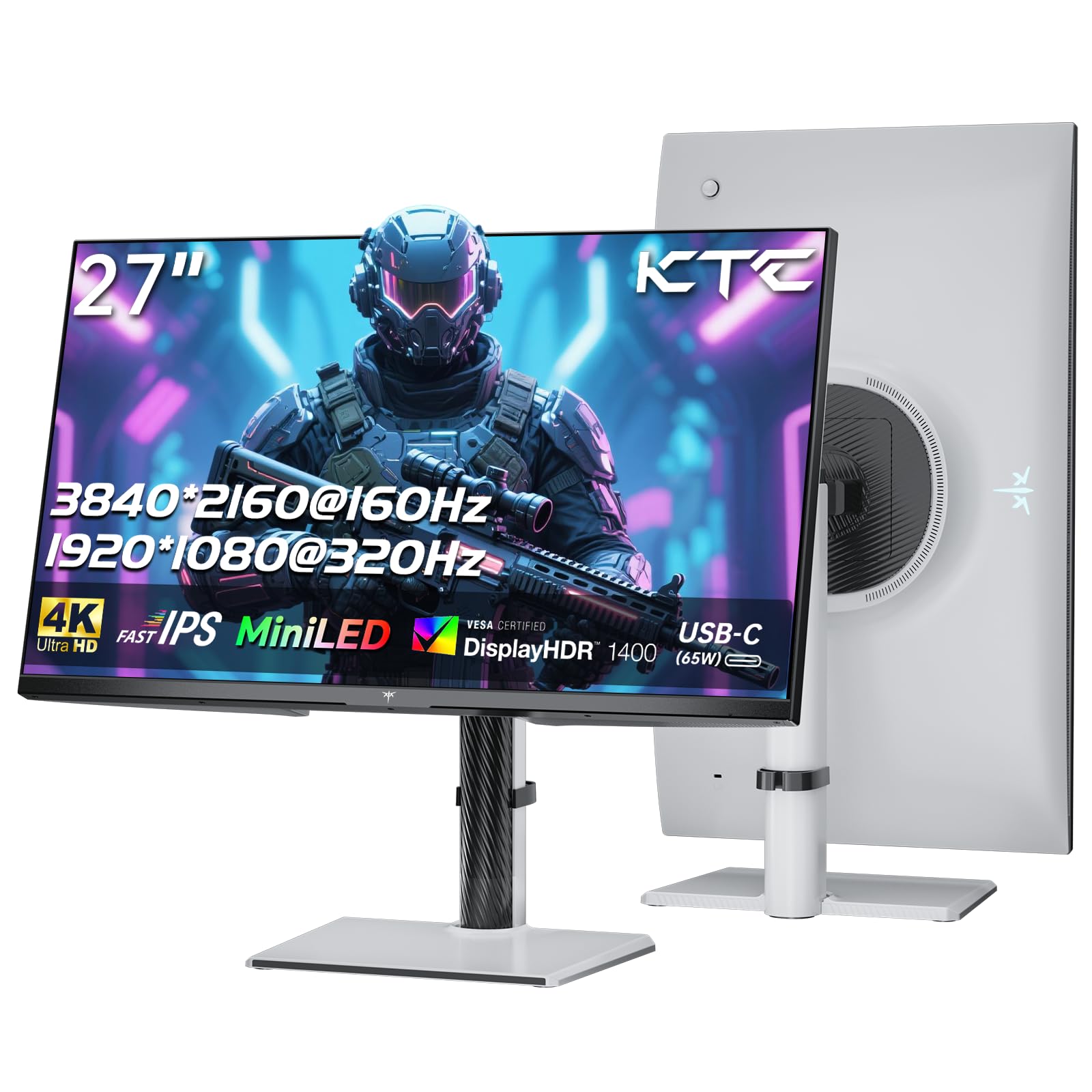
ምስል፡ ፊት ለፊት view of the KTC M27P6 27-inch MiniLED Gaming Monitor.
The front of the monitor features the 27-inch MiniLED display panel. The KTC logo is typically located at the bottom center bezel.
4.2 የኋላ View እና ወደቦች

ምስል: የኋላ view of the KTC M27P6 monitor, highlighting the various input/output ports and the adjustable stand.
The rear of the monitor houses the input/output ports and the stand attachment point. The ports include:
- የኃይል ግቤት፡ የኃይል አስማሚውን ለማገናኘት.
- HDMI 2.1 ወደቦች (x2) For connecting to devices supporting HDMI 2.1 (4K@160Hz / FHD@320Hz).
- ዲስፓርትፖት 1.4 ወደቦች (x2)፦ For connecting to devices supporting DisplayPort 1.4 (4K@160Hz / FHD@320Hz).
- የዩኤስቢ-ሲ ወደብ (x1): Full-function port supporting video input (4K@160Hz / FHD@320Hz) and 65W Power Delivery.
- USB-B Upstream Port (x1): For connecting the monitor's USB hub to your computer, enabling the downstream USB-A ports and KVM functionality.
- USB-A 3.0 Downstream Ports (x3): እንደ ኪቦርድ፣ አይጥ ወይም የዩኤስቢ ድራይቮች ያሉ ተጓዳኝ መሳሪያዎችን ለማገናኘት።
- 3.5ሚሜ ኦዲዮ ውጪ፡ የጆሮ ማዳመጫዎችን ወይም የውጭ ድምጽ ማጉያዎችን ለማገናኘት.
ቪዲዮ: አልቋልview of the KTC M27P6 monitor's features and design, including its connectivity options and adjustable stand.
5. ማዋቀር
5.1 ማቆሚያውን መሰብሰብ
- መቆጣጠሪያውን በጥንቃቄ ያስወግዱ እና ከማሸጊያው ውስጥ ክፍሎችን ይቁሙ.
- Attach the stand arm to the monitor panel by aligning the mounting points and securing with screws (if applicable).
- Attach the stand base to the stand arm, ensuring it is firmly connected.
- የተሰበሰበውን ማሳያ በተረጋጋ እና ጠፍጣፋ መሬት ላይ ያድርጉት።
The monitor also supports VESA mounting (100x100mm) for use with compatible wall mounts or monitor arms. Ensure the VESA mount is rated for the monitor's weight.

Image: Diagram illustrating the multi-angle adjustment capabilities of the KTC M27P6 monitor stand, including height, tilt, swivel, and pivot.
5.2 ማገናኛ ገመዶች
- የኃይል ግንኙነት; Connect the power adapter to the monitor's power input, then plug the power cable into a power outlet.
- የቪዲዮ ግንኙነት፡-
- For PC/Gaming Console: Connect one end of the HDMI or DisplayPort cable to your device's output and the other end to the corresponding port on the monitor.
- For USB-C Compatible Devices: Connect the USB-C cable from your device to the monitor's USB-C port for video, data, and power delivery.
- USB Hub/KVM Connection: To use the monitor's USB-A ports and KVM functionality, connect the USB-B to USB-A cable from the monitor's USB-B upstream port to a USB-A port on your computer.
- የድምጽ ግንኙነት; If using external headphones or speakers, connect them to the 3.5mm audio out port on the monitor.
6. የአሠራር መመሪያዎች
6.1 ማብራት / ማጥፋት
ሞኒተሩን ለማብራት ወይም ለማጥፋት የኃይል አዝራሩን (ብዙውን ጊዜ በማኒየሩ ጀርባ ወይም ግርጌ ላይ ይገኛል) ይጫኑ። ሞኒተሩ ሲበራ የኃይል አመልካች መብራቱ ይበራል።
6.2 OSD ሜኑ አሰሳ
The On-Screen Display (OSD) menu allows you to adjust various monitor settings. Use the joystick or buttons (refer to your monitor's physical layout) to navigate the OSD menu:
- Press Joystick/Button: Enter OSD menu or confirm selection.
- ጆይስቲክን ወደ ላይ/ወደታች አንቀሳቅስ፡- በምናሌ አማራጮች ውስጥ ያስሱ።
- ጆይስቲክን ወደ ግራ/ቀኝ አንቀሳቅስ፡- እሴቶችን ያስተካክሉ ወይም ወደ ንዑስ ምናሌዎች ይሂዱ።
- የመውጫ ቁልፍ ከአሁኑ ምናሌ ወይም OSD ውጣ።
6.3 Dual Mode Switching (4K@160Hz / FHD@320Hz)
The KTC M27P6 supports seamless switching between two display modes: 4K (3840x2160) at 160Hz and Full HD (1920x1080) at 320Hz. This allows you to optimize performance based on your content (e.g., high-resolution graphics for AAA games or ultra-high refresh rate for competitive FPS games).
To switch modes, access the OSD menu and navigate to the "Display" or "Gaming" settings. Select the desired resolution and refresh rate. Your connected device must also support these resolutions and refresh rates for optimal performance.

Image: Illustration of the KTC M27P6 monitor's seamless dual mode switching capability, showing a 4K@160Hz gaming scene and a FHD@320Hz gaming scene.
6.4 የሚለምደዉ ማመሳሰል
The monitor supports Adaptive Sync (AMD FreeSync and NVIDIA G-Sync compatible) to eliminate screen tearing and stuttering, providing a smoother gaming experience. Ensure Adaptive Sync is enabled in the monitor's OSD settings and in your graphics card control panel.

Image: Visual representation of Adaptive Sync technology, showing how it prevents screen tearing by synchronizing the monitor's refresh rate with the GPU's frame rate.
6.5 የKVM ተግባራዊነት
The integrated KVM (Keyboard, Video, Mouse) switch allows you to control multiple computers or devices connected to the monitor using a single keyboard and mouse. To use KVM:
- Connect your primary computer to the monitor via DisplayPort/HDMI and the USB-B upstream cable.
- Connect your secondary device (e.g., laptop via USB-C) to the monitor.
- Connect your keyboard and mouse to the USB-A downstream ports on the monitor.
- Switch between connected devices using the KVM hotkey or OSD menu option.
6.6 Color Settings and HDR1400
The monitor features a MiniLED panel with 1152 local dimming zones and VESA DisplayHDR 1400 certification, providing high contrast and vibrant colors. You can adjust color settings (brightness, contrast, color temperature, gamma) through the OSD menu. For HDR content, ensure HDR is enabled in your operating system and the monitor's OSD. The monitor supports 10-bit color depth and a wide color gamut (145% sRGB / 99% DCI-P3).

Image: Visual comparison demonstrating the enhanced dynamic range and detail provided by HDR1400 on the KTC M27P6 monitor.
7. ጥገና
- ማያ ገጹን ማጽዳት; ስክሪኑን በቀስታ ለስላሳ እና ከተሸፈነ ጨርቅ ይጥረጉ። ግትር ለሆኑ ምልክቶች፣ መampen the cloth with a small amount of screen cleaner (non-ammonia based). Do not spray cleaner directly onto the screen.
- ሲን ማጽዳትasing: ተቆጣጣሪውን ለማጽዳት ለስላሳ ደረቅ ጨርቅ ይጠቀሙ ሐasinሰ. ገላጭ ማጽጃዎችን ወይም ፈሳሾችን ከመጠቀም ይቆጠቡ።
- የአየር ማናፈሻ; Ensure the ventilation openings on the monitor are clear of dust and debris to prevent overheating.
8. መላ መፈለግ
| ችግር | ሊሆን የሚችል ምክንያት | መፍትሄ |
|---|---|---|
| በማያ ገጹ ላይ ምንም ምስል የለም | የኃይል ገመድ ተቋርጧል; የቪዲዮ ገመድ ተቋርጧል; የተሳሳተ የግቤት ምንጭ። | የኃይል እና የቪዲዮ ገመድ ግንኙነቶችን ያረጋግጡ። ትክክለኛውን የግቤት ምንጭ በ OSD ምናሌ በኩል ይምረጡ። |
| ምስሉ የደበዘዘ ወይም የተዛባ ነው። | የተሳሳተ ጥራት፤ የቪዲዮ ገመድ ችግር። | Set the display resolution to the native 3840x2160 or 1920x1080. Try a different video cable. |
| በጨዋታዎች ውስጥ ስክሪን መቀደድ ወይም መንተባተብ | አዳፕቲቭ ሲንክ አልነቃም፤ የግራፊክስ ካርድ ነጂ ችግሮች። | Enable Adaptive Sync in monitor OSD and graphics card settings. Update graphics drivers. |
| የዩኤስቢ ወደቦች አይሰሩም። | USB-B upstream cable not connected; Driver issues. | Ensure the USB-B upstream cable is connected from the monitor to your computer. Check computer's USB drivers. |
| ከድምጽ ውጪ ምንም ድምፅ የለም | Incorrect audio output selected; Volume too low. | Check audio output settings on your computer. Adjust monitor and device volume. |
9. ዝርዝሮች
| ባህሪ | ዝርዝር |
|---|---|
| የምርት ስም | ኬቲሲ |
| የሞዴል ስም | M27P6 |
| የስክሪን መጠን | 27 Pollici (27 inches) |
| የፓነል ዓይነት | MiniLED, Fast IPS |
| Resolution (Native) | 3840 x 2160 (4ኬ ዩኤችዲ) |
| Max Refresh Rate (4K) | 160 Hz |
| Max Refresh Rate (FHD) | 320 Hz |
| የምላሽ ጊዜ | 1ms GtG |
| የአካባቢ መፍዘዝ ዞኖች | 1152 ዞኖች |
| የኤችዲአር ማረጋገጫ | VESA ማሳያ ኤችዲአር 1400 |
| ብሩህነት | 1400 ሲ / ሲ / ሜ (ጫፍ) |
| የንፅፅር ሬሾ | 1,000,000:1 (ተለዋዋጭ) |
| ቀለም ጋሙት | 145% sRGB፣ 99% DCI-P3 |
| የቀለም ጥልቀት | 10-ቢት |
| አስማሚ ማመሳሰል | AMD FreeSync, NVIDIA G-Sync Compatible |
| Viewማእዘን | 178 ዲግሪዎች |
| ግንኙነት | 2x HDMI 2.1, 2x DisplayPort 1.4, 1x USB-C (65W PD), 1x USB-B Upstream, 3x USB-A 3.0 Downstream, 1x 3.5mm Audio Out |
| የ KVM ድጋፍ | አዎ |
| የመቆሚያ ማስተካከያዎች | ቁመት፣ ዘንበል፣ ጠመዝማዛ፣ ፒቮት። |
| VESA ተራራ | 100 x 100 ሚ.ሜ |
| ልኬቶች (DxWxH) | 21.1P x 61.7lx 54.7H ሴሜ |
10. ዋስትና እና ድጋፍ
KTC products are covered by a limited warranty. Please refer to the warranty card included in your package for specific terms and conditions. For technical support, troubleshooting assistance, or warranty claims, please contact KTC customer service or visit the official KTC webጣቢያ.
You can find more information and contact details on the KTC official store page: KTC Store.