
1. መግቢያ
Thank you for choosing the TCL Gaming Monitor 25G54. This monitor is designed to provide an immersive gaming experience with its advanced display technology and high performance. This manual will guide you through the setup, operation, and maintenance of your new monitor.
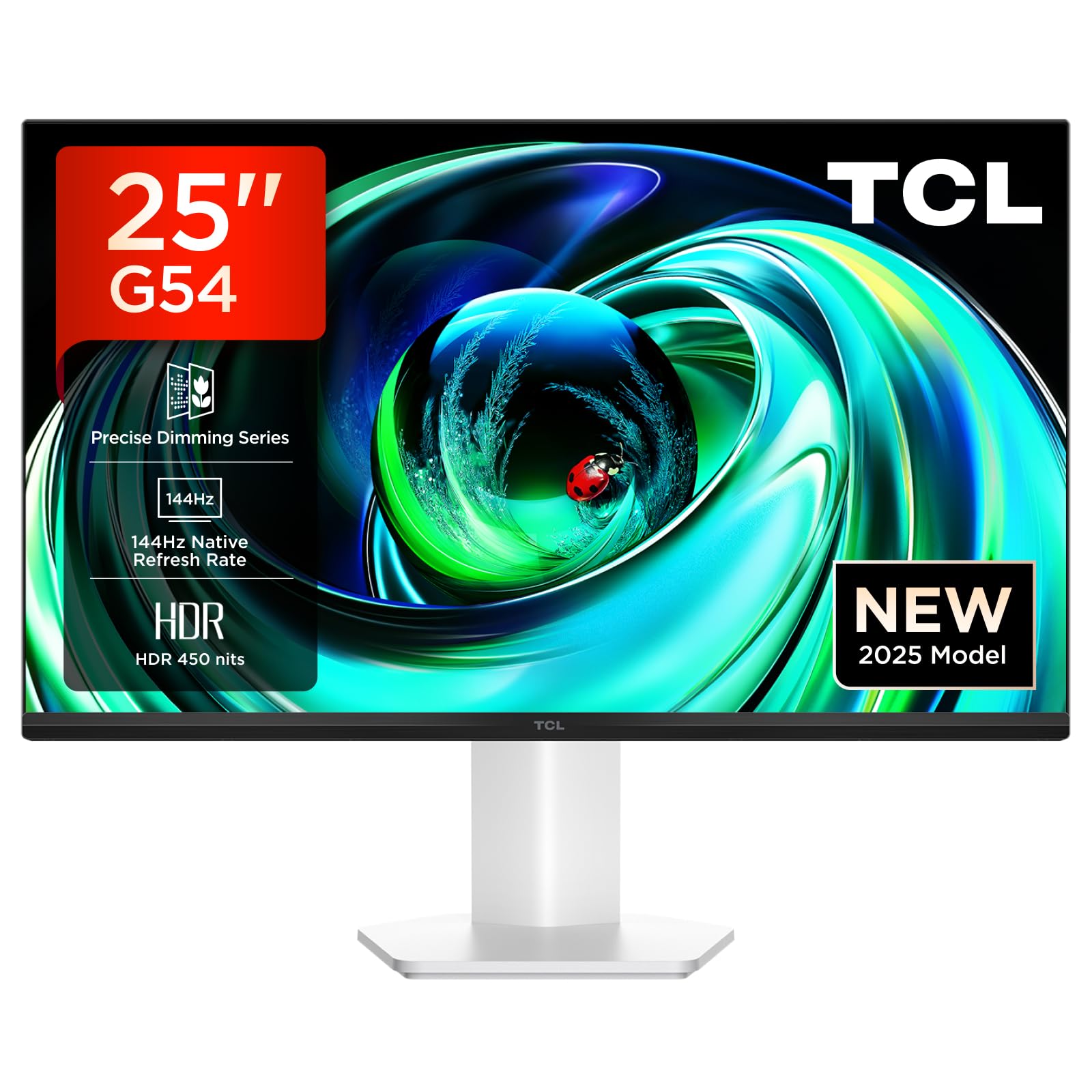
ምስል 1: የፊት view of the TCL Gaming Monitor 25G54.
2. የደህንነት መረጃ
ሞኒተሩን ከመጠቀምዎ በፊት ሁሉንም መመሪያዎች በጥንቃቄ ያንብቡ። ይህንን መመሪያ ለወደፊት ጥቅም ላይ እንዲውል ያስቀምጡት።
- እሳት ወይም የኤሌክትሪክ ንዝረትን ለመከላከል ሞኒተሩን ለዝናብ ወይም ለእርጥበት አያጋልጡት።
- ተቆጣጣሪውን አይክፈቱ ሐasinሰ. በውስጥም ለተጠቃሚ አገልግሎት የሚሰጡ ክፍሎች የሉም። ሁሉንም አገልግሎቶች ብቁ ለሆኑ ባለሙያዎች ያመልክቱ።
- ተቆጣጣሪውን እንዳይወድቅ በተረጋጋ ጠፍጣፋ መሬት ላይ ያድርጉት።
- በተቆጣጣሪው ዙሪያ ትክክለኛውን አየር ማናፈሻን ያረጋግጡ። የአየር ማናፈሻ ክፍተቶችን አያግዱ.
- በአምራቹ የተሰጡትን የኃይል አስማሚ እና ኬብሎችን ብቻ ይጠቀሙ።
- ሞኒተሩ ለረጅም ጊዜ ጥቅም ላይ የማይውል ከሆነ የኃይል መሰኪያውን ከውጪው ያላቅቁ።
3. የጥቅል ይዘቶች
ሁሉም እቃዎች በጥቅልዎ ውስጥ መኖራቸውን ያረጋግጡ፡-
- TCL Gaming Monitor 25G54
- መቆሚያ (መሠረት እና አንገት) ተቆጣጠር
- የኃይል ገመድ
- HDMI ገመድ
- የተጠቃሚ መመሪያ እና የዋስትና ካርድ
Note: Specific cable types (e.g., DisplayPort) may vary by region or package.
4. ማዋቀር
4.1 ማቆሚያውን መሰብሰብ
- መቆጣጠሪያውን በጥንቃቄ ያስወግዱ እና ከማሸጊያው ውስጥ ክፍሎችን ይቁሙ.
- Attach the stand neck to the monitor panel. Ensure it clicks securely into place or is fastened with screws as indicated in the quick start guide.
- የማቆሚያውን መሠረት ከቆመው አንገት ጋር ያያይዙት, በቀረበው ዊንች ይጠብቁት.
- የተገጠመውን መቆጣጠሪያ በተረጋጋ ጠረጴዛ ላይ ያስቀምጡ።
4.2 ተቆጣጣሪውን ማገናኘት
The monitor supports various input options. Connect the appropriate cable from your computer or gaming console to the monitor.
- የኤችዲኤምአይ ግንኙነት Use an HDMI cable to connect your device to the monitor's HDMI port.
- የማሳያ ወደብ ግንኙነት፡- Use a DisplayPort cable to connect your device to the monitor's DisplayPort.
- የዩኤስቢ ግንኙነቶች ተያያዥ ነገሮችን ለማገናኘት የዩኤስቢ ወደቦችን ይጠቀሙ።

ምስል 2: የኋላ view showing the monitor's connectivity ports including HDMI, DisplayPort, and USB.
4.3 በማብራት ላይ
- የኃይል ገመዱን ወደ ተቆጣጣሪው የኃይል ግብዓት እና ከዚያ ከኃይል ማሰራጫ ጋር ያገናኙ።
- Press the power button, usually located on the back or bottom of the monitor, to turn it on.
5. የአሠራር መመሪያዎች
5.1 የማያ ገጽ ላይ ማሳያ (OSD) ምናሌ
The OSD menu allows you to adjust various monitor settings. Access it using the joystick button, typically located on the back of the monitor.

Figure 3: Illustration of the joystick button for OSD menu navigation.
የተለመዱ የ OSD ቅንብሮች
- ብሩህነት/ንፅፅር፡ የማሳያውን የብርሃን እና የንፅፅር ደረጃዎችን ያስተካክሉ.
- የቀለም ቅንጅቶች Modify color temperature, gamma, and color space (e.g., DCI-P3, sRGB).
- የግቤት ምንጭ፡- Manually select the active input (HDMI, DisplayPort).
- የጨዋታ ባህሪያት፡- Enable/disable FreeSync, adjust response time, and other gaming-specific enhancements.
- የሥዕል ሁኔታ፡- Select preset display modes for different content types (e.g., Standard, Game, Movie).
5.2 Ergonomic ማስተካከያዎች
የማሳያ ማቆሚያው ለተሻለ ሁኔታ ergonomic ማስተካከያዎችን ያቀርባል viewምቾት።
- ዘንበል የማያ ገጹን አቀባዊ አንግል ያስተካክሉ።
- ማወዛወዝ፡ ማያ ገጹን በአግድም አዙረው።
- የከፍታ ማስተካከያ; ስክሪኑን ወደ ዓይን ደረጃ ከፍ ያድርጉት ወይም ዝቅ ያድርጉት።
- ምሰሶ፡ Rotate the screen to portrait or landscape orientation.

Figure 4: Illustration of the monitor's ergonomic stand, showing tilt and height adjustment capabilities.
6. ባህሪያት
The TCL Gaming Monitor 25G54 incorporates several key technologies for superior performance:
- ሚኒ የኤልኢዲ ቴክኖሎጂ፡ Combines QLED and OLED advantages for precise, pixel-level illumination, offering sharp contrast and a wide color gamut.
- ትክክለኛ የዲሚንግ ተከታታይ፡ Enhances overall image quality by optimizing light and shadow, providing a high-quality visual experience.
- HDR 400 nit Brightness: With a peak brightness of 450 nits and a contrast ratio of 4,500,000:1, it delivers extended dynamic range and vivid details in both dark and bright areas.
- 144Hz የማደሻ መጠን፡- Ensures smooth and fluid images in all gaming scenes and actions, minimizing motion blur.
- 1ms (GTG) Response Time: An extremely fast response time reduces ghosting and blurring, allowing for quick target acquisition.
- 93% DCI-P3 Wide Color Gamut: Displays vibrant colors with professional-level accuracy, revealing an immersive world of color.
- TÜV Rheinland Flicker-Free & Low Blue Light: Certified for eye protection, this mode blocks harmful blue light and eliminates flicker for prolonged viewምቾት።

ምስል 5 - ተጠናቀቀview of the TCL 25G54 Mini LED Monitor's key features.
7. ጥገና
ትክክለኛ ጥገና የመከታተያዎን ረጅም ዕድሜ እና ጥሩ አፈፃፀም ያረጋግጣል።
- ማያ ገጹን ማጽዳት; ስክሪኑን በቀስታ ለስላሳ እና ከተሸፈነ ጨርቅ ይጥረጉ። ለጠንካራ ምልክቶች፣ በቀጥታ በስክሪኑ ላይ ሳይሆን በጨርቁ ላይ የሚተገበረውን ተቆጣጣሪ-ተኮር የጽዳት መፍትሄ ይጠቀሙ።
- ሲን ማጽዳትasing: ተቆጣጣሪውን ለማጽዳት ለስላሳ ደረቅ ጨርቅ ይጠቀሙ ሐasinሰ. ገላጭ ማጽጃዎችን ያስወግዱ.
- የአየር ማናፈሻ; Ensure the ventilation openings are clear of dust and debris. Use compressed air to clean if necessary.
- ኃይል ዝጋ: Always turn off and unplug the monitor before cleaning or if it will be unused for an extended period.
8. መላ መፈለግ
በእርስዎ ማሳያ ላይ ችግሮች ካጋጠሙዎት የሚከተሉትን የተለመዱ መፍትሄዎች ይመልከቱ፡
| ችግር | ሊሆን የሚችል ምክንያት | መፍትሄ |
|---|---|---|
| በማያ ገጹ ላይ ምንም ምስል የለም | Power cable disconnected, input cable loose, incorrect input source selected. | Check power and input cable connections. Select correct input source via OSD. |
| ምስሉ የደበዘዘ ወይም የተዛባ ነው። | Incorrect resolution, faulty cable, graphics driver issue. | የማሳያ ጥራትን ወደ 1920x1080 ያዘጋጁ። የተለየ ገመድ ይሞክሩ። የግራፊክስ ነጂዎችን ያዘምኑ። |
| የሚያብረቀርቅ ማያ | Refresh rate mismatch, faulty cable, external interference. | Ensure refresh rate is set to 144Hz. Try a different cable. Check for nearby electronic devices. |
| ድምጽ የለም። | Audio cable not connected, volume too low, incorrect audio output selected. | Connect headphones to the monitor's audio output. Adjust volume. Select monitor as audio output on your device. |
እነዚህን መፍትሄዎች ከሞከሩ በኋላ ችግሩ ከቀጠለ፣ እባክዎን የቲሲኤል የደንበኛ ድጋፍን ያነጋግሩ።
9. ዝርዝሮች
| ባህሪ | ዝርዝር መግለጫ |
|---|---|
| የምርት ስም | TCL |
| የሞዴል ቁጥር | 25G54 |
| የስክሪን መጠን | 25 ኢንች |
| ጥራት | 1920x1080 (ኤፍኤችዲ) |
| የፓነል ዓይነት | አይፒኤስ |
| የማደስ ደረጃ | 144 Hz |
| የምላሽ ጊዜ | 1 ሚሴ (GTG) |
| ብሩህነት | 450 ኒት |
| የንፅፅር ሬሾ | 4,500,000፡1 |
| የኤችዲአር ድጋፍ | VESA Display HDR 400 |
| ቀለም ጋሙት | 93% DCI-P3 |
| Viewማእዘን | 178 ዲግሪዎች |
| ግንኙነት | 1x HDMI, 1x DisplayPort, 4x USB, Headphone Output |
| አስማሚ ማመሳሰል | FreeSync |
| ልኬቶች (DxWxH) | 18.2 x 55.6 x 43.9 ሴ.ሜ |
| ክብደት | 4.39 ኪ.ግ |
| ልዩ ባህሪያት | Mini LED, Flicker-Free, Low Blue Light |
10. ዋስትና እና ድጋፍ
Your TCL Gaming Monitor 25G54 comes with a 2-year manufacturer's warranty. For warranty claims, technical support, or service inquiries, please visit the official TCL support webድህረ ገጽ ወይም የአካባቢዎን ቸርቻሪ ያነጋግሩ።
ለበለጠ መረጃ፣ ይጎብኙ የቲሲኤል መደብር በአማዞን ላይ.
11. እንደገና ጥቅም ላይ የዋለ መረጃ
Please dispose of this product responsibly. Electronic waste should not be disposed of with household waste. Follow local regulations for the proper disposal of electronic devices. This helps protect the environment and human health.