
1. በላይview
The ARMOURY Scout A-150 is a high-performance gaming PC designed for demanding applications and immersive gaming experiences. It features an AMD Ryzen 7 5700 processor, an NVIDIA GeForce RTX 3050 graphics card, 16GB of RAM, and a 1TB NVMe SSD for rapid data access. This system comes pre-installed with Windows 11 Home and includes integrated Wi-Fi and Bluetooth connectivity.

ምስል 1.1: የፊት እና ጎን view of the ARMOURY Scout A-150 Gaming PC.
2. የማዋቀር መመሪያዎች
2.1 ማሸግ
- Carefully remove the PC from its packaging.
- Inspect the PC for any signs of damage during transit.
- Remove any protective films or packaging materials from the exterior and interior (if applicable).
2.2 ማገናኛ ፔሪፈራል
Connect your monitor, keyboard, mouse, and other peripherals to the appropriate ports on the rear and top of the PC.
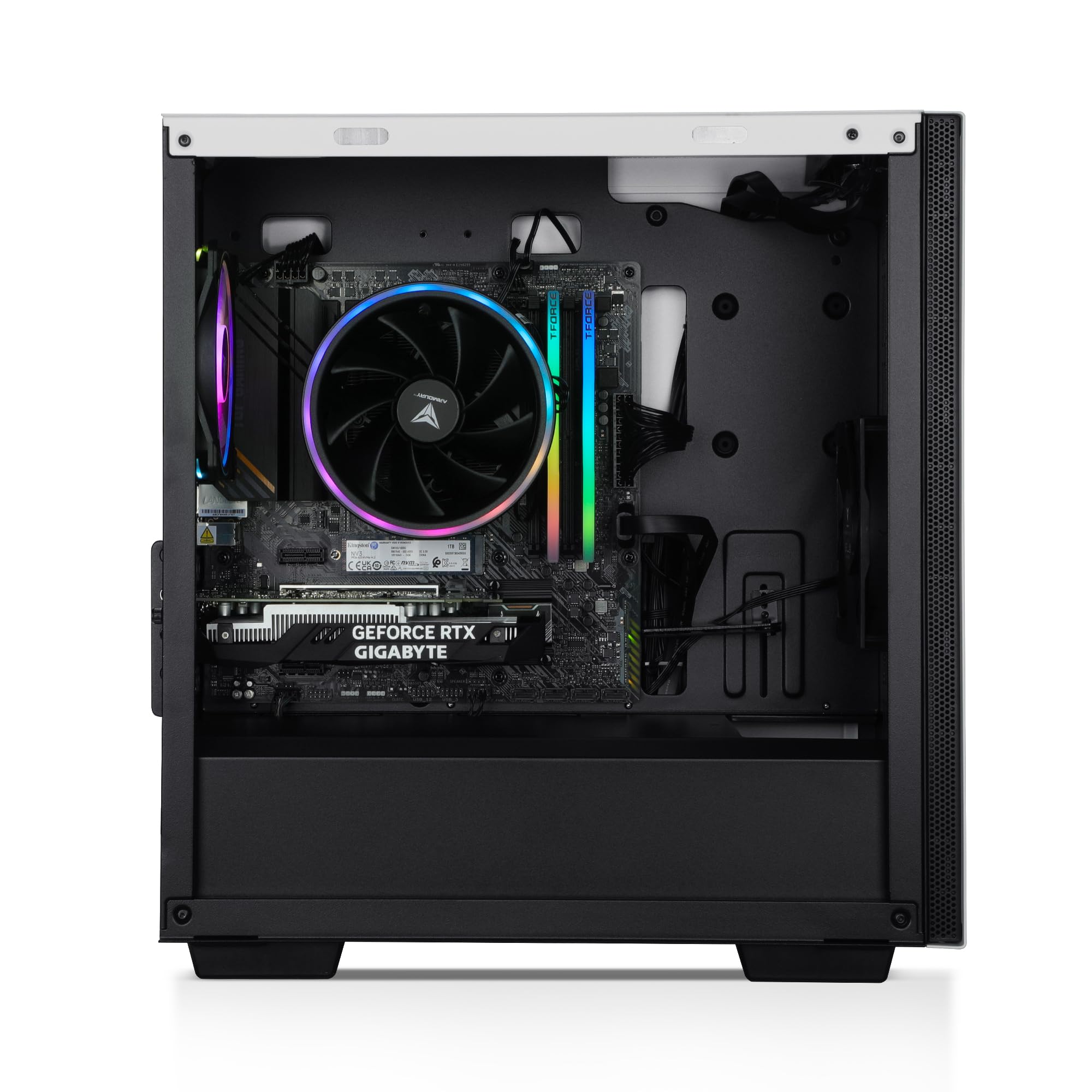
Figure 2.1: Rear panel connections including USB, HDMI, DisplayPort, Ethernet, and audio ports.
- ተቆጣጠር፥ Connect your monitor to the graphics card's HDMI or DisplayPort outputs. Ensure the cable is securely fastened.
- የቁልፍ ሰሌዳ እና መዳፊት; የእርስዎን ቁልፍ ሰሌዳ እና መዳፊት ከማንኛውም የሚገኙ የዩኤስቢ ወደቦች ጋር ያገናኙ።
- ኦዲዮ፡ Connect speakers or headphones to the audio output jacks on the rear or top panel.
- አውታረ መረብ፡ For a wired connection, connect an Ethernet cable to the LAN port. For wireless, ensure the Wi-Fi antennas (if provided) are attached.
- ኃይል፡- Connect the power cable to the PC's power supply unit (PSU) and then to a grounded electrical outlet.
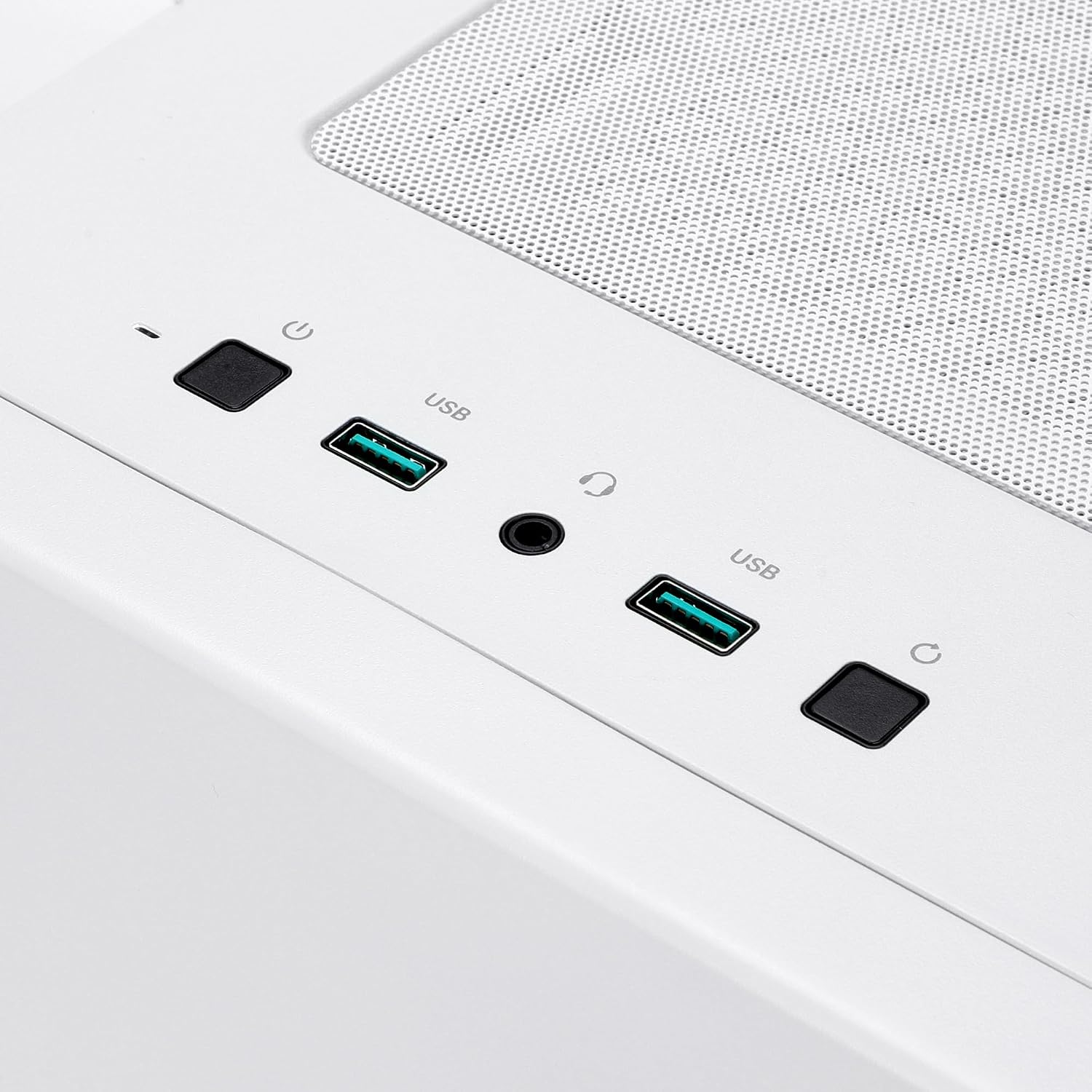
Figure 2.2: Top panel connections including USB ports and audio jack.
2.3 የመጀመሪያ ኃይል-በ
- ሁሉም ግንኙነቶች ደህንነታቸው የተጠበቀ መሆኑን ያረጋግጡ።
- Press the power button located on the top panel of the PC.
- The system will boot into Windows 11 Home. Follow the on-screen instructions to complete the initial setup, including language, region, network connection, and user account creation.
3. የአሠራር መመሪያዎች
3.1 ማብራት እና ማጥፋት
- ለማብራት፡- Press the power button on the top of the PC.
- ለመዝጋት፡- Click the Start button in Windows, then select Power > Shut down. Avoid directly unplugging the PC or holding the power button for extended periods during normal operation, as this can lead to data loss or system instability.
- ዳግም ለመጀመር፡- በዊንዶውስ ውስጥ የጀምር አዝራሩን ጠቅ ያድርጉ እና ከዚያ ኃይል > ዳግም አስጀምር የሚለውን ይምረጡ።
3.2 ከአውታረ መረቦች ጋር መገናኘት
- ዋይ ፋይ፡ በዊንዶውስ 11 ውስጥ በተግባር አሞሌው ውስጥ ያለውን የአውታረ መረብ አዶ ጠቅ ያድርጉ ፣ የሚፈልጉትን የ Wi-Fi አውታረ መረብ ይምረጡ ፣ የይለፍ ቃሉን ያስገቡ እና አገናኝን ጠቅ ያድርጉ።
- ብሉቱዝ፡ To pair Bluetooth devices, go to Settings > Bluetooth & devices, ensure Bluetooth is enabled, and then select 'Add device'.
3.3 ጨዋታ እና አፈጻጸም
- Ensure your PC has adequate ventilation, especially during extended gaming sessions.
- Keep graphics drivers updated for optimal performance. You can download the latest drivers from the NVIDIA webጣቢያ.
- Close unnecessary background applications to free up system resources for gaming.
4. ጥገና
4.1 የአቧራ አስተዳደር
Dust accumulation can hinder cooling performance and potentially damage components. Regular cleaning is recommended.

ምስል 4.1 - ውስጣዊ view of the PC, highlighting the CPU cooler and graphics card, areas prone to dust accumulation.
- ድግግሞሽ፡ Clean the interior of your PC every 3-6 months, or more frequently if in a dusty environment.
- ሂደት፡-
- Shut down the PC completely and unplug the power cable.
- Open the side panel of the PC case.
- Use compressed air to gently blow dust out of fans (CPU cooler, case fans, GPU fans) and heatsinks. Hold fans in place to prevent over-spinning.
- Wipe down accessible surfaces with a microfiber cloth.
- የጎን ፓነልን ደህንነቱ በተጠበቀ ሁኔታ ይዝጉ።
4.2 የሶፍትዌር ዝመናዎች
- የዊንዶውስ ዝመናዎች; የስርዓት መረጋጋትንና ደህንነትን ለማረጋገጥ በቅንብሮች > የዊንዶውስ ዝመና በኩል የዊንዶውስ ዝመናዎችን በመደበኛነት ይፈትሹ እና ይጫኑ።
- የአሽከርካሪ ማሻሻያ Keep your graphics card drivers (NVIDIA) and motherboard drivers updated for optimal performance and compatibility.
5. መላ መፈለግ
| ችግር | ሊሆን የሚችል ምክንያት | መፍትሄ |
|---|---|---|
| ፒሲው አይበራም | Loose power cable, PSU switch off, faulty outlet | Check power cable connections, ensure PSU switch is ON, try a different power outlet. |
| በሞኒተር ላይ ምንም ማሳያ የለም | Monitor cable loose, incorrect input selected on monitor, monitor off, graphics card issue | Ensure monitor cable is securely connected to the graphics card, check monitor power, select correct input source on monitor. |
| የስርዓት አፈፃፀም ቀርፋፋ | Too many background programs, outdated drivers, dust accumulation, malware | Close unnecessary applications, update drivers, clean PC interior, run antivirus scan. |
| የWi-Fi/ብሉቱዝ ግንኙነት ችግሮች | Antennas loose, drivers outdated, interference | Ensure Wi-Fi antennas are securely attached, update wireless drivers, move PC away from potential interference sources. |
6. ዝርዝሮች
| አካል | ዝርዝር |
|---|---|
| የምርት ስም | የጦር መሣሪያ |
| ሞዴል | Scout A-150 (RTARU00150) |
| የቅጽ ምክንያት | ማዕከላዊ ማማ |
| ስርዓተ ክወና | ዊንዶውስ 11 መነሻ |
| ሲፒዩ | AMD Ryzen 7 5700 (8 Cores / 16 Threads, 3.8 GHz up to 4.6 GHz Boost) |
| ጂፒዩ | NVIDIA GeForce RTX 3050 (6GB Graphics Memory) |
| ራም | 16GB DDR SDRAM (4 Memory Slots Available) |
| ማከማቻ | 1TB Kingston NVMe SSD |
| Motherboard | A520M-ፕላስ ዋይፋይ |
| የገመድ አልባ ግንኙነት | Wi-Fi + ብሉቱዝ |
| ማቀዝቀዝ | ዝቅተኛ-ፕሮfile Air Cooler with RGB, Armoury 120mm Case Fans |
| የኃይል አቅርቦት | 650W 80PLUS Bronze |
| ጉዳይ | Armoury MACUBE110 |
| ወደቦች | HDMI, DisplayPort, USB (Total 6), Ethernet, Audio Jacks |
| ተጨማሪ ባህሪያት | RGB መብራት |
7. የዋስትና መረጃ
According to product information, there is no explicit warranty description provided for this product.
8. ድጋፍ
For technical assistance or further inquiries regarding your ARMOURY Scout A-150 Gaming PC, please contact the manufacturer:
አምራች፡ Armoury
Refer to the official ARMOURY website or your purchase documentation for specific contact methods and hours of operation.