1. የደህንነት መረጃ
Please read all instructions carefully before using this monitor. Keep this manual for future reference.
- እሳት ወይም የኤሌክትሪክ ንዝረትን ለመከላከል ሞኒተሩን ለዝናብ ወይም ለእርጥበት አያጋልጡት።
- ተቆጣጣሪውን አይክፈቱ ሐasinሰ. በውስጥም ለተጠቃሚ አገልግሎት የሚሰጡ ክፍሎች የሉም። ሁሉንም አገልግሎቶች ብቁ ለሆኑ ባለሙያዎች ያመልክቱ።
- ተቆጣጣሪውን እንዳይወድቅ በተረጋጋ ጠፍጣፋ መሬት ላይ ያድርጉት።
- በተቆጣጣሪው ዙሪያ ትክክለኛውን አየር ማናፈሻን ያረጋግጡ። የአየር ማናፈሻ ክፍተቶችን አያግዱ.
- ከተቆጣጣሪው ጋር የቀረበውን የኃይል አስማሚ ብቻ ይጠቀሙ።
- ተቆጣጣሪው ረዘም ላለ ጊዜ ጥቅም ላይ የማይውል ከሆነ የኃይል መሰኪያውን ከውጪው ያላቅቁት።
2. የጥቅል ይዘቶች
ሁሉም እቃዎች በጥቅልዎ ውስጥ መኖራቸውን ያረጋግጡ፡-
- CRUA 34-inch Ultrawide Gaming Monitor
- መቆሚያ (መሠረት እና አንገት) ተቆጣጠር
- የኃይል አስማሚ እና ገመድ
- HDMI ገመድ
- DisplayPort (DP) ገመድ
- የተጠቃሚ መመሪያ
- ለመቆሚያ ስብሰባ ብሎኖች
3. ማዋቀር
3.1 ማቆሚያውን መሰብሰብ
- ተቆጣጣሪውን ከማሸጊያው ላይ በጥንቃቄ ያስወግዱት, ለስላሳ ሽፋን ላይ እንዲቆይ ያድርጉት.
- የተሰጡትን ዊንጮች በመጠቀም የመቆሚያውን አንገት ከሞኒተሩ የኋላ ፓነል ጋር ያያይዙት።
- የመቆሚያውን መሠረት ከቆመበት አንገት ጋር ያገናኙ እና በተጠቀሰው ዊንጣ ያስጠብቁት።
- የተገጠመውን መቆጣጠሪያ በተረጋጋ ጠረጴዛ ላይ ያስቀምጡ።
The monitor stand allows for tilt adjustment to find your optimal viewአንግል።
3.2 ግድግዳ መትከል (አማራጭ)
This monitor supports VESA wall mounting (75x75mm). To wall mount:
- ስቶኑን ከሞኒተሩ ላይ ያውጡት። አስቀድሞ ተያይዟል።
- Attach a compatible VESA 75x75mm wall mount bracket (not included) to the monitor's rear panel using appropriate screws.
- ደህንነቱ በተጠበቀ ሁኔታ ለመጫን ከግድግዳዎ ጋር የተሰጡትን መመሪያዎች ይከተሉ።

ምስል: የኋላ view of the monitor highlighting the 75x75mm wall mount area and various input ports.
3.3 ከመሳሪያ ጋር መገናኘት
Connect your computer or gaming console to the monitor using one of the available ports:
- ዲስፓርትፎርድ (DP 1.4): For optimal performance, especially for high refresh rates and FreeSync.
- ኤችዲኤምአይ (ኤችዲኤምአይ 1.4 x2)፦ Compatible with most devices.
Connect the power adapter to the monitor's DC input and then plug it into a power outlet.
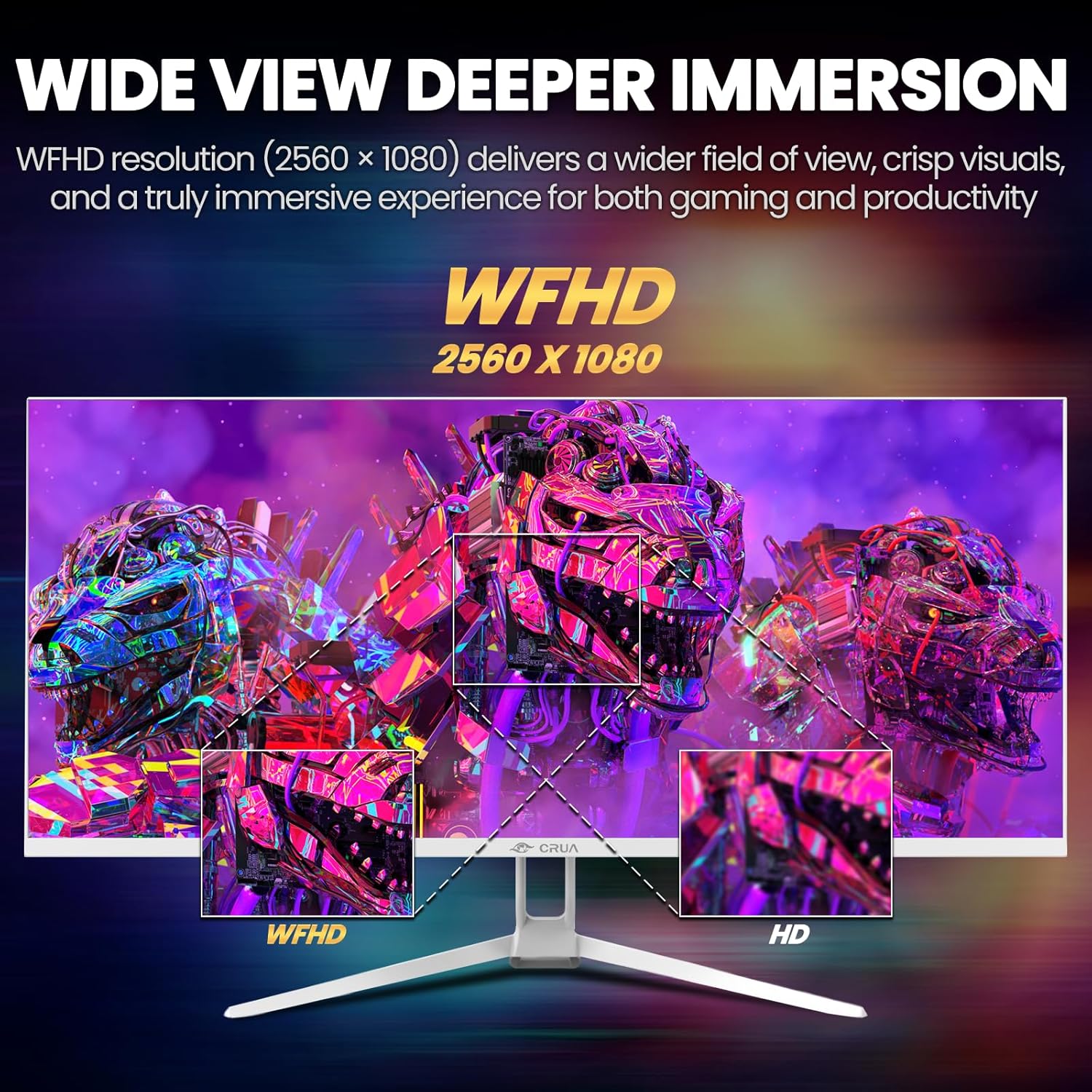
Image: A detailed diagram illustrating the monitor's connectivity options, including two HDMI 1.4 ports, one DisplayPort 1.4, an audio output, a USB charging port, and the DC power input.
4. የአሠራር መመሪያዎች
4.1 ማብራት / ማጥፋት
Press the power button, typically located on the bottom or rear of the monitor, to turn it on or off. The power indicator light will illuminate when the monitor is on.
4.2 የማያ ገጽ ላይ ማሳያ (OSD) ምናሌ
The OSD menu allows you to adjust various monitor settings. Access it by pressing the OSD menu button (often a joystick-like button or a set of dedicated buttons) on the monitor.
- አሰሳ፡ Use the OSD buttons or joystick to navigate through the menu options.
- ምርጫ፡- ንዑስ-ሜኑ ለመግባት ወይም መቼቱን ለማረጋገጥ ምረጥ የሚለውን ቁልፍ ተጫን።
- ውጣ፡ ወደ ኋላ ለመመለስ ወይም የ OSD ምናሌን ለመዝጋት የመውጫ አዝራሩን ይጠቀሙ።
4.3 የምስል ቅንብሮች
Adjust visual parameters for optimal viewing:
- ብሩህነት፡- የስክሪኑን አጠቃላይ ብርሃን ይቆጣጠራል።
- ንፅፅር፡ በብርሃን እና በጨለማ ቦታዎች መካከል ያለውን ልዩነት ያስተካክላል.
- የቀለም ሙቀት: ቅድመ-ቅምጥ የቀለም ሁነታዎችን ይመርጣል (ለምሳሌ፡ ሞቅ ያለ፣ አሪፍ፣ ተጠቃሚ)።
- ሰማያዊ ብርሃን ማጣሪያ; Reduces blue light emission to minimize eye strain during prolonged use.
- ምጥጥነ ገጽታ፡ Set to 21:9 for ultrawide content or other options as needed.

Image: The CRUA ultrawide monitor showcasing its 21:9 aspect ratio, demonstrating how it provides more horizontal screen space compared to a standard 16:9 display.
4.4 የድምጽ ቅንብሮች
The monitor includes built-in speakers. Adjust volume through the OSD menu or your connected device. An external audio output port is also available for headphones or external speakers.
4.5 AMD FreeSync
To enable AMD FreeSync for tear-free gaming, ensure your graphics card supports FreeSync and that it is enabled in your graphics card's control panel. Then, activate FreeSync within the monitor's OSD menu.

Image: A visual comparison demonstrating the effect of AMD FreeSync, showing a torn image when FreeSync is off and a smooth image when FreeSync is on, highlighting the 120Hz refresh rate.
5. ጥገና
5.1 ማያ ገጹን ማጽዳት
- መቆጣጠሪያውን ያጥፉ እና የኃይል ገመዱን ያላቅቁ።
- ለስላሳ፣ ከቆሸሸ ነፃ የሆነ ጨርቅ በትንሹ ተጠቀም መampበውሃ ወይም በልዩ ማያ ገጽ ማጽጃ የታሸገ።
- Wipe the screen gently. Do not press hard or use abrasive cleaners.
5.2 አጠቃላይ እንክብካቤ
- መቆጣጠሪያውን በቀጥታ ከፀሀይ ብርሀን ፣ ከሙቀት ምንጮች እና ከመጠን በላይ አቧራ ያርቁ።
- ከባድ ነገሮችን በተቆጣጣሪው ወይም በኬብሉ ላይ ከማስቀመጥ ይቆጠቡ።
- Do not spray cleaning liquids directly onto the monitor.
6. መላ መፈለግ
በእርስዎ ማሳያ ላይ ችግሮች ካጋጠሙዎት የሚከተሉትን የተለመዱ ችግሮች እና መፍትሄዎች ይመልከቱ፡
| ችግር | ሊሆን የሚችል መፍትሄ |
|---|---|
| በማያ ገጹ ላይ ምንም ምስል የለም | Ensure power cable is securely connected and the monitor is turned on. Check video cable (HDMI/DP) connections to both monitor and computer. Select the correct input source via the OSD menu. |
| ምስሉ ብልጭ ድርግም የሚል ወይም ያልተረጋጋ ነው። | Check video cable connections. Ensure your graphics card drivers are up to date. If using FreeSync, try disabling it temporarily to see if the issue persists. Adjust refresh rate in your computer's display settings. |
| ከአብሮገነብ ድምጽ ማጉያዎች ምንም ድምፅ የለም። | Increase volume via the OSD menu and your computer's sound settings. Ensure the correct audio output device is selected on your computer. Check if the audio cable (if used) is properly connected. |
| ቀለሞች የተሳሳቱ ናቸው | Reset picture settings to factory defaults via the OSD menu. Adjust color temperature and individual RGB values if available. |
If the problem persists after trying these solutions, please contact CRUA customer support.
7. ዝርዝሮች
Key technical specifications for the CRUA 34-inch Ultrawide Gaming Monitor (Model CR340AU):
| ባህሪ | ዝርዝር መግለጫ |
|---|---|
| የስክሪን መጠን | 34 ኢንች |
| የፓነል ዓይነት | አይፒኤስ |
| ጥራት | 2560 x 1080 (WFHD) |
| ምጥጥነ ገጽታ | 21፡9 |
| የማደስ ደረጃ | 120Hz |
| የምላሽ ጊዜ | (Not specified in provided data, typical for IPS is 1-5ms GTG) |
| ብሩህነት | 350 ሲዲ/ሜXNUMX |
| ቀለም ጋሙት | 120% sRGB |
| የቀለም ጥልቀት | 8-ቢት (16.7 ሚሊዮን ቀለሞች) |
| ViewAngles ውስጥ | 178° (አግድም/አቀባዊ) |
| አስማሚ ማመሳሰል | AMD FreeSync |
| ግንኙነት | 2x HDMI 1.4, 1x DisplayPort 1.4, Audio Out, USB Charging, DC Power Input |
| አብሮ የተሰሩ ስፒከሮች | አዎ |
| የግድግዳ ተራራ | VESA 75x75 ሚሜ |
| የምርት ልኬቶች | 9.4 x 24.13 x 17.47 ኢንች |
| የእቃው ክብደት | 14.92 ፓውንድ |
8. ዋስትና እና ድጋፍ
CRUA provides high-quality computer monitors and customer service. For any questions or support needs regarding your CRUA 34-inch Ultrawide Gaming Monitor, please contact CRUA customer support.
Refer to your purchase documentation or the official CRUA webለተወሰኑ የዋስትና ውሎች እና የእውቂያ መረጃ ጣቢያ።