
1. መግቢያ
The CORBOBO Aula F3099 is a versatile wireless keyboard designed for various computing needs, offering triple-mode connectivity, customizable RGB backlighting, and a multi-function media knob. This manual provides detailed instructions for setup, operation, maintenance, and troubleshooting to ensure optimal performance.
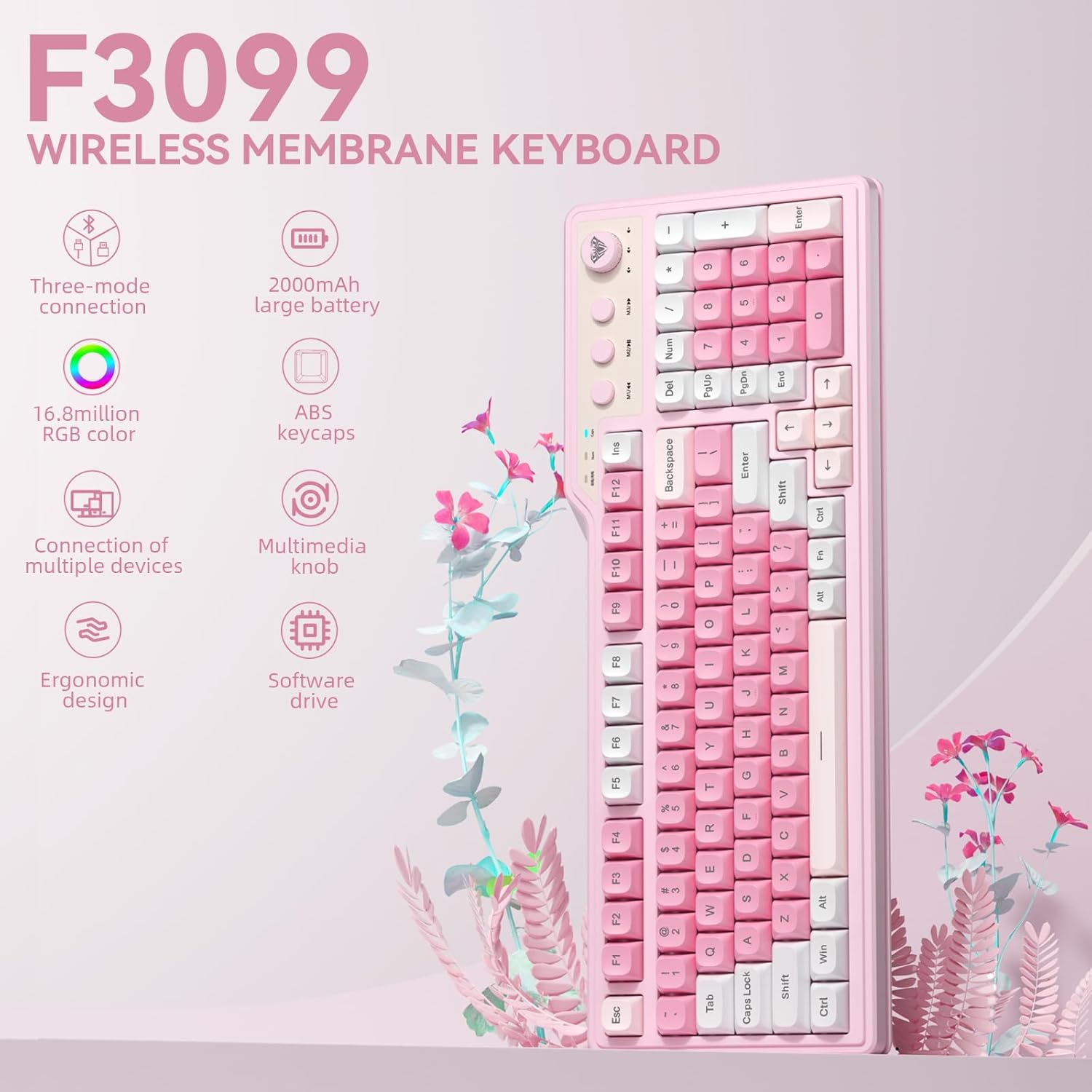
Image: The Aula F3099 Wireless Keyboard, showcasinሙሉ አቀማመጡ እና ዲዛይኑ።
2. በሳጥኑ ውስጥ ያለው
እባክዎ ሁሉም እቃዎች በጥቅሉ ውስጥ መኖራቸውን ያረጋግጡ፡-
- የቁልፍ ሰሌዳ x 1
- የቁልፍ መጎተቻ x 1
- ዩኤስቢ-ሲ ኬብል x 1
- የተጠቃሚ መመሪያ x1
Video: An unboxing demonstration of the AULA F3099 Wireless Keyboard, showing the contents of the package.
3. ማዋቀር
3.1 የግንኙነት ሁነታዎች
The Aula F3099 keyboard supports three connectivity modes:
- 2.4ጂ ገመድ አልባ ሁነታ፡- Connects via a USB receiver.
- Bluetooth (BT5.0) Mode: Connects wirelessly to up to three devices.
- ባለገመድ ሁነታ Connects directly via the included USB-C cable.

Image: Diagram illustrating the three connection modes (2.4G, Bluetooth, Wired) and how to switch between them using Fn key combinations.
3.2 የመጀመሪያ ግንኙነት
- ባለገመድ ሁነታ Connect the USB-C cable from the keyboard to your computer's USB port. The keyboard will automatically switch to wired mode.
- 2.4ጂ ገመድ አልባ ሁነታ፡- ተጫን fn + ~ to activate 2.4G mode. Insert the USB receiver into your computer. The keyboard should connect automatically.
- የብሉቱዝ ሁኔታ
- ተጫን fn+1, fn+2, ወይም fn+3 የብሉቱዝ ቻናል ለመምረጥ።
- Long-press the selected Fn + (1/2/3) combination for 3 seconds to enter pairing mode. The indicator light will flash.
- On your device (PC, laptop, smartphone, tablet), search for Bluetooth devices and select "AULA F3099" to pair.
- Once paired, the indicator light will stop flashing. You can save up to three different devices.
3.3 የአሽከርካሪ ጭነት (ዊንዶውስ ብቻ)
For macro customization and advanced RGB settings, download the official driver from bit.ly/m/corbobo. The driver only supports wired mode operation on Windows systems.
4. የአሠራር መመሪያዎች
4.1 የግንኙነት ሁነታዎችን የመቀያየር
በተገናኙ መሳሪያዎች ወይም ሁነታዎች መካከል ለመቀያየር፦
- ባለገመድ ሁነታ የዩኤስቢ-ሲ ገመዱን ያገናኙ።
- 2.4ጂ ገመድ አልባ ሁነታ፡- ተጫን fn + ~.
- የብሉቱዝ ሁኔታ ተጫን fn+1, fn+2, ወይም fn+3 to switch to a previously paired device.
4.2 Dual-Mode Multimedia Knob
The knob offers two operational modes: Gaming Mode and Office Mode.
- Long-press the knob for 3 seconds to switch between Gaming Mode and Office Mode.
የጨዋታ ሁኔታ
- የማዞሪያ ኖብ፦ Increase/decrease RGB brightness.
- የፕሬስ ቁልፍ፡ Cycle through backlight effects.
የቢሮ ሁነታ
- የማዞሪያ ኖብ፦ Increase/decrease computer volume.
- የፕሬስ ቁልፍ፡ የድምጽ ድምጸ-ከል አንሳ/አጥፋ።

Image: Visual guide to the dual-mode functionality of the multimedia knob, detailing actions for both gaming and office modes.
Video: Demonstration of the F3099 Wireless Keyboard's media knob functionality.
4.3 Multimedia Hot Keys (M1, M2, M3)
The three multimedia buttons next to the knob have different functions depending on the active mode:
- In Office Mode:
- M1፡ የቀድሞ ዘፈን
- M2፡ ተጫወት/ ለአፍታ አቁም
- M3፡ ቀጣይ ዘፈን
- In Gaming Mode: These buttons enable macro shortcut recording. By default, M1/M2/M3 have no function in gaming mode.

Image: Explanation of the multimedia hot keys (M1, M2, M3) and their functions in both office and gaming modes.
4.4 RGB የጀርባ ብርሃን መቆጣጠሪያ
The keyboard features 16.8 million colors of RGB lighting. Adjustments can be made using shortcut keys or the software driver.
- Fn + END: Adjust light colors (in constant light mode).
- Fn + PGUP: Adjust the next light effect.
- Fn + PGDN: Adjust the last light effect.
- Fn + =: Increase light brightness.
- Fn + -: Decrease light brightness.
- Fn + [: የብርሃን ፍጥነትን ይቀንሱ።
- Fn +]፡ የብርሃን ፍጥነትን ይጨምሩ።
For advanced customization, use the software driver (Windows only).

Image: Visual guide to controlling RGB backlighting effects, brightness, and speed using Fn key combinations.
4.5 ማክሮ ፕሮግራሚንግ
Every key on the F3099 keyboard supports macro customization via the programmable driver (Windows only, wired mode required).
- ነጂውን ከ ያውርዱ እና ይጫኑት። bit.ly/m/corbobo.
- Connect the keyboard in wired mode.
- Open the driver software to access macro settings and assign complex actions to individual keys.

Image: Screenshot of the AULA F3099 software driver interface for macro programming and RGB settings.
5. ጥገና
ትክክለኛው ጥገና የቁልፍ ሰሌዳዎን ረጅም ጊዜ እና አፈፃፀም ያረጋግጣል.
- ማጽዳት፡ Use a soft, dry cloth to wipe the keyboard surface. For deeper cleaning, use a keycap puller to remove keycaps and clean underneath with compressed air or a small brush.
- ማከማቻ፡ የቁልፍ ሰሌዳውን በቀጥታ ከፀሀይ ብርሀን እና ከከፍተኛ ሙቀት ርቆ በቀዝቃዛና ደረቅ ቦታ ያከማቹ።
- ባትሪ፡ If using wireless modes, ensure the keyboard is charged regularly to maintain battery health.
Video: A short video demonstrating the method for installing accidentally detached keycaps, useful for maintenance.
6. መላ መፈለግ
If you encounter issues with your Aula F3099 keyboard, refer to the following common problems and solutions:
| ችግር | ሊሆን የሚችል ምክንያት | መፍትሄ |
|---|---|---|
| Keyboard not connecting in 2.4G mode | USB receiver not properly inserted or keyboard not in 2.4G mode. | Ensure the USB receiver is fully inserted. Press fn + ~ to switch to 2.4G mode. Try a different USB port. |
| Keyboard not connecting in Bluetooth mode | Not in pairing mode, device not discoverable, or already connected to another channel. | ለረጅም ጊዜ ተጫን Fn + (1/2/3) to enter pairing mode. Ensure Bluetooth is enabled on your device. Forget and re-pair the device if necessary. |
| RGB የኋላ መብራት አይሰራም ወይም ተጣብቋል | Incorrect settings or software glitch. | ተጠቀም Fn key combinations to adjust lighting. If using the driver, restart the software or reinstall it. Ensure the keyboard is charged. |
| ቁልፎች ምላሽ አይሰጡም | Low battery, connectivity issue, or software problem. | Charge the keyboard. Re-establish connection (wired, 2.4G, or Bluetooth). Restart your computer. If the issue persists, contact support. |
| የመልቲሚዲያ ቁልፍ እየሰራ አይደለም | Incorrect mode or temporary software issue. | Long-press the knob to switch between Gaming and Office modes. Restart the keyboard by turning it off and on. |
7. ዝርዝሮች
| ባህሪ | ዝርዝር |
|---|---|
| የምርት ስም | ኮርቦቦ |
| የሞዴል ቁጥር | F3099 |
| የግንኙነት ቴክኖሎጂ | 2.4GHz, BT 5.0, USB-C |
| የቁልፍ ሰሌዳ መግለጫ | ሜምብራን |
| የቁልፎች ብዛት | 104 |
| የቁልፍ ሰሌዳ አቀማመጥ | QWERTY |
| የቁልፍ ሰሌዳ የኋላ መብራት | RGB (16.8 ሚሊዮን ቀለሞች) |
| የኃይል ምንጭ | በባትሪ የተጎላበተ |
| የምርት ልኬቶች | 17.51"ኤል x 8.07" ዋ x 1.96" ኤች |
| ተስማሚ መሣሪያዎች | የጨዋታ ኮንሶል፣ ላፕቶፕ፣ ፒሲ፣ ስማርትፎን፣ ታብሌት |
| የማቀፊያ ቁሳቁስ | ፕላስቲክ |
8. ዋስትና እና ድጋፍ
The CORBOBO Aula F3099 Wireless Keyboard comes with a የ 6-ወር ዋስትና ከተገዛበት ቀን ጀምሮ. ይህ ዋስትና በመደበኛ አጠቃቀም ላይ የምርት ጉድለቶችን እና ጉድለቶችን ይሸፍናል።
For warranty claims, technical support, or any inquiries, please contact CORBOBO Direct through the platform where you purchased the product or refer to the contact information provided in your purchase documentation.
የመመለሻ መመሪያ፡ ይህ ምርት ከተገዛበት ቀን ጀምሮ በ30 ቀናት ውስጥ ተመላሽ ገንዘብ ወይም ምትክ ለማግኘት ብቁ ሲሆን ይህም በቸርቻሪው የመመለሻ ፖሊሲ መሰረት ነው።