
1. በላይview
The CORBOBO AULA F3099 is a versatile wireless keyboard designed for various computing needs, offering multiple connectivity options, customizable RGB backlighting, and a comfortable typing experience. This manual provides detailed instructions for setup, operation, and maintenance.
ቁልፍ ባህሪዎች
- የሶስትዮሽ ሁነታ ግንኙነት፡ Seamlessly switch between 2.4GHz wireless, Bluetooth 5.0, and USB-C wired connections.
- 2-in-1 Multifunction Knob: Control media volume/mute or cycle RGB backlight effects and brightness.
- Programmable Driver: Customize macros and assign functions to individual keys (Windows systems, wired mode only).
- Durable & Quiet Typing: Membrane silicone keys provide a smooth, quiet keystroke feel.
- RGB የኋላ ብርሃን Multiple lighting effects with 16.8 million colors, adjustable brightness and speed.
- Ergonomic ንድፍ; Foldable dual-stage stand for adjustable tilt angles to reduce wrist strain.
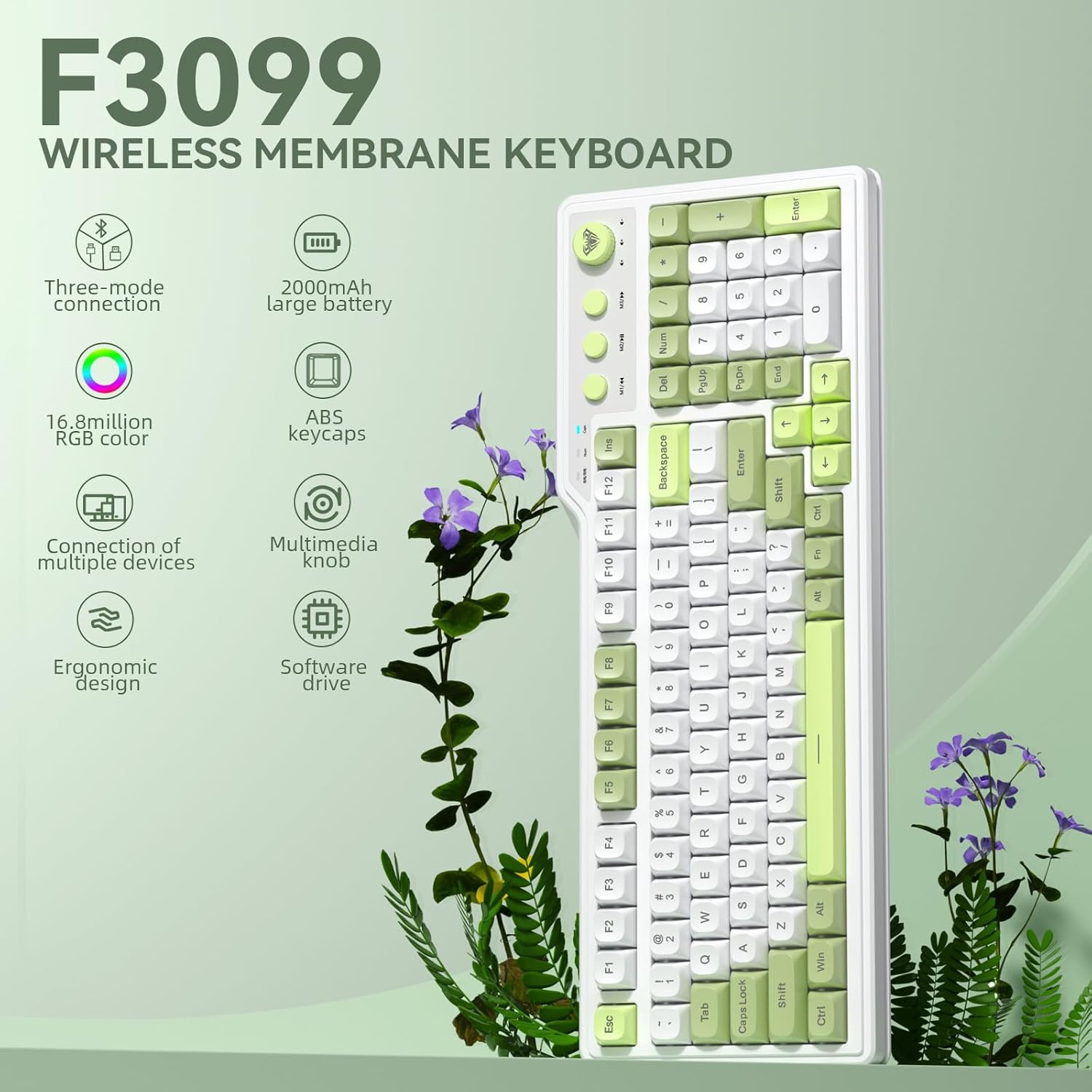
ምስል 1.1፡ አልቋልview of the AULA F3099 Wireless Membrane Keyboard, illustrating its triple-mode connection, 2000mAh battery, RGB color, multi-device support, multimedia knob, ergonomic design, and software driver capabilities.
2. የጥቅል ይዘቶች
ሁሉም እቃዎች በምርት ጥቅልዎ ውስጥ መኖራቸውን ያረጋግጡ፡-
- AULA F3099 Wireless Keyboard x 1
- የተጠቃሚ መመሪያ x1
- ዩኤስቢ-ሲ ኬብል x 1
- የቁልፍ መጎተቻ x 1
Video 2.1: An unboxing video demonstrating the contents of the AULA F3099 Wireless Keyboard package, including the keyboard, USB-C cable, and keycap puller.
3. ማዋቀር
The AULA F3099 keyboard supports three connection modes: 2.4GHz wireless, Bluetooth 5.0, and USB-C wired. Choose the mode that best suits your device and needs.
3.1. ማብራት / ማጥፋት
Locate the power switch on the back of the keyboard. Slide it to "ON" to power on the keyboard or "OFF" to power it down.
3.2. 2.4GHz ገመድ አልባ ሁነታ
- Locate the 2.4GHz USB receiver stored in the compartment on the back of the keyboard.
- የዩኤስቢ መቀበያውን በኮምፒውተርዎ ላይ ወዳለው የዩኤስቢ ወደብ ይሰኩት።
- በቁልፍ ሰሌዳው ላይ, ተጫን fn + ~ to switch to 2.4GHz wireless mode. The keyboard will automatically connect.

Image 3.1: Illustration of the keyboard's tri-mode connection capabilities, showing 2.4GHz wireless, Bluetooth 5.0, and USB-C wired connections to various devices.
3.3. የብሉቱዝ 5.0 ሁነታ
- ተጫን fn+1, fn+2, ወይም fn+3 የብሉቱዝ ቻናል ለመምረጥ። የጠቋሚው መብራቱ ብልጭ ድርግም ይላል፣ ይህም የማጣመሪያ ሁነታን ያሳያል።
- On your device (PC, laptop, smartphone, tablet), go to Bluetooth settings and search for "AULA F3099".
- ለማጣመር የቁልፍ ሰሌዳውን ይምረጡ። አንዴ ከተገናኘ በኋላ፣ የጠቋሚው መብራት ብልጭ ድርግም ማለት ያቆማል።
- The keyboard can save up to three different Bluetooth devices. Repeat the process for additional devices on different channels.
Note: Windows 7 and earlier systems do not support Bluetooth connections.
3.4. የዩኤስቢ-ሲ ገመድ ሁነታ
- የቀረበውን የዩኤስቢ-ሲ ገመድ ከኪቦርድዎ የዩኤስቢ-ሲ ወደብ እና ሌላኛውን ጫፍ ከኮምፒውተርዎ የዩኤስቢ ወደብ ጋር ያገናኙ።
- ተጫን fn+4 ወደ ባለገመድ ሁነታ ለመቀየር። የቁልፍ ሰሌዳው ለአገልግሎት ዝግጁ ይሆናል።
4. የአሠራር መመሪያዎች
4.1. Multifunction Knob & Media Keys
The keyboard features a dual-mode knob and dedicated media keys for enhanced control.
- የመቀየሪያ ሁነታዎች፡- Long-press the knob for 3 seconds to toggle between Gaming Mode and Office Mode.
- የጨዋታ ሁኔታ
- Press the knob to cycle through RGB backlight effects.
- Rotate the knob to adjust backlight brightness.
- M1/M2/M3 keys can be programmed for macros (see section 4.3).
- የቢሮ ሁነታ፡
- Rotate the knob to increase/decrease computer volume.
- Press the knob briefly to mute/unmute audio.
- M1 (Previous Song), M2 (Play/Pause), M3 (Next Song) keys function as standard multimedia controls.

ምስል 4.1፡ ዝርዝር view of the dual-mode multimedia knob and adjacent media keys, explaining their functionalities for both gaming and office environments.
Video 4.2: A demonstration of the F3099 Wireless Keyboard's media knob functionality, showcasing its use for volume control and backlight adjustments.
4.2. የRGB የኋላ መብራት መቆጣጠሪያ
The keyboard features multiple RGB lighting effects. Adjust them using the knob or shortcut keys:
- Fn + መጨረሻ፡ Adjust lighting colors (in constant light mode).
- Fn + PgUp: Adjust to the next light effect.
- Fn + PgDn፡ Adjust to the last light effect.
- Fn + [: Adjust lighting brightness up.
- Fn +]፡ Adjust lighting brightness down.
- Fn + -: Adjust lighting speed up.
- Fn + =: Adjust lighting speed down.
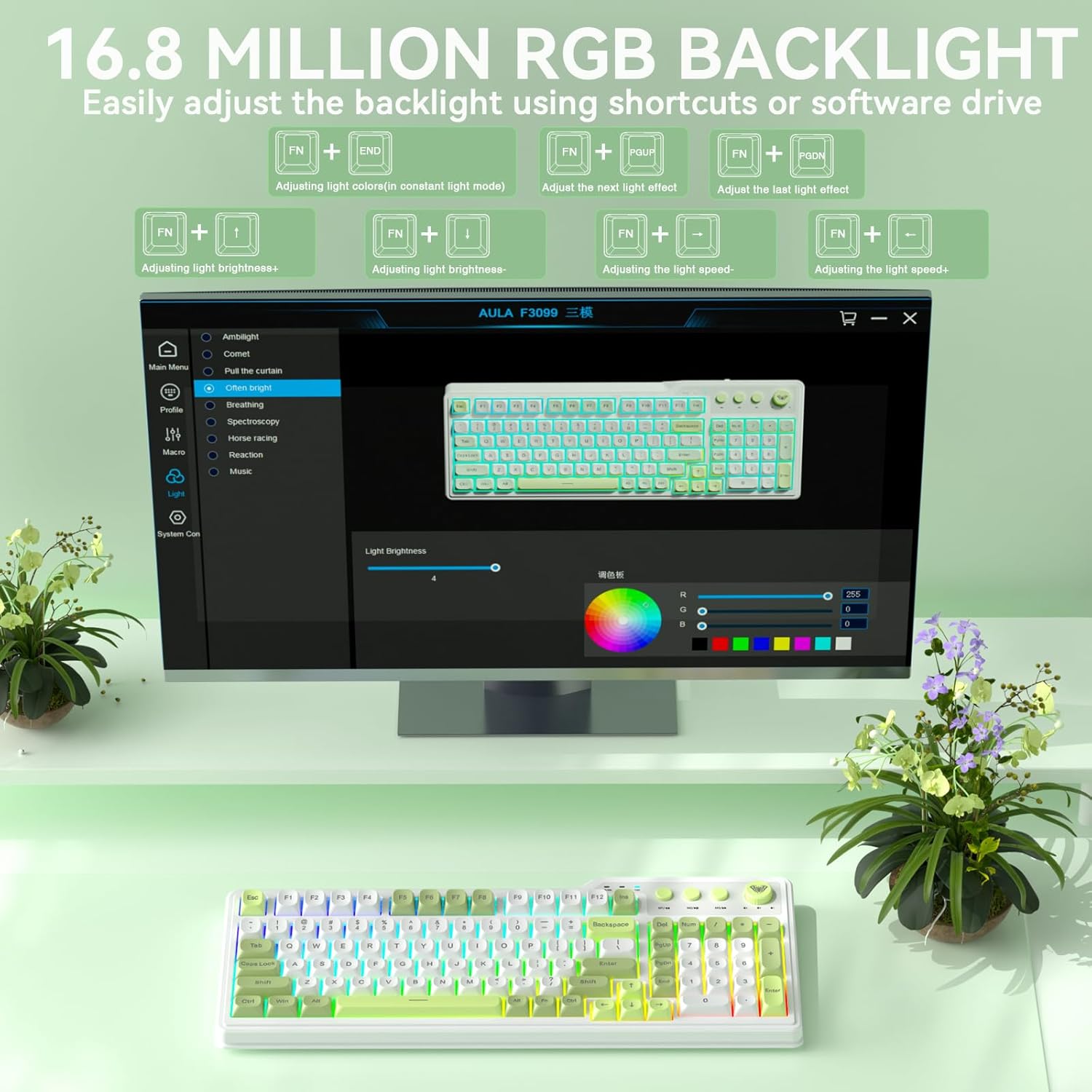
Image 4.3: Visual representation of the 16.8 million RGB backlighting, showing different lighting effects and the shortcut keys for adjustment.
4.3. Programmable Driver & Macro Customization
The F3099 keyboard supports full-key macro programming via its dedicated driver. This feature is available only when the keyboard is connected in wired mode on Windows systems.
- ነጂውን ከ፡ አውርድ bit.ly/m/corbobo
- Install the driver on your Windows system.
- Connect the keyboard via USB-C cable.
- Open the driver software to access macro customization, key remapping, and advanced RGB settings.

Image 4.4: The software driver interface for the AULA F3099, demonstrating options for macro recording, all-key programmability, and RGB settings.
5. ጥገና
5.1. ማጽዳት
- ከማጽዳትዎ በፊት የቁልፍ ሰሌዳውን ከሁሉም የኃይል ምንጮች ያላቅቁት.
- ለስላሳ፣ ከቆሸሸ ነፃ የሆነ ጨርቅ በትንሹ ተጠቀምampንጣፉን ለማጥፋት በውሃ ወይም ለስላሳ የጽዳት መፍትሄ.
- For dust and debris between keys, use compressed air or the provided keycap puller to remove keycaps for deeper cleaning.
5.2. የባትሪ ኃይል መሙላት
The keyboard is equipped with a rechargeable battery. Connect the USB-C cable to the keyboard and a power source (computer USB port or USB wall adapter) to charge. The charging indicator light will show the charging status.
5.3. የቁልፍ ክዳን ማስወገድ እና መትከል
Use the included keycap puller to safely remove and install keycaps for cleaning or customization.
Video 5.1: A short video demonstrating the method for installing accidentally detached keycaps, useful for maintenance and customization.
6. መላ መፈለግ
| ችግር | መፍትሄ |
|---|---|
| Keyboard not connecting via 2.4GHz wireless. | Ensure the USB receiver is securely plugged in and the keyboard is in 2.4GHz mode (fn + ~). Try a different USB port. |
| የቁልፍ ሰሌዳው በብሉቱዝ በኩል አይገናኝም። | የቁልፍ ሰሌዳው በብሉቱዝ ማጣመሪያ ሁነታ ላይ መሆኑን ያረጋግጡ (Fn + 1/2/3) and your device's Bluetooth is enabled. Forget the device on your computer and re-pair. Ensure your operating system supports Bluetooth 5.0. |
| ቁልፎች ምላሽ እየሰጡ አይደለም ወይም በስህተት እየተየቡ አይደሉም። | Check the connection mode (wired/wireless). Ensure the keyboard is charged. If using the programmable driver, verify macro settings. Restart the keyboard and computer. |
| RGB backlighting is not working or stuck. | Ensure the keyboard is powered on. Try cycling through lighting effects using Fn + PgUpብሩህነት በ Fn + [ or Fn +]. If using the driver, check lighting settings. |
| Programmable driver not working. | The driver only supports wired mode operation on Windows systems. Ensure the keyboard is connected via USB-C and your system is Windows. Reinstall the driver if necessary. |
7. ዝርዝሮች
| ባህሪ | ዝርዝር |
|---|---|
| የምርት ልኬቶች | 17.51"ኤል x 8.07" ዋ x 1.96" ኤች |
| የእቃው ክብደት | 2.57 ፓውንድ |
| አምራች | ኮርቦቦ |
| የንጥል ሞዴል ቁጥር | F3099 |
| ባትሪዎች | 1 መደበኛ ያልሆነ ባትሪ (ተጨምሯል) |
| የግንኙነት ቴክኖሎጂ | 2.4GHz, BT 5.0, USB-C |
| የቁልፍ ሰሌዳ መግለጫ | ሜምብራን |
| ልዩ ባህሪ | Backlit, Ergonomic, Rechargeable, Volume Roller |
| የቁልፍ ሰሌዳ የጀርባ ብርሃን ቀለም ድጋፍ | RGB (16.8 ሚሊዮን ቀለሞች) |
| ተስማሚ መሣሪያዎች | የጨዋታ ኮንሶል፣ ላፕቶፕ፣ ፒሲ፣ ስማርትፎን፣ ታብሌት |
8. ዋስትና እና ድጋፍ
For warranty information and technical support, please refer to the documentation included with your purchase or visit the official CORBOBO webጣቢያ. ለማንኛውም የዋስትና ጥያቄዎች የግዢ ማረጋገጫዎን ያስቀምጡ።