
መግቢያ
Thank you for choosing the Digitus DA-70919 USB-C 8K 12-Port Docking Station. This device is designed to expand the connectivity of your USB-C enabled laptop or computer, providing a comprehensive solution for video output, data transfer, network access, and power delivery. Please read this manual carefully to ensure proper installation and operation.
ምርት አልቋልview
The Digitus DA-70919 docking station offers 12 essential ports to enhance your workspace. It supports high-resolution video output, fast data transfer, and efficient power delivery to your host device.

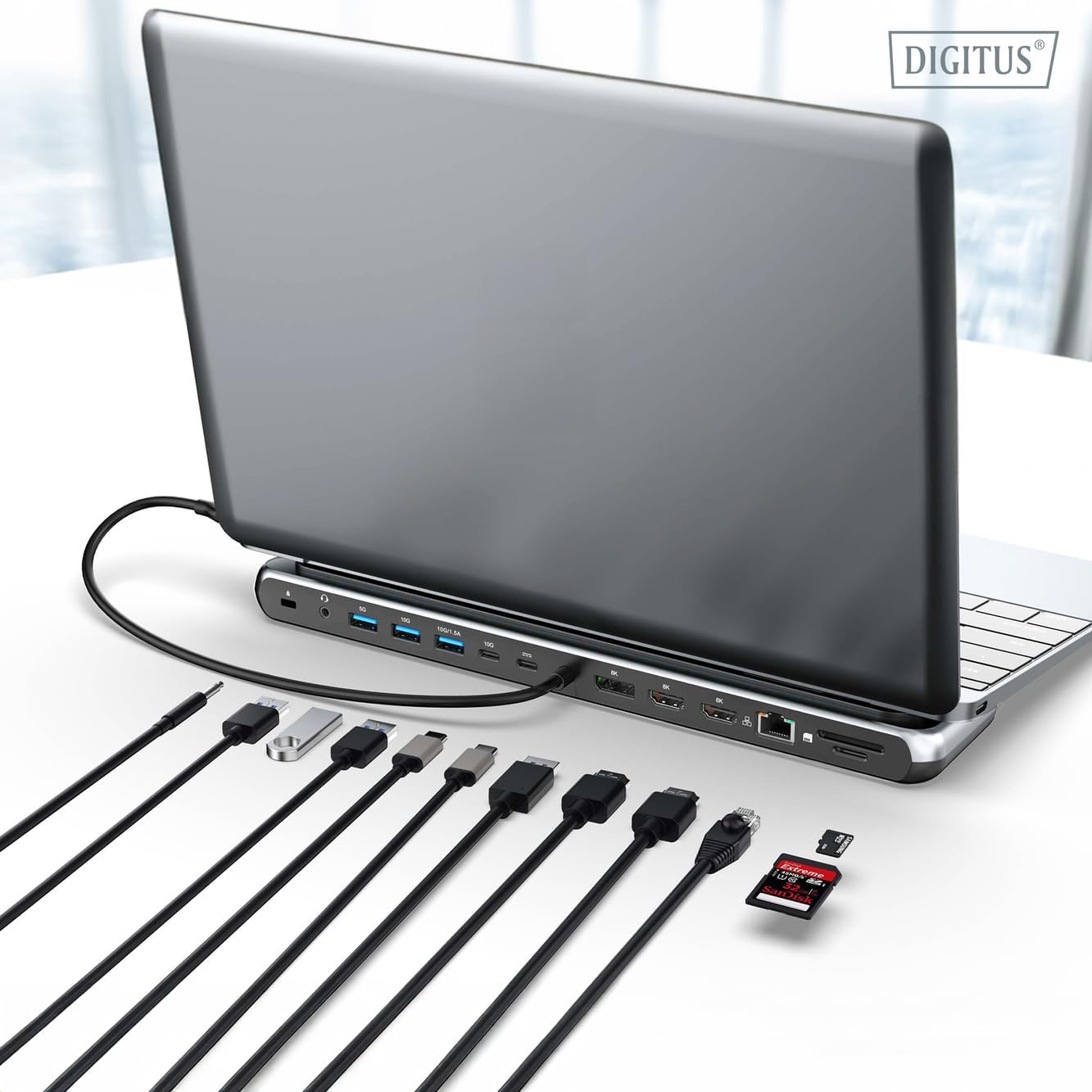
ምስል 1፡ Detailed diagram of the Digitus DA-70919 docking station ports and their functions. This diagram labels each of the 12 ports on the docking station, including Audio Jack, USB-A, USB-C, USB-C PD, DisplayPort, HDMI, RJ45 Gigabit Ethernet, and SD/MicroSD card slots, along with anti-theft protection.

ምስል 2፡ ፊት ለፊት view of the Digitus DA-70919 docking station showing all accessible ports. A clear view of the docking station's front panel, displaying the various input and output ports including USB-A, USB-C, HDMI, DisplayPort, Ethernet, and card readers.
ቁልፍ ባህሪዎች
- የቪዲዮ ውፅዓት፡- 2x HDMI, 1x DisplayPort (DP) supporting up to 8K/30Hz for single display, or multi-display configurations.
- የዩኤስቢ ውሂብ ወደቦች፡ 2x USB-A 3.2 Gen 2 (10Gbps), 1x USB-A 3.2 Gen 1 (5Gbps), 1x USB-C 3.2 Gen 2 (10Gbps).
- የኃይል አቅርቦት (PD): USB-C PD 3.0 port for charging your host laptop (up to 85W output).
- አውታረ መረብ፡ Gigabit Ethernet (RJ45) for stable wired internet connection.
- ካርድ አንባቢ፡- SD and MicroSD card slots with 104 MBps transfer speed.
- ኦዲዮ፡ 3.5mm audio jack for headphones or speakers.
የማዋቀር መመሪያዎች
Follow these steps to set up your Digitus DA-70919 docking station:
- Check Host USB-C Port Compatibility: Ensure your laptop's USB-C port supports DisplayPort Alternate Mode (DP Alt Mode) for video output and Power Delivery for charging. Without DP Alt Mode, video output will not function.

ምስል 3፡ Guide to USB-C port compatibility for DisplayPort Alternate Mode. This graphic explains which types of USB-C ports on your laptop support the full functionality of the docking station, specifically highlighting the requirement for DisplayPort Alternate Mode (DP Alt Mode) for video output.
- ከአስተናጋጅ መሣሪያ ጋር ይገናኙ፡ Connect the integrated USB-C cable from the docking station to the USB-C port on your laptop.
- የኃይል አስማሚን ያገናኙ (አማራጭ ግን የሚመከር)፦ If you wish to charge your laptop via the docking station or power high-demand peripherals, connect a USB-C Power Delivery adapter (not included, up to 100W recommended) to the USB-C PD input port on the docking station.
- ውጫዊ ማሳያዎችን ያገናኙ፡ Connect your monitors to the HDMI and/or DisplayPort outputs on the docking station using appropriate cables.
- ተያያዥ ነገሮች፡- Plug in your USB devices (keyboard, mouse, external drives), Ethernet cable, SD/MicroSD cards, and audio devices to the corresponding ports on the docking station.
- የአሽከርካሪ ጭነት; In most cases, the docking station is plug-and-play and does not require additional drivers. If prompted, allow your operating system to install any necessary drivers automatically.
የአሠራር መመሪያዎች
የማሳያ ሁነታዎች
The docking station supports various display configurations:
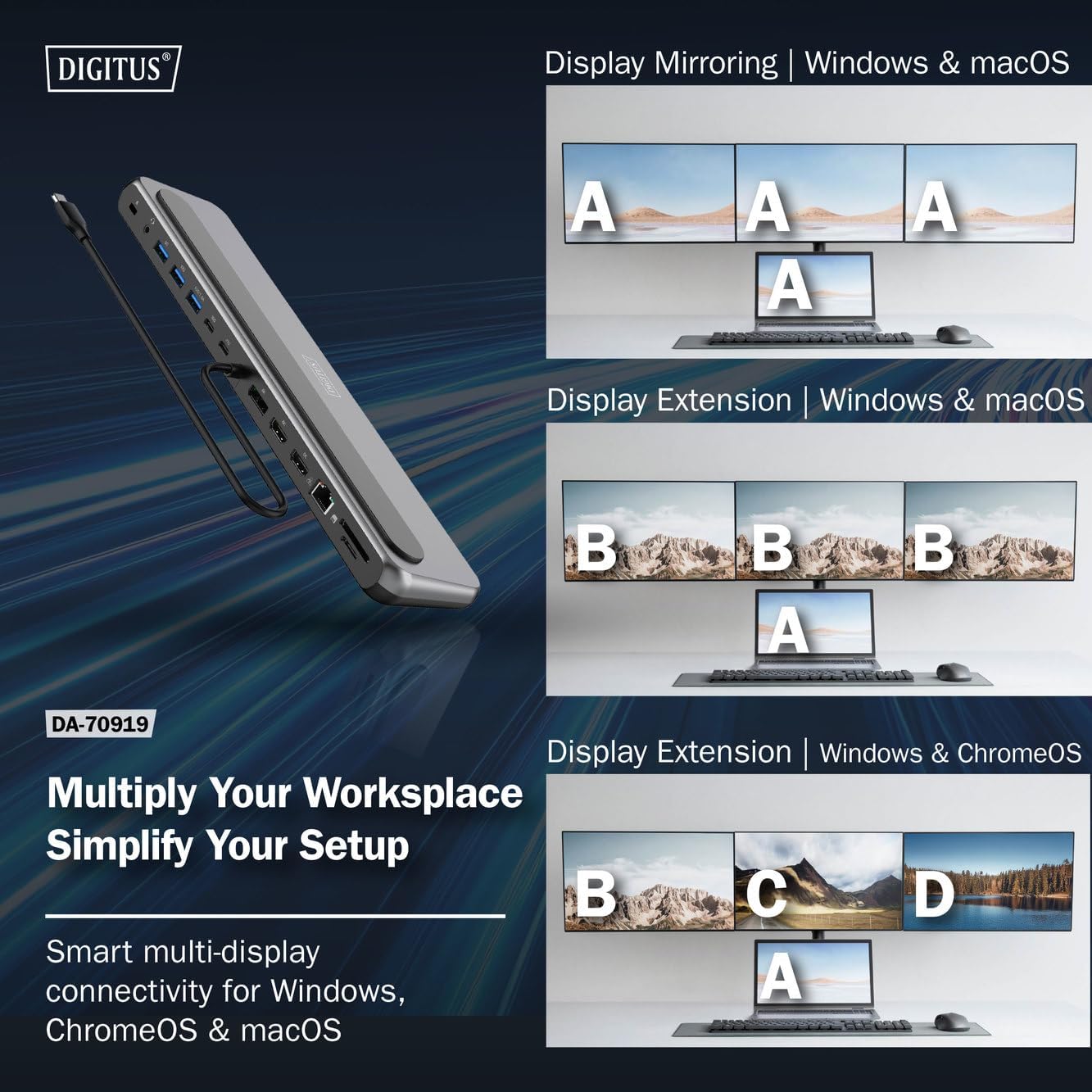
ምስል 4፡ Diagram showing display mirroring and extension modes for Windows, macOS, and ChromeOS. This image illustrates the various display configurations supported by the docking station, including mirroring your screen or extending it across multiple external monitors on Windows, macOS, and ChromeOS.
- MirrorMode፡ Duplicates your laptop's display onto the external monitors.
- Extend Mode (Windows/ChromeOS): Extends your desktop across multiple external monitors, allowing for a multi-tasking environment. Supports dual monitors (2x 4K/60Hz) and triple monitors (1x 4K/60Hz + 2x 4K/30Hz) in MST (Multi Stream Transport) mode.
- Extend Mode (macOS): macOS typically supports extended desktop to one external monitor, with other external monitors mirroring each other.
To configure display settings, access your operating system's display settings (e.g., Windows Display Settings, macOS System Preferences > Displays).
የውሂብ ማስተላለፍ
Utilize the USB-A and USB-C data ports for connecting external storage devices, keyboards, mice, and other USB peripherals. The USB 3.2 Gen 2 ports offer speeds up to 10Gbps, while the USB 3.2 Gen 1 port offers speeds up to 5Gbps.
የኃይል አቅርቦት
When a compatible USB-C PD power adapter is connected to the docking station's PD input port, the docking station can deliver up to 85W of power to charge your connected laptop. This allows you to power your laptop and peripherals through a single USB-C connection.
ምስል 5፡ Illustration of the docking station's fast charging capability via USB-C Power Delivery. This image demonstrates the Power Delivery function, showing a 100W input to the docking station and an 85W output to charge the connected laptop.
የአውታረ መረብ ግንኙነት
Connect an Ethernet cable to the RJ45 port for a stable and high-speed wired network connection (10/100/1000 Mbps Gigabit Ethernet).
የካርድ አንባቢዎች
Insert SD or MicroSD cards into the dedicated slots for quick access to photos, videos, and other files. The card readers support transfer speeds up to 104 MBps.
የድምጽ ውፅዓት
Connect your headphones or speakers to the 3.5mm audio jack for audio output.
ጥገና
- ማጽዳት፡ የመትከያ ጣቢያውን ወለል ለማጽዳት ለስላሳ እና ደረቅ ጨርቅ ይጠቀሙ። ፈሳሽ ማጽጃዎችን ወይም መሟሟቶችን ከመጠቀም ይቆጠቡ።
- ማከማቻ፡ የመትከያ ጣቢያውን ከፀሐይ ብርሃን እና ከፍተኛ የሙቀት መጠን ራቅ ባለ ቀዝቃዛና ደረቅ ቦታ ያስቀምጡ።
- አያያዝ፡ Avoid dropping or subjecting the device to strong impacts. Do not attempt to disassemble the docking station.
መላ መፈለግ
በዶክ ጣቢያዎ ላይ ችግሮች ካጋጠሙዎት፣ እባክዎን የሚከተሉትን የተለመዱ መፍትሄዎች ይመልከቱ፡
- ምንም የማሳያ ውጤት የለም፡
- የላፕቶፕዎ የዩኤስቢ-ሲ ወደብ DisplayPort አማራጭ ሁነታን እንደሚደግፍ ያረጋግጡ።
- Check all video cables (HDMI/DP) are securely connected to both the docking station and the monitor.
- ሞኒተሩ መብራቱን እና በትክክለኛው የግብዓት ምንጭ ላይ መዋቀሩን ያረጋግጡ።
- ችግሩን ለመለየት አንድ ሞኒተር በአንድ ጊዜ ለማገናኘት ይሞክሩ።
- የላፕቶፕዎን ግራፊክስ ነጂዎች ያዘምኑ።
- ለላፕቶፕ የኃይል አቅርቦት አለመኖር;
- Ensure a compatible USB-C PD power adapter (up to 100W) is connected to the docking station's PD input port.
- የላፕቶፕዎ የዩኤስቢ-ሲ ወደብ የኃይል አቅርቦትን የሚደግፍ መሆኑን ያረጋግጡ።
- የኃይል አስማሚውን እና ገመዱን ለጉዳት ይፈትሹ።
- የዩኤስቢ መሣሪያዎች ያልታወቁ፡-
- የዩኤስቢ መሣሪያውን በዶክ ጣቢያው ላይ ካለ የተለየ ወደብ ጋር እንደገና ያገናኙ።
- Ensure the docking station is properly connected to the host laptop.
- If using a high-power USB device, ensure the docking station is connected to an external power adapter.
- የኤተርኔት ግንኙነት ጉዳዮች፡-
- የኢተርኔት ገመድ ከሁለቱም የመትከያ ጣቢያ እና ከራውተር/ሞደምዎ ጋር ያለውን ግንኙነት ያረጋግጡ።
- በእርስዎ ላፕቶፕ ላይ የአውታረ መረብ ቅንብሮችን ያረጋግጡ።
- ራውተርዎን/ሞደምዎን እና ላፕቶፕዎን እንደገና ያስጀምሩ።
- የካርድ አንባቢ አይሰራም፦
- Ensure the SD/MicroSD card is inserted correctly and fully.
- Test the card with another device to confirm it is not damaged.
ዝርዝሮች
| ባህሪ | ዝርዝር መግለጫ |
|---|---|
| ሞዴል | DA-70919 |
| የአስተናጋጅ ግንኙነት | ዩኤስቢ-ሲ (የተቀናጀ ገመድ) |
| የቪዲዮ ውፅዓት | 2x HDMI፣ 1x DisplayPort (DP) |
| Max. Single Display Resolution | 8ኬ (7680x4320) @ 30Hz |
| Max. Dual Display Resolution (MST) | 2x 4K (3840x2160) @ 60Hz |
| Max. Triple Display Resolution (MST) | 1x 4K@60Hz + 2x 4K@30Hz |
| የዩኤስቢ-ኤ ዳታ ወደቦች | 2x USB 3.2 Gen 2 (10Gbps), 1x USB 3.2 Gen 1 (5Gbps) |
| የዩኤስቢ-ሲ ውሂብ ወደብ | 1 x ዩኤስቢ 3.2 Gen 2 (10Gbps) |
| የኃይል አቅርቦት (PD) ግብዓት | USB-C PD 3.0 (up to 100W) |
| Power Delivery (PD) Output to Host | እስከ 85 ዋ |
| ኤተርኔት | RJ45 Gigabit (10/100/1000 Mbps) |
| የካርድ አንባቢዎች | SD, MicroSD (104 MBps) |
| ኦዲዮ | 1 x 3.5 ሚሜ የድምጽ ጃክ |
| ተኳኋኝነት | ዊንዶውስ ፣ ማክሮስ ፣ ChromeOS |
| የአሠራር ሙቀት | ከ0°ሴ እስከ 45°ሴ (32°F እስከ 113°F) |
| የማከማቻ ሙቀት | -10°C እስከ 70°C (14°F እስከ 158°F) |
ዋስትና እና ድጋፍ
The Digitus DA-70919 USB-C 8K 12-Port Docking Station comes with a የ 2 ዓመት ዋስትና ከተገዛበት ቀን ጀምሮ። ይህ ዋስትና የማምረቻ ጉድለቶችን የሚሸፍን ሲሆን ምርቱ በመደበኛ አጠቃቀም ወቅት እንደተገለጸው እንዲሠራ ያረጋግጣል።
For technical support, warranty claims, or further assistance, please contact your retailer or visit the official Digitus website for contact information. Please have your product model number (DA-70919) and proof of purchase ready when seeking support.


