
EDJO MK30
EDJO MK30 Wireless Keyboard and Mouse Combo Instruction Manual
Model: MK30 | Brand: EDJO
መግቢያ
This manual provides detailed instructions for the setup, operation, maintenance, and troubleshooting of your EDJO MK30 Wireless Keyboard and Mouse Combo. This combo offers a seamless and efficient user experience with its advanced features.
Key features include 7 switchable backlit effects for the keyboard, an RGB mouse with automatic color changes, rechargeable batteries, a multi-functional phone and tablet holder, and silent keys for a quiet working environment. It supports dual system layouts for both Mac and Windows, ensuring broad compatibility.
ማዋቀር
የጥቅል ይዘቶች፡-
- ገመድ አልባ ቁልፍ ሰሌዳ x 1
- ገመድ አልባ መዳፊት x 1
- USB-C ባትሪ መሙያ ገመድ x 1
- የዩኤስቢ ተቀባይ x 1
- የተጠቃሚ መመሪያ x1

Image: Contents of the EDJO MK30 Wireless Keyboard and Mouse Combo package, including the keyboard, mouse, USB-C cable, USB receiver, and user manual.
የመጀመሪያ ክፍያ
Upon receiving the product, fully charge both the keyboard and mouse using the supplied USB-C charging cable. This helps to extend battery life and ensures optimal performance. If you experience delayed responses or sticky keys, it may be due to low battery voltage; fully charge before further use.

Image: The EDJO MK30 wireless keyboard and mouse connected to a USB-C charging cable, illustrating the rechargeable feature and indicating charging times and auto-sleep functions.
መሳሪያዎችን ማገናኘት;
- Locate the USB receiver: The single USB receiver for both the keyboard and mouse is stored in the back of the mouse. Gently remove it.
- Plug the USB receiver into an available USB port on your computer (PC, Desktop, Laptop).
- Turn on the keyboard and mouse: Ensure both devices are switched to the "ON" position. They should automatically connect to your computer.
The 2.4G wireless technology provides a stable, lag-free connection up to 33 feet.

ምስል፡ መቀራረብ view of the EDJO MK30 wireless mouse, showing the USB receiver stored in a compartment on its underside, ready for connection.
Video: A user demonstrates the setup process, including removing the USB receiver from the mouse and plugging it into a computer, highlighting the ease of connection for the EDJO MK30 Wireless Keyboard and Mouse Combo.
የአሠራር መመሪያዎች
የቁልፍ ሰሌዳ የጀርባ ብርሃን መቆጣጠሪያ;
The keyboard features 7 switchable backlight colors. Use the dedicated backlight control keys (often marked with a lightbulb icon or similar) to cycle through colors and adjust brightness levels (Off, Low, Mid, High). This enhances visibility in low-light conditions and improves typing accuracy.
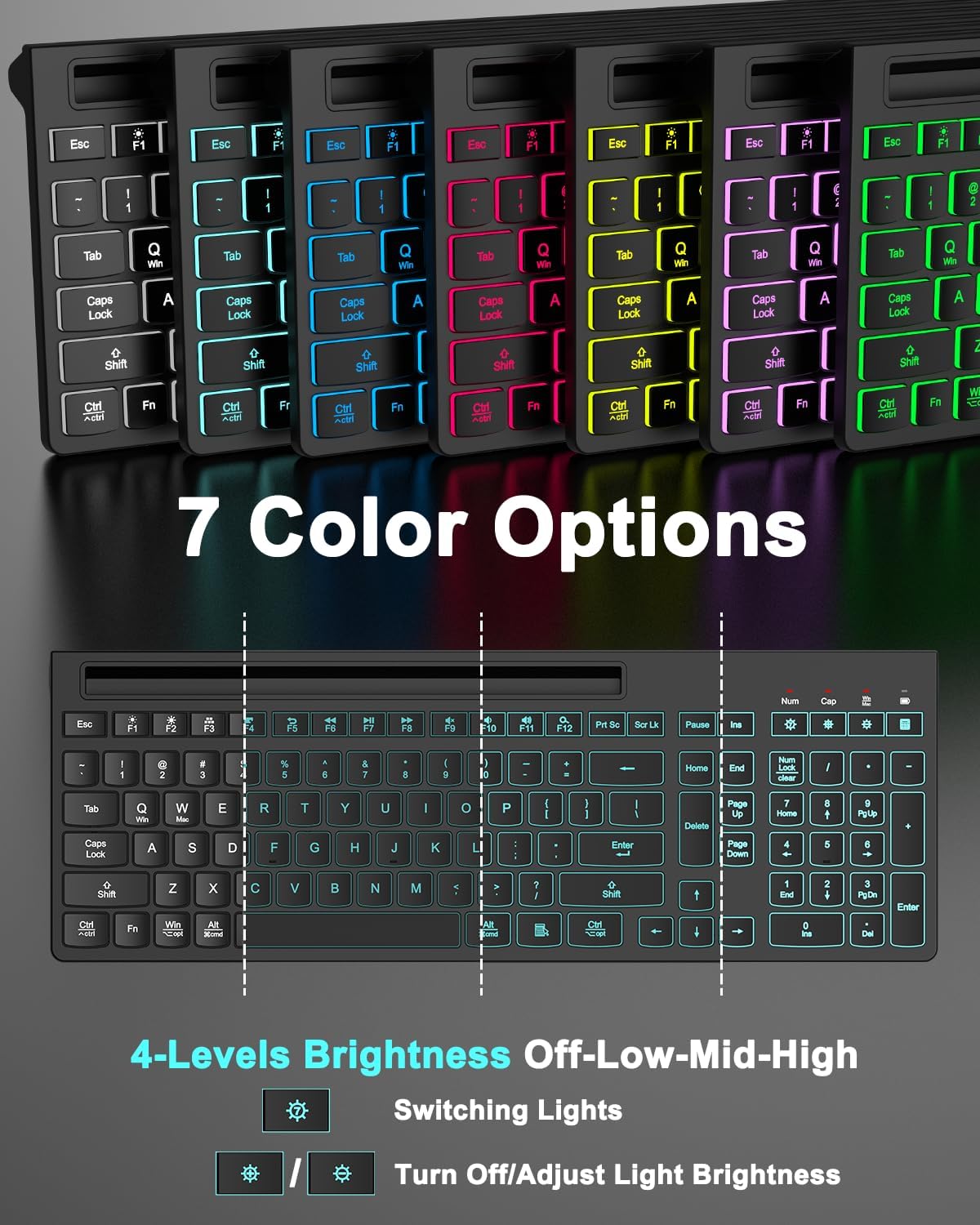
Image: The EDJO MK30 wireless keyboard displaying its 7 color options for backlighting, along with controls for brightness adjustment and turning lights on/off.
Mouse RGB Lighting:
The mouse features RGB lighting that automatically changes colors, adding a visual flair to your workspace.
Dual System Layout Switching:
Easily switch between Mac and Windows system layouts with a single touch. Refer to the keyboard's function keys for specific commands (e.g., Fn+Q for Windows, Fn+W for Mac) to ensure full compatibility and proper key mapping.

Image: The EDJO MK30 keyboard illustrating how to switch between Mac OS and Windows layouts using specific key combinations (Fn+Q/W), designed for diverse operating system needs.
Mouse DPI Settings and Buttons:
The mouse is designed for comfort and efficiency, fitting the curve of your hand. It offers 3 adjustable DPI settings (800/1200/1600) to control cursor speed and precision. Utilize the forward/backward buttons for quicker web ማሰስ እና አሰሳ።

ምስል: ዝርዝር view of the EDJO MK30 wireless mouse, highlighting its 6-button design, ergonomic shape, and 3 DPI settings (800/1200/1600) for improved efficiency.
Multi-functional Device Holder:
The keyboard features an integrated phone and tablet holder, providing a convenient space to place your mobile devices. This allows you to easily view messages or other information without picking up your phone, facilitating multitasking, charging, and reading.

Image: The EDJO MK30 wireless keyboard featuring a 9.76-inch phone and tablet holder, demonstrating how it can hold a smartphone for convenient multitasking.
ጸጥ ያለ አሠራር;
The keyboard is designed with increased key stability to reduce noise and optimize responsiveness, ensuring you feel each keystroke without hearing it. The mouse utilizes silent micro-motion technology, making its clicks almost completely silent. This design minimizes disturbance to others in shared environments.
ጥገና
በመሙላት ላይ፡
Recharge both the keyboard and mouse using the provided USB-C charging cable when battery levels are low. The smart auto-sleep function and power switches help conserve energy.
ራስ-እንቅልፍ ተግባር;
- የቁልፍ ሰሌዳ፡ The keyboard backlight will turn off after 1.5 minutes of inactivity.
- አይጥ፡ The mouse will enter sleep mode after 15 minutes of inactivity. Press any key to wake it up.
To further conserve battery, turn off the power supply for both devices if they will not be used for an extended period.
መላ መፈለግ
Delayed Responses or Sticky Keys:
If you experience delayed responses or keys that feel sticky, it is likely due to low battery voltage. Fully charge both your keyboard and mouse before use to ensure smooth performance.
የግንኙነት ጉዳዮች፡-
Ensure the USB receiver is securely plugged into a functional USB port on your computer. Verify that both the keyboard and mouse are switched to the "ON" position. If issues persist, try plugging the USB receiver into a different USB port or restarting your computer.
ዝርዝሮች
| ባህሪ | ዝርዝር |
|---|---|
| የምርት ልኬቶች | 16.42 x 5.79 x 0.95 ኢንች |
| የእቃው ክብደት | 1.59 ፓውንድ |
| የንጥል ሞዴል ቁጥር | MK30 |
| ባትሪዎች | 1 መደበኛ ያልሆነ ባትሪ (ተጨምሯል) |
| የምርት ስም | EDJO |
| ቀለም | ጥቁር |
| የግንኙነት ቴክኖሎጂ | USB (2.4GHz Wireless) |
| ልዩ ባህሪያት | Backlit, Rechargeable, Phone Holder, Ergonomic Tilt Angle, Silent Keys |
| ተስማሚ መሣሪያዎች | Laptop, Personal Computer, Television (Compatible with Windows, Linux, Chrome, and Mac. Note: Multimedia keys may not be fully compatible with Mac OS systems) |
ዋስትና እና ድጋፍ
The EDJO MK30 Wireless Keyboard and Mouse Combo comes with a ከሽያጭ በኋላ ለ12 ወራት ነፃ አገልግሎት. If you encounter any issues or require support, please contact us directly. We are committed to resolving any concerns you may have, even beyond the standard Amazon return period.
Ask a question about this manual
Ask about setup, troubleshooting, compatibility, parts, safety, or missing instructions. Manuals+ will review the question and use this page’s manual context to help answer it.